We Couldn’t Process Your Payment Facebook Ads: What It Means and How to Fix It

If you see “we couldn’t process your payment” in Facebook Ads Manager, Meta has rejected, paused, or failed to verify the payment method attached to your ad account. The cause is usually an expired card, insufficient available funds, a bank security block, an unpaid balance, or an account-level billing restriction—not necessarily a problem with your ad.
$ part ofFacebook Ad Account Problems: How to Fix Every Common IssueThe complete guide this article belongs toOpen guide →Key Takeaways
- Check Billing & payments first to see whether the issue is a declined charge, overdue balance, or restricted account.
- Confirm the card number, expiration date, security code, billing address, and available credit with your bank.
- Pay any outstanding balance before repeatedly trying a new campaign or payment method.
- Add a backup method, such as another card or PayPal, but remove duplicates and payment methods you can’t verify.
- Avoid repeated rapid retries; they can trigger additional bank declines or account-security checks.
- Contact Meta support only after collecting the exact error, payment ID, ad account ID, and screenshots.
What the Message Means
The message means Meta attempted to charge your ad account or authorize a payment and didn’t receive approval. Facebook Ads may stop delivering immediately, or it may let existing campaigns continue briefly while it retries the charge.
The wording is broad. It doesn’t identify whether the failure came from your bank, PayPal, Meta’s billing system, or an account restriction. You need to inspect the billing details rather than treating the notice as proof that your card is defective.
Common versions include:
- “Payment failed”
- “We couldn’t process your payment”
- “Your ads have been paused”
- “There’s a problem with your payment method”
- “Your account has an outstanding balance”
- “Your ad account has been disabled”
A failed charge is different from a disabled ad account. A failed charge may be fixed by updating the card. A disabled account may require identity verification, business verification, or an appeal.
Meta may also use automatic billing, manual payments, available funds, or monthly invoicing depending on your country, account history, and eligibility. That changes when money is requested, but the practical troubleshooting process is similar: find the failed transaction, determine who rejected it, and resolve that specific cause.
Check Ads Manager First
Start in the ad account that displays the warning. Don’t assume the payment method on your personal Facebook profile is the one used for advertising.
Open Ads Manager, select the correct business or ad account, and look for the payment or billing area. Depending on Meta’s current interface, it may appear as:
- Billing & payments
- Payment settings
- Billing
- Business settings
- Account overview
- Payment activity
Review the account selector carefully if you manage several businesses. A card can work on one ad account and fail on another because the accounts have different currencies, balances, spending limits, or risk reviews.
| What you see | Most likely meaning | First action |
|---|---|---|
| Payment failed | Bank, card, PayPal, or processing problem | Check the payment method and bank |
| Amount due or outstanding balance | Meta hasn’t collected an earlier charge | Pay the balance before launching again |
| Ads paused for payment | Delivery stopped after a failed collection attempt | Resolve the failed transaction |
| Payment method unavailable | Card or account can’t currently be used | Add a valid method and verify details |
| Ad account disabled | Broader policy, security, or billing restriction | Review the account notice and appeal if appropriate |
| Pending payment | Authorization or processing isn’t complete | Wait, then confirm with the bank before retrying |
Look at payment activity, not only the red banner. Record the charge date, amount, currency, payment method, and transaction status. A pending authorization can look different from a hard decline, and retrying a pending charge may create duplicate holds.
Also check whether the notification is displayed inside Ads Manager or arrives through an email or message. Treat unexpected payment links as suspicious. Sign in directly through the official Meta website instead of entering card details from a message.
Why Was Payment Declined?
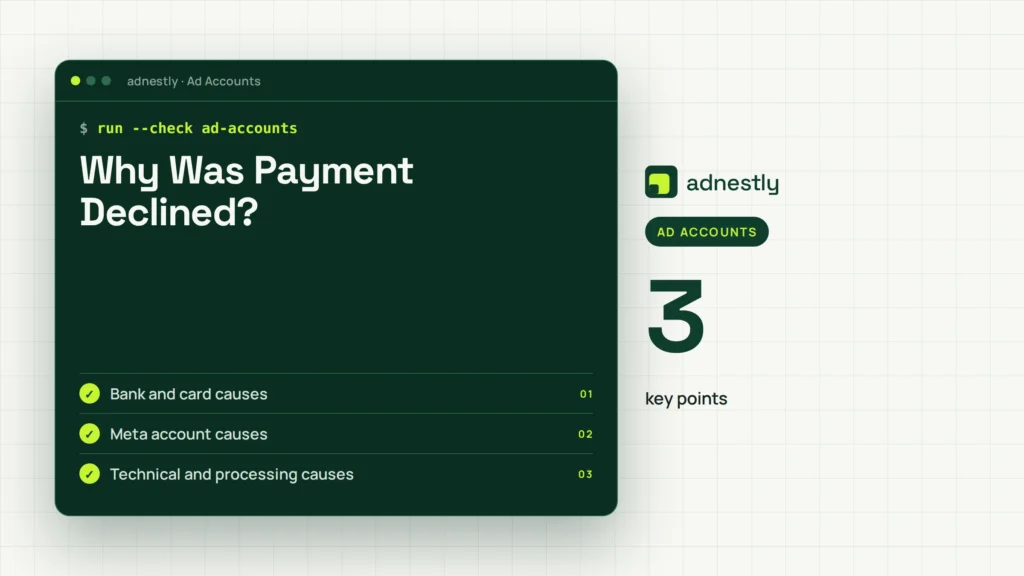
A Facebook Ads payment can fail for several separate reasons. The bank usually knows the precise decline code, while Ads Manager may show only a general error.
Bank and card causes
The most common causes include:
- Insufficient funds in a checking account or debit-card account
- Low available credit even though the card’s total limit looks high
- An expired Visa, Mastercard, American Express, or Discover card
- A replaced card whose old number is still saved in Meta
- Incorrect card number, expiration date, or security code
- A billing address or ZIP code that doesn’t match bank records
- International, online, recurring, or digital-ad charges blocked by the issuer
- A daily spending, cash, or transaction limit
- A frozen card, fraud alert, or bank security review
A debit card can fail even when money is present if the bank blocks recurring or international merchant charges. A credit card can fail because of a temporary authorization hold, pending transactions, or a reduced available balance.
Meta account causes
The payment method may be valid while the ad account has another problem:
- Unpaid balance from a previous campaign
- An ad account spending limit has been reached
- A business payment profile needs verification
- Unusual login, location, or payment behavior triggered a security review
- The ad account, business, or user is restricted
- The account currency and payment method don’t align
- A payment method is attached to a different ad account
- Multiple failed attempts caused a temporary payment review
Technical and processing causes
Less common possibilities include a temporary Meta billing outage, an expired PayPal authorization, a bank’s brief service interruption, or a network timeout during checkout. These are harder to diagnose because the same generic error may appear during a short-lived system problem.
Don’t change five things at once. If you replace the card, alter the billing address, switch browsers, and add PayPal simultaneously, you may not know which action fixed—or worsened—the issue.
Fix Your Payment Method for Facebook Ads When Payments Won’t Process
Use the error details and payment activity to choose the least disruptive fix.
Update an existing card
Open the payment settings for the affected ad account and select the card. Confirm every field against the bank’s records:
- Card number
- Expiration month and year
- Security code
- Cardholder name
- Billing street address
- City, state, country, and ZIP code
If the card expired, replace it rather than editing only the expiration date when the bank issued a new card number. If the card was lost, stolen, or replaced, delete the old method after adding the new one.
Contact the issuer and ask whether it blocked a recurring, online, international, or advertising-related transaction. Ask whether the available credit or balance covers the full charge, including any temporary authorization.
Add a backup method
A second payment method can prevent another interruption, but it should be a genuine backup—not a collection of unverified cards. Use a business-owned method where possible so the cardholder, billing address, and company records are consistent.
| Payment option | Useful when | Check before adding |
|---|---|---|
| Credit card | You need predictable recurring billing | Available credit, recurring charges, online use |
| Debit card | You want charges taken from a bank account | Daily limits, balance, international transactions |
| PayPal | Your card repeatedly fails directly | Funding source, authorization, account name |
| Manual payment balance | You prefer to pre-fund eligible accounts | Country eligibility, minimum top-up, balance |
| Business card | Several staff manage advertising | Cardholder access and company billing records |
Don’t use a card belonging to someone who can’t complete verification if Meta asks for documentation. A mismatch between account ownership and payment ownership can create a second review.
Remove duplicate or stale methods
Old cards can remain attached after a replacement. They can also be selected as the primary method unexpectedly. Keep one primary method and one reliable backup, then remove methods that are expired, canceled, or unfamiliar.
Warning: Never add a payment method that you don’t own or have permission to use. A dispute from the cardholder can leave the ad account with an unpaid balance and additional restrictions.
Clear the Outstanding Balance
If Ads Manager shows money due, settle that balance before troubleshooting campaign settings. Meta may continue rejecting new charges until the earlier amount is paid.
Use the payment activity screen to identify whether the balance is:
- A completed ad charge that was later reversed
- A failed automatic payment
- A manual-payment shortfall
- A tax or currency-related adjustment
- A charge under review
- A balance associated with another ad account
Select the correct account before paying. Businesses often have several ad accounts with similar names, and paying one account doesn’t necessarily clear another.
After a successful payment, allow time for the balance and account status to update. Don’t immediately submit the same charge repeatedly if the page still displays the old warning. Refresh Ads Manager, sign out and back in, and check payment activity before making another attempt.
If the card shows a pending authorization but Meta still reports a failed payment, ask the bank whether the hold will disappear automatically. A pending hold isn’t always a completed payment. Avoid disputing a legitimate charge until you know whether it posted, reversed, or remains pending.
The account may stay paused until the full balance clears. Paying only part of the amount may not restore delivery.
Check Limits and Account Restrictions
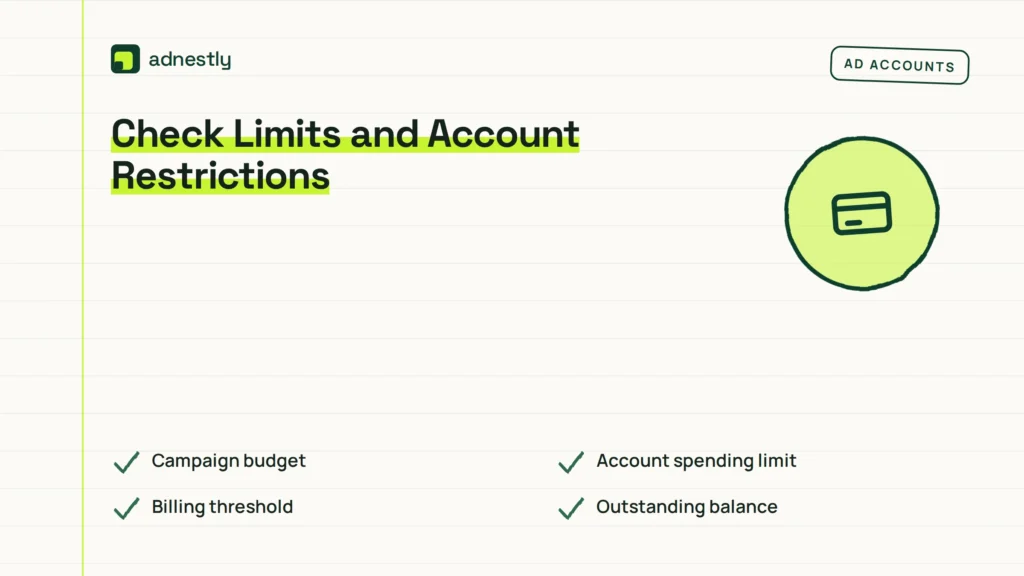
Payment problems sometimes appear alongside limits that aren’t strictly card problems. Check the account’s spending limit, campaign budget, billing threshold, and any warning in Account Quality or Business Support Home.
Important distinctions include:
- Campaign budget: The amount a particular campaign can spend.
- Account spending limit: A ceiling applied across the ad account.
- Billing threshold: The level at which Meta attempts an automatic charge.
- Outstanding balance: Money already owed after an earlier charge failed.
- Payment review: A security check that can block billing temporarily.
A low spending limit may stop delivery without indicating a card decline. Conversely, raising a campaign budget doesn’t fix an unpaid balance or blocked payment method.
Look for notices involving:
- Business verification
- Identity confirmation
- Two-factor authentication
- Restricted ad account
- Disabled payment profile
- Suspicious activity
- Policy or integrity review
Complete legitimate verification through Ads Manager or Business Settings. Don’t send identity documents to an email address that you can’t verify as an official Meta support channel.
If the account was recently created, changed ownership, switched countries, or began spending much more than usual, additional review is more plausible. Make sure your business name, website, domain, payment profile, and account administrator information are consistent.
Retry Without Making It Worse
A careful retry is better than repeatedly clicking “Pay now.” Before trying again, close unnecessary browser tabs, sign in to the correct business, and use a current browser with extensions temporarily disabled.
Follow this sequence:
- Confirm the outstanding amount and currency.
- Verify the card with the issuer.
- Update or add one valid payment method.
- Set it as primary if the account requires a primary method.
- Submit the payment once.
- Wait for a status change.
- Check payment activity and campaign delivery.
- Restart or edit campaigns only after billing is clear.
Try a different network only if the page itself is failing to load. Don’t use a VPN or unusual location while resolving a security-sensitive billing issue; that can create another location mismatch.
If the first method fails, wait for the bank or Meta status to update before trying the backup. Repeated identical attempts may create multiple pending authorizations even when only one payment eventually posts.
| Retry result | What to do next | What not to do |
|---|---|---|
| Payment succeeds, ads remain paused | Refresh account status and review delivery | Create several replacement campaigns |
| Payment remains pending | Ask the bank about authorization status | Submit repeated payments |
| Card declines again | Use the bank’s decline explanation | Assume Meta alone caused it |
| New method is rejected | Check ownership and billing details | Add many unrelated cards |
| Account stays restricted | Follow the displayed review process | Open duplicate accounts to bypass it |
| Balance disappears but warning remains | Wait, refresh, and document the status | Dispute a legitimate completed charge |
Contact Meta Support
Contact support when the card issuer confirms approval, the balance remains unresolved, or the ad account is restricted after payment succeeds. Use the support path available inside Business Help or the account’s support area.
Prepare a concise evidence package:
- Ad account ID
- Business portfolio ID, if applicable
- Exact error wording
- Date and time of each attempt
- Amount and currency
- Last four digits of the payment method only
- Transaction or payment reference
- Screenshot showing the billing status
- Bank confirmation that the charge was approved or not blocked
- Browser, device, and location used
Never send a full card number, security code, online-banking password, or one-time passcode to support. Mask screenshots so only the information needed for diagnosis is visible.
Explain what you already tried. For example: “The bank approved online recurring charges, the balance is $X, the payment method ends in 1234, and the account still shows payment failed after one retry.” That’s more useful than saying only that Facebook billing doesn’t work.
If Meta says the account is restricted, ask for the specific restriction category and the required review action. Don’t open a new account to evade a restriction; it can connect the new account to the same business and make resolution harder.
Meta’s own guidance on failed payment troubleshooting is a useful reference when the account notice gives only a general decline message.
Prevent Future Payment Failures
Prevention is mostly account housekeeping. Review billing before launching a major promotion, changing a campaign from a small test to a large budget, or replacing a business card.
Use this routine:
- Keep a backup card approved for online and recurring charges.
- Set calendar reminders before cards expire.
- Review payment activity weekly during active campaigns.
- Keep sufficient available credit or account balance.
- Use one consistent business billing address.
- Enable bank notifications for attempted charges.
- Maintain access to the business email and administrators.
- Turn on two-factor authentication for administrators.
- Remove former employees from payment and business access.
- Document the account ID and payment profile details.
Before a high-spend launch, run a small campaign or confirm that the account has recently collected a payment successfully. A small successful charge doesn’t guarantee every future charge will pass, but it can reveal an expired card or account restriction before an important launch.
Keep records of receipts, invoices, refunds, and disputes. If an employee changes the primary payment method, record who made the change and why. Clear ownership reduces confusion when a bank asks the cardholder to verify an attempted charge.
Avoid constantly switching currencies, countries, business entities, and payment methods. Legitimate businesses may need those changes, but each one can produce extra verification or reconciliation work.
Related guides
- Facebook Ads Payment Declined: Every Reason and Fix
- Your Payment Method Was Declined Facebook Ads: How to Fix It
- Facebook Ads Card Not Accepted in Your Country: Fixes
Frequently Asked Questions
Why is my Facebook ad payment being declined?
The usual causes are insufficient available funds, an expired card, incorrect billing details, a bank fraud block, an unpaid balance, or a restricted ad account. Check the exact payment activity and call the card issuer before adding multiple new payment methods.
How do I fix a failed payment on Facebook Ads?
Open the affected ad account’s Billing & payments area, identify the failed transaction, update or replace the payment method, and pay any outstanding balance. Then wait for the billing status to refresh before restarting paused campaigns.
Why does my card work everywhere else but not on Facebook?
Banks may separately block recurring, online, international, or advertising-related charges. The card may also have insufficient available credit, an address mismatch, or a temporary fraud hold. Ask the issuer about the specific attempted Meta transaction.
Can I use PayPal for Facebook advertising?
PayPal may be available depending on your country, account type, and Meta’s current payment options. Confirm that the PayPal account is verified, funded, and authorized for recurring payments. Availability can differ between ad accounts.
How long does it take for Facebook Ads billing to update?
A successful payment may appear quickly, but a pending authorization, bank review, or account restriction can delay the status. Refresh the billing page, check payment activity, and avoid repeated retries while a charge is still pending.
Will my ads restart after I pay the balance?
Often they can resume after the balance clears, but payment alone doesn’t guarantee delivery. Check whether the campaign is active, the ad account remains restricted, the budget is available, and the ads passed review.
Conclusion
Open the affected ad account now, record the exact failed transaction and balance, then ask your bank about that specific charge before changing anything else. Once the bank confirms the payment path, make one controlled update in Ads Manager and save the resulting status for support if the warning remains.

Aaron Kelly writes about Facebook tools, account management, and business advertising. His content covers account security, Facebook Ad Accounts, Business Manager setup, Pixel and conversion tracking, Business Manager verification, and admin profile verification. He focuses on explaining technical processes and common account issues in practical terms, helping businesses and advertisers manage their Facebook assets more effectively and build a more secure, reliable advertising setup.
Checked against Meta’s own documentation. How we write and update guides