Facebook Ad Account Disabled for Unusual Activity: What It Means

Meta’s automated security checks most often disable an ad account after a login, payment, or account change looks unusual; an ad account disabled for unusual activity usually means a temporary restriction while Meta checks the signal. You shouldn’t keep launching ads while the restriction is active, because failed retries can add more review signals. In the next five minutes, open Meta Business Suite, check Account Quality, and read the exact restriction message, affected asset, and review button. Don’t create a replacement account or use a VPN to hide your location. Those actions can make the review harder.
$ part ofFacebook Ad Account Problems: How to Fix Every Common IssueThe complete guide this article belongs toOpen guide →What unusual activity means for ad accounts
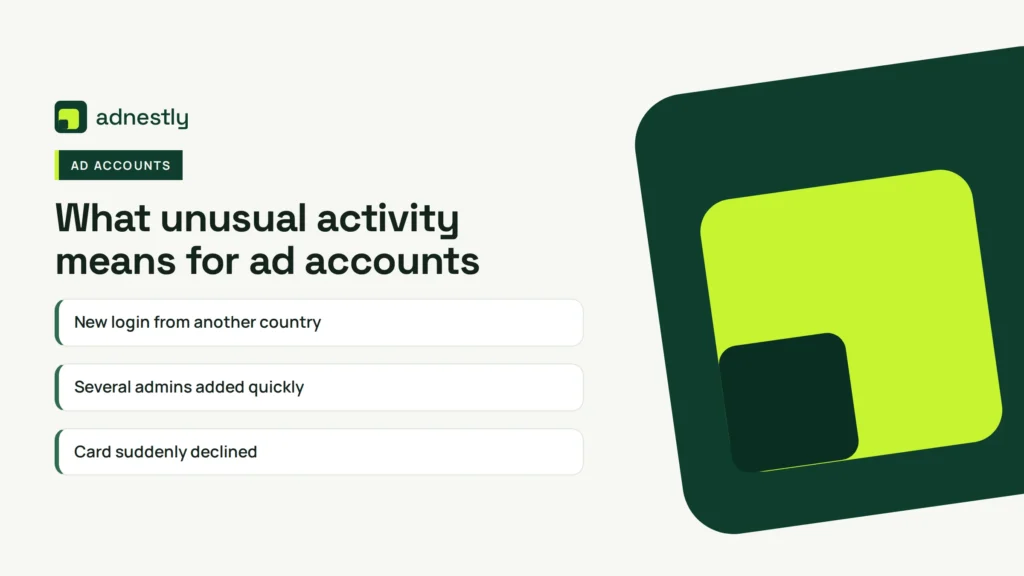
An unusual-activity warning usually points to a security or trust check, not one single mistake. Match the message you see with the closest pattern below before you change anything.
| What you notice | What it usually means | What to do first |
|---|---|---|
| New login from another country | Possible account compromise | Secure your personal account |
| Several admins added quickly | High-risk access change | Remove unknown admins |
| Card suddenly declined | Payment risk signal | Check billing details |
| Ads started after long silence | Sudden spending change | Pause affected campaigns |
| Business details recently changed | Identity review triggered | Check business information |
| Login and billing location differ | Location mismatch | Use your normal connection |
| Several rejected ads appeared | Policy or trust review | Read each rejection reason |
| Review button is missing | Restriction needs escalation | Use Meta support channels |
A disabled account doesn’t automatically prove that someone hacked you. Meta can also react to a new device, changed payment method, unusual spending, or activity that doesn’t match the account’s earlier pattern.
First, save the warning’s exact wording and check recent account activity before making broad changes. If you recognize the device, administrator, and payment change, address the specific trigger. If any of them is unfamiliar, secure the personal account and remove unknown access before appealing.
Don’t keep retrying a declined card or repeatedly submitting the same review. Those actions don’t explain the trigger and can make it harder to identify which change caused the warning. If the warning names a rejected ad, fix that ad’s stated issue; if it gives no usable review path, document the message and use Meta’s support channel.
A recent login or access change triggered it
A new login is one possible practical cause when an ad account suddenly shows unusual activity. This can happen after you use a new phone, travel, switch networks, turn on a VPN, or let a new person manage the account. A stolen password can create the same warning, so don’t assume the change was harmless.
The free check takes less than a minute. Open Facebook’s Accounts Center, choose Password and security, and review Where you’re logged in. Look for a device, city, or session you don’t recognize. You don’t need a security tool for this check; the account’s own session list is the useful evidence.
If every session is yours, compare the warning time with your own activity. A trip, office network change, phone replacement, or agency login may explain it. If one session isn’t yours, treat the account as compromised instead of repeatedly submitting ad reviews.
Secure a suspicious account before changing ads. Log out of unknown sessions, change the Facebook password, turn on two-factor authentication, and check whether an unfamiliar person still has access to the business portfolio. Meta’s security guidance should take priority over advice from a random message or “recovery” service.
Next, review Business Settings and check people, partners, apps, and assigned assets. Remove access you don’t recognize, but don’t remove a legitimate agency or employee just because their city differs from yours. The useful test is whether you know the person, business, and reason for the access.
The fix is usually to complete the identity or security review shown in Account Quality. Use the account’s normal device and connection, give consistent business details, and upload documents only through Meta’s own form. Don’t open several appeals with different explanations; conflicting details can slow the review.
This cause is likely confirmed when an unknown session or unexpected admin appears, and the restriction follows a login or access change. The security issue may have been addressed when the unfamiliar access is gone and security settings are updated, but only Account Quality confirming that the restriction was removed shows that advertising access has been restored.
Your payment or billing pattern changed
A billing signal is different from a login signal. The account may look normal, but a new card, failed charge, unusual spend increase, prepaid balance issue, or payment profile change can cause Meta to pause advertising. The warning may still use broad words such as “unusual activity.”
Check the Billing & payments area without making another charge. Look for an unpaid balance, a declined payment, a duplicate payment method, or a payment profile that doesn’t match the business. Also check whether the cardholder name and business details are consistent, because mismatched information can require extra review.
A simple confirmation check is to compare the last successful payment with the first failed or unexpected one. If the restriction began right after that change, billing is more likely than a stolen login. If there are unknown purchases or ads you didn’t create, stop and secure the account first.
Fix only the confirmed problem. If the card was replaced, update the payment method from the official billing screen and follow any verification request there. If the charge is unfamiliar, contact your card issuer and Meta support; don’t keep adding cards to test which one works.
There’s a trade-off here. Removing every payment method may stop more charges, but it can also leave a legitimate balance unresolved. If the activity is yours, correct the billing issue and pay the valid balance; if it isn’t yours, preserve the transaction details and report the unauthorized activity before making changes.
Don’t ask a friend to pay from a different card just to force delivery. That can create another billing mismatch and may make the account look less consistent. The safer route is to use a payment method controlled by the real business owner and keep the account information accurate.
You can tell this cause apart from the first one by checking timing. A login problem leaves unfamiliar sessions or access changes; a billing problem shows a payment event, balance, or card change while account access still looks normal.
Resolving the balance and payment issue addresses the billing problem but doesn’t by itself confirm that the ad-account restriction has been lifted; check Account Quality for that status. If Meta asks for verification, wait for that review rather than restarting the payment process.
The account or ads triggered a trust review
A less common cause is a wider trust review of the business, identity, or advertising behavior. This can follow repeated ad rejections, rapid creation of pages or ad accounts, unclear business information, misleading landing pages, or activity that doesn’t match the declared business. It doesn’t mean every ad is harmful, but it does mean the account needs a closer review.
Start by reading Account Quality for the exact affected item. Check whether the restriction applies to one ad account, the business portfolio, a page, a payment profile, or your personal advertising access. Those are different assets, and an appeal aimed at the wrong one won’t solve the problem.
Look for repeated rejection reasons rather than one isolated ad. Read the ad text, image, landing page, targeting, and business information together. A harmless-looking ad can still create a problem if its landing page makes a claim the ad doesn’t support or hides who is selling the product.
Pause duplicated or rapidly recreated ads. Rebuilding the same rejected ad with tiny wording changes isn’t a real fix, and it can increase the amount of activity Meta must review. Keep a record of the original notice, affected asset, ad ID, and business documents before you edit anything.
If the business details are wrong, correct them through the official business settings. If they’re correct, use the review option and explain the facts briefly. Include what the business sells, who owns the account, what changed, and why the activity is legitimate. Don’t guess at a cause or admit to a violation that didn’t happen.
This cause differs from a login warning because the account can show no unknown session and no billing error. It differs from a payment issue because the restriction remains tied to ads, identity, business details, or policy history rather than a failed charge.
Meta doesn’t publish every signal used by its automated systems, so you can read your own likely cause from the asset named in Account Quality, but you can’t calculate the exact risk score. If the message names the business or policy area, follow that message instead of trying random account changes.
When to stop fixing the ad account
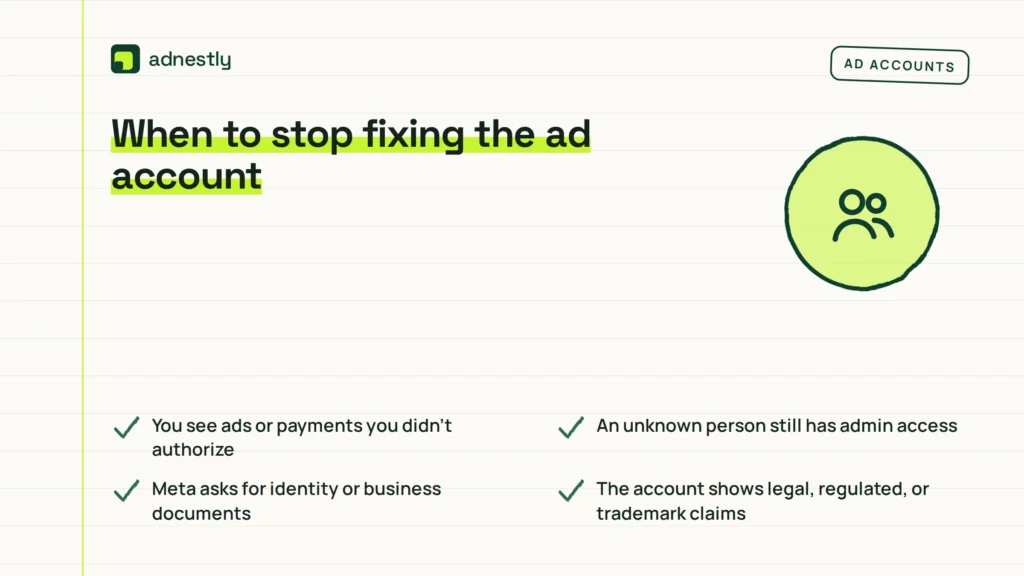
Stop DIY changes when the problem involves account ownership, possible fraud, identity documents, or a restriction that stays after the official review. A person without the right access can’t safely fix those issues by guessing, and repeated attempts may create more conflicting records. Before changing anything, save screenshots of the notice, affected asset, date, and reference number.
Stop immediately if:
- You see ads or payments you didn’t authorize — secure the account and contact Meta and your card issuer.
- An unknown person still has admin access — remove the access only if you can verify ownership; otherwise use Meta’s account-recovery path. If that person controls the only admin profile, creating a second business isn’t a fix.
- Meta asks for identity or business documents — submit them only through the official review flow. Check that the submitted legal name and business details match the requested records.
- The account shows legal, regulated, or trademark claims — ask the business owner or a qualified legal adviser before changing the claim. A rejected appeal can make the next review harder.
- You can’t identify the affected asset — contact Meta Business Support rather than appealing the wrong account.
Don’t pay anyone who promises guaranteed reinstatement. No outside person can safely bypass Meta’s internal review, and giving them your password or two-factor code can permanently expose the business. Treat requests for remote access or one-time codes as warning signs.
The limit is simple: basic checks are safe, but account recovery, identity verification, payment disputes, and legal complaints need the relevant owner, Meta support, a card issuer, or a qualified adviser. If the review option is available, Meta’s account restriction guidance is the proper place to start.
Related guides
Frequently asked questions
Can a disabled ad account be reactivated
Yes, it can be reactivated if Meta accepts the review and finds that the account can advertise safely. Reactivation isn’t guaranteed, and the result depends on the affected asset, account history, security evidence, and any policy issue named in Account Quality. Submit one clear review with accurate details. Don’t create a new account to escape the restriction, because the new account may be connected to the same business, payment profile, or identity.
Why was my ad account disabled for unusual activity
The usual reasons are a suspicious login, an unexpected payment change, rapid access changes, or advertising activity that needs a trust review. Meta may use a general warning when it doesn’t show the exact detection signal. Check the named asset and the warning time first. If the login list is clean but billing changed, investigate payments; if both look normal, read the policy and business-review notices.
How long does an unusual activity review take
There’s no reliable public time limit for every unusual-activity review. The time depends on the review type, the documents requested, the account history, and whether the submission is complete. You can check the status in Account Quality or the support case connected to the appeal. Sending repeated appeals usually doesn’t create a fixed faster route, so keep one accurate explanation and monitor the official status.
Is it safe to create a new ad account
No, not while the original restriction is unresolved. A replacement account may be linked to the same business, page, payment method, people, or device, and it doesn’t remove the reason for the restriction. First secure the account and use Meta’s review path. A new account is only a business decision after the original issue is understood and the business remains allowed to advertise.
What happens if i ignore the disabled ad account
Ads usually stay stopped, and an unpaid balance or security problem may remain unresolved. Ignoring it also leaves unknown access or unauthorized payments in place if those caused the warning. You don’t need to make random changes, but you should read Account Quality, secure unfamiliar sessions, check billing, and use the official review option when the notice offers one.
Does a vpn cause unusual activity on facebook ads
A VPN can contribute to a location or login mismatch, but it isn’t proof of a violation by itself. The risk is higher when the connection makes your login appear to jump between countries or cities, especially alongside a new device or admin change. Use your normal business connection while reviewing the account. Don’t use a VPN to disguise ownership, location, or access.
Can i appeal a disabled ad account more than once
You can use the review option again only when Meta presents a new or valid review path, but repeated submissions aren’t a substitute for better evidence. First correct the security, payment, or business detail that caused the warning. Keep the explanation consistent and attach only requested documents. If the button disappears, use the support case or channel shown in the business account instead of opening unrelated appeals.
Conclusion
Your next move is to prepare a short, accurate explanation of any recent login, payment, or business change, along with supporting records. If Meta asks for more information, you’ll be ready to respond clearly instead of guessing. Once access returns, keep activity steady and avoid sudden changes that could trigger another review.

Aaron Kelly writes about Facebook tools, account management, and business advertising. His content covers account security, Facebook Ad Accounts, Business Manager setup, Pixel and conversion tracking, Business Manager verification, and admin profile verification. He focuses on explaining technical processes and common account issues in practical terms, helping businesses and advertisers manage their Facebook assets more effectively and build a more secure, reliable advertising setup.
Checked against Meta’s own documentation. How we write and update guides