How to Remove a Payment Method from Facebook Ads

To remove a payment method from Facebook Ads, open the ad account’s billing settings, select the method, and choose Remove. The job usually takes about 5–10 minutes when you have the right account access and no unpaid balance blocking the change.
$ part ofFacebook Ad Account Problems: How to Fix Every Common IssueThe complete guide this article belongs toOpen guide →The removal itself usually has no separate charge, but it won’t cancel money already owed for delivered ads. The difficulty is easy to medium because Meta may place billing controls in different areas for personal ad accounts, Business Accounts, or payment settings. You’ll need the ad account ID, access to Ads Manager, and another payment option if Meta requires one.
This guide isn’t for deleting a Business Account or stopping active campaigns. If you need ads to stop spending, pause the campaigns first; removing a card alone may not stop ads or settle pending charges.
What you need for Facebook Ads
Have these details ready before opening the billing page. The exact menu names can change by account type, country, or Meta interface version, so use the ad account’s own settings when a label looks different.
Before starting, verify the intended ad account. A business may have several accounts, and Business Suite access may not include billing permission. If the account ID differs, switch accounts before changing payment details.
| Item | How much | Why it’s needed | A substitute |
|---|---|---|---|
| Ads Manager access | One active login | Opens billing settings | Business Suite access |
| Ad account ID | One account number | Confirms correct account | Account name check |
| Payment method details | One saved method | Identifies the method | Last four digits |
| Replacement payment method | Only if required | Keeps billing active | None — don’t swap |
| Account permissions | Admin or billing access | Allows removal changes | Ask an account admin |
| Unpaid balance status | Current account view | Finds blocking charges | Billing activity page |
Note the current method and balance before changing anything. An unpaid charge may still block billing after removal. Add a replacement only when required. If permission is missing, ask an admin to make the change.
Prepare Facebook Ads first
Close the billing page only after you’ve confirmed which ad account you’re changing. Removing a method from the wrong account won’t affect the account that’s charging you.
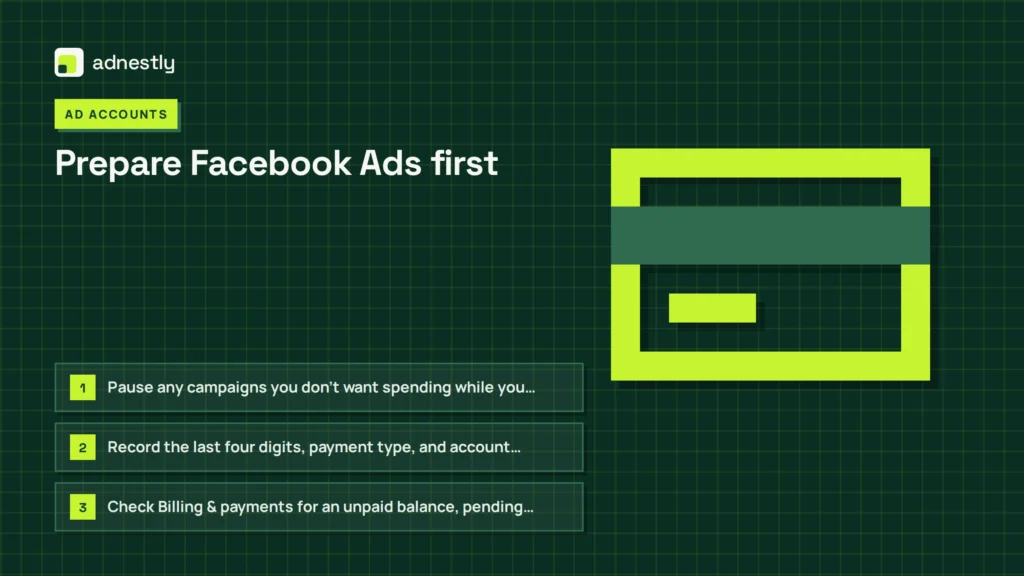
- Pause any campaigns you don’t want spending while you check the payment setup. Removing a payment method isn’t the same as turning off ads, and active campaigns may keep running if another valid method is available.
- Record the last four digits, payment type, and account name shown beside the method. This prevents the common mistake of deleting a business card from one ad account while the unwanted card stays on another.
- Check Billing & payments for an unpaid balance, pending charge, or failed payment notice. A balance can prevent removal, and deleting the method won’t erase money already owed for delivered ads.
- Confirm that another payment method is available if the account requires a primary method. Meta can refuse removal when the selected method is the only usable option for that ad account.
- Stop if the page asks you to change ownership, verify identity, or resolve a disabled account. Don’t bypass those controls; ask the Business Account admin or Meta’s account-support channel to handle them.
Remove a Facebook Ads payment method
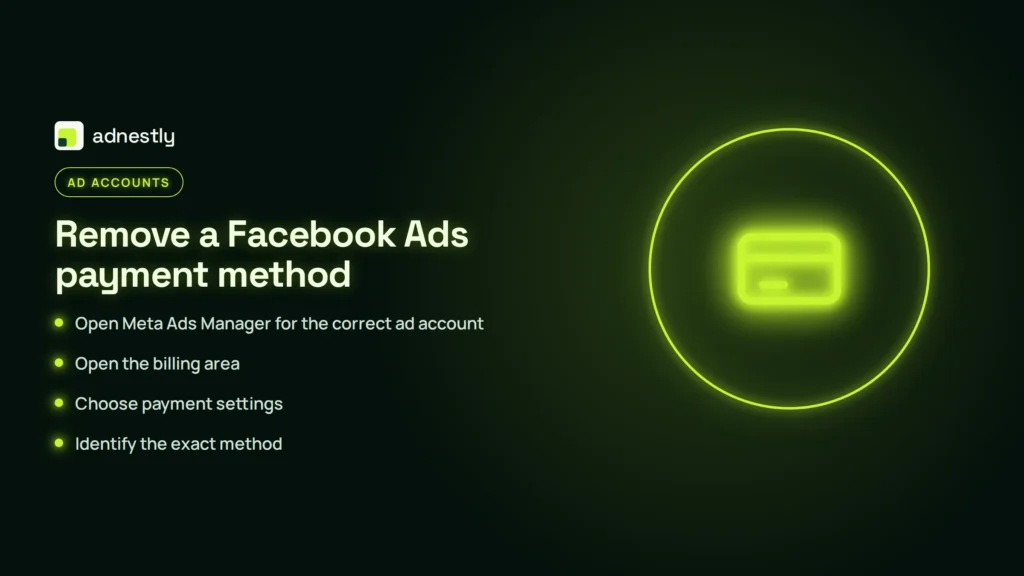
- Open Meta Ads Manager for the correct ad account. Sign in at Meta Business tools, then check the account selector before changing anything. Choose the ad account that shows the payment method you want gone. The correct account name or ID should appear in the billing area before you continue; if it doesn’t, stop and switch accounts.
-
Open the billing area. Select Billing & payments, Billing, or the closest matching option in the left-side menu. Meta can show this under All tools or Business settings, depending on your account. You’ve reached the right place when you can see recent charges, payment status, or the current payment method.
-
Choose payment settings. Open Payment settings, Payment methods, or a similar link on the billing page. Don’t use the general Facebook account payment page unless the method is for personal purchases. The correct screen will show the ad account name or ID and a list of methods used for advertising.
-
Identify the exact method. Compare the card or account type, last four digits, currency, and any label shown beside it. Select only the method you want to remove. If the details don’t match your record, you’re probably in the wrong ad account, so return to the account selector before making a change.
-
Open that method’s action menu. Select the three-dot menu, Edit, or another action button next to the method. Look for Remove, Delete, or Remove payment method. Meta’s payment method help page explains the current account options, but the labels can differ by country and account setup.
-
Choose Remove. Confirm the removal only after checking the last four digits again. If Meta shows a warning about a primary method, unpaid balance, or active billing requirement, don’t force the change. The warning means the account still needs that method or another approved method before removal can finish.
-
Add a replacement if Meta requires one. Enter the new method through the same payment-settings page and complete any verification shown there. Use the replacement only if you’re allowed to add it to the ad account. The old method should remain listed until the new one is accepted, so don’t assume entry alone completed the change.
-
Check the method list again. Refresh the page once, then confirm the old method no longer appears as available for that ad account. The result is successful when the last four digits are gone or the method is marked removed. If the old method still appears, don’t repeat the removal several times; check the error message first.
-
Review billing activity. Open recent transactions and check for pending charges, failed payments, or an unpaid amount. Removing a method changes future billing access; it doesn’t reverse a charge already created. Save the transaction details or a screenshot if you need to contact Meta about a disputed payment.
Check the payment method is gone
A successful removal leaves the old method absent from the ad account’s available payment list. It may instead show a clear removed status. Check the last four digits, payment type, and ad account name. If two cards share a label, match the last four digits before declaring the right one gone. If multiple methods remain, confirm which one is primary before removing anything.
The billing page should show no new warning that the account lacks a required payment method. If you added a replacement, it should show as available or primary under the account’s billing rules. Open billing activity after the change. Confirm any new charge uses the intended account and method. A replacement can be accepted even while an old charge remains pending.
Run a second check if the old method still appears after one refresh. Do the same if Meta says it’s primary. Payment failure can also block it. First check for another ad account under the same Business Account. The method may exist there separately. If the remove control is missing, verify billing permission for that ad account. Changing a card in one account doesn’t grant access to another.
Don’t treat disappearance from one screen as proof that all Meta payments changed. Personal purchases, subscriptions, and other ad accounts can use separate settings. If a charge is pending, compare its date and account ID in billing activity. Removal doesn’t cancel that charge. Keep the replacement until a usable method appears and no payment warning remains.
Facebook Ads removal problems
| What happened | Why | What to do |
|---|---|---|
| Remove button is missing | You don’t have sufficient billing access, or the method belongs to another account | Ask an account admin to remove it, and confirm you’re using the correct business and ad account |
| Meta says the method is required | No approved replacement is available for current charges | Add another approved payment method before trying to remove the old one |
| Removal is refused | An unpaid balance, pending charge, or billing issue remains | Review the billing section, settle the balance, then try again after the payment status updates |
| Old card still appears | You selected the wrong ad account, business, or payment settings page | Check the ad account ID and business account before changing any payment method |
| Ads keep running | Removing a payment method doesn’t pause active campaigns | Open Ads Manager and pause each active campaign separately; check delivery status afterward |
| Payment fails afterward | The replacement was declined, expired, or not fully verified | Check the method’s verification status, billing details, and available funds before retrying |
| The account can’t spend | All usable methods were removed or the account has a billing restriction | Add an approved method and resolve any account alert before launching or restarting campaigns |
How often to remove Facebook Ads payment methods
There’s no fixed schedule for removing an ad payment method. Do it once when the card, bank account, or billing responsibility changes, then check the payment list again after the account confirms the update. Repeated removal attempts won’t improve a blocked request. Note the method’s last four digits, if shown, and the ad account where it appears. That record helps distinguish a failed removal from a newly added method.
The two biggest factors are your account’s billing status and its payment setup. An unpaid balance can delay removal, while an account with only one valid method may require a replacement first. Your access level also matters because billing admins can have options that regular campaign users don’t see. If the page asks for a replacement, add or verify it before trying again. If it cites a balance or restriction, follow that message instead.
Review the payment settings after changing Business Account ownership, moving an ad account, replacing a company card, or ending work with an agency. Those events can leave similar payment methods on separate ad accounts. If you manage several accounts, check each account ID rather than assuming one removal applies everywhere. A change on one account doesn’t remove a method from another.
If the method is still present after one confirmed removal attempt, read the exact warning and use Meta’s support path. Don’t delete payment details from unrelated personal settings to solve an ad-account problem.
Frequently asked questions
Can I remove a payment method from Facebook Ads?
Yes, you can remove it from the ad account’s billing or payment settings when you have suitable access and the account allows removal. Meta may block the action if the method is the only valid option, a balance is unpaid, or a billing problem needs attention. Removing the method won’t automatically pause campaigns, cancel pending charges, refund a payment, or remove the same method from another ad account.
Why can’t I remove my card from Facebook Ads?
The usual reasons are that the card is the only usable method, the account has an unpaid balance, or your role doesn’t include billing control. A card may also appear because you’re viewing a different ad account from the one you intended to change. Check the account ID, billing notices, and permissions first. If Meta asks for identity or ownership verification, use account support instead of trying to bypass the request.
How long does it take to remove a payment method from Facebook Ads?
The menu change usually takes about 5–10 minutes when the account has no blocking warning and you already have the needed access. The page should update after you confirm removal and refresh the payment list once. Pending charges can remain visible after that time because they belong to earlier ad delivery. If the method is still available after one refresh, read the displayed error before trying again.
Is it safe to remove a payment method from Facebook Ads?
Yes, it’s generally safe when you’re changing the correct ad account and keeping any required replacement method available. It won’t erase billing records or cancel money already owed. It also won’t necessarily stop active campaigns, so pause campaigns separately if spending must stop. Don’t remove a method during an ownership or identity review unless Meta or the account administrator tells you to do so.
What happens if I remove the only payment method?
Meta may refuse the removal, or the ad account may stop delivering ads when no valid billing method remains. Existing charges and unpaid balances still belong to the account. If you need the account to keep running, add and verify an approved replacement before removing the old method. If you want advertising to stop, pause the campaigns and review billing rather than relying on payment removal alone.
Does it matter which Facebook Ads account I change?
Yes, it matters because payment methods are managed at the ad-account or Business Account level, rather than always through one universal Facebook setting. A card removed from one ad account may still appear in another ad account or a separate personal payment area, so compare the account name and numeric ID before confirming.
Conclusion
After the change, review your ad account’s billing alerts and campaign status so you can catch any payment issue early. If you still advertise, keep an approved backup method ready and check that your account has the access it needs before making future billing changes.

Aaron Kelly writes about Facebook tools, account management, and business advertising. His content covers account security, Facebook Ad Accounts, Business Manager setup, Pixel and conversion tracking, Business Manager verification, and admin profile verification. He focuses on explaining technical processes and common account issues in practical terms, helping businesses and advertisers manage their Facebook assets more effectively and build a more secure, reliable advertising setup.
Checked against Meta’s own documentation. How we write and update guides