Why Was My Facebook Ad Account Disabled? Every Reason Explained

A disabled Facebook ad account usually comes down to policy violations, payment problems, identity checks, unusual activity, business restrictions, or rejected ads. They all stop ads from running, but they do not all need the same fix. A rejected ad may need a new image or claim, while a disabled account usually needs an account review or appeal. Check the exact message in Meta’s Account Quality area before changing anything, because the notice often shows whether the problem is an ad, ad account, business account, or payment method.
$ part ofFacebook Ad Account Problems: How to Fix Every Common IssueThe complete guide this article belongs toOpen guide →Facebook ad account reasons
These are the main problems that can stop Facebook or Instagram advertising. Some affect one ad, while others can affect the whole ad account or business.
| Problem type | Best for checking | Recognizable example |
|---|---|---|
| Policy violations | Ad content and landing pages | Unsupported health claim |
| Payment problems | Billing and card status | Declined payment method |
| Identity checks | Account ownership | Request for business documents |
| Unusual activity | Login and account security | New country login |
| Business restrictions | Business Manager access | Disabled business portfolio |
| Rejected ads | One campaign or ad | Ad rejected after review |
Facebook ad policy violations
Policy violations are the most common reason an ad account stays restricted after an ad is rejected. They happen when the ad, landing page, offer, targeting, or business behavior conflicts with Meta’s advertising rules. Review the Meta Advertising Standards against the full customer journey, not just the words in the ad.
This issue suits a careful content review first. You don’t need to create a new account or delete all your campaigns. Start by checking the rejected ad, its destination page, the offer terms, and any claims about health, money, personal traits, or guaranteed results.
- False or unsupported claims: Remove promises that can’t be proved, such as guaranteed income, instant results, or certain body changes.
- Personal-attribute language: Rewrite copy that says or strongly suggests the viewer has a medical condition, financial problem, or other sensitive trait.
- Restricted products: Check whether the product needs special approval, age controls, location limits, or a different ad process.
- Landing-page mismatch: Make the page match the ad’s offer, price, product, and call to action.
A frequent mistake is changing only the headline while leaving the same claim on the image or landing page. The ad may be rejected again, and repeated attempts can make review harder because the account keeps sending similar content.
If the ad is clearly wrong, pause it and edit or replace it. If the ad follows the rules, request a review instead of making repeated changes. Don’t appeal with a long explanation; state what the ad promotes and why the content follows the applicable policy.
For example, replace “This treatment will remove your back pain in 7 days” with a factual description of the service, such as “Book a consultation to discuss back-pain treatment options.”
Facebook ad payment problems
Payment problems are different from content violations because the ad may be acceptable while billing has failed. A declined card, overdue balance, spending limit, account currency issue, or bank security check can stop delivery. This route suits advertisers who see a billing notice rather than a policy notice.
Check Billing & payments in Ads Manager and compare the failed charge with your bank statement. Confirm that the card hasn’t expired, online payments are allowed, the billing address matches, and the payment method belongs to a person or business authorized to use it.
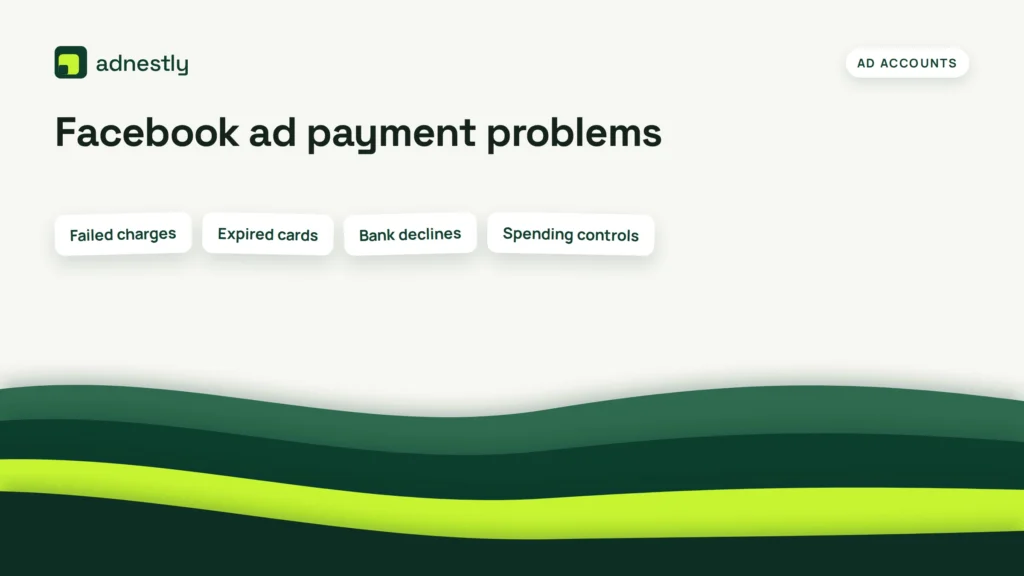
- Failed charges: Clear the overdue balance through the official billing screen.
- Expired cards: Replace the card and remove the old method only after the account accepts the new one.
- Bank declines: Ask the bank whether it blocked the charge or requires extra approval.
- Spending controls: Review account, campaign, and business spending limits before increasing anything.
The trade-off is simple: adding a second valid payment method can reduce interruption, but it also gives the account another way to charge. Use it only if the business has approved that method and the billing owner can track the payments.
If a charge looks unauthorized, don’t keep retrying it. Contact the bank and Meta support through the account’s official help tools. A payment issue usually won’t be fixed by editing ad copy, and a policy appeal won’t fix an unpaid balance.
For example, if Ads Manager shows an overdue balance and your bank says the card was declined, settle the balance with a verified business card before publishing another campaign.
Facebook ad identity checks
Identity checks protect the account when Meta needs more proof about the advertiser, business, or person managing payments. They suit accounts that show a request for verification, a restricted owner, or a notice asking for documents. The exact documents depend on the account, country, business type, and request shown on screen.
Use the secure verification flow inside Meta’s account or business settings. Make sure names, addresses, and business details match the documents you submit. Don’t upload documents to a person who contacts you through an unsolicited message or asks for a password, login code, or payment.
- Personal identity: Confirm that the account owner’s details match the requested identification.
- Business verification: Provide current business information through the requested business process.
- Payment ownership: Check that the payment method and billing details belong to an authorized user.
- Access review: Remove unknown people, agencies, or partners before asking for another review.
This process isn’t for people trying to hide the real advertiser or transfer an account around a restriction. If the business can’t prove ownership, stop at the document request and contact Meta support or a qualified business administrator. Don’t use someone else’s identity, a rented account, or altered documents.
A common mistake is sending blurry, expired, or mismatched documents. That can delay review and create another reason for rejection, especially when the legal name on the document doesn’t match the business details in Meta’s records.
For example, a US company submitting verification should use its current legal business name and address, then check the uploaded document against those details before sending it.
Facebook ad unusual activity
Unusual activity can trigger restrictions when Meta detects a security concern or a pattern that doesn’t fit the account’s normal behavior. It may involve an unfamiliar login, rapid changes to users or payment methods, unexpected spending, or access from a new country. This section suits an account owner who sees a security or access warning rather than a rejected-ad message.
Secure the account before changing campaigns. Review recent logins, remove unknown users, change the password, and turn on two-factor authentication through Meta’s own settings. If an employee or agency still has access, confirm that person’s identity before leaving them connected.
- Unknown login: Remove the session and check whether the login belongs to a real team member.
- Unknown administrator: Remove access only after confirming that the person isn’t a current agency or employee.
- Unexpected ads: Pause the affected campaigns and check the change history.
- Payment changes: Confirm that every new payment method was added by an authorized user.
If you don’t recognize the activity, secure the account first; if every change is known and authorized, follow the review request shown in Account Quality. This is a decision based on evidence, not guesswork.
Never pay someone who promises to “restore” the account through a private message. Give them a password, login code, or business access, and you could lose the account completely.
For example, if a former agency user added a new card, remove that user, secure the login, document the change, and then ask Meta to review the restriction.
Facebook business restrictions
A business restriction can affect several ad accounts, pages, people, or assets at once. It differs from a single rejected ad because the problem may sit at the Business Manager or business portfolio level. This option suits companies that manage multiple brands, advertisers, or pages from one business account.
First identify the restricted asset. Account Quality may show whether the issue affects the ad account, business, page, person, or payment method. Keep a record of the notice, the affected asset, and any previous review result before making changes.
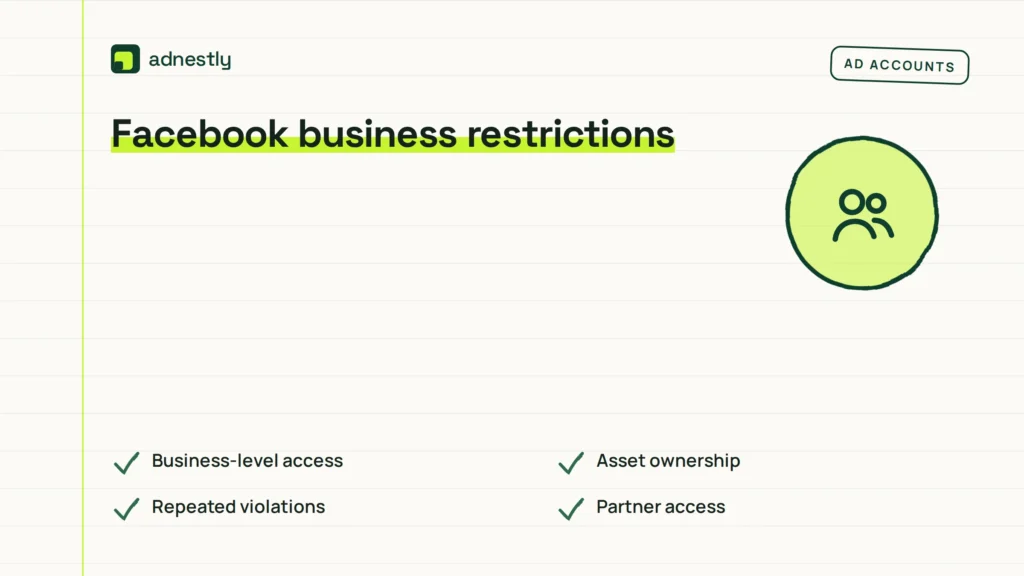
- Business-level access: Check which people and partners can manage the business.
- Asset ownership: Confirm that the business owns or is authorized to use the page, domain, and ad account.
- Repeated violations: Review older ads and landing pages, not only the newest campaign.
- Partner access: Remove agencies or vendors that no longer work on the account.
This isn’t for a business that wants to bypass enforcement by opening several replacement accounts. New accounts can also be restricted, and the original problem remains unresolved. If the restriction involves ownership, legal documents, or a disabled administrator, ask Meta support or an authorized business administrator for help rather than changing records blindly.
For example, a company with three brands should check which business asset is restricted before pausing ads for all three brands.
Other Facebook ad problems
Some cases don’t fit neatly into the five main groups above. These are still real reasons for ad delivery problems, but they need a narrower check.
- Rejected ad: Use this when only one ad is affected. Review the text, creative, targeting, destination page, and offer, then edit it or request a review. It’s not the same as a disabled ad account.
- Page or Instagram restriction: Use this when the connected page or Instagram account has its own limitation. A clean ad account can’t always advertise through a restricted destination.
- Domain or tracking issue: Use this when the destination, domain, or tracking setup isn’t verified or no longer matches the business. Check the domain and event setup in the official business tools.
- Low delivery or review delay: Use this when the account isn’t disabled but an ad has little or no delivery. Check status, audience size, schedule, budget, and review messages before filing an account appeal.
How to choose the right fix
Start with the exact status message, because the label tells you which layer needs attention. If it says ad rejected, edit or appeal that ad; if it says ad account disabled, stop publishing and request an account review; if it shows payment failed, fix billing before changing the creative.
Your access level also matters. If you’re the business owner, check ownership, billing, and administrators. If you’re an employee or agency, ask the authorized business administrator to review the restriction, because you may not have enough access to appeal it.
The evidence you have should guide the next step. Known billing failure points to Payment problems, an unfamiliar login points to Unusual activity, a document request points to Identity checks, and several affected assets point to Business restrictions. Don’t select a policy appeal just because it’s the first button you see.
Your goal creates another split. If you need one compliant ad live, fix the rejected ad; if you need the whole account restored, address the account-level notice. A quick rewrite may solve a single ad, while a complete security or business review takes more work but avoids repeating the same restriction.
These problems can be combined in one incident, such as a new administrator adding a card and publishing a restricted ad. You can fix the causes together, but you shouldn’t submit unrelated appeals or create replacement accounts while the original review is open.
Frequently asked questions
Can I create a new Facebook ad account after a disable?
You can create another account only when Meta allows it and the new account is genuinely needed for a separate, legitimate business setup. It isn’t a safe replacement for an unresolved restriction. If the original account was disabled for policy, payment, identity, or security reasons, a new account may also be restricted. Review the notice and appeal through the authorized business account before opening another one.
Why was my Facebook ad account disabled without warning?
Meta may disable an account after an automated or human review detects a possible policy, payment, identity, security, or business issue. The warning may appear after the system has already restricted delivery, so it can feel sudden. Check Account Quality, Ads Manager notifications, billing, recent logins, and administrator changes. The exact notice matters more than a general guess about the cause.
How long does a Facebook ad account review take?
There’s no single reliable review time for every disabled account. It depends on the type of restriction, the information requested, the review queue, and whether the submitted details match the account. Check the review status in Account Quality rather than sending repeated appeals. Repeated submissions or major account changes can make it harder to see which information Meta is reviewing.
Is it safe to use a Facebook account recovery service?
No, not when the service asks for your password, login code, payment, or business access through an unsolicited message. Those requests can lead to account theft, and no private service can guarantee Meta will restore an ad account. Use Meta’s own account, business, billing, and review tools. If you need help with a complex business setup, use an authorized administrator without sharing your login credentials.
What happens if I ignore a disabled ad account?
Ads usually stay unable to run, and unpaid balances or unresolved security issues can remain open. Ignoring the notice also leaves connected pages, pixels, domains, payment methods, and business users without a clear owner or fix. Review the affected asset, secure access, settle valid billing issues, and use the available review path. Don’t keep launching campaigns from connected accounts to avoid the restriction.
Does it matter if only one ad was rejected?
Yes, because one rejected ad usually points to a creative, offer, targeting, or landing-page problem rather than a disabled account. You can review that ad and either edit it or request a review. Still, check Account Quality for wider restrictions, especially if similar ads were rejected repeatedly. A single rejection isn’t proof that the whole business or payment setup is disabled.
What to do about Facebook ad accounts
Start by opening Account Quality and recording the exact restriction, affected asset, and available review option before you edit anything. You should see either a cleared notice, a pending review, or a specific request for payment, security, identity, or policy action. Stop and get help from an authorized business administrator or Meta support when you don’t recognize the account activity, can’t prove ownership, or the notice involves legal documents or a disabled administrator.

Aaron Kelly writes about Facebook tools, account management, and business advertising. His content covers account security, Facebook Ad Accounts, Business Manager setup, Pixel and conversion tracking, Business Manager verification, and admin profile verification. He focuses on explaining technical processes and common account issues in practical terms, helping businesses and advertisers manage their Facebook assets more effectively and build a more secure, reliable advertising setup.
Checked against Meta’s own documentation. How we write and update guides