Purchase Facebook Event Not Tracking on Wix: Causes and Fixes


A purchase event that is not tracking on Wix is usually caused by a setup or testing problem, not a broken checkout. First, check the exact tool that should receive the event, then complete one real order on the published site and look for that order in the tool’s real-time or debug view. If Wix records the order but Google Analytics, Meta, or another platform doesn’t, the problem is usually the connection, consent, or browser tracking.
$ part ofMeta Pixel Not Working? How to Fix Tracking on Any PlatformThe complete guide this article belongs toOpen guide →Why Wix purchase events don’t track
A purchase event can fail at several points. The order may not reach Wix, Wix may not send it to the connected platform, or the platform may hide it until processing finishes. Start with one controlled purchase on the published site, then compare the Wix order record with the platform’s event or conversion diagnostics. These are the causes worth checking first.
| Cause | How common | How to confirm it | Fix it yourself? |
|---|---|---|---|
| Test order used incorrectly | Very common | Check published checkout | yes |
| Wrong analytics property connected | Common | Compare property IDs | yes |
| Consent or ad blocking | Common | Test with consent enabled | yes with care |
| Duplicate tracking code | Fairly common | Inspect browser requests | yes with care |
| Payment never completed | Fairly common | Check order status | yes |
| Checkout app limitation | Less common | Review app documentation | yes with care |
| Wix or platform data issue | Rare | Compare order records | no |
If Wix doesn’t show the order, troubleshoot checkout, payment, or the app before changing analytics settings. If Wix records the order but the platform does not, check the property, consent state, and browser requests. Use a completed order rather than an abandoned checkout when testing.
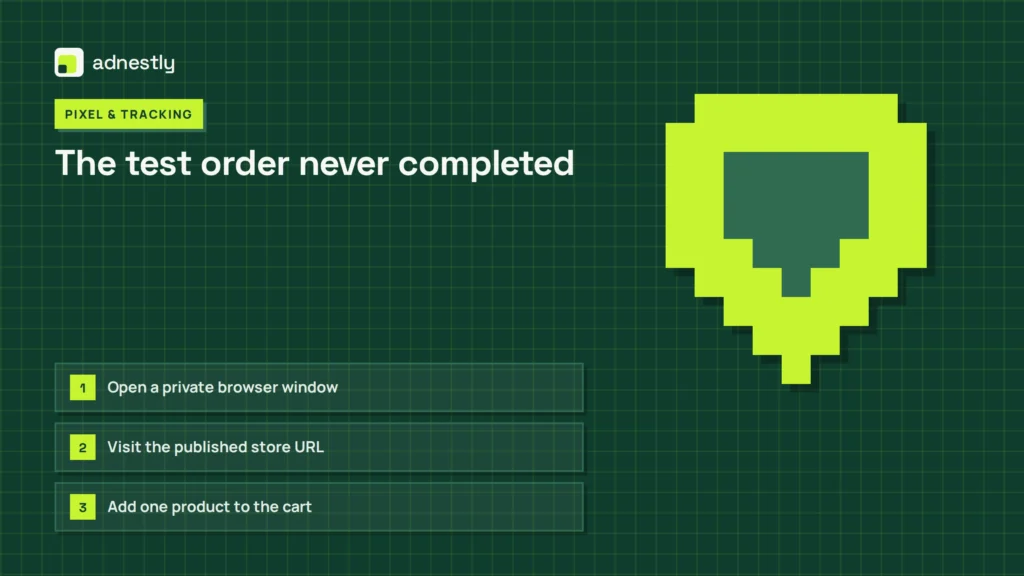
The test order never completed
A purchase event normally depends on a completed order reaching the checkout success stage. A product added to the cart, a payment form opened, or a canceled payment isn’t the same as a completed purchase.
The fastest check is inside Wix. Open the site’s orders area and look for the test order. If there’s no order, the analytics problem is only a symptom. Check the payment status, the email used, and whether the checkout was completed on the published site.
Preview mode can mislead you. Run the test from the live site URL, not only from the Wix Editor or preview screen. Use a real payment method that the store accepts, unless the payment provider supplies a documented test mode.
Check these points in order:
- Open a private browser window.
- Visit the published store URL.
- Add one product to the cart.
- Complete the checkout with the required details.
- Finish the payment, rather than closing the page.
- Confirm that Wix shows the order as paid or completed.
- Check the connected platform’s real-time report.
Use the same currency, payment flow, and checkout type that customers use. A manual order created in the Wix dashboard may confirm that Wix can store an order, but it may not reproduce the customer-facing tracking path.
For Google Analytics, compare the event name and purchase details with Google’s purchase event guide. Google Analytics 4 expects ecommerce data in a particular event structure, so an order can exist while the report still lacks usable purchase details.
If the order appears in Wix but not in the destination’s debug view, the checkout is probably working. The missing step is the handoff between Wix and that destination. If the event appears in real time but not in normal reports, allow the destination’s normal processing period before changing the setup.
The time cost is usually one complete checkout and a few checks. The money cost is normally low if you can use a small genuine order, but payment fees or a refund may apply. Check your payment provider’s refund and test-order rules before spending anything.
Consent blocks the tracking request
Privacy consent can stop analytics or advertising cookies before the purchase event is sent. This cause looks different from a failed payment: Wix shows a completed order, but the browser sends no matching request to the analytics or advertising service.
Test the published site in a private window with the site’s consent banner visible. Accept the analytics or marketing category that covers the tool, then complete the order. Repeat the check without consent only if local rules and your site’s consent setup allow that test.
If the event appears after consent but not before it, the tracking is being controlled by the consent system. That isn’t automatically a fault. It may be the correct result for a visitor who hasn’t agreed to that type of tracking.
Browser extensions can create the same symptom. Turn off ad blockers only for your own test session, then reload the page before starting again. Don’t ask customers to disable privacy tools, and don’t weaken your consent banner just to force a report number.
The difference from the first cause is clear: here, Wix records the paid order, and the event changes when consent or blocking changes. With an incomplete test order, there’s no completed Wix order to compare.
Check the integration’s settings and make sure the connected platform is allowed under the selected consent category. Labels vary by Wix setup and by the tool, so use the setting’s own description rather than copying a path from an older tutorial.
If tracking still works only when privacy controls are bypassed, ask a Wix Partner or a privacy specialist to review the setup. Consent rules depend on the visitor’s location, the data collected, and the tools installed. A tracking fix that ignores those rules can create a legal problem.
The connected property is wrong
A purchase event can be sent successfully and still appear to be missing because it goes to a different property, data stream, pixel, or ad account. This often happens after a site changes owners, domains, analytics accounts, or marketing providers.
Start by copying the destination ID from the platform you’re checking. Then compare it with the ID shown in the Wix integration. Don’t compare account names alone. Similar site names can hide different Google Analytics properties or advertising accounts.
Complete one published-site order while watching the destination’s real-time or test view. If another property receives the event, the connection is active but pointed to the wrong place. Disconnecting and reconnecting the integration may be needed, but save the existing ID and settings before changing them.
Check the date range and filters too. A report filtered to one country, product, campaign, or device can hide a single test order. Remove those filters and search for the order’s transaction ID, if the destination receives one.
A duplicate can cause the opposite problem. If one checkout creates two purchases, look for both a Wix integration and a manual script, tag manager, or app that sends the same event. Remove only the duplicate source you can identify; deleting every tracking method can erase the valid one.
If a property was replaced, historical data usually stays with the old property. Changing the connection won’t move old purchases into the new report. Record the date of the change so you can explain the gap when comparing periods.
The time cost is usually a short ID comparison plus one order. The money cost is usually none, unless a paid consultant must audit several integrations or a developer must change custom code.
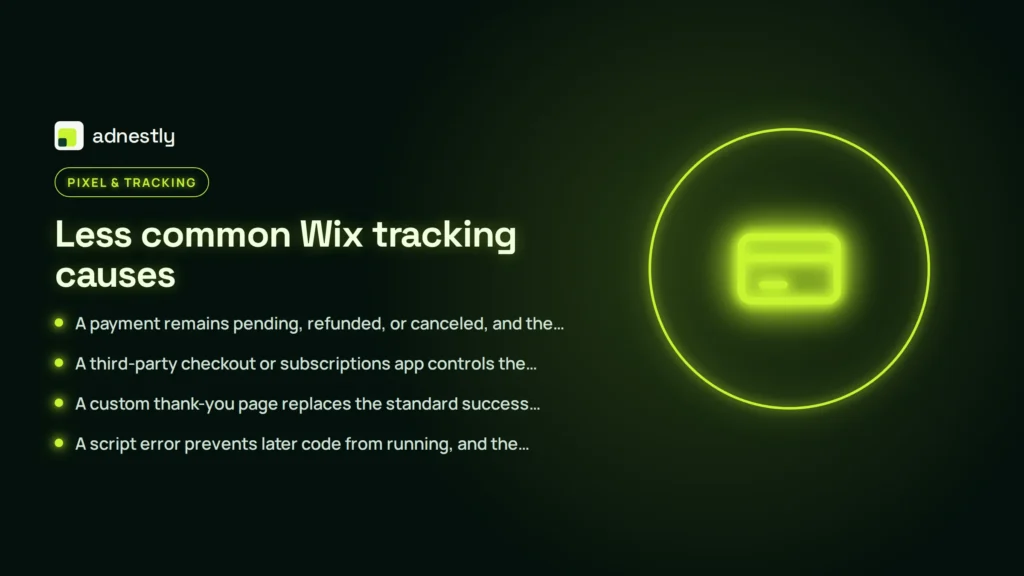
Less common Wix tracking causes
The remaining causes need shorter checks because they occur less often, but they can produce the same missing purchase signal. Start with the order record, since its status and checkout path narrow the cause.
- A payment remains pending, refunded, or canceled, and the clue is that Wix doesn’t mark it as a completed paid order. Check the payment status before treating this as a tracking failure.
- A third-party checkout or subscriptions app controls the final page, and the clue is that the order skips Wix’s normal checkout path. That app may require separate tracking.
- A custom thank-you page replaces the standard success page, and the clue is that tracking stops after that page was changed. Compare the current page with the previous one.
- A script error prevents later code from running, and the clue is a red error in the browser’s console during checkout. Record the error text and page URL before changing code.
- A platform outage or reporting delay is possible, and the clue is that several unrelated events are missing at the same time. Compare the same time window in Wix and the destination platform.
Don’t edit payment code, browser scripts, or consent logic if you can’t identify the setting and its effect. Stop when the next check needs developer tools, payment-provider access, or privacy advice. Send the order ID, timestamps, destination ID, screenshots, and any changed checkout page to Wix Support or the relevant platform’s support team.
What fixing Wix tracking usually takes
The simplest fix is a clean test order. It needs access to the published site, a valid payment method, and enough time to confirm the order in Wix and the destination. A refund may be needed afterward, so check the payment provider’s own policy first. Record the order ID, value, currency, and test time while you compare both systems. If Wix shows the order but the destination does not, the problem is downstream of checkout.
A wrong property needs the correct ID and administrator access. This is usually smaller than rebuilding tracking, but it can affect historical comparisons if you switch destinations without recording the change. Make the change in one place at a time, then run another test so you know which edit fixed the result. Don’t overwrite the old ID in notes; keep it with the date and affected tool.
A consent issue needs a review of the banner, consent categories, and connected tools. Test with consent granted and declined, because those paths can produce different results. The trade-off is direct: stricter privacy controls can reduce the number of trackable browser events, while weaker controls may create compliance risk. Don’t choose a tracking result over the site’s legal duties.
Duplicate code needs a list of every source sending purchases. Check Wix integrations, custom code, tag managers, apps, and advertising tools before removing anything. Compare event names and purchase IDs where available; two reports can look similar while one is a duplicate. If you can’t tell which source is valid, a developer should make the change.
A checkout-app or payment problem may need the app maker or payment provider. Ask for a quote based on the checkout flow, number of integrations, and whether custom code is involved; a simple ID correction is a much smaller job than a custom event rebuild.
Include the exact failing step, test order ID, and timestamps when you ask for help. This isn’t for a store that only needs a report refresh—the first step is to prove whether Wix has a completed order.
Related guides
- Purchase Event Not Tracking on WooCommerce: Causes and Fixes
- Purchase Event Not Tracking on Shopify: Causes and Fixes
Frequently asked questions
Can a Wix test order trigger a purchase event?
Yes, a completed order on the published Wix site can trigger a purchase event, but the result depends on the connected platform and its test rules. A preview checkout, canceled payment, or manually created dashboard order may not follow the same customer path. Use one completed live-site order, then check Wix and the destination’s real-time or debug view separately.
Why is my Wix purchase showing in orders but not analytics?
The usual reason is a failed handoff, consent block, wrong property, or reporting delay. First, confirm that the Wix order is paid or completed. Then compare the destination ID, test with consent enabled, and check real-time data before changing code. If real-time data receives the event, the standard report may simply need its normal processing time.
How long does a Wix purchase event take to show?
Allow up to 48 hours for some standard analytics reports after a completed order, while a real-time or debug view should show an accepted event much sooner. The exact delay depends on the destination, report type, filters, and whether the event passed consent checks. Use the destination’s own processing guidance when the event is still absent after that window.
Is it safe to place Wix tracking code twice?
No, duplicate purchase tracking isn’t safe for reporting accuracy. It can count one paid order twice, which can make revenue and conversion data look higher than the store actually earned. Check Wix integrations, custom code, tag managers, and apps before adding another script. If two sources already send the event, have a developer remove only the confirmed duplicate.
What happens if I change the Wix analytics property?
New events can go to the new property, while older events stay in the original property. Your reports may then show a break between the two destinations rather than one continuous history. Save both property IDs and the change date. Also run a completed published-site order after the switch to confirm that the new property receives data.
Does it matter if customers refuse analytics consent?
Yes, it matters because a visitor who refuses the relevant consent may not produce a browser-based purchase event. Wix can still record the order, but the marketing or analytics platform may receive no matching event. Don’t treat that missing browser event as proof that the sale failed; compare Wix’s completed order record with the destination data.
Why does Wix track some purchases but not others?
To diagnose a missing purchase, compare it with a recorded purchase using the payment status, checkout path, consent choice, and destination ID. Different payment paths, consent choices, devices, browsers, and checkout apps can affect whether a purchase reaches the destination, so send details to the provider when only one method or app fails.
Conclusion
Once tracking works, keep an eye on it after Wix, analytics, or consent updates. Add a simple monthly test order to your site maintenance routine, and document what a successful event looks like. That way, you’ll spot missing data early and protect the accuracy of your reports and campaigns.

Aaron Kelly writes about Facebook tools, account management, and business advertising. His content covers account security, Facebook Ad Accounts, Business Manager setup, Pixel and conversion tracking, Business Manager verification, and admin profile verification. He focuses on explaining technical processes and common account issues in practical terms, helping businesses and advertisers manage their Facebook assets more effectively and build a more secure, reliable advertising setup.
Checked against Meta’s own documentation. How we write and update guides