Meta Pixel Not Working? Fix Tracking on Any Platform

When the Meta Pixel is not working, ads keep running but you lose the data that tells you what they earn. Purchases go missing from reports, audiences stop growing and Meta optimises on guesses. The good news is that almost every Pixel problem comes from a short list of causes, and you can find yours with a few calm checks.
This guide explains how the Pixel works, gives you a five-minute diagnosis, walks through the checks in the right order and then points you to a detailed fix for your platform, from Shopify and WooCommerce to Kajabi and GoHighLevel.
How the Meta Pixel works, in plain words
The Pixel is a small piece of code on your website. When someone visits a page or completes an action, the code sends an event to Meta: PageView when a page loads, AddToCart when an item goes in the cart, Purchase when an order is confirmed, Lead when a form is submitted. Meta matches those events to people who saw your ads and reports them in Events Manager and Ads Manager.
Most platforms add the code for you through an app or an integration. Some also send the same events from their server through the Conversions API, so events still arrive when a browser blocks the Pixel. Meta’s own Meta Pixel documentation lists every standard event and what it should contain.
Three facts explain most problems. The Pixel only works on pages where its code loads. Each event only fires when its trigger happens, such as reaching the order confirmation page. And Meta only shows the events in the Pixel you are looking at, so one wrong ID makes everything look broken.
Five-minute diagnosis
Open Events Manager, choose your Pixel and open Test Events. Then visit your website in a private window, accept the cookie banner and click around. Compare what you see with this table.
| What you see | What it usually means | Check first |
|---|---|---|
| Nothing at all | The code is missing, blocked or on another Pixel | The Pixel ID on your site and in Events Manager |
| PageView only | Events beyond page views are not set up | Your platform’s event or checkout settings |
| Everything except Purchase | The confirmation page does not fire the event | Checkout settings and old checkout code |
| Events twice | Two installs send the same events | Apps, theme code and custom pixels |
| Events only on your device | Visitors decline consent or use blockers | Consent settings and the Conversions API |
| Fewer purchases than orders | Browser events are lost | Server events and deduplication |
If Test Events shows the events you expect, the Pixel works and the problem is in reporting, attribution or timing. If it does not, keep going.
Reading Events Manager without guessing
Events Manager is where every check starts, and a few screens answer most questions.
- Overview shows each event the Pixel received, when it last arrived and whether it came from the browser, the server or both. An event that stopped on a certain date usually points to a change made that day.
- Test Events shows events from your own visit in real time. Use it for every check in this guide, because normal reports can take longer to update.
- Diagnostics lists problems Meta has noticed, such as missing parameters, duplicate events or events sent from a domain it does not expect. Read each one before changing code.
- Event match quality scores how well events can be matched to people. A low score does not mean the Pixel is broken; it means Meta can use fewer of the events it receives.
Common messages and what they mean:
| Message | What it means | What to do |
|---|---|---|
| No activity yet | The Pixel has never received an event | Check the ID and that the code loads on your live site |
| Inactive | No events for a while | Look for a recent site, theme or checkout change |
| Missing parameters | Events arrive without value, currency or IDs | Add the missing details in your platform or code |
| Duplicate events | The same event arrives from two sources | Remove one source or add a shared event ID |
| Events from an unexpected domain | Another site uses your Pixel | Check who has the code and verify your domain |
The checks, in the right order
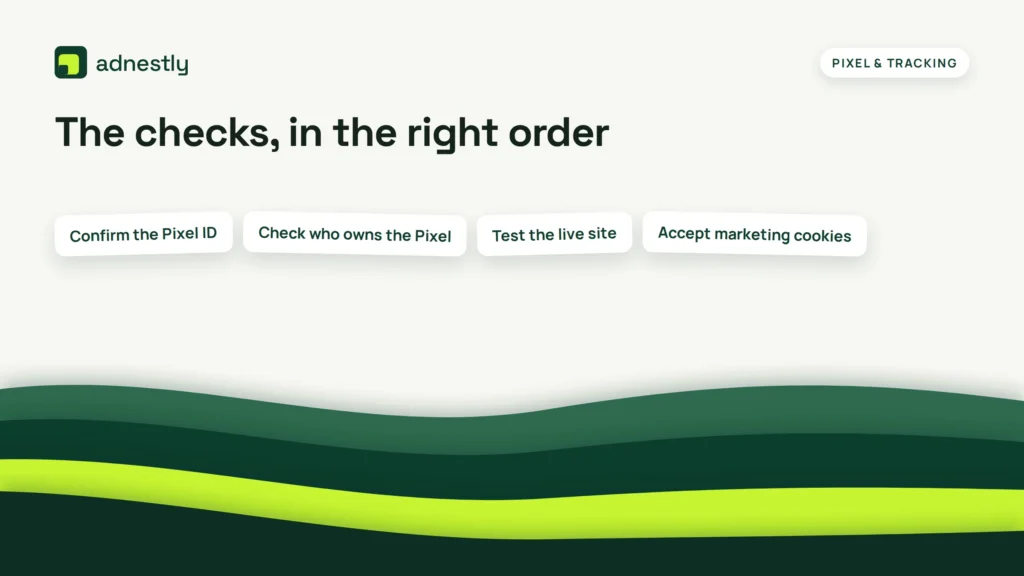
- Confirm the Pixel ID. Copy the ID from Events Manager and compare it, digit by digit, with the ID in your platform. Names can be similar; IDs cannot.
- Check who owns the Pixel. It should belong to your own business portfolio, not to a former agency or freelancer, or you may be looking at a different copy of your data.
- Test the live site. Editors and previews often do not load tracking code. Use the published domain in a private window.
- Accept marketing cookies. Test once with consent accepted and once without, so you know how consent changes what you see.
- Turn off blockers. Ad blockers and strict browsers stop the Pixel on your own device, which says nothing about your visitors.
- Check for duplicates. Look for a second install in apps, theme code, tag managers or custom pixels before adding anything new.
- Test one event at a time. Add to cart, start checkout, complete a test order where allowed, and watch each event arrive.
- Write down what you found. The ID, the platform setting and the events that work. You will need it the next time something changes.
Pixel ownership and access
A surprising number of tracking problems are really ownership problems. A Pixel created years ago by a freelancer may still sit in their business portfolio. It keeps working until they leave, change access or delete something, and then your data disappears with them.
Check where the Pixel lives in your business settings. It should belong to your own business portfolio, with your ad accounts connected to it. Agencies and developers should get partner access to the Pixel, not ownership of it. If a former partner owns it, ask for a transfer or for full access before you plan any rebuild, because a new Pixel starts with no history and no audiences.
Ownership also decides who can fix things quickly. When only one person can open the Pixel settings, every small problem waits for that person. Two trusted admins in your business portfolio remove that bottleneck.
Set up the events that matter
More events are not better tracking. A clean setup sends a few events that match real steps in your sales process, each with the details Meta needs.
- For online stores: ViewContent, AddToCart, InitiateCheckout and Purchase, with the real order value, the correct currency and product IDs that match your catalog.
- For lead generation: Lead when a form is actually submitted, not when the form page loads, and CompleteRegistration or Schedule where they fit.
- For courses and memberships: Purchase or Subscribe on the page buyers see after paying, plus StartTrial if you offer trials.
Each event should fire once per action. If a buyer refreshes the thank-you page, the purchase should not be counted again; good platforms handle this, and hand-written code needs a check that the order was already reported.
Find your platform
Each platform installs the Pixel differently, so the fix depends on where your site runs. Every platform below has two guides: one for the Pixel itself and one for purchases that are not recorded.
| Platform | Pixel not working | Purchases not tracking |
|---|---|---|
| Shopify | Meta Pixel on Shopify | Shopify purchase event |
| WooCommerce | Meta Pixel on WooCommerce | WooCommerce purchase event |
| WordPress | Meta Pixel on WordPress | WordPress purchase event |
| Squarespace | Meta Pixel on Squarespace | Squarespace purchase event |
| Webflow | Meta Pixel on Webflow | Webflow purchase event |
| BigCommerce | Meta Pixel on BigCommerce | BigCommerce purchase event |
| Wix | Covered in the purchase guide | Wix purchase event |
| ClickFunnels | Meta Pixel on ClickFunnels | ClickFunnels purchase event |
| Kajabi | Meta Pixel on Kajabi | Kajabi purchase event |
| GoHighLevel | Meta Pixel on GoHighLevel | GoHighLevel purchase event |
| Teachable | Meta Pixel on Teachable | Teachable purchase event |
Online stores: Shopify, WooCommerce and BigCommerce
Stores usually connect through an official app or plugin, and the most common problem is a second install added by hand. On Shopify, the connection runs through Meta’s sales channel app, its data sharing setting and Shopify’s customer events; when the app itself is the issue, our guide to fixing the Shopify app connection goes step by step. On WooCommerce, check that only one plugin sends Meta events and that caching does not remove the code; the official Facebook for WooCommerce plugin is the usual starting point. On BigCommerce, the built-in Meta channel and any app that adds tracking can overlap, so look for both.
Website builders: WordPress, Squarespace, Webflow and Wix
Builders add the Pixel through a settings field, an integration or a code area. The usual problems are code pasted into the wrong place, a site that was not republished after a change, and purchase events that depend on a checkout the builder controls. Always test the published domain, not the editor. On Webflow, for example, Meta’s Webflow integration and code added in site settings can both load the Pixel, so check both places before adding anything.
Funnels and course platforms: ClickFunnels, Kajabi, GoHighLevel and Teachable
These platforms often split one sale across several pages or domains: a sales page, a checkout and a thank-you page. A Pixel on the sales page alone sees visitors but never purchases. Make sure the Pixel loads on every step, and that the Purchase event fires once, on the page buyers see after paying.
Why purchases go missing
Purchases are the event that matters most and the one that fails most often, because they depend on the checkout, the confirmation page and the visitor’s browser all working together.
- The event fires on the wrong page. A Purchase on the checkout page counts visits, not sales; on no page at all, it counts nothing.
- Old checkout code no longer runs. Many platforms changed their checkouts, and scripts pasted into old settings stopped working without warning.
- The value is missing or fixed. Without a real order value and currency, return on ad spend is meaningless.
- The buyer’s browser blocks it. Without server events, some purchases never reach Meta.
A Pixel can look healthy and still record no sales. If Events Manager says the Pixel is active but purchases stay at zero, read why a Pixel shows active but no purchases are recorded.
Sometimes nothing is broken at all. Ads Manager credits a purchase to an ad only within its attribution window, so a sale that happens after the window, or after a click on another channel, appears in Events Manager but not next to the ad. Before changing code, compare the Purchase count in Events Manager with your store’s orders for the same days. If those match, tracking works and the difference is attribution, not a fault.
Conversions API and deduplication
The Conversions API sends events from your server instead of the visitor’s browser, so blockers and privacy settings cannot stop them. Meta explains the setup in its Conversions API documentation. Most platforms offer it through the same app that installs the Pixel, often as a higher data sharing level.
Running both is the recommended setup, but each event then arrives twice. Meta keeps one copy when both carry the same event ID. If the IDs differ, purchases are counted twice; if one source is broken, the counts drift apart. When browser and server numbers disagree, our guide to Conversions API events not matching Pixel events explains how to line them up. If you add events by hand, the free Pixel event generator writes the code with an event ID included.
Consent, ad blockers and privacy
Tracking has to respect your visitors’ choices. In many countries, marketing tracking may only run after consent, so a visitor who declines will not send Pixel events. That is the setup working as intended, not a fault.
Test both cases: once after accepting marketing cookies and once after declining. If events appear only after consent, check that your consent banner and your platform’s privacy settings agree. Never remove a consent banner or force tracking to make the numbers look better; fix the setup and rely on server events where your privacy policy allows them.
Duplicate events: the quiet problem
Missing events are obvious. Duplicate events are worse, because the numbers look great and are wrong. Common sources are an app plus pasted theme code, two plugins that both send Meta events, a tag manager plus a native integration, and a custom pixel added on top of an app.
Find every source before you remove anything: apps and plugins, theme or header code, tag managers and custom pixel areas. Keep one source per event, and test again in Test Events until each action arrives exactly once. Then compare the next week of purchases with your real orders. If reported purchases suddenly fall by about half after the cleanup, the old numbers were doubled, and your campaigns were optimising on inflated results.
A simple monthly tracking test
Tracking rarely breaks on the day you set it up. It breaks weeks later, after an update nobody connected to it. A short routine catches that early.
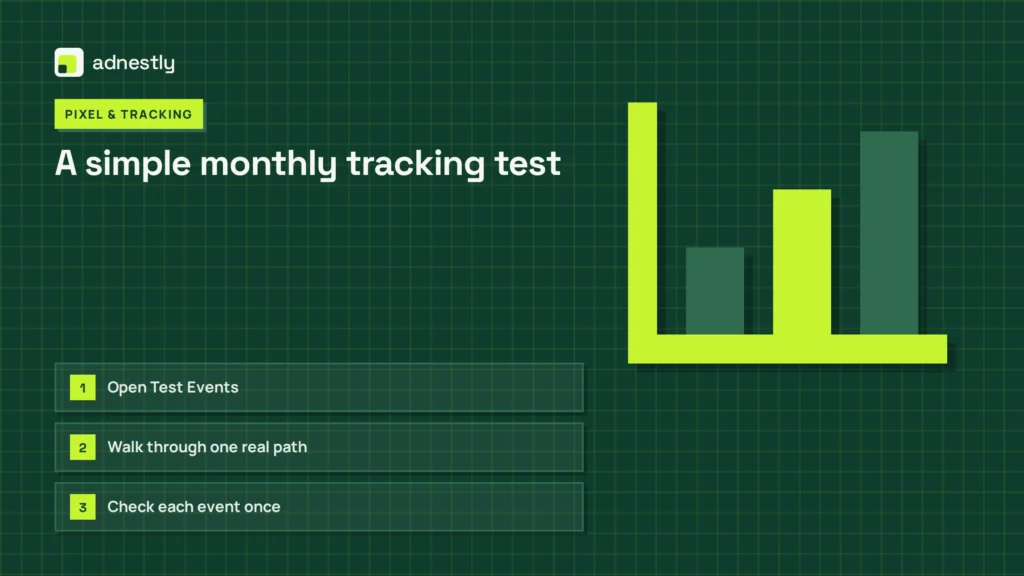
- Open Test Events and visit your site in a private window with marketing cookies accepted.
- Walk through one real path: a product or offer page, add to cart or start a form, and the confirmation page if you can place a test order.
- Check each event once: it arrives, it arrives a single time and it carries the right value and currency.
- Compare last month’s purchases in Ads Manager with the orders in your store or CRM, and note the gap.
- Read Diagnostics in Events Manager and fix anything new before it affects campaigns.
The whole check takes about fifteen minutes. Keep the results in the same document as your Pixel ID and setup notes, so a sudden change is easy to spot against last month’s numbers.
Leads, calls and bookings
Not every business sells online. When the goal is a form, a call or a booking, the same rules apply with different events. The Lead event should fire when a form is submitted successfully, not when someone opens the form page. Booking tools should send Schedule from their own confirmation step, which often lives on another domain and needs the Pixel there too.
Calls are harder to track directly. A common approach is to send an event when someone taps a phone number on mobile, and to compare it with the calls your team actually receives. Whatever you track, write down what each event means, so everyone reads the numbers the same way.
Keep tracking healthy
- Test after every change. A new theme, checkout app, consent banner or plugin update can silently stop events.
- Compare with real orders weekly. A small gap between Ads Manager and your store is normal; a sudden jump or drop is not.
- Own your Pixel. Keep it in your own business portfolio and give agencies partner access instead of ownership.
- Keep one installation per site. Write down which app or plugin installs it, so nobody adds a second one later.
- Check event match quality. Events Manager shows how well events match people; server events usually improve it.
When to get help
Some fixes take one setting. Others involve an old agency’s Pixel, several overlapping apps or a checkout that splits across domains. Tracking also depends on the account structure behind it: if the Pixel, ad account and Pages are scattered across profiles, start with a proper Business Manager setup so every asset is owned by your business. We will always say honestly if your setup only needs a small fix.
Frequently asked questions
How do I know if my Meta Pixel is working?
Open Events Manager, choose the Pixel and use Test Events. Visit your live site in a private window with marketing cookies accepted. If PageView and your other events appear within a minute, the Pixel works.
Why does my Pixel show PageView but not Purchase?
The Purchase event depends on your checkout. It is usually missing on the confirmation page, blocked by old checkout code that no longer runs, or set up on a page buyers never reach.
Do I need the Conversions API if my Pixel works?
It is strongly recommended. Server events keep working when browsers block the Pixel, so you lose fewer purchases. Use the same event ID in both so Meta counts each action once.
Why are my purchases counted twice?
Two sources send the same event, such as an app and code in the theme, or browser and server events without a shared event ID. Keep one source per event and add deduplication.
Can ad blockers break my Pixel?
They stop it in browsers that use them, which is why your own test can fail while other visitors are tracked. Test with blockers off, and use server events to reduce the loss.
How long until events show in Events Manager?
In Test Events, usually within a minute of the action. Regular reports can take longer to update, so use Test Events whenever you check a change.
Should I create a new Pixel if mine is broken?
Usually not. A new Pixel starts with no history or audiences. Fix the existing one unless it belongs to someone else and you cannot get access.
What to do next
Start with Test Events and the five-minute diagnosis above, then open the guide for your platform from the table. Fix one cause at a time and test again after each change.
Once events arrive correctly, add server events with a shared event ID, compare purchases with your real orders for a few weeks and write down how your tracking is set up. That record is what keeps a working Pixel working after the next update.

Aaron Kelly writes about Facebook tools, account management, and business advertising. His content covers account security, Facebook Ad Accounts, Business Manager setup, Pixel and conversion tracking, Business Manager verification, and admin profile verification. He focuses on explaining technical processes and common account issues in practical terms, helping businesses and advertisers manage their Facebook assets more effectively and build a more secure, reliable advertising setup.
Checked against Meta’s own documentation. How we write and update guides