Purchase Facebook Event Not Tracking on GoHighLevel: Causes and Fixes

The causes of a purchase event not tracking in high level include a checkout that never reaches a success page, tracking code installed on the wrong GoHighLevel asset, browser consent blocking, or an event sent without usable transaction data. Isolating the cause and applying fixes can repair the failure without creating misleading conversions.
$ part ofMeta Pixel Not Working? How to Fix Tracking on Any PlatformThe complete guide this article belongs toOpen guide →Key Takeaways
- Start with the order record: Confirm GoHighLevel actually created a paid transaction before debugging pixels or ad platforms.
- Test the thank-you page: A purchase event should fire after payment succeeds, not when someone merely opens checkout.
- Check event ownership: Identify whether GoHighLevel, a funnel script, Stripe, a third-party checkout, or server-side automation sends the event.
- Validate parameters: Send a real transaction value, currency, order ID, and consistent event name.
- Test cleanly: Use a new test order, browser developer tools, and the destination platform’s test view before relying on reporting.
- Expect reporting delays: Browser events, server events, attribution reports, and CRM revenue can show different totals.
Why Purchase Events Fail
A “purchase” isn’t a universal button click. It’s a conversion signal that must be created at the correct point in the customer journey and delivered to the correct platform.
- Payment succeeds, but the customer isn’t redirected to the configured thank-you page.
- The purchase script is placed on the checkout page instead of the confirmation page.
- The script loads before the transaction details exist.
- A custom field uses
paid,complete, orsalewhile the ad platform expectsPurchase. - The event fires, but
valueis blank, zero, text-formatted, or paired with an invalid currency. - A browser privacy tool, cookie banner, or ad blocker prevents the client-side request.
- A server-side event is sent with a missing or mismatched event ID.
- The same order fires twice through both browser and server integrations.
- A funnel was copied from a snapshot with an outdated pixel or domain setting.
- The checkout is hosted outside GoHighLevel, so the GoHighLevel page never receives the payment confirmation.
Meta identifies Purchase as a standard event, and its reference documentation describes the event structure and parameters such as value and currency in the Meta Pixel standard events reference.
The key distinction is not received versus not reported.
Confirm the Conversion Path
Before changing code, map the path from click to report. This prevents you from repairing a pixel when the actual failure is payment confirmation.
A typical path looks like:
- Visitor opens a GoHighLevel funnel page.
- Visitor submits an order form or starts an external checkout.
- Payment processor approves the transaction.
- Customer reaches a success or thank-you page.
- Browser and/or server sends a purchase event.
- Facebook, Google, or another destination accepts the event.
- CRM, funnel, and ad reports attribute the conversion.
Write down the exact checkout provider and success destination.
- GoHighLevel order form with Stripe.
- GoHighLevel order form with PayPal.
- GoHighLevel funnel with an embedded ThriveCart checkout.
- GoHighLevel appointment flow followed by a payment link.
- External Shopify, WooCommerce, or custom checkout redirecting to GoHighLevel.
- Manual invoice payment followed by a workflow-generated conversion.
Then inspect one real or test transaction. Confirm all of the following:
- The contact exists in the correct GoHighLevel sub-account.
- The opportunity, invoice, or order shows a paid status.
- The amount is correct.
- The payment processor shows success rather than pending, failed, refunded, or abandoned.
- The buyer reached the intended confirmation URL.
- The confirmation page belongs to the same funnel or domain where tracking is installed.
A successful checkout doesn’t automatically prove that a purchase event fired.
| Checkpoint | What to inspect | Meaning if it fails |
|---|---|---|
| Contact creation | Contact appears in the right location | Form or integration problem |
| Payment status | Paid or successful transaction | Processor or order setup problem |
| Redirect | Buyer reaches success URL | Checkout or redirect problem |
| Event request | Purchase request leaves page | Pixel, script, consent, or browser problem |
| Destination receipt | Event appears in test tools | Platform configuration problem |
| Attribution | Conversion appears in reports | Matching, delay, or attribution problem |
Warning: Don’t repeatedly place live test orders with a real price simply to make the event appear. Use a processor test mode, a zero-cost internal product where appropriate, or a controlled refund process that your payment provider supports.
Check GoHighLevel Settings
GoHighLevel tracking can live in several places, and the correct location depends on the asset type. A website page, funnel step, order form, calendar, and membership page don’t necessarily inherit the same scripts.
First review the sub-account settings, not only the agency view. Confirm that you’re working in the location where the funnel, contacts, and payments actually exist.
Check these areas:
- Funnel or website-level tracking code.
- Individual funnel step tracking code.
- Head, body, or footer placement fields.
- Domain and SSL configuration.
- Order form settings.
- Payment provider connection.
- Workflow triggers based on payment or order status.
- Custom values used to populate price and currency.
- Native ad-platform integrations.
- Third-party webhook or automation connections.
A common mistake is assuming global funnel code covers checkout. Verify the post-payment URL, then inspect its source and network activity.
Review the thank-you step
The event should normally be tied to a confirmed success state. If the thank-you page is accessible directly, a visitor could refresh it and create duplicate purchases. A safer implementation uses an order identifier and a deduplication rule.
Look for these setup errors:
- The button points to an old thank-you URL.
- The payment form redirects to a different domain.
- A slash, capitalization, or query-string condition prevents the trigger.
- The confirmation page is unpublished.
- The page is cached without the newest script.
- A workflow waits for “form submitted” instead of “payment received.”
- The script is entered into a page that buyers never visit.
- A custom code block is disabled on mobile.
Use an incognito window to avoid cached versions.
Check the payment trigger
If your event is generated by a workflow, review the trigger and filters. A workflow based on invoice paid is different from one based on form submitted. The latter can send a purchase event for a declined card.
Confirm:
- The trigger is attached to the correct product or offer.
- The workflow is published.
- The contact isn’t excluded by a tag or pipeline condition.
- The payment status is “paid,” not merely “invoice sent.”
- The workflow action runs once per order.
- Refunds and cancellations have separate handling.
- The workflow hasn’t been paused or limited by an execution rule.
Verify Pixel And CAPI
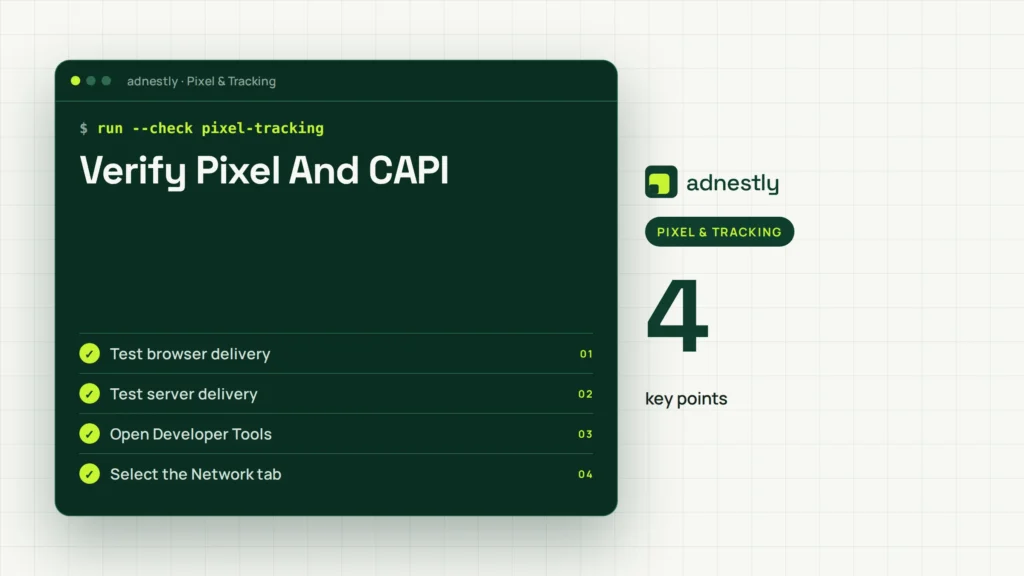
There are two broad delivery routes: browser-side tracking and server-side tracking. Browser-side tracking runs JavaScript on the customer’s device. Server-side tracking sends data from a payment system, CRM, or integration.
Browser tracking is easy to inspect but vulnerable to blockers, consent choices, browser restrictions, and page-loading failures.
Test browser delivery
Open the final success page and inspect the browser’s developer tools:
- Open Developer Tools.
- Select the Network tab.
- Search requests for
pixel,events,collect, or the platform’s event endpoint. - Complete a test purchase in a clean session.
- Select the request associated with the purchase.
- Inspect its payload, status, and response.
- Confirm the event name is
Purchase, not a near-match. - Confirm value, currency, order ID, and event time are present.
A blocked request may show a browser error, a canceled request, or no request at all.
Typical code-level issues include:
Purchaseis written aspurchase,PURCHASE, orPurchaseEventin a case-sensitive system.- The value contains
$49.00instead of a numeric value such as49.00. - Currency is missing or written as
$rather thanUSD. - A variable is undefined because the order page loads asynchronously.
- The script fires before the payment response returns.
- A single-page application changes content without reloading the tracking library.
- The event is inside a button handler that fails after validation or a popup blocker.
Test server delivery
For a server-side event, inspect the integration log, webhook history, or automation execution record.
Look for:
- HTTP response status.
- Destination error message.
- Event name.
- Event timestamp.
- Event ID.
- Client or browser identifiers.
- Hashed user data, when required by the integration.
- Transaction value and currency.
- Order ID or external reference.
- Whether the event was retried.
| Delivery method | Best evidence | Frequent defect |
|---|---|---|
| Browser pixel | Network request and event tester | Ad blocker or wrong page |
| GoHighLevel workflow | Execution log and contact timeline | Wrong payment trigger |
| Webhook | Request history and response code | Invalid payload or secret |
| Conversions API | Server event log and event tester | Missing identifiers |
| Third-party checkout | Checkout webhook and redirect log | No confirmation handoff |
If both browser and server routes are active, they should describe the same purchase and use a shared event ID. Don’t turn off one route merely because totals look high; first determine whether deduplication is configured.
Audit Event Parameters
An event name alone isn’t enough for dependable revenue reporting. The destination needs transaction context, and different integrations may use different field names before mapping them to the final payload.
Audit these transaction fields:
- Event name:
Purchase. - Value: numeric amount actually paid.
- Currency: three-letter code such as
USD. - Order ID: unique reference for the transaction.
- Event time: when payment was confirmed.
- Source URL or page context.
- Customer identifiers required by the destination.
- Product, offer, or content identifiers when used in reporting.
The value question deserves special attention.
Avoid bad values
These examples distort reporting:
- Empty value caused by an unset merge field.
"$100"instead of100."100.00 USD"instead of100.00.- A comma-formatted number such as
1,000.00. - Negative value after a refund.
- Subscription lifetime value sent on every monthly charge.
- Tax and shipping included in one funnel but excluded in another.
- A test product with a production event label.
Use a unique order ID to prevent refreshes from becoming additional conversions.
Pro Tip: Create a small event specification before editing the funnel. Write the exact event name, value definition, currency, order ID source, firing condition, and deduplication rule. This turns vague debugging into a checklist that a developer or media buyer can follow.
Test Without Polluting Data
A clean test separates implementation errors from reporting delays and attribution limitations.
Use a controlled sequence:
- Clear old cookies or use a new browser profile.
- Disable browser extensions only for diagnosis, not for normal customer behavior.
- Open the funnel with tracking parameters if your campaign uses them.
- Complete the payment in test mode where available.
- Record the order ID and exact timestamp.
- Capture the confirmation URL.
- Check the browser request.
- Check GoHighLevel’s contact and payment timeline.
- Check the destination platform’s test or diagnostics view.
- Wait for normal processing before comparing aggregate reports.
Test several conditions because one successful desktop test isn’t enough:
- Chrome on desktop.
- Safari on iPhone.
- A returning contact with existing cookies.
- A new visitor with no consent yet.
- A declined payment.
- A successful payment followed by a refresh.
- A second product or upsell.
- A payment that redirects to another domain.
The expected result isn’t simply “an event appeared.” The expected result is:
- Successful payment creates one purchase event.
- Declined payment creates no purchase event.
- Refreshing the success page doesn’t create another purchase.
- The value and currency match the transaction.
- The order ID remains stable across browser and server routes.
- The CRM and ad platform can be reconciled.
Warning: Never use a page-view event as a substitute for a purchase event just to make a dashboard show conversions. It creates optimistic numbers and unreliable optimization.
Fix Consent And Browser Blocks
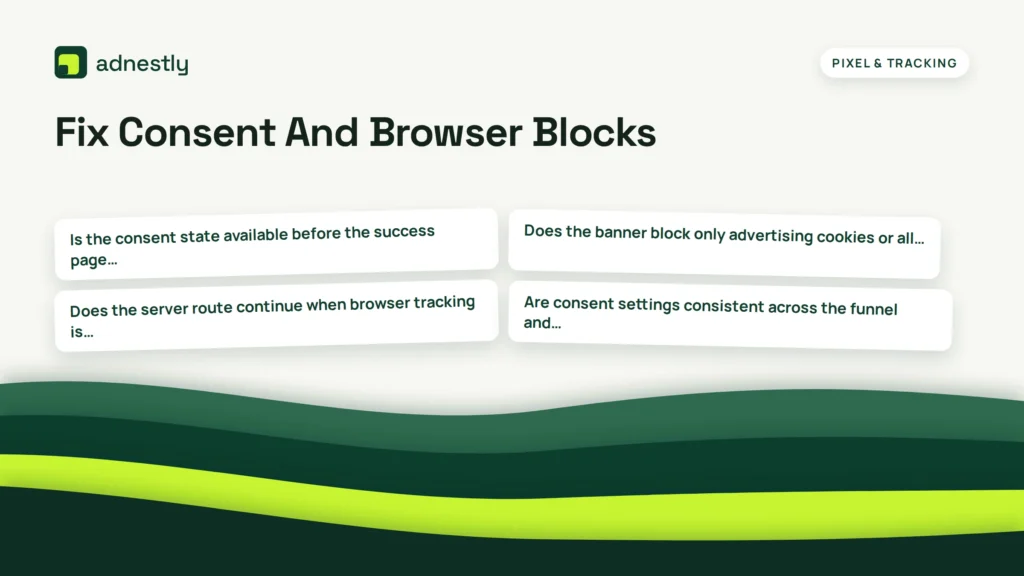
Privacy controls can prevent an otherwise correct script from running. A consent manager may wait for marketing permission, while an ad blocker may remove the pixel entirely. iOS privacy features, browser settings, and corporate networks can also reduce browser-side visibility.
Review your consent logic:
- Does the purchase event require marketing consent?
- Is the consent state available before the success page fires?
- Does the banner block only advertising cookies or all scripts?
- Is the event sent after consent is granted?
- Does the server route continue when browser tracking is blocked?
- Are consent settings consistent across the funnel and checkout domains?
Don’t bypass a user’s privacy choice. Instead, document which events are expected to be unavailable and use a compliant server-side design where appropriate.
Also check:
- Browser extensions such as uBlock Origin or Ghostery.
- Safari content blockers.
- Brave Shields.
- DNS-level ad blocking.
- Corporate firewall rules.
- Cross-domain cookie restrictions.
- Mixed-content errors from HTTP scripts on an HTTPS page.
- Content Security Policy errors.
- Consent scripts that throw JavaScript errors.
A clean browser test proves the code works, not that every visitor will be measurable.
Reconcile Facebook And GA4
Different systems answer different questions. GoHighLevel may count paid orders, an ad platform may count attributed purchases, and GA4 may count events based on session and identity rules.
Use a reconciliation window.
| System | Primary question | Best comparison field |
|---|---|---|
| GoHighLevel | Did the CRM record payment? | Order or invoice ID |
| Payment processor | Was money approved? | Charge or transaction ID |
| Meta Ads | Was the conversion attributed to an ad? | Event ID and attribution |
| GA4 | Was an ecommerce event recorded? | Transaction ID |
| Spreadsheet or data warehouse | What is the accounting total? | Unique order ID |
Common differences include:
- Time-zone differences.
- Reporting delays.
- Attribution windows.
- Consent restrictions.
- Cross-domain sessions.
- Refunds recorded after the original purchase.
- Duplicate browser and server events.
- Different definitions of gross and net revenue.
- Direct, organic, email, and paid traffic being grouped differently.
A practical audit starts with ten to twenty recent orders.
Fix Common Integration Conflicts
GoHighLevel accounts often contain several overlapping systems. Multiple scripts aren’t automatically wrong, but unclear ownership makes failures and duplicates likely.
Remove competing scripts carefully
Search funnel and page settings for duplicates:
- Meta Pixel base code.
- Google tag or GA4 configuration.
- Google Tag Manager container.
- Custom purchase JavaScript.
- Third-party checkout scripts.
- Zapier or Make webhook actions.
- Payment-provider conversion snippets.
Record code’s source and purpose before deleting it.
Check snapshots and cloned funnels
Snapshots can preserve:
- An obsolete pixel ID.
- A former domain.
- A deleted workflow.
- A test product ID.
- Old redirect URLs.
- A previous payment provider.
- Hard-coded values.
- A custom script that no longer matches the form.
Compare the funnel with a known-good version. Republish the step, clear cache, and retest the live URL.
Review external checkout handoffs
If the payment occurs outside GoHighLevel, the external provider must send confirmation back somehow. The handoff may be:
- Redirect to a GoHighLevel thank-you page.
- Webhook to a server endpoint.
- Native integration.
- CRM API action.
- Zapier or Make automation.
- Manual workflow trigger.
A redirect alone may be unreliable because the buyer can close the tab, while a webhook may arrive even if the customer never sees the thank-you page. For important revenue reporting, use a confirmed payment signal and maintain an order ID across the systems.
Know When To Escalate
Escalate to the appropriate owner when the evidence identifies a system boundary. Sending the same generic question to GoHighLevel, Meta, and the payment processor usually creates delays.
Contact or involve:
- Payment provider: payments remain pending, webhooks fail, or transaction status is wrong.
- GoHighLevel administrator: the location, funnel, workflow, or order record is misconfigured.
- Developer: custom JavaScript, asynchronous checkout, API payloads, or deduplication is failing.
- Ad-platform specialist: the event is received but attribution, domain verification, or prioritization is incorrect.
- Privacy specialist: consent behavior or regional data handling is uncertain.
Prepare evidence before escalating:
- Funnel and confirmation URLs.
- Sub-account or location identifier.
- Test order ID.
- Payment timestamp and time zone.
- Screenshot of the paid transaction.
- Network request or server log.
- Exact event payload with sensitive data redacted.
- Destination diagnostic message.
- Whether the issue affects desktop, mobile, or both.
- Whether browser and server events are both enabled.
Never send full card details, passwords, access tokens, or unredacted personal data in a support ticket. A useful escalation describes what happened, what should have happened, and the exact step where the two diverged.
Prevent Repeat Tracking Failures
After fixing the event, create a small tracking runbook. Include:
- Every funnel and checkout URL.
- Payment provider and product mapping.
- Event owner.
- Browser and server delivery method.
- Required parameters.
- Event ID and deduplication method.
- Consent behavior.
- Test procedure.
- Expected reporting delay.
- Person responsible for monthly checks.
Run a post-change test whenever you:
- Clone a funnel.
- Change a domain.
- Replace Stripe or another payment provider.
- Add an order bump or upsell.
- Edit a thank-you page.
- Install a new consent manager.
- Change product pricing.
- Modify a workflow trigger.
- Add server-side tracking.
- Change the event value definition.
Keep an order-level audit rather than relying only on dashboard totals. A weekly comparison between paid orders and reported purchases can reveal a gradual break after a platform update or funnel edit.
A resilient setup has:
- One clearly defined purchase trigger.
- One stable order ID.
- One documented value rule.
- Browser and server delivery only when deduplication is understood.
- A separate test product or payment mode.
- Monitoring for zero events, sudden spikes, and duplicate rates.
- A written owner for every integration.
Frequently Asked Questions
Why is my GoHighLevel purchase event showing zero?
First confirm that a paid order exists and that the buyer reached the correct success page. Then inspect the page’s network requests and workflow logs. A zero often means the event is installed on the wrong step, the payment trigger is unpublished, the checkout is external, or consent blocked the browser request.
Should purchase fire on checkout or thank-you page?
It should fire after confirmed payment, usually through a reliable payment trigger or success-page process. Use an order ID and deduplication rule so refreshing the confirmation page doesn’t create another conversion.
Why does GoHighLevel show sales but Meta show no purchases?
The CRM may have the payment while Meta never received the event, or Meta may have received it but couldn’t attribute it to an ad.
Can ad blockers stop a purchase event?
Yes. Browser-side scripts can be blocked by extensions, privacy browsers, DNS filters, or consent settings. Don’t bypass a visitor’s privacy choice.
How do I stop duplicate purchase events?
Use one unique order ID and a shared event ID for browser and server delivery. Compare event logs against processor transaction IDs.
How long should I wait before declaring it broken?
Allow for the destination’s normal processing and reporting delay, but don’t wait to inspect technical evidence. Compare several controlled tests rather than relying on one dashboard refresh.
Conclusion
Purchase tracking is easiest to repair when you follow the transaction from payment approval to final reporting, rather than starting with ad-platform totals. Run one controlled test, record its order ID, inspect both browser and server evidence, then document the successful configuration so the next funnel change doesn’t recreate the same failure.

Aaron Kelly writes about Facebook tools, account management, and business advertising. His content covers account security, Facebook Ad Accounts, Business Manager setup, Pixel and conversion tracking, Business Manager verification, and admin profile verification. He focuses on explaining technical processes and common account issues in practical terms, helping businesses and advertisers manage their Facebook assets more effectively and build a more secure, reliable advertising setup.
Checked against Meta’s own documentation. How we write and update guides