Purchase Facebook Event Not Tracking on Squarespace: Causes and Fixes

When a purchase event is not tracking on Squarespace, start with the tracking destination and the completed order data. The most common cause is a wrong, missing, or duplicated tag in Google Analytics 4, Meta, or another ad platform. A test order is the fastest check. Complete one order, then look for the event in that platform’s live testing tool. If it appears there but not in reports, the issue is reporting delay or filters. If it never appears, check the Squarespace integration, consent choice, browser blocking, and checkout completion path.
$ part ofMeta Pixel Not Working? How to Fix Tracking on Any PlatformThe complete guide this article belongs toOpen guide →Why Squarespace purchase event tracking is not working
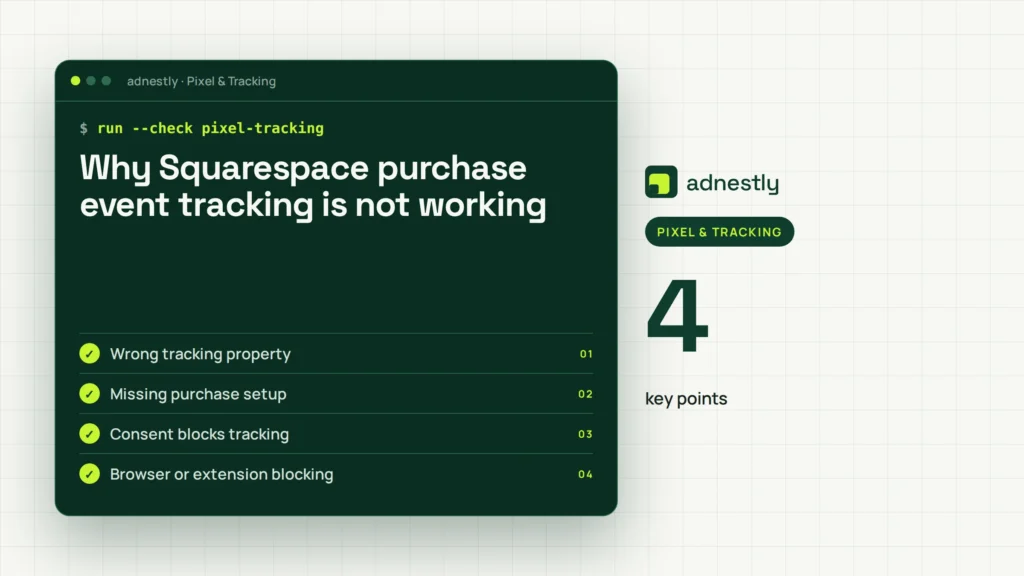
A purchase event can fail at several points between checkout and your report. The table starts with setup errors because they’re usually easier to find than a platform outage or a broken payment flow.
| Cause | How common | How to confirm it | Fix it yourself? |
|---|---|---|---|
| Wrong tracking property | Very common | Compare measurement IDs | yes |
| Missing purchase setup | Very common | Run one test order | yes |
| Consent blocks tracking | Common | Test after consent | yes with care |
| Browser or extension blocking | Common | Use clean browser | yes |
| Checkout data mismatch | Less common | Check event parameters | yes with care |
| Duplicate tags fire together | Less common | Compare event count | yes with care |
| Custom code or platform fault | Rare | Review official support | no |
The first check is simple: confirm which platform should receive the event. A Squarespace store may send data to Google Analytics, Meta, Google Ads, or a third-party tag manager, and each platform has its own event report.
If the event is missing in every destination, start with Squarespace settings and consent. If one platform receives it but another does not, focus on that platform’s tag, property, or event rules instead of changing the whole site.
Place a test order and complete payment, rather than stopping at checkout. Check the destination’s real-time or diagnostic view before standard reports, which may process data later.
If an order appears twice, check whether Squarespace and a separate tag manager or custom script both send purchase. Keep one implementation; deleting the wrong tag can stop future purchases. Repeat the test after each change.
The tracking ID points to the wrong place
A wrong measurement ID or pixel ID is the most common setup problem. Your site can look correctly tagged while sending data to a different Google Analytics property, ad account, or data stream. The order then exists, but it appears somewhere you aren’t checking.
Open the Squarespace integration or code area where the tracking ID was added. Compare the ID character by character with the destination’s official settings. For GA4, check the web data stream in the correct property; for Meta, check the selected pixel in Events Manager. Don’t rely on the account name alone.
Next, place one test order using the same storefront and checkout path customers use. Use the platform’s live testing view while you complete it. GA4 users can check DebugView after enabling a debug session; Google explains how DebugView works in GA4.
The event name may differ by platform. GA4 normally uses purchase, while another platform may use its own event label or conversion rule. Don’t rename events just because a dashboard uses different wording; first check that platform’s required event name.
If the test event appears under the wrong property, replace the ID in Squarespace and remove the old tag. If two properties receive it, keep only the intended setup. A duplicate setup can inflate purchases and revenue, so the trade-off is clear: a quick extra tag may restore visibility, but it can damage reporting accuracy.
This fix usually takes less time than rebuilding checkout. It costs nothing if you control the account and integration. If an agency owns the property, you’ll need access or a change from that agency. The exact ID is shown in the destination’s admin screen, not guessed from the site address.
Consent stops the event before checkout
A consent choice can prevent analytics or advertising tags from running. This cause looks different from a wrong ID: the event may appear after accepting tracking, but disappear when the visitor declines or leaves the consent banner untouched. If the event is missing only in the denied state, the problem is usually a consent outcome, not a checkout failure.
Test in a private browser window with extensions disabled. Open the storefront, note the banner’s initial state, and choose the consent option that permits analytics where your rules allow it. Complete one test order. Repeat only the tracking check with consent refused; don’t create extra real orders just to compare behavior. Keep the visitor’s region consistent, because a consent platform may show different controls in different locations.
If the event works after consent but not before it, the tracking system is being blocked by the consent setup. Use the browser’s developer tools, if available, to check whether the tag request appears only after permission is granted. That confirms the gate is controlling the tag, rather than a wrong event ID or a checkout trigger that never runs.
That may be correct behavior, depending on the visitor’s location and the purpose of the tag. Don’t remove a consent tool merely to increase event counts. Don’t treat an untouched banner as permission unless your documented configuration explicitly does so.
Check the consent platform’s tag categories and the Squarespace integration’s instructions. Analytics tags usually need the correct consent category before they can run. Advertising tags may need a separate permission. Confirm that the category used by the tag matches the category named in the integration, because similar labels can conceal different settings.
The names and controls vary by consent tool, so read its current documentation rather than copying a setting from another website. If a tag is allowed in the consent platform but still doesn’t fire, check whether the Squarespace integration also requires that consent state before loading it.
If your legal or privacy settings are unclear, stop before changing them and ask a privacy professional. A tracking fix isn’t worth creating a compliance problem. If consent is correctly blocking the event, use the allowed data in your reports instead of trying to identify visitors who declined.
The time cost is usually a short test and a settings review. The financial cost is low when you can edit the consent tool yourself, but professional privacy advice costs more than a normal tag change. The amount depends on your tool, location, and number of tags.
Checkout data never reaches the event
A purchase event needs a completed transaction, not just a product-page visit or a click on the checkout button. If the customer leaves payment, sees an error, or completes checkout through a path your tag doesn’t cover, the purchase event won’t be sent.
Check the order in Squarespace first. If Squarespace shows no completed order, the tracking problem may actually be a payment, product, tax, shipping, or checkout issue. If Squarespace shows a completed order but the analytics platform shows nothing, compare the order completion page and the event log.
Run one controlled test with a low-risk test product or the payment provider’s supported test mode. Follow the normal checkout path from the storefront to the confirmation page. Don’t mark an abandoned cart as a purchase; that creates false revenue.
Then inspect the event details. A valid purchase should carry the platform’s required transaction information, such as an order identifier and value, when that platform requires those fields. The field names and currency rules differ, so use the destination’s own event documentation.
A common mistake is testing only the checkout button and treating that click as a completed sale. It can make the event look healthy while real purchases remain absent, wasting ad budget and making conversion reports unreliable. If the confirmation page is reached but no event fires, compare the browser’s tag activity with the order record.
If the issue affects only one payment method, contact Squarespace or the payment provider rather than editing payment code. Don’t change checkout scripts without knowing their failure risk. The time needed ranges from one test order to a support investigation, depending on whether the problem follows every payment path.
Less common Squarespace tracking causes
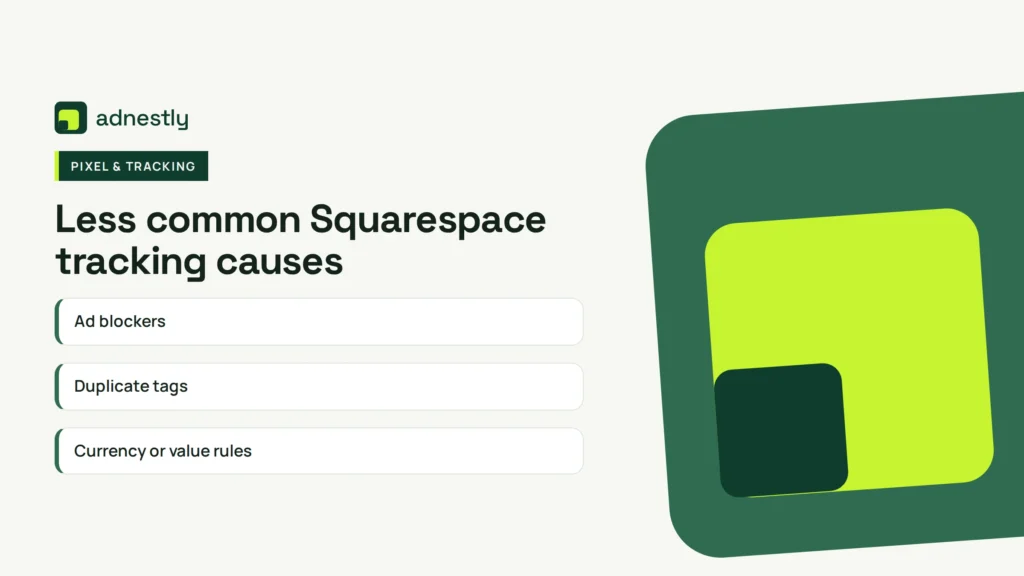
These causes happen less often, but their clues are distinct:
- Ad blockers: The event appears in a clean browser but not in a browser with extensions enabled. Test in a private window with extensions disabled, then enable them one at a time. If the event returns, the blocker is suppressing the request rather than Squarespace failing to send it.
- Duplicate tags: One order creates two purchases, or revenue is counted twice in the destination. Check whether the same order ID or transaction ID was sent more than once. Remove the extra tag or integration; don’t try to correct duplicate revenue by editing individual reports.
- Currency or value rules: The purchase arrives, but revenue is missing or incorrect because the platform rejects the value or currency format. Compare the event’s currency and value with the destination’s required format and the order details. A purchase event can be received successfully while its money fields are discarded.
- Custom checkout changes: The problem began after code, a template, or an integration changed, and the site owner can’t reproduce it in the standard path. Compare a normal checkout with the modified path, including redirects and confirmation-page loading.
- Reporting filters: Live testing shows the event, but a filtered report hides it from normal users or traffic sources. Check the date range, property, channel, and any internal-traffic or test filters before changing tags.
If the event requires code inspection, payment access, or account permissions you don’t have, stop at the browser and dashboard checks. Send the order time, order ID, platform name, property ID, and screenshots to Squarespace support or the tracking platform’s support team. Don’t edit payment or checkout code without qualified help.
What fixing Squarespace tracking involves
The fix depends on where the event disappears. A wrong ID needs account access and a careful comparison; it’s usually a small settings task. A missing event setup needs a test order and the platform’s required event name, value, currency, and transaction fields.
Consent problems need access to the consent tool and a review of tag categories. The work is still fairly small, but privacy rules make careless changes risky. Ask a privacy professional for a real quote if the site serves several regions or uses many advertising tags.
Browser blocking needs a clean test and may not need a site change at all. Duplicate tags need an inventory of Squarespace integrations, custom code, and tag-manager rules. Removing one copy is quick, but first confirm which setup owns the correct data.
Payment-path issues can need Squarespace, the payment provider, or a developer. That’s the largest trade-off: a simple ID change is far smaller than debugging a custom checkout. To get a real quote, provide the provider with the site URL, platform, test result, affected payment path, and whether the order appears in Squarespace.
Frequently Asked Questions
Can a Squarespace purchase event be missing but the order still exists?
Yes, an order can exist while the purchase event is missing. Squarespace records the transaction in its commerce system, while analytics and ad platforms depend on a separate tag or integration. Check the Squarespace order first, then run one controlled test through the same checkout path. If the order appears but no destination receives the event, review the ID, consent state, and event setup before changing payment settings.
Why is my purchase event showing twice on Squarespace?
A duplicate tag is the usual reason. The same purchase may be sent by a Squarespace integration, custom code, and a tag manager at the same time. Check the event count for one completed test order and list every place tracking code was added. If one order creates two events, remove only the extra setup after confirming which property or pixel should remain active.
How many purchase events should one order create?
One purchase event should represent one completed order in the destination you’re measuring. That assumes the order is completed once and the same confirmation isn’t refreshed or sent again. If one order creates several events, check duplicate tags and repeated confirmation-page firing. If the platform uses separate events for different reporting tools, compare each destination separately rather than adding all platform counts together.
Is it safe to place tracking code in Squarespace?
It’s safe only when the code comes from the tracking provider and is added in the location that provider and Squarespace support. Unverified code can expose data, slow pages, or interfere with checkout. Don’t paste payment or checkout scripts from an unknown source. If the code changes checkout behavior, involves customer data, or causes errors, remove the change through a controlled rollback and contact Squarespace support or a qualified developer.
What happens if I test a purchase event with an ad blocker?
The event may not appear even when the site setup works. An ad blocker can stop the browser request before it reaches Google Analytics, Meta, or another destination. Test once in a clean browser with extensions disabled, then compare the result with your normal browser. A clean-browser result points to blocking, not necessarily a Squarespace fault, so don’t rebuild the integration based on that first failed test.
Does it matter if the purchase value is missing?
Yes, a missing value can make conversion counts look correct while revenue, return on ad spend, and value-based bidding are wrong. The event may still appear, but the destination can’t report the order value correctly. Check the currency, value field, and transaction ID against the platform’s requirements. If only one currency or payment path fails, compare that path with a completed order that reports correctly.
Conclusion
After the event starts appearing reliably, document the setup and check it again whenever you change your checkout, consent banner, or marketing tools. Keep a simple record of test orders and expected values, so you’ll spot problems early instead of discovering missing sales data after an important campaign has ended.

Aaron Kelly writes about Facebook tools, account management, and business advertising. His content covers account security, Facebook Ad Accounts, Business Manager setup, Pixel and conversion tracking, Business Manager verification, and admin profile verification. He focuses on explaining technical processes and common account issues in practical terms, helping businesses and advertisers manage their Facebook assets more effectively and build a more secure, reliable advertising setup.
Checked against Meta’s own documentation. How we write and update guides