Facebook Business Manager Shows a Pending Request You Didn’t Make

Stop and secure access. A pending request isn’t proof that someone has entered your account, but you shouldn’t approve it. If business manager shows a pending request you didn’t make, leave it pending, check the sender and business name, then secure your Facebook account before doing anything else.
$ part ofFacebook Business Manager Problems: Fixes for Common ErrorsThe complete guide this article belongs toOpen guide →Open Business Manager from a bookmark or by typing the address yourself. Don’t use a link in an email, text, or unexpected message. The request may be a wrong selection by another person, an old request, or a sign that someone has access to an admin account.
How to Stop a Business Manager Pending Request You Didn’t Make
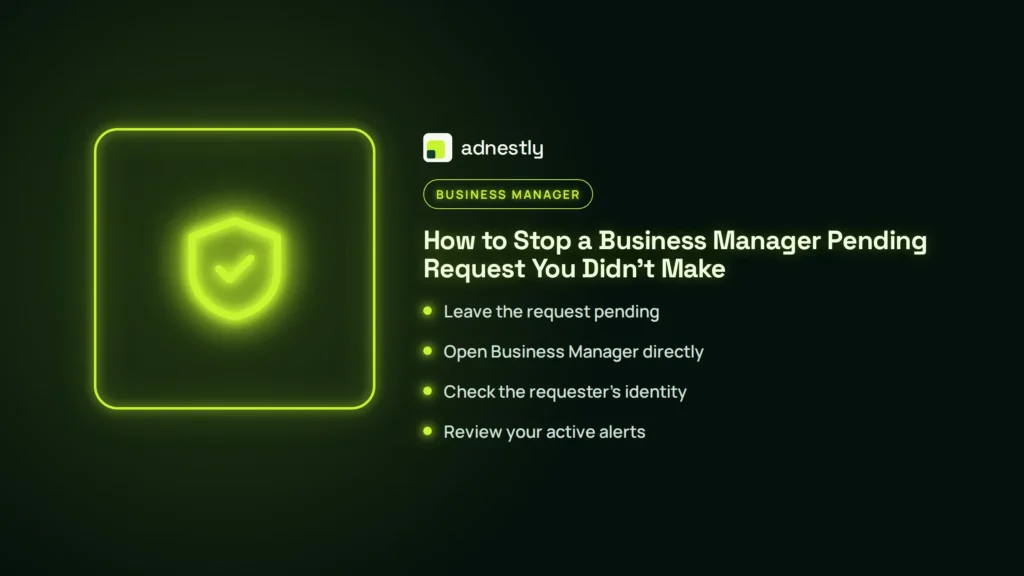
The safest first move is to avoid approving, accepting, or replying to the request. These actions take less than two minutes and preserve useful evidence. A request that remains pending doesn’t give the requester access by itself.
-
Leave the request pending. Don’t click Approve, Accept, or any link inside the alert. Record the business name, person’s name, date, and requested assets in a note. Take a screenshot if the details may disappear, but avoid opening attachments or downloading files.
-
Open Business Manager directly. Use a saved bookmark or type the official Meta address yourself. Check whether the same request appears inside Business settings, not only in an email. If it appears only in the message, treat the message as potentially fraudulent.
-
Check the requester’s identity. Compare the name and business with a known client, coworker, agency, or partner. If you can’t verify it through a separate channel, treat it as untrusted. Contact that person through a phone number or chat you already have, never through details in the request.
-
Review your active alerts. Look for recent sign-ins, password changes, new admins, or unfamiliar business assets. Don’t delete the alert before you’ve recorded its details. If you find changes you didn’t make, secure the account before handling the request.
-
Tell other admins to pause. Ask them not to approve the request while you check the account. Use a phone number or chat you already trust, not contact details in the request. One admin accepting it can change the situation before everyone has reviewed the evidence.
This isn’t the right process for someone who has already lost account access. If you can’t log in, use Meta’s account recovery route instead of changing settings from an unfamiliar message.
Why Business Manager Shows It
A pending request means an access action has been started but hasn’t reached its final approval stage. In Meta’s business tools, people and businesses can request access to a business portfolio, Page, ad account, Instagram account, or other asset. The request can remain visible until an admin approves, rejects, or removes it. Seeing the request doesn’t by itself mean access was granted.
The request may have been created by someone who selected the wrong business or asset. A contractor, agency, or former partner might also have sent it earlier and forgotten about it. In that case, the request can look suspicious even though no account was hacked. Check whether the sender’s name, business name, and requested asset match a current relationship before treating it as an attack.
A second possibility is an account-security problem. Someone with access to your Facebook profile, business portfolio, or another admin’s account may have started the request. The pending item itself doesn’t prove they signed in successfully, but an unfamiliar login, password change, or new admin makes the situation more serious. If any of those signs appear, secure the affected account before reviewing more requests.
The name shown in the request is useful, but it isn’t proof of identity. A business name can be copied, misspelled, or used by a person who has no real connection to that company. Verify the request outside Meta, such as through a known company email address or a phone number already in your records. Don’t use contact details supplied only inside an unexpected message.
Check the requested asset carefully. A Page, ad account, catalog, or Instagram account with a similar name may belong to a different business. If the asset ID, business ID, or sender doesn’t match the known partner’s records, verify the request through a trusted channel before rejecting it. If you recognize the sender but not the requested asset, ask them to submit a new request for the correct one.
A pending request normally waits for an admin decision; it doesn’t automatically show that the requester has full access. The exact effect depends on the asset, permission level, and current Meta setup. Read the permission text on the request and in Business settings before making a decision. Approve only the asset and access level the person actually needs; otherwise reject or remove the request.
Check Business Manager First
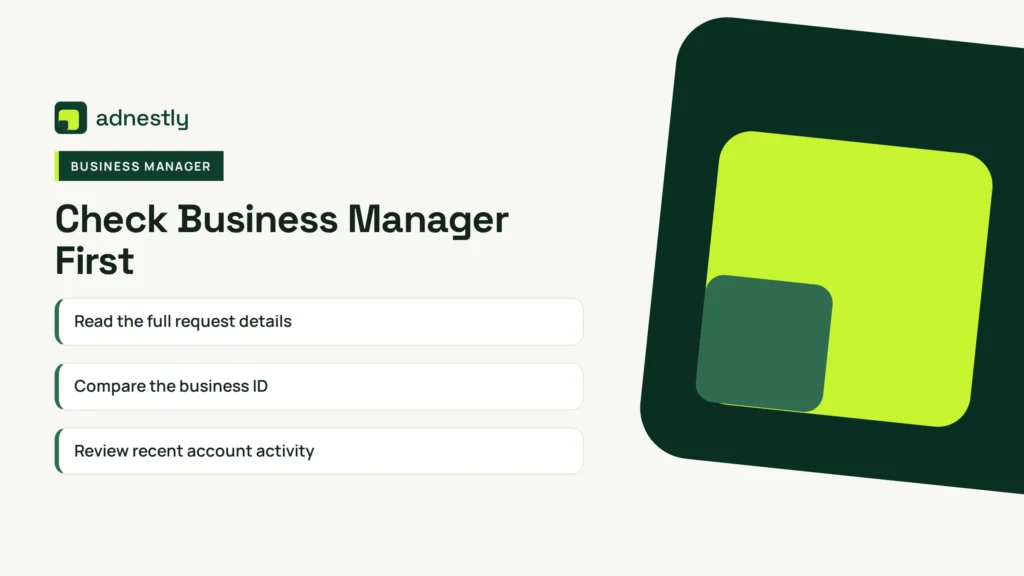
Start with checks that cost nothing and don’t change the account. Stop if you find a new admin, an unfamiliar login, or a password-change alert; secure the account before investigating the request further.
Read the full request details
Open the request in Business settings and read every field. Note the requester, business name, asset name, requested permission, and date. A good result is a clear match with a real partner and the correct asset. An unclear name or unexpected asset means you should reject or leave it pending until you verify it separately.
Compare the business ID
Compare the business ID shown in the request with the ID in your own records or a known Meta setup page. Don’t rely on a logo or display name, because names can look alike. Verify the requester’s business ID against the known partner’s records through a trusted channel rather than treating a mismatch alone as proof that the request is unrelated. If you don’t have a saved ID, ask the known partner to confirm it through an established contact channel.
Review recent account activity
Check recent login alerts, active sessions, password changes, and two-factor authentication settings on the Facebook account connected to Business Manager. A good result shows only devices, locations, and changes you recognize. A bad result is any unfamiliar session or security change. Sign out unknown sessions and change the password from a trusted device.
Check all business admins
Review people, partners, and system users with access to the business portfolio. Look for an unfamiliar person, an old employee, or a partner with more permission than needed. If every admin is known and the request is still unfamiliar, verify it with the business named in the request. Don’t remove a known admin until you’ve preserved the details.
Inspect the email separately
Compare the email’s sender and web address with the alert inside Business Manager. A good result is a matching alert reached through your own login. A bad result is a message that asks for a password, payment, recovery code, or urgent approval. Delete or report that message after saving enough information to identify it.
Check the asset owner
Open the affected page, ad account, catalog, or Instagram account from the business settings you already trust. Confirm which business owns it and which partners already have access. If the request targets an asset you don’t control, don’t try to “fix” it by granting wider access. Ask the asset owner to confirm the request instead.
Remove the Unwanted Request Safely
For the most likely cause—a mistaken or unwanted access request—reject it from inside Business Manager, then secure the admins who could have created or approved it. Use the desktop or mobile interface you normally trust, not an email button.
Open Business settings, find the request under the area for requests or business access, and select Reject, Decline, or the equivalent option shown in your account. Meta can change labels and layouts, so follow the wording on your screen. If you see a permission summary, read it before confirming.
If there’s no reject option, leave the request pending and remove any unfamiliar admin or partner only after recording the details. A missing button can reflect your permission level, the asset type, or a change in Meta’s interface. Don’t use a browser extension or third-party tool to force the action.
Next, secure the Facebook profile of every admin linked to the business. Each admin should change their password to a unique one, turn on two-factor authentication, review active sessions, and remove devices they don’t recognize. If the request came after a password or email change, handle the account recovery warning first.
Tell the real partner through a separate channel that the request was rejected or held. Ask them to resend it only after confirming the exact business ID, asset, and permission needed. If the request is legitimate, the trade-off is a little more time; accepting it quickly is easier, but it can give the wrong business or person access to valuable assets.
The fix has held when the request is gone or clearly rejected, no unknown admins remain, and security activity shows only changes you recognize. If the same request returns within a week, assume the source hasn’t been fixed and review every admin’s account with Meta support or your organization’s security lead.
When Business Manager Needs Help
Stop DIY work when an unknown person has admin control. Your email or password was changed, two-factor authentication was replaced, or you can’t remove an unfamiliar session. Those signs can affect advertising funds, customer data, account ownership, and your ability to recover the business.
If a trusted admin can still sign in, have that person capture the current admin list and active sessions. Also record recent changes and suspicious ad activity before anyone changes access. Preserve notification emails and screenshots in a separate location. If the attacker still controls an admin account, don’t use that account to approve requests or transfer assets.
Contact Meta Business Support through the support options available inside your logged-in Business account. If the business is managed by an employer, agency, or larger company, contact its security or IT team too. Don’t pay a person who contacts you privately and promises to recover the account.
A support agent or security professional will likely first check the business ID, affected asset, admin list, and recent login history. They may also ask for the recovery email and screenshots of the pending request. Keep the request’s sender, timestamp, asset name, and any notification emails available. Don’t send passwords, login codes, or recovery keys to anyone.
If you can’t access the account at all, use Meta’s official hacked account recovery page. This process isn’t for changing business permissions after a normal mistake; it’s for access or security incidents you can’t safely resolve from inside the account.
The exact screen and support route can vary by country, account type, and available business support. Read the options shown after you sign in, and stop before any step that asks you to share a password or security code.
Related guides
Frequently asked questions
Can I ignore a pending Business Manager request?
Yes, you can leave it pending while verifying it, but silence isn’t a permanent fix. Record the requester, asset, and date, then review admins and recent security activity. A legitimate partner may await approval; an unwanted request can remain visible until rejected or removed. If it returns or you find an unfamiliar admin, treat it as a security issue.
Why did I get a Business Manager request I didn’t send?
The request may have been created by another person with access, sent by a partner who chose the wrong business, or linked to an older business relationship. The notification alone can’t identify the cause. Check the request inside Business Manager, compare the business and asset IDs, and review admin activity. If there’s an unknown login, password change, or new admin, secure the account before contacting the named business.
How long does a Business Manager request stay pending?
There’s no single public time limit that applies to every Meta business request. Its status can depend on the asset, request type, account permissions, and changes to Meta’s interface. Read the request’s current status inside Business settings rather than relying on the email date. If you didn’t create it, reject it after verification instead of waiting for it to disappear.
Is it safe to accept a Business Manager request?
Only accept it after you’ve verified the person, business ID, asset, and permission through a trusted channel. A pending request isn’t a reason to approve access just because the sender’s name looks familiar. Review exactly what the requested role can do. If you can’t confirm the request’s purpose, leave it pending or reject it. The safer choice is slower, but it avoids granting access to the wrong business.
What happens if I reject the wrong request?
Rejecting a request normally means the requester must send a new request if access is still needed, but the available options can vary by asset and account type. Before rejecting, save the business name, asset, and requester details. Confirm the request with the real partner through an existing contact method. If you reject it by mistake, ask that partner to submit a new request with the correct business and permission.
Does it matter if the request is still pending?
Yes, it matters because the request identifies an access action that hasn’t been resolved. A pending item doesn’t by itself prove that anyone has entered your account, but it gives you a reason to check admins, sessions, and security alerts. The useful clue is the request’s sender, asset, permission, and timestamp; you can read those in the request details and compare them with your own records.
Can someone access my page from a pending request?
Not necessarily. A pending request shows that approval is still awaiting action, but the result depends on the asset and permission shown in your account. Don’t assume access was granted, and don’t assume the account is safe. Check the asset’s current people and partner list, then review recent activity. If an unfamiliar person already appears there, stop changing permissions and contact Meta support or your security team.
Conclusion
Over the next few days, keep an eye on your business notifications and account email for unfamiliar changes. If anything else appears, report it through Meta’s official support channels and review who still has access. Staying alert helps you catch unwanted activity early, before it can affect your pages, ads, or customers.

Aaron Kelly writes about Facebook tools, account management, and business advertising. His content covers account security, Facebook Ad Accounts, Business Manager setup, Pixel and conversion tracking, Business Manager verification, and admin profile verification. He focuses on explaining technical processes and common account issues in practical terms, helping businesses and advertisers manage their Facebook assets more effectively and build a more secure, reliable advertising setup.
Checked against Meta’s own documentation. How we write and update guides