Catalog Not Syncing with Facebook Business Manager

A catalog not syncing with business manager is usually caused by the wrong business asset, missing permissions, or a feed error. The fastest check is to open Commerce Manager, select the catalog, and read its Data sources, Diagnostics, and Settings pages. If the catalog shows a recent error, fix that message first. If it shows no recent activity, check the connected business portfolio and people or partner access before changing the product feed.
$ part ofFacebook Business Manager Problems: Fixes for Common ErrorsThe complete guide this article belongs toOpen guide →Why a catalog won’t sync with Business Manager
The most common cause is an incorrect connection or permission setting. Feed errors come next, followed by scheduled-feed, pixel, or Commerce Manager problems. First determine whether the catalog is missing entirely or simply not receiving current products.
| Cause | How common | How to confirm it | Fix it yourself? |
|---|---|---|---|
| Wrong business portfolio | Very common | Compare business IDs | Yes |
| Missing catalog permissions | Very common | Check assigned assets | Yes with care |
| Feed validation errors | Common | Read Diagnostics | Yes |
| Wrong feed schedule | Common | Check data source settings | Yes |
| Product data mismatch | Less common | Compare item IDs | Yes with care |
| Commerce Manager outage | Uncommon | Check status and alerts | No |
| Account restriction | Rare | Review Account Quality | No |
Start with the business portfolio and catalog connection. A catalog can exist in Commerce Manager but still be unavailable to the business, ad account, or person trying to use it. Compare the business ID shown in Commerce Manager with the business selected in Ads Manager. Then confirm that the relevant person, ad account, and pixel have access to the same catalog.
If access looks correct, open the data source that should update the catalog. A failed upload, blocked URL, changed password, or invalid product field can stop new items from appearing even though the catalog itself still opens. Check Diagnostics for rejected items and the exact field or item ID named in each message.
If the catalog shows older products rather than no products, inspect the feed schedule before rebuilding the catalog. Confirm that the expected source is still selected and that its latest upload completed. Compare a product’s item ID in the source with the ID in the catalog; a changed ID can create a new item instead of updating the existing one.
Don’t keep editing the feed when the same catalog fails across multiple sources and users. Check Commerce Manager alerts and Account Quality first. An outage or restriction requires Meta to clear the problem, not another upload.
Missing catalog permissions
Missing permissions are the leading cause when a catalog exists but doesn’t appear in Business Manager, Ads Manager, or a partner’s account. The catalog and the business portfolio are separate assets, so access to one doesn’t automatically grant access to the other.
Check the connection in this order:
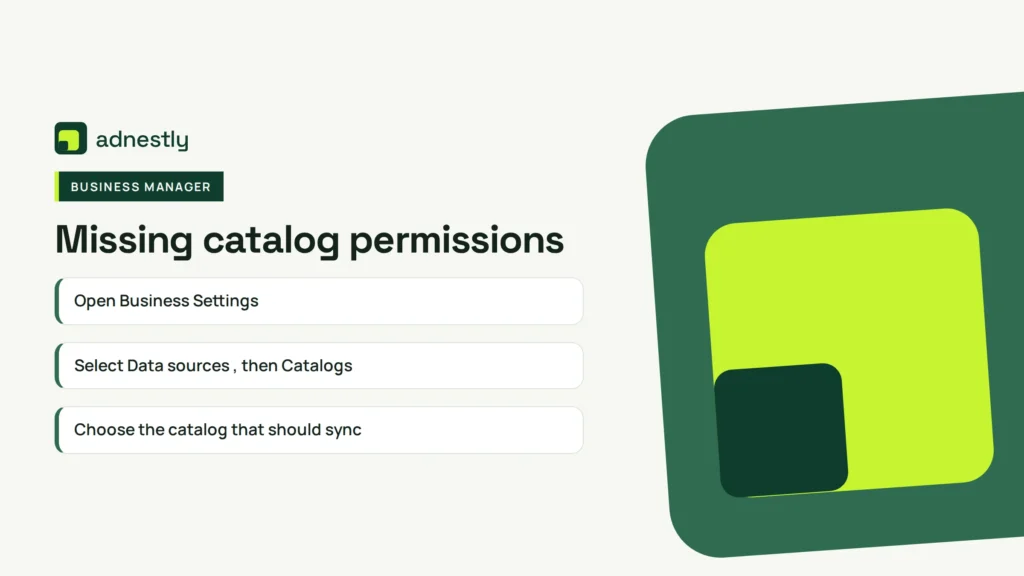
- Open Business Settings.
- Select Data sources, then Catalogs.
- Choose the catalog that should sync.
- Review People, Partners, and connected ad accounts.
- Confirm the person has permission to manage the catalog.
- Confirm the ad account is assigned to that same catalog.
- Open Commerce Manager and compare the catalog’s business owner.
The business ID matters more than the display name. Two businesses can have similar names, and a catalog can be assigned to an older business portfolio by mistake. Copy the business ID from Business Settings and compare it with the ID shown in the catalog’s settings.
Meta changes the names and locations of some business tools. Use Meta catalog permissions guidance when the labels in your account don’t match these steps.
A common mistake is assigning the ad account but not the catalog itself. That can let campaigns open while products remain unavailable, costing time and sometimes forcing you to rebuild a sales setup that was already correct.
If the catalog belongs to a client or agency, add the correct partner business ID instead of sharing a personal login. If the business owns both assets, assign the people and ad account directly. If the catalog is owned by another business, that owner must approve or change access.
The quickest confirmation is simple: remove guesswork from the names and compare the business ID, catalog ID, and ad account ID. If all three belong to the intended business, permissions probably aren’t the main problem.
The fix usually takes only a short settings change when you have admin access. It can take longer when another company owns the catalog, because that company must make the change. The money cost is normally low, but the delay can be high if an ad launch is waiting on approval.
Feed errors block product updates
A feed can be connected correctly and still fail because one or more product fields don’t meet Meta’s rules. This cause is different from a permissions problem: the catalog is visible, but its item count stays old or Diagnostics shows rejected products.
Open Commerce Manager, choose the catalog, and select Data sources. Open the relevant website feed, spreadsheet, scheduled feed, or commerce platform connection. Look for the latest upload result, rejected items, warnings, and the exact field named in each error.
Download the error details when that option appears. Compare one rejected item with a product that imported successfully. Check the product ID, title, description, price, availability, image URL, product URL, and brand or condition fields used by your feed.
Pay close attention to product IDs. If your store creates a new ID each time a product changes, Meta may treat the update as a new product instead of changing the existing one. That can leave old items in the catalog and make the sync look broken.
Fix the source data first, not only the catalog error message. If your store platform controls the feed, correct the product record there and run the platform’s feed refresh. If you upload a file yourself, correct the file and upload it again through the same data source.
Don’t delete the whole catalog just because some items failed. Deleting it can remove useful history and break connections to shops or campaigns. If the error affects only a small group, fix those products first; if every item fails, inspect the feed format, URL, credentials, and column names.
The time needed depends on the number of rejected products and the source that creates the feed. A single field correction is usually a small task. A store-wide template or API problem needs the store developer or platform support team.
A stale or incorrect feed schedule
A feed may be healthy but not running when you expect. This happens with scheduled URLs, spreadsheets, and platform integrations that have been paused, moved, or disconnected.
Open the catalog’s Data sources page and identify the source marked as scheduled or connected. Check its last successful update, next scheduled update, source URL, authentication status, and whether the schedule is active. Read the timestamp in the account’s displayed time zone.
Compare that source with the store’s current product feed. A supplier may have changed the file location, renamed a spreadsheet tab, protected a file with a login, or replaced an old feed with a new one. The catalog then keeps its previous data because it can’t read the new source.
Run a manual update only after checking the source. A manual run can confirm whether the connection works, but it won’t repair a broken URL or an expired password. If the manual run fails, copy the exact error and fix the source or contact the platform that generates it.
If the manual run succeeds but the scheduled run doesn’t, the schedule or source access is the likely problem. If both runs succeed but products still look old, compare item IDs and product timestamps in the source file.
A useful rule is: if the source’s last successful update is new, inspect product data; if it’s old or failed, inspect the schedule and connection. The trade-off is that a manual refresh gives faster evidence, while repeated refreshes can create more failed runs without fixing the cause.
This issue isn’t for someone who lacks access to the feed URL, spreadsheet, or store integration. Ask the store owner, feed provider, or platform administrator to restore access rather than guessing at credentials.
Other reasons catalogs stay out of date
The less common causes usually leave a specific clue. Check these only after permissions, feed errors, and the schedule look correct. Before changing anything, note when it became stale and whether every market or only some products are affected.
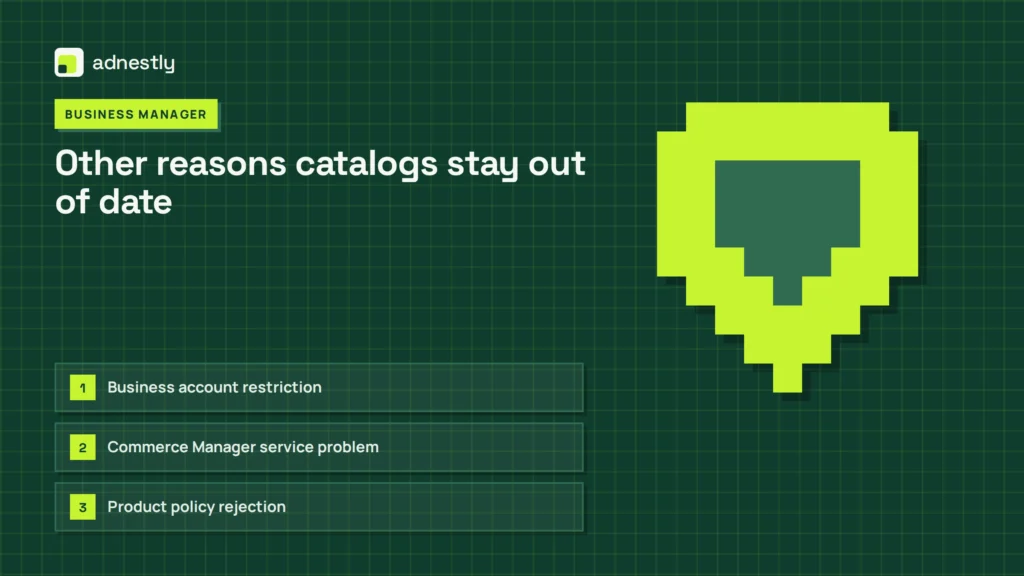
- Business account restriction: Account Quality shows a disabled business, ad account, or commerce feature. A restriction can block updates while the feed still sends.
- Commerce Manager service problem: Several assets fail at once, including catalogs that worked earlier. Several unrelated catalogs failing together points to the platform.
- Product policy rejection: Diagnostics names products or categories as restricted, rejected, or unavailable. Correct only flagged items instead of rebuilding the catalog.
- Currency or country mismatch: Items appear in one market but disappear from another. Compare that market’s availability, currency, and localized data.
- Platform integration failure: The store plugin or app shows an expired connection or failed authorization. Reconnect only if you control it and can verify permissions.
Don’t edit API calls, delete a working catalog, or change business ownership to test a rare cause. Those steps can affect ads, shops, and product history. If Account Quality shows a restriction, or an integration needs developer tools, stop and contact Meta Business Support, the store platform, or the person who manages the feed.
What fixing a catalog sync needs
The permissions fix needs admin access to the business portfolio and the catalog. It usually takes a small settings change, but another business must approve it when the catalog is partner-owned. If you can open the catalog but can’t change its business settings, stop there and ask the business owner to make or approve the change.
A feed correction needs access to the store, spreadsheet, or file that creates the product data. The work is light when one field is wrong and much larger when a template, plugin, or API sends every item incorrectly. Check Diagnostics before editing: it can show whether the problem affects one item, a group, or the whole source. The real effort depends on the number of products and who controls the source.
A schedule fix needs the feed URL, login details, or integration settings. Don’t change credentials unless you own the source and know which service uses them. A new password can stop an otherwise healthy feed if another service still has the old one. If the connection belongs to a vendor, ask that vendor to confirm the URL and last successful request.
A policy or account restriction needs the account owner and sometimes Meta support. That path can take longer than a local data fix because another review process is involved. Don’t keep changing product rows when the error identifies an account or policy restriction; those edits won’t remove the restriction. Use the error text, catalog ID, and business ID when requesting help.
The exact effort varies with feed type, item count, and account ownership. Read those values from Commerce Manager’s Data sources, Diagnostics, and Settings pages rather than estimating from another store. Identify the data source named in the diagnostic before changing a file, especially when the catalog has more than one source.
This isn’t a good fit for someone who can’t safely identify the business owner or feed administrator. If ownership is unclear, document the error and source name first, then get the authorized person to make the change.
Related guides
- Business Manager Error: Something Went Wrong, Try Again Fix
- Instagram Account Can’t Be Added to Business Manager: Fixes
- Ads Manager Error: Payment Failed? Update Your Payment Method
Frequently asked questions
Can I sync a catalog without Business Manager?
No, a catalog still needs a business-owned or otherwise authorized connection for business advertising tools. You may create or manage some catalog features through Commerce Manager, but ads and partner access depend on the business assets assigned to it. If you only have personal access, ask the business owner to assign your profile or partner account. Don’t create a second catalog until you confirm the original owner.
Why is my catalog visible but not updating?
The usual reason is a failed data source, not a missing catalog. Open Data sources and read the last successful update, current error, and rejected item count. A visible catalog can keep old products when its feed URL, login, spreadsheet, or store integration no longer works. If the source succeeds, compare product IDs and availability between the source and the catalog.
How long does a catalog sync take?
There’s no single guaranteed sync time for every catalog source. The deciding factor is the source type and its update schedule, which you can read in Commerce Manager under Data sources. A manual upload can show a result after processing, while a scheduled feed may wait for its next run. If the last successful update is old, fix the source before waiting longer.
Is it safe to delete and recreate the catalog?
No, deletion isn’t a safe first test. A new catalog can lose connections to campaigns, shops, product sets, or partner assets. Keep the existing catalog while you inspect permissions, Diagnostics, and the data source. Recreate it only when the documented setup can’t be repaired and the business owner understands which connected tools must be configured again.
What happens if the product feed keeps failing?
The catalog keeps its last accepted data, while new or changed products may not appear. Repeated failures can also leave prices, stock status, or links out of date. Save the error details from Diagnostics, fix the source record or feed format, and run one controlled update. If every item fails, involve the store platform or feed developer.
Does it matter which business owns the catalog?
Yes, ownership controls who can assign access and approve partner connections. A person may see a catalog yet lack authority to connect it to the intended ad account. Check the catalog’s business owner, the business ID, and the assigned assets together. If another company owns it, that owner must make the change or grant the required partner access.
Conclusion
After the connection is restored, set a simple weekly check for product approvals, stock levels, and feed health. Save the relevant Commerce Manager alerts so your team can respond before shoppers see missing or outdated items. If problems return, contact Meta support with the catalog ID and the latest error details.

Aaron Kelly writes about Facebook tools, account management, and business advertising. His content covers account security, Facebook Ad Accounts, Business Manager setup, Pixel and conversion tracking, Business Manager verification, and admin profile verification. He focuses on explaining technical processes and common account issues in practical terms, helping businesses and advertisers manage their Facebook assets more effectively and build a more secure, reliable advertising setup.
Checked against Meta’s own documentation. How we write and update guides