Facebook Business Manager Problems: Fix Common Errors

Facebook Business Manager, now shown in Meta Business Suite as your business portfolio, is where your Pages, ad accounts, Pixels, catalogs and people come together. When something in it breaks, the effect spreads: ads stop, tracking goes quiet or the wrong people get access. Most problems still come from a handful of causes that you can check calmly, in order.
This guide explains how Business Manager is organised, helps you find where your problem sits and points you to a detailed fix for every common message, from loading errors to assets you never added.
How Business Manager is organised
Think of Business Manager as a container owned by your business. Inside it sit assets: Facebook Pages, Instagram accounts, ad accounts, Pixels and datasets, catalogs and WhatsApp accounts. People and partners get access to those assets through roles. Your own Facebook profile is only the key you use to get in.
Three ideas explain most problems. An asset can only be owned by one business portfolio at a time, so an asset owned elsewhere cannot simply be added. Access is given per asset and per role, so having access to the portfolio does not mean having access to every ad account. And the person with full control decides what everyone else can do, as Meta’s note on full control of a business portfolio explains.
Start here: find where the problem sits
| What you see | Where the problem usually is | Look first at |
|---|---|---|
| Error messages or pages that will not load | Your browser, session or a temporary Meta issue | A private window and another browser |
| An asset cannot be added or connected | Ownership or the asset’s own settings | Who currently owns the asset |
| Unknown assets, requests or alerts | Security of the portfolio and its people | People, partners and recent activity |
| Reports that look wrong | Time zones, attribution or tracking | Account time zones and event sources |
| Missing options or buttons | Your role or the portfolio’s status | Your permissions and verification status |
Errors and loading problems
Most error screens are not about your business at all. The general “Something went wrong, try again” message usually comes from the browser, an expired session or a short outage, and the same is true when Ads Manager is not loading. Start with a private window, then another browser, then clear stored site data; Google explains how to clear the cache and cookies.
The mobile app has its own quirks. If the Ads Manager app is not showing campaigns, check that it is set to the right ad account and business, then update or reinstall it before assuming anything is wrong with the account.
Some messages look like errors but describe something real. When Ads Manager shows zero results, the date range, filters or attribution settings are often hiding data that exists. A payment failed error means the ad account’s payment method needs attention, and reports that disagree between tools may come from a time zone mismatch between the portfolio, the ad account and your other systems.
A quick order for any error screen
- Reload once and wait a minute; many errors clear on their own.
- Open a private window to rule out stored data and extensions.
- Try another browser or device to separate your setup from your account.
- Check Meta’s status and whether colleagues see the same error.
- Note the exact message and time, then move on to account-level checks only if the error stays.
Working in this order prevents the most common mistake: changing account settings to fix what was only a browser problem, and creating a real problem in the process.
Connecting assets
Connecting an asset depends on who owns it and on the asset’s own settings. These are the most common sticking points:
- Instagram: when an Instagram account can’t be added to Business Manager, it is usually a personal account, connected to another business or missing the right Page link.
- WhatsApp: a WhatsApp Business account stuck in pending usually waits on a phone number, display name or business details check.
- Catalogs: a catalog not syncing is often a feed or data source problem rather than a Business Manager one; Meta’s guide to troubleshooting a data feed lists the usual errors.
- Lead ads: when a lead form is not delivering leads to your CRM, the connection between Meta and the CRM needs checking, not the form itself. Developers can use Meta’s guide to retrieving leads.
Security, unknown activity and alerts
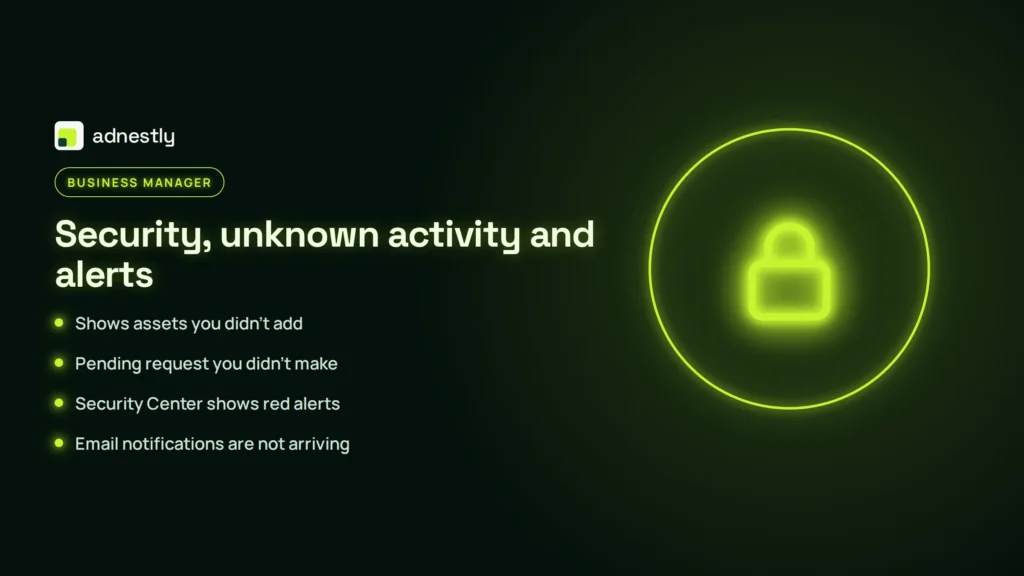
Anything you did not do yourself deserves attention first, because a compromised portfolio puts every asset inside it at risk.
- If Business Manager shows assets you didn’t add, someone with access added them, or your portfolio was used by someone else. Check people and partners before removing anything.
- A pending request you didn’t make can be a mistake by a partner or an attempt to gain access. Never approve it before you know who sent it.
- When the Security Center shows red alerts, each alert names a specific risk, such as admins without two-factor login. Fix them one by one.
- If email notifications are not arriving, you may miss security warnings and requests. Check the business email, your notification settings and your spam folder.
After any security scare, review everyone with access, remove what you do not recognise and make sure at least two trusted admins use two-factor authentication. Then check the places attackers usually change quietly: payment methods on each ad account, the business email that receives notifications, and partners with access to your Pages or Pixel. Change the passwords of every admin profile, sign out of devices you do not recognise and keep screenshots of anything unusual. If ads ran that you did not create, note the dates and amounts; you will need them if you ask Meta or your bank about the charges.
Verification and missing options
Some features only appear for verified businesses or for people with the right role. If the business verification button is missing, the cause is usually your role, the portfolio’s age or the fact that verification is not yet required for what you are trying to do. Meta’s page on troubleshooting business verification covers the most common blocks.
Tracking assets: Pixels and datasets
Pixels and datasets live in your business portfolio too, and problems with them often look like tracking problems. If a Pixel shows active but records no purchases, or Conversions API events do not match Pixel events, start with those guides. For every other tracking issue, our complete guide to fixing a Meta Pixel that is not working goes platform by platform.
Roles and access, done right
Many Business Manager problems start with access rather than settings. A clean role setup prevents most of them.
| Who | What they should have | Why |
|---|---|---|
| Business owner | Full control | Can fix anything and remove anyone |
| Trusted backup | Full control | Keeps the business reachable if the owner is locked out |
| Employee running ads | Partial access to the ad accounts and Pages they use | Can work without changing billing or people |
| Agency or freelancer | Partner access to specific assets | Can be removed in one step when the work ends |
| Former staff or partners | No access | Old access is a common route for unwanted logins |
Review this list every few months. It takes minutes and it means that when something does go wrong, you already know who can act and which login is safe to use.
Who should own what
Ownership decides who can fix things. Assets created by a freelancer in their own portfolio keep working until that person leaves, changes access or deletes something. Then your Pages, ad accounts or Pixel go with them.
- Pages and Instagram accounts should be owned by your business portfolio, with the profiles that manage them added as people.
- Ad accounts should be created in, or moved into, your portfolio. Accounts owned by an agency can be shared with you, but you cannot take them with you.
- Pixels and datasets should be yours, shared with partners who need them.
- Catalogs and WhatsApp accounts follow the same rule: owned by you, shared with partners.
If an asset you depend on is owned by someone else, ask for a transfer or full access now, while the relationship is good. It is much harder after a dispute.
Limits inside a business portfolio
A business portfolio has limits on how many assets it can hold, and new portfolios start with lower limits than established ones. The limit on ad accounts is the one most businesses meet first; when you see it, read our guide to an ad account limit reached in Business Manager before creating anything new.
Limits usually grow with a healthy history: real spend paid on time, few rejected ads and a verified business. Opening new portfolios to get around a limit rarely helps, because Meta connects them through the people and payment methods behind them, and it makes the structure harder to manage.
If you regularly need more assets, clean up first. Close ad accounts you no longer use, remove duplicate Pages and catalogs, and keep only what the business really runs. A tidy portfolio is easier to verify, easier to secure and easier for Meta to trust.
Signs your business portfolio is healthy
- Every Page, ad account, Pixel and catalog you rely on is owned by your business, not by a person or an agency.
- Two trusted people have full control, and both use two-factor login.
- Agencies and freelancers have partner access to only what they need.
- The business email receives Meta’s notifications, and someone reads them.
- Security Center shows no open alerts.
- Payment methods belong to the business and have a backup.
- Verification is done, or at least the documents are ready.
If you can tick every item, most of the problems in this guide are unlikely to reach you, and the ones that do will be quick to fix.
A quarterly Business Manager health check
- People: remove anyone who no longer works with you and check that everyone left has the lowest role that does the job.
- Partners: remove agencies and freelancers who have finished their work.
- Admins: confirm two trusted people have full control and use two-factor login.
- Assets: check that every Page, ad account, Pixel and catalog you rely on is owned by your portfolio.
- Security Center: fix any new alerts.
- Notifications: confirm the business email still receives messages from Meta.
- Billing: check that payment methods belong to the business and have not expired.
Write down what you checked and what you changed. The next time a problem appears, that record shows what changed since the last good state.
Common setup mistakes that cause problems later
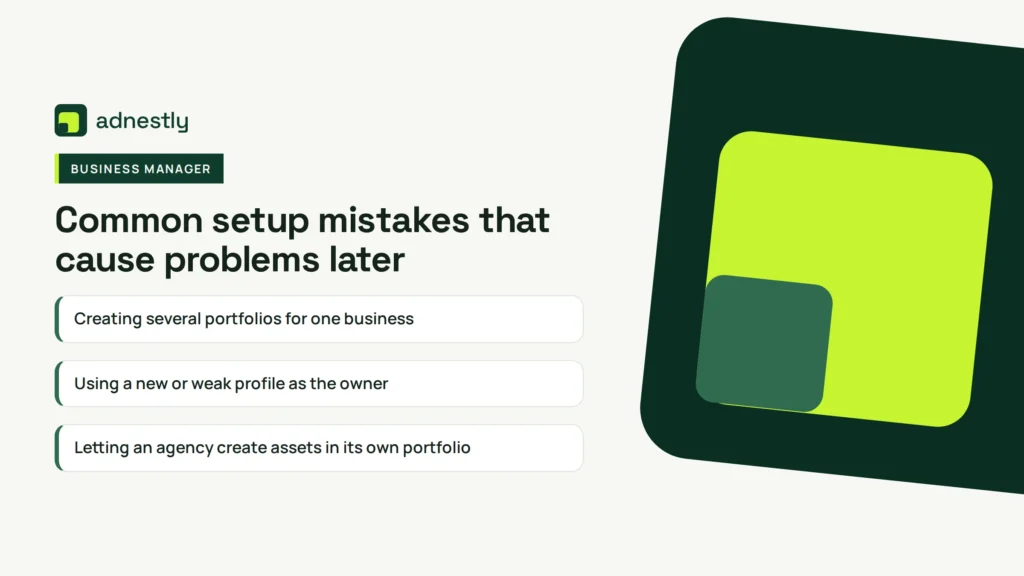
Many problems in this guide were created on the day the business portfolio was set up. If you are building one now, or cleaning one up, avoid these:
- Creating several portfolios for one business. Assets end up split, nobody knows which one is the real one and limits are reached faster.
- Using a new or weak profile as the owner. The owner profile should be real, established and secured with two-factor login.
- Letting an agency create assets in its own portfolio. The work gets done, but the assets are not yours.
- Using a personal email for the business. Security notices and requests go to someone’s private inbox and get lost when they leave.
- Giving everyone full control. It feels simpler, but one mistake or one compromised login can change everything.
- Adding payment methods in someone’s personal name. Billing breaks the day that person leaves.
- Skipping verification until it is urgent. Verification can take time; doing it early means it is ready when a feature requires it.
Moving assets between business portfolios
Sometimes an asset needs to move: a Page created by a freelancer, an ad account set up by an agency or a Pixel in an old portfolio. Ownership transfers are possible for some assets and not for others, and they always need the current owner’s cooperation.
Pages and Instagram accounts can usually be moved by the current owner, either by transferring ownership or by removing the asset from their portfolio so you can claim it. Ad accounts are harder: an ad account owned by another business normally cannot be transferred, so the practical path is often to create a new ad account in your own portfolio and move the campaigns. Pixels and catalogs can be shared with you, but full ownership usually stays where it was created.
Before any move, list every asset, who owns it and what depends on it, such as campaigns, audiences or a catalog connected to a shop. Then move one asset at a time and check that everything connected to it still works.
When an admin leaves
People leave businesses, and Business Manager needs to be ready for that. If the only admin leaves, the business can lose control of everything at once. If a former employee still has access, they can still change things.
- Before they leave, confirm another person has full control and knows how to use it.
- On their last day, remove them from the business portfolio and from every asset they had access to.
- Check billing and emails: replace any payment method or notification email that belonged to them.
- Review partners they may have added on behalf of the business.
If the only admin has already left and cannot be reached, recovery is slow and not guaranteed. That is the strongest reason to keep two admins at all times.
Setting up a new business portfolio the right way
If you are starting fresh, a careful first hour saves months of fixes later.
- Start from a secure profile. Use a real, established Facebook profile with two-factor login as the creator and owner.
- Use the business’s legal name and a business email that more than one person can reach.
- Add a second admin straight away, also with two-factor login.
- Claim your own assets first: your Page, Instagram account, website domain and Pixel.
- Create the ad account inside the portfolio, choosing the right country, currency and time zone, because those cannot be changed later.
- Add a payment method in the business’s name, with a backup.
- Invite agencies as partners only after your own assets are in place.
- Prepare verification documents early, even if you do not need them yet.
Following this order means every asset is born inside your business, owned by it and protected by more than one admin. Most of the problems in this guide simply cannot happen to a portfolio built this way.
What to gather before asking for help
Whether you contact Meta support, a colleague or a specialist, the same facts speed things up: the exact message with a screenshot and date, the business portfolio ID and the IDs of the assets involved, your role, and what changed in the days before. Keep them in one document so you never have to collect them twice. If the problem involves access, add a list of everyone with a role in the portfolio and when they were added; if it involves an asset, note who created it and when it was connected. These details often explain the problem before anyone else looks at it.
When to get help
Some fixes take one setting. Others involve several owners, a security incident or assets that are tied to a person who left. Because everything in Business Manager depends on the profiles that run it, a secure, complete owner profile is the foundation; our Facebook account setup service starts there and builds up. We will tell you honestly if your case only needs a small fix.
Frequently asked questions
Is Business Manager the same as Meta Business Suite?
They are closely linked. Business Manager settings now live inside Meta Business Suite, where your business is called a business portfolio. The ideas are the same: a business owns assets, and people get access through roles.
Why can’t I add an asset to my Business Manager?
Usually because another business portfolio already owns it, or because the asset itself is not set up for business use, such as a personal Instagram account. Find the current owner first.
How many admins should a business portfolio have?
At least two trusted people with full control, both using two-factor login. One admin means one locked profile can lock the whole business.
What should I do if I see assets or requests I don’t recognise?
Do not approve or remove anything straight away. Check people, partners and recent activity, secure your own login and then remove what you cannot explain.
Should I give my agency full control?
Usually not. Give partner access to the assets they need. It is enough for their work and can be removed in one step.
Can I move an ad account to my own Business Manager?
Usually not directly when another business owns it. The common solution is to create a new ad account in your own business portfolio and move your campaigns there, while the old owner shares access in the meantime.
Why do my reports differ between Business Manager and other tools?
Time zones, attribution windows and event sources often differ between systems. Check the time zone of the ad account and how each tool counts conversions before assuming data is missing.
What to do next
Find your symptom in the table at the top, open the guide for your exact message and fix one thing at a time. If you saw anything you did not do yourself, start with security before anything else.
Then use the roles table and the quarterly checklist to put your business portfolio in order. A clean structure, with your business owning every asset and two trusted admins, prevents most of the problems in this guide.

Aaron Kelly writes about Facebook tools, account management, and business advertising. His content covers account security, Facebook Ad Accounts, Business Manager setup, Pixel and conversion tracking, Business Manager verification, and admin profile verification. He focuses on explaining technical processes and common account issues in practical terms, helping businesses and advertisers manage their Facebook assets more effectively and build a more secure, reliable advertising setup.
Checked against Meta’s own documentation. How we write and update guides