Facebook Ads Manager Keeps Logging Out: What It Means and How to Fix It

When ads manager keeps logging out, the cause is almost always an expired session token or a browser extension blocking Meta’s security cookies. The fix takes under five minutes: clear your cache for facebook.com, disable ad blockers on that domain, and log back in once.
$ part ofFacebook Ad Account Problems: How to Fix Every Common IssueThe complete guide this article belongs toOpen guide →Three things change which step you need. Your browser’s cookie settings decide if sessions survive a restart. Extensions like privacy tools can block the login script silently. A second device logged into the same account forces older sessions to expire immediately.
Who keeps logging out of Ads Manager
Business owners running their own campaigns are usually the ones typing this query. They have one ad account, no technical team, and they just want their ads back online before the daily budget resets. They don’t know what a session token is, and they shouldn’t need to.
Agency media buyers hit this problem differently. They manage five or more ad accounts through Business Manager, switching between them constantly. For them, the logout isn’t just annoying—it stops work across multiple clients at once.
A third group lands here by mistake. People whose personal Facebook account was flagged for suspicious activity often think the Ads Manager glitch is the whole problem, when it’s actually a symptom of an account restriction.
What controls your session length
Meta issues a temporary session token every time you log in. That token has a set lifespan, and several factors cut it shorter than expected.
Browser cookie settings matter most. If your browser deletes cookies when it closes, the token disappears with it. Check your browser’s privacy settings under “Cookies and site data” to see if “Clear on exit” is turned on.
Privacy extensions often break login scripts. Ad blockers, tracker blockers, and strict privacy modes can prevent the token from saving properly. Disable them for facebook.com and business.facebook.com specifically, not just globally.
Two devices create conflicts. If you open Ads Manager on your phone while your laptop session is active, Meta’s security system may invalidate the older token. Pick one primary device for management tasks.
Network changes trigger re-verification too. Switching from office Wi-Fi to a mobile hotspot mid-session looks like suspicious behavior to Meta’s automated systems.
The factor people get wrong most often is blaming the internet connection itself. A slow connection doesn’t cause logouts—an interrupted one does. If your network drops packets for even two seconds during a background token refresh, the session fails silently. Test this by opening your browser’s developer tools, clicking the Network tab, and watching for red failed requests while Ads Manager is open.
Fixing the Ads Manager logout loop
These checks use only your browser settings.
- Open your browser settings and search for “cookies.” Set the option to “Allow sites to save and read cookie data.” On Chrome, this is under Privacy and Security > Third-party cookies.
- Add facebook.com and business.facebook.com to your allowed sites list. In Chrome, click “Sites that can always use cookies” and type both addresses.
- Clear existing cookies only for Meta domains. Go to “See all site data and permissions,” search “facebook,” and delete those entries. Leave other sites alone.
- Turn off every browser extension temporarily. Click the puzzle piece icon in your toolbar and toggle each one off. Don’t uninstall anything yet.
- Open an incognito or private browsing window. Log into Ads Manager there. If the session holds for 30 minutes without dropping, an extension or cached file in your main browser is the cause.
- Re-enable extensions one at a time in your normal browser. Wait five minutes after each one, then check if Ads Manager stays logged in. When it drops again, you’ve found the culprit.
- Remove any other active sessions. Go to Facebook Settings > Security and Login > Where you’re logged in, and end every session except your current one.
- Log back in normally and wait 10 minutes without switching tabs. If the session holds, the fix worked.
The judgment call here is deciding whether to keep a privacy extension disabled. If turning off your ad blocker fixes the logout but leaves you uncomfortable with tracking, create a separate browser profile just for Ads Manager. That way your daily browsing stays protected while your ad work stays stable.
If clearing cookies and disabling extensions doesn’t hold the session past 10 minutes, the issue sits on Meta’s side—either a server-side flag on your account or a broader outage. At that point, contact Meta’s official support rather than trying deeper browser modifications.
How different setups change the fix
Every browser and device combination handles Meta’s tokens slightly differently. Match your setup below to find the right path.
| Your setup | What to do | Time needed | Watch for |
|---|---|---|---|
| Chrome desktop | Allow cookies for Meta domains | 3 minutes | Extension conflicts |
| Firefox desktop | Disable Enhanced Tracking Protection | 2 minutes | Strict mode blocks tokens |
| Safari on Mac | Turn off “Prevent cross-site tracking” | 2 minutes | Apple’s ITP resets sessions |
| Edge browser | Clear Meta cookies, allow pop-ups | 3 minutes | SmartScreen false flags |
| Mobile app | Update app, clear app cache | 5 minutes | Outdated versions drop sessions |
| Two browsers open | Close one, use single browser only | 1 minute | Simultaneous sessions conflict |
Safari users face this most often because Apple’s Intelligent Tracking Prevention aggressively limits how long third-party cookies survive.
Mobile app logouts usually trace back to outdated versions. The app store shows your current version number—compare it against the latest release listed on the app’s store page.
Getting Ads Manager sessions to stay stable
Checking browser signals before they fail
Your browser tells you a session is dying before the screen goes blank. Open developer tools (press F12 or right-click and select Inspect), then watch the Network tab. Failed requests to “graph.facebook.com” appearing in red mean the token already expired.
Cookie storage limits also cause silent failures. Browsers cap individual cookies at 4,096 bytes. If you’ve accumulated years of Meta tracking data, new session cookies get rejected. Deleting old Facebook cookies frees space for the fresh token.
Don’t trust the “Keep me logged in” checkbox blindly. It extends the token lifespan from roughly 24 hours to about 30 days, but only if no other factor interrupts it. An extension blocking trackers will void that extended session regardless of the checkbox state.
Leaving the wrong settings alone
Changing your DNS server won’t fix a session timeout. Switching to a public DNS like 1.1.1.1 might speed up page loads, but it doesn’t change how Meta validates your token.
Disabling your firewall entirely is dangerous and unnecessary. If your firewall blocks Facebook, you’d never reach the login page at all—you wouldn’t get far enough to be logged out.
Don’t reinstall your browser as a first step. If other sites stay logged in fine, the browser installation isn’t broken.
Ads Manager logout symptoms and causes
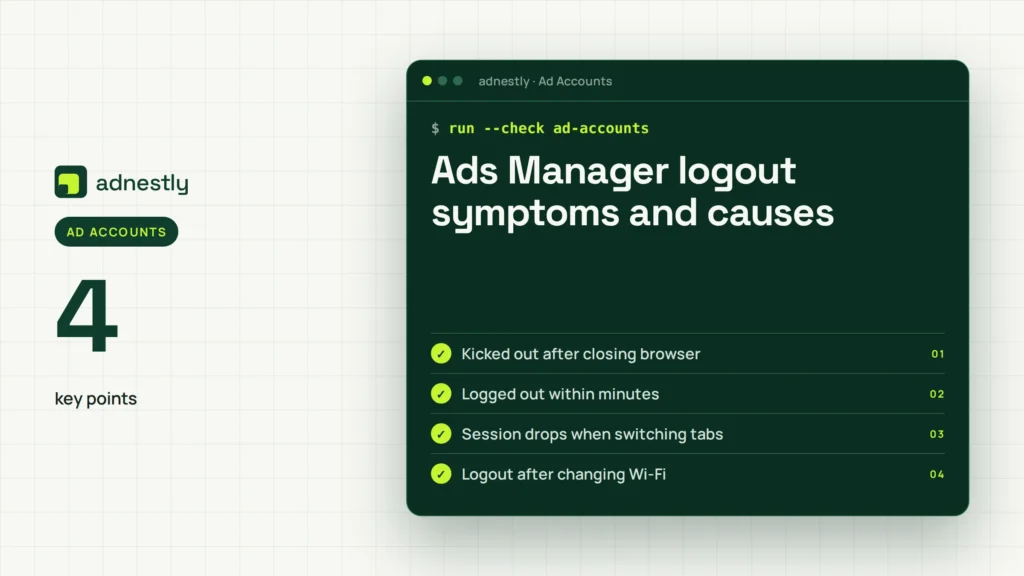
Match what you see on screen to the actual cause. These are ranked from most to least likely based on how Meta’s authentication works.
| What you notice | What it usually means | What to do first | How to stop it happening again |
|---|---|---|---|
| Kicked out after closing browser | Cookies set to clear on exit | Change cookie retention setting | Keep “Allow cookies” enabled |
| Logged out within minutes | Extension blocking auth scripts | Disable extensions one by one | Whitelist Meta domains permanently |
| Session drops when switching tabs | Memory pressure killing background tabs | Pin the Ads Manager tab | Reduce open tab count below twenty |
| Logout after changing Wi-Fi | IP change triggered security check | Stay on one network per session | Avoid network switching mid-work |
| Phone login kills desktop session | Concurrent session limit reached | End old sessions in settings | Use one primary device daily |
| Error message mentions “security” | Account flagged for review | Check Account Quality page | Follow verification prompts immediately |
| Blank screen then login page | Token expired during background refresh | Clear cache, log in fresh | Bookmark direct login URL |
If you see the “Account Quality” error, no browser fix will help. Go straight to Facebook’s Account Quality page and follow the steps there.
Blank screens followed by login redirects usually mean the token expired while the tab sat idle. Keeping the tab active prevents this.
Platform rules governing session access
Meta’s Terms of Service require valid authentication for every API call Ads Manager makes. Each action—editing a budget, pausing an ad, pulling a report—sends your session token to Meta’s servers for validation. An invalid or expired token returns an authentication error, which the interface translates into a logout redirect.
The platform enforces concurrent session limits to prevent unauthorized access. According to Meta’s security documentation, multiple active sessions from different locations trigger automated protective logouts. This isn’t a bug; it’s a designed security measure protecting advertiser funds.
Business Manager adds another layer. Accounts linked to a Business Manager organization inherit that organization’s security policies. If your admin enabled two-factor authentication requirements or session timeout policies at the business level, those override your personal browser preferences. Check your Business Manager security settings to see if organizational rules are forcing the logout.
You can’t override these platform rules locally. If Meta’s server decides your token is invalid, no amount of browser tweaking will make it accept the request.
What fixing this actually costs
The currency here is time, not money. Every unexpected logout interrupts your workflow, and those interruptions compound.
A single session recovery—clearing cache, logging back in, navigating to your campaign—takes about three to four minutes. If it happens five times during a work session, you’ve lost roughly 20 minutes. For someone managing an ad budget that’s inexpensive relative to the alternative, that’s 20 minutes where a failing ad could drain spend unchecked.
The real cost spikes during critical windows. If you’re launching a campaign at a specific hour for a product drop, a forced logout can delay the launch past your optimal window. That delay might cost more in missed conversions than the troubleshooting time itself.
Browser extensions that cause this problem are usually free, so removing them costs nothing financially. But if you rely on a specific privacy tool for other work, the trade-off is choosing between privacy elsewhere and stability in Ads Manager. Creating a dedicated browser profile resolves this without sacrificing either.
Paid “session manager” tools claiming to fix this are unnecessary. Meta’s token system operates server-side; no local software can extend a token the server has already invalidated. Save that money.
Keeping your session stable long-term
Once you’ve fixed the immediate logout problem, a few habits prevent it from returning.
Check your active sessions weekly. Go to Facebook Settings > Security and Login > Where you’re logged in. Remove any device or location you don’t recognize, and log out of old sessions you’ve forgotten about.
Update your browser when prompted. Browser updates frequently include changes to how cookies and third-party storage are handled. Running an outdated version means your browser might apply old cookie rules to Meta’s newer authentication methods.
If you use a dedicated browser profile for ad management, don’t install new extensions in it casually. Keep that profile minimal: just the browser, your password manager, and nothing else.
Watch for Meta’s own changes. The platform occasionally updates its security protocols, which can invalidate existing tokens across all users simultaneously. If you and several other advertisers get logged out on the same day, it’s likely a platform-side update, not your browser.
The sign that your setup needs attention again is frequency. One random logout a month is normal platform behavior. Three or more in a single week means something in your environment changed—a new extension, a browser update that reset preferences, or a network configuration shift.
When this fix won’t work for you
Not every Ads Manager logout is a browser problem. Three situations require completely different actions.
If your account shows a restriction notice mentioning policy violations or identity verification, browser tweaks won’t help. Meta has suspended your access at the account level. You need to submit an appeal through the Account Quality dashboard and provide whatever documentation they request. No cookie setting overrides a manual platform ban.
If you’re part of a Business Manager organization and your admin recently changed security settings, your personal browser configuration is irrelevant. The organization’s rules control your session. Contact your Business Manager admin and ask if they enabled mandatory session timeouts or new two-factor requirements.
If the logout happens alongside other Facebook features breaking—Messenger disconnecting, News Feed failing to load—the problem is likely a broader Meta service outage. Check Meta’s status indicators or third-party outage trackers. During platform-wide incidents, waiting is the only working solution. Attempting repeated logins during an outage can sometimes trigger rate-limiting, making the problem last longer once services recover.
Frequently asked questions
Why does Ads Manager log me out every time I close my browser?
Your browser deletes cookies on exit. Change the cookie setting to “Keep until they expire” or add facebook.com to the exceptions list.
Can an ad blocker cause Ads Manager to log out?
Yes. Ad blockers frequently intercept the scripts Meta uses to refresh session tokens in the background. Whitelist facebook.com and business.facebook.com in your blocker’s settings.
How long should an Ads Manager session last normally?
A standard session lasts roughly 24 hours without activity, or up to 30 days if you checked “Keep me logged in” and no other factor interrupts it.
Is it safe to stay logged into Ads Manager on a shared computer?
No. Anyone with physical access to that browser can manage your ad spend. Always log out manually on shared machines, and enable two-factor authentication on your Facebook account so a stolen session token alone isn’t enough to access billing.
What happens if I’m logged out during an ad edit?
Unsaved changes are lost. Make changes in smaller batches, and click “Publish” or “Save” before switching tabs to avoid losing work during an unexpected timeout.
Does using two browsers at once cause Ads Manager logouts?
It can. Opening Ads Manager in Chrome and Firefox simultaneously creates two active sessions. Meta’s security systems sometimes interpret rapid switching between them as suspicious behavior and terminate the older session. Stick to one browser.
Will clearing my entire browser history fix the logout loop?
It might, but it’s excessive. You only need to clear cookies and cached files for Meta domains. Wiping everything logs you out of every other website too. Targeted clearing solves the problem without disrupting your entire browsing setup.
Do I need to reinstall my browser if nothing else works?
Almost never. If other websites hold their sessions fine, your browser installation isn’t corrupted. The issue is specific to how Meta’s tokens interact with your current settings or extensions. A dedicated browser profile achieves the same clean slate without reinstalling anything.
Start your Ads Manager session fix now
Open your browser’s cookie settings right now and whitelist facebook.com and business.facebook.com. Your next login should hold steady without dropping, and you’ll know it worked when you can navigate between campaigns for 10 minutes without seeing the login screen again. If the session still breaks after whitelisting cookies and disabling extensions, stop troubleshooting and contact Meta support directly.

Aaron Kelly writes about Facebook tools, account management, and business advertising. His content covers account security, Facebook Ad Accounts, Business Manager setup, Pixel and conversion tracking, Business Manager verification, and admin profile verification. He focuses on explaining technical processes and common account issues in practical terms, helping businesses and advertisers manage their Facebook assets more effectively and build a more secure, reliable advertising setup.
Checked against Meta’s own documentation. How we write and update guides