Facebook Ads Manager Mobile App Not Showing Campaigns

A stale session token is the reason the ads manager mobile app not showing campaigns happens most of the time. The app holds your login details in a temporary file, and when that file expires, it can’t pull your data from Meta’s servers. You’ll see an empty dashboard instead of your active ads. The fastest fix is logging out completely, closing the app, and signing back in.
$ part ofFacebook Business Manager Problems: Fixes for Common ErrorsThe complete guide this article belongs toOpen guide →Why the mobile app stops showing campaigns
The app hides your work for a few different reasons, but they don’t happen at the same rate. A bad login session causes the vast majority of these blank screens. Network drops and outdated software follow closely behind. Server problems on Meta’s end are real but less frequent. Account restrictions or wrong filters take up the rest.
| Cause | How common | How to confirm it | Fix it yourself? |
|---|---|---|---|
| Expired login token | Very common | Log out and back in | Yes |
| Weak internet connection | Common | Switch from Wi-Fi to cellular | Yes |
| Outdated app version | Common | Check store for updates | Yes |
| Wrong date filter applied | Less common | Change dates in the filter menu | Yes |
| Meta server outage | Rare | Check official status page | No |
| Account restriction | Rare | Look for red banners or emails | Yes with care |
| Corrupted local cache | Rare | Clear app data in phone settings | Yes |
If the screen loads slowly before going blank, suspect the network. If it snaps open instantly but shows nothing, check your filters first.
Your login session expired silently
Meta uses temporary access tokens to keep you logged into the app without asking for your password every single day. These tokens have a strict lifespan. When one expires while the app runs in the background, the interface doesn’t always warn you. It just stops receiving data from the servers, leaving your dashboard completely empty.
This happens because the app tries to use an invalid key to open a locked door. The server rejects the request, and the mobile interface defaults to showing zero items rather than throwing an error message. You won’t see a “session expired” warning unless you try to make a change.
To confirm this is your exact issue, follow these steps:
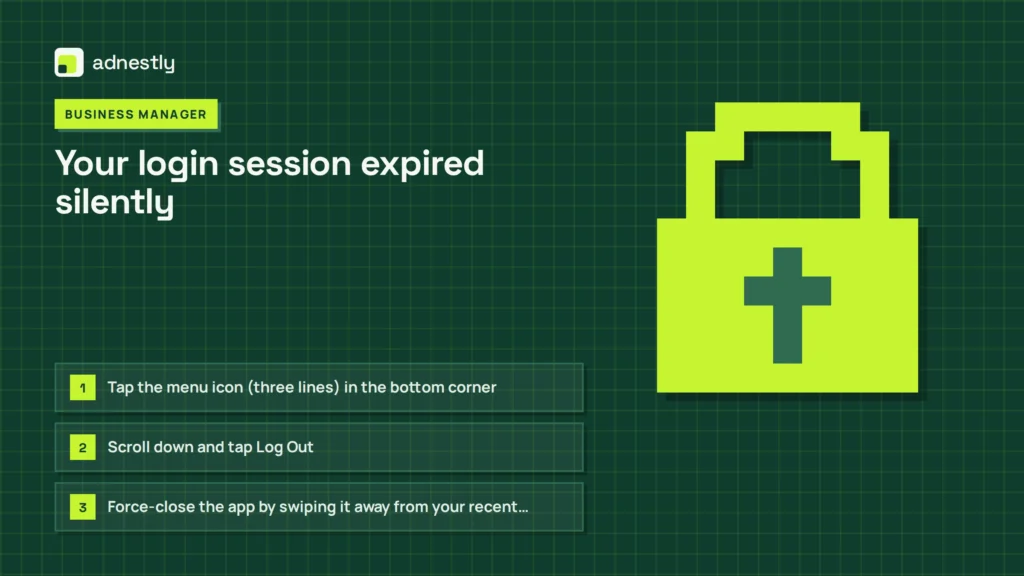
- Tap the menu icon (three lines) in the bottom corner.
- Scroll down and tap Log Out.
- Force-close the app by swiping it away from your recent apps list.
- Reopen the app and enter your email and password again.
- Wait 10 to 15 seconds for the dashboard to populate.
If your work reappears after step five, the expired token was your only problem. This fix takes under two minutes and costs nothing.
Don’t skip the force-close step between logging out and logging back in. Leaving the app running in the background often keeps the broken token alive in your phone’s short-term memory. You’ll log back in, see the same blank screen, and assume the app is permanently broken. That assumption leads people to delete and reinstall the entire application. Reinstalling wastes several minutes on a slow connection and forces you to set up your preferences from scratch.
If you manage multiple business accounts, the token might be valid for one page but expired for another. Switch between them using the dropdown menu at the top of the screen. If one loads and the other doesn’t, you only need to re-authenticate the specific page that failed.
The exact time a token lasts varies based on your security settings and how often you use the app. If this logout method doesn’t bring your data back, the problem isn’t your login session. Move on to your network connection next.
Your phone dropped the connection briefly
A weak signal tells you apart from a token issue immediately. An expired token gives you a fast-loading but empty screen, while a bad connection makes the app freeze, spin, or load half the text before stopping. The app needs a steady stream of data to build your dashboard. Even a one-second drop during the initial load can leave the campaign list completely blank.
Mobile networks switch towers as you move, and Wi-Fi routers occasionally drop packets. The app doesn’t always handle these micro-disconnections well. Instead of retrying the download automatically, it just displays whatever it managed to grab—which is sometimes nothing at all.
Test your connection with these steps:
- Turn off Wi-Fi in your phone’s quick settings panel.
- Open the app using only your cellular data.
- Pull down on the screen to force a manual refresh.
- Watch if the list populates within 10 seconds.
If cellular data works but your office Wi-Fi doesn’t, your router or firewall is blocking the app’s requests. Some corporate networks block or intercept HTTPS traffic to Meta’s domains. You’ll need to switch to cellular data whenever you manage ads inside that building.
If neither connection works, test another app that streams data, like a maps application. If the maps app also fails to load, your phone’s antenna or carrier is the bottleneck. Restarting your phone resets the network hardware and clears temporary routing errors. This takes about 60 seconds.
You face a trade-off here between speed and stability. Cellular data connects faster when you’re moving around, but it drains your battery quicker. Wi-Fi saves power but introduces more potential blocks from network administrators. Choose the one that actually loads your screen right now, and troubleshoot the other later. Don’t waste time trying to fix your office router when you have active ads that need immediate attention.
The app version no longer matches the servers
Meta updates its advertising platform constantly, and the mobile app must match those backend changes to display your data correctly. When your phone runs an older version, it sends requests in a format the new servers no longer understand. The server ignores the outdated request, and you get a blank screen.
App stores usually update software automatically, but this feature frequently fails. Low storage space on your phone pauses downloads. Battery saver modes restrict background activity. You might be running a version that’s weeks behind the current release without realizing it.
Check your version against the latest release:
- Open the Apple App Store or Google Play Store.
- Search for “Meta Ads Manager”.
- Look at the button next to the app name.
- If it says Update, tap it and wait for the download to finish.
- If it says Open, you already have the newest version available.
An update typically requires 50 to 150 megabytes of free space and takes under a minute on a standard connection. If your phone says storage is full, delete unused photos or old videos first. The app won’t update if it doesn’t have room to unpack the new files.
Running an outdated app doesn’t just hide your work; it leaves you blind to sudden budget spikes. If a campaign starts spending faster than expected because of a bidding change, you won’t see the warning until you update. That delay can cost you more than the few minutes it takes to run the update. Always treat an update prompt as urgent when money is actively being spent.
If the store shows no update but your app remains broken, the developers might have pulled a faulty release. In that rare case, deleting the app and downloading it fresh forces your phone to grab the latest stable file directly from the store’s servers.
Hidden filters cleared your dashboard view
The app remembers the last set of filters you applied, even if you closed it days ago. If you previously filtered your view to show only paused items, or restricted the date range to last month, the app opens exactly that way next time. You’ll stare at a blank screen simply because nothing matches those old rules.
This catches people off guard because the filter bar sits quietly at the top of the screen. It doesn’t flash or alert you that it’s hiding everything. You assume the data is gone, but it’s just tucked out of sight.
Clear the filters to see everything again:
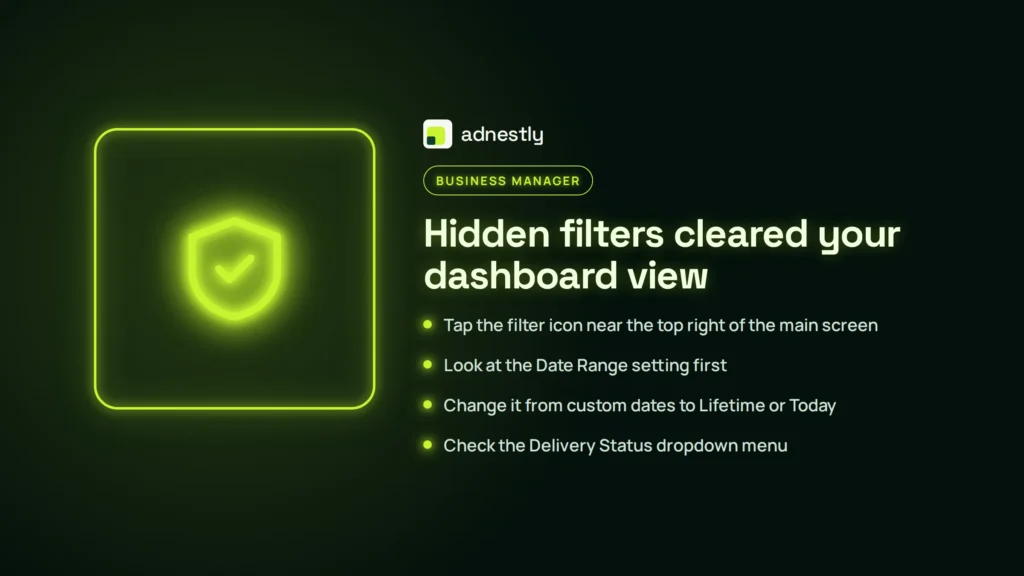
- Tap the filter icon near the top right of the main screen.
- Look at the Date Range setting first.
- Change it from custom dates to Lifetime or Today.
- Check the Delivery Status dropdown menu.
- Ensure it says All instead of just Active or Paused.
- Tap Apply and wait 5 seconds for the list to rebuild.
If you ran a campaign last year and your date filter is stuck on the last seven days, nothing will show up. Changing the date range fixes this instantly. The same applies to search bars. If you typed a name into the search field yesterday and didn’t clear it, the app still looks for that exact word today.
Always reset your filters before assuming the app is broken. It takes 10 seconds and solves the problem more often than you’d expect. If you share a device with someone else who manages ads, they might have left their own filters active. Clearing them puts you back on a neutral starting point where every item has a chance to appear.
Other rare reasons the app stays blank
Sometimes the obvious fixes don’t work, and the problem lives somewhere less visible. These causes don’t happen every day, but they do happen.
- Meta’s servers are down. The system processes millions of requests daily, and occasional failures occur. You can verify current uptime on the Meta Platform Status page. If the dashboard there shows an incident, you just have to wait.
- Your ad account faces a restriction. Policy violations trigger automated locks that hide your management tools. Look for red banners or emails from Meta explaining the hold. Appealing a restriction requires reading their specific policy documents carefully, as rushing the appeal often extends the lockout.
- Corrupted local cache files. Temporary data stored on your phone gets damaged over time. Go to your phone’s settings, find the app, and tap Clear Cache. Don’t tap clear data unless you want to log in again.
- Missing page permissions. Another admin removed your role while you were offline. Ask the business owner to verify your access level in the main Business Settings.
- Operating system conflicts. A brand-new phone update sometimes breaks older apps temporarily. If your phone updated overnight and the app broke by morning, the app developers likely need a few days to release a patch.
If you suspect an account restriction or a server-side block, stop trying to fix it through your phone settings. Pushing buttons blindly when an account is flagged can trigger deeper security reviews. At that point, this stops being a DIY task. Contact Meta support directly through their official help portal, as only they can lift a restriction or explain a server-side block.
What fixing the app actually takes
Getting your dashboard back demands different things depending on what went wrong. A simple logout and login takes about two minutes and requires nothing but your password. It’s the equivalent of turning a light switch off and on again.
Updating the app takes slightly longer. You’ll need a stable internet connection and enough free space on your phone—usually less than what a short video takes up. The effort is minimal, but you can’t do it while actively managing budgets. Plan the update for a moment when you aren’t rushing to pause a runaway ad.
Clearing the cache or resetting filters falls into the same quick category. Both take under a minute once you know where the menus live. The real cost here isn’t time; it’s the panic you feel when you think your money is spending without your supervision.
Server outages demand patience rather than action. You can’t fix Meta’s infrastructure from your phone. You’ll just have to wait until their engineers resolve the issue, which usually takes a few hours at most.
Account restrictions are the heaviest lift. They require you to read policy guidelines, gather proof of compliance, and submit formal appeals. The time investment rivals setting up a brand-new campaign from scratch. To get a real idea of how long an appeal takes, check the timelines listed in your account quality page, as they shift based on current review volumes. Never pay third-party services claiming they can bypass these restrictions for a fee.
Frequently asked questions
Why did my campaigns disappear from the app?
They disappeared because the app lost its connection to your account data. Most of the time, this means your login session expired silently in the background. The app doesn’t always show an error message when this happens. It just presents an empty screen. Logging out and logging back in forces the app to fetch a fresh connection token from the servers. If that doesn’t work, check your date filters next.
Can I manage ads from a computer instead?
Yes, the desktop version works perfectly while your phone app is broken. Open any web browser and go to your Meta Business Suite. Everything you see on the phone exists there too, plus extra columns and settings. Use the desktop site to pause anything urgent. Then troubleshoot your mobile app without worrying about overspending. The browser version doesn’t suffer from the same cache issues.
How long does it take for ads to reappear?
They reappear within 5 to 15 seconds after you apply the correct fix. If you just logged back in, give the app 10 seconds to download your data over your current network. If you changed a date filter, the refresh is almost instant. If you’re waiting for a server outage to end, check the official status page for estimated resolution times. Don’t keep refreshing endlessly.
Is it safe to clear the app cache?
Yes, clearing the cache is completely safe and won’t delete your actual work. The cache only holds temporary images and layout files your phone saved to load things faster. Your campaigns, budgets, and settings live on Meta’s servers, not inside that temporary folder. You’ll have to log in again if you accidentally tap “clear data” instead of “clear cache,” so read the button labels carefully.
Does updating the app delete my drafts?
No, an update doesn’t erase your unsaved drafts or active setups. The app store replaces the software code while keeping your personal user data intact. However, if you have a draft sitting in the app that you never published, it’s smart to publish it or write down the settings before updating. Occasionally, major version jumps reset the local draft folder. Save your work first.
What happens if I ignore the blank screen?
Ignoring it means you lose visibility into your active spending. If a campaign hits its budget cap or gets flagged for a policy issue, you won’t see the alert. You’ll keep paying for ads you can’t monitor. Always fix the blank screen immediately, even if you have to switch to a web browser temporarily. Flying blind with paid advertising risks wasting your allocated budget very quickly.
Can a bad Wi-Fi network cause this issue?
Yes, a restrictive Wi-Fi network can block the app entirely. Corporate offices, hotels, and public cafes often use firewalls that stop advertising platforms from syncing data. The app tries to connect, gets blocked, and shows nothing. Switch to your cellular data to test this theory. If the list loads instantly on cellular, your Wi-Fi network is the culprit. Stay on cellular while managing ads there.
Do I need to reinstall the whole app?
Reinstalling is your last option, not your first one. Try logging out, clearing the cache, and checking for updates before you delete anything. Deleting the app wipes your local settings and forces you to set up your preferred dashboard columns again. Only reinstall if the app crashes repeatedly or refuses to update through the store. Treat deletion as a final step.
Conclusion
Keep your app updated and log out occasionally if you experience blank screens to refresh your session. A blank screen feels alarming when money is on the line, but it’s almost always a simple connection or filter issue. Work through the easiest fixes first, and keep a web browser open as your backup plan.

Aaron Kelly writes about Facebook tools, account management, and business advertising. His content covers account security, Facebook Ad Accounts, Business Manager setup, Pixel and conversion tracking, Business Manager verification, and admin profile verification. He focuses on explaining technical processes and common account issues in practical terms, helping businesses and advertisers manage their Facebook assets more effectively and build a more secure, reliable advertising setup.
Checked against Meta’s own documentation. How we write and update guides