Meta Pixel Not Working on Teachable: How to Fix It

If your Meta Pixel not working on Teachable, the problem is usually one of four things: the Pixel ID is wrong, the code is installed in the wrong Teachable area, browser privacy tools are blocking it, or you’re checking an event that Teachable doesn’t send automatically. Follow the checks below in order so you can identify the failure instead of repeatedly reinstalling the same code.
$ part ofMeta Pixel Not Working? How to Fix Tracking on Any PlatformThe complete guide this article belongs toOpen guide →Key Takeaways
- Confirm that your Pixel ID matches the data source selected in Meta Events Manager, not an ad account or catalog ID.
- Use Teachable’s native Facebook or Meta integration when it’s available; avoid adding the same Pixel through both native settings and custom code.
- Test with Meta Events Manager’s Test Events tool, an incognito browser, and browser developer tools rather than relying only on the Meta Pixel Helper.
- Check the page source and Network tab to determine whether the Pixel is missing, blocked, duplicated, or firing without the expected event.
- Don’t expect a PageView event to prove that a Purchase event is working; checkout and purchase tracking require separate verification.
- Consent banners, ad blockers, Safari restrictions, and cookie settings can prevent browser events even when your installation is correct.
Meta Pixel Not Working on Teachable?
First, identify what “not working” means. A Pixel can be installed correctly while showing no recent activity because you’re visiting a cached page, testing with an ad blocker, or looking at the wrong data source.
Common symptoms include:
- Meta Events Manager shows no activity after visiting a Teachable sales page.
- The Meta Pixel Helper reports no Pixel or an invalid Pixel ID.
- PageView appears, but ViewContent, Lead, InitiateCheckout, or Purchase does not.
- Events appear twice for every page visit.
- Events Manager reports a browser event but can’t match it to an ad campaign.
- Test Events works, but the Events Overview chart remains delayed or incomplete.
Use this diagnosis table before changing anything:
| Symptom | Most likely cause | First check |
|---|---|---|
| No PageView | Missing code, wrong page, blocker, or consent refusal | Disable extensions and inspect the page source |
| PageView only | Native integration tracks visits but not the action you want | Review the event requirements for that page |
| Duplicate PageView | Native integration plus custom script | Search for repeated Pixel initialization |
| Purchase missing | Checkout restrictions, unsupported event, or no confirmation-page code | Test a completed transaction or Teachable’s available event settings |
| Events Manager is empty | Wrong Pixel selected or delayed reporting | Compare the Pixel ID and use Test Events |
| Events fire only in one browser | Privacy settings or extensions | Test Chrome, Safari, and a clean private window |
The goal is to answer three questions: Is the script present? Is it allowed to run? Is it sending the right event to the right data source?
Check Meta Setup First
Before touching Teachable, verify the Meta side. Open Events Manager and select the data source connected to your Teachable school. Copy the Pixel ID directly from its settings rather than typing it from memory.
A Meta Pixel ID is normally a numeric identifier. It isn’t the same as:
- An ad account ID
- A Business Manager ID
- A catalog ID
- A Page ID
- A campaign ID
- A dataset name
Check these items:
- The data source is active and belongs to the correct Business Portfolio.
- You have administrator or suitable partner access.
- The Pixel hasn’t been deleted, disconnected, or replaced.
- Your ad account is connected to the correct Pixel.
- The domain used in your Teachable school is the domain you expect to track.
- Events Manager isn’t filtered to a different date range or data source.
If you recently changed from a Teachable subdomain to a custom domain, test both addresses. A script may be present on the school homepage while your advertising campaign points visitors to a different domain or sales page.
Also check whether the Pixel is actually receiving any event from another page. If your own website sends PageView events but Teachable does not, the problem is probably Teachable installation or page coverage. If no site sends events, investigate Meta access, consent, or browser blocking first.
Confirm Teachable Installation
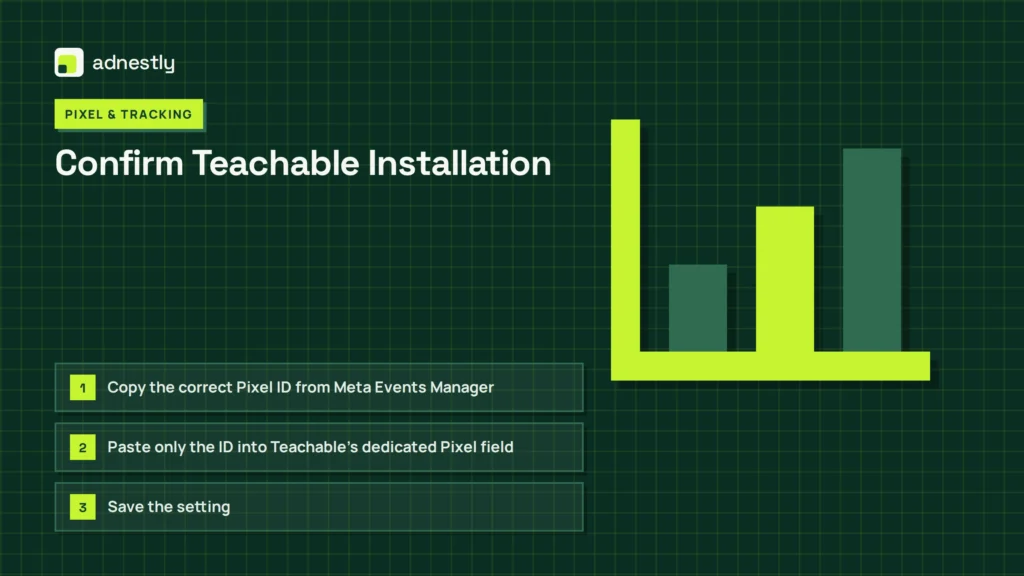
Teachable’s dashboard labels and available settings can vary by plan and product version, so look for a native integration under settings areas such as Third-Party Integrations, Marketing, or Custom Code. Search the dashboard for “Facebook Pixel,” “Meta Pixel,” or “tracking.”
When a native Pixel field is available, use it first:
- Copy the correct Pixel ID from Meta Events Manager.
- Paste only the ID into Teachable’s dedicated Pixel field.
- Save the setting.
- Publish or update the relevant school pages.
- Open the public page in a fresh browser session.
- Test the page after disabling ad-blocking extensions.
Don’t paste the full JavaScript snippet into a field that asks for an ID. Conversely, don’t paste a number into a custom-code area that expects JavaScript.
| Teachable location | What belongs there | Common mistake |
|---|---|---|
| Native Meta or Facebook Pixel field | Numeric Pixel ID only | Pasting the entire script |
| Header custom code | Complete approved script, if custom code is supported | Pasting code into a CSS or footer field |
| Page-specific code | Code intended for that page and event | Assuming it runs across the whole school |
| Checkout or thank-you settings | Supported conversion configuration | Expecting ordinary header code to control protected checkout pages |
After saving, open the public URL—not the dashboard preview alone. Preview frames can load differently from live pages, and logged-in admin views may include scripts that ordinary visitors don’t receive.
Warning: Never install the same Pixel through both Teachable’s native integration and a custom script unless you deliberately prevent duplicate initialization. Two fbq('init', ...) calls can produce duplicate PageView events and unreliable attribution.
Is Teachable Sending Events?
A correctly installed Pixel doesn’t automatically create every event that an advertiser might want. PageView is the basic browser event. Other events depend on Teachable’s integration, page type, checkout behavior, and any custom implementation you control.
Separate the events into two groups:
Basic page events
These may appear when someone loads a page:
- PageView on a sales page
- ViewContent on a product or course page, if configured
- Lead after a form submission, if the implementation supports it
- InitiateCheckout when a supported checkout process begins
Conversion events
These require a meaningful action and a page or integration capable of reporting it:
- Purchase after successful payment
- CompleteRegistration after enrollment or account creation
- Subscribe for a subscription action
- Lead after an email or application form
Don’t label a test a failure because Purchase didn’t appear when you only opened a landing page. That page may correctly send PageView and nothing else.
Use a simple event map:
| Visitor action | Expected event | Where to validate |
|---|---|---|
| Opens course sales page | PageView, possibly ViewContent | Sales-page URL |
| Clicks enrollment button | Possibly InitiateCheckout | Button destination and checkout |
| Starts checkout | InitiateCheckout, if supported | Checkout URL |
| Completes payment | Purchase, if supported | Confirmation or enrollment flow |
| Submits an interest form | Lead, if configured | Form completion state |
The phrase “if supported” matters. Teachable may restrict what code runs on hosted checkout or confirmation pages. If you can’t place or configure code on a protected page, don’t invent a Purchase event on a different page; that can report false conversions.
Test Browser Events Properly
Use at least two testing methods. A browser extension is useful for a quick signal, but it isn’t the final authority because extensions can be blocked, outdated, or affected by consent settings.
Test Events in Meta
In Events Manager, open the selected data source and locate the testing area. Enter the exact public Teachable URL or follow the provided testing instructions, then visit the page in a clean browser tab. Look for a live event with the expected Pixel and event name.
Meta’s Test Events guide explains the testing workflow and helps distinguish live test activity from ordinary event reporting.
Inspect the page
Right-click the public page, choose View Page Source, and search for:
- Your numeric Pixel ID
connect.facebook.netfbq('init'fbq('track', 'PageView')
If none appear, the code isn’t present in the delivered HTML, or Teachable hasn’t published the setting to that page.
If the code appears, open developer tools and select the Network tab. Reload the page and search for requests containing:
facebook.com/trconnect.facebook.netev=PageView
A request may be absent because a consent banner hasn’t received permission. It may also be blocked by an extension or browser privacy feature.
Test without interference
Use a repeatable test setup:
- A fresh Chrome or Firefox private window
- No ad-blocking extension
- Third-party cookies allowed temporarily for testing
- A visitor who isn’t logged into the Teachable admin dashboard
- The exact public URL used in the campaign
- A cleared consent choice, if your banner stores consent
Record the Pixel ID, URL, event name, browser, and result. This prevents confusing five slightly different tests with one another.
Fix Duplicate Or Missing Code
If PageView fires twice, the most common cause is duplicate installation. Search Teachable custom code, native integration settings, Google Tag Manager containers, and any marketing plug-ins or scripts added by a page builder.
Concrete sources to inspect include:
- Teachable’s native Pixel setting
- A manually pasted Meta base code
- Google Tag Manager
- A custom JavaScript snippet
- A third-party checkout or funnel tool
- A cookie-consent platform that injects a second copy
- A separate script added to a sales-page template
Choose one primary installation method. For most Teachable schools, the native integration is the cleanest option. Remove the redundant script, publish the change, clear any site or browser cache, and test again.
Missing events can have the opposite cause: the base Pixel loads, but the event script is absent. A PageView request proves only that the base tracking code ran. It doesn’t prove that your button click, form submission, or purchase was reported.
Avoid placing Purchase on a button click if payment hasn’t succeeded. Someone can click “Enroll,” abandon checkout, and still be counted as a buyer. Use the confirmed success state or a supported server-side integration when possible.
Pro Tip: Change one tracking method at a time. If you remove the native integration, add custom code, change the consent banner, and alter the landing page together, you lose the evidence needed to find the original problem.
Handle Consent And Browser Blocking
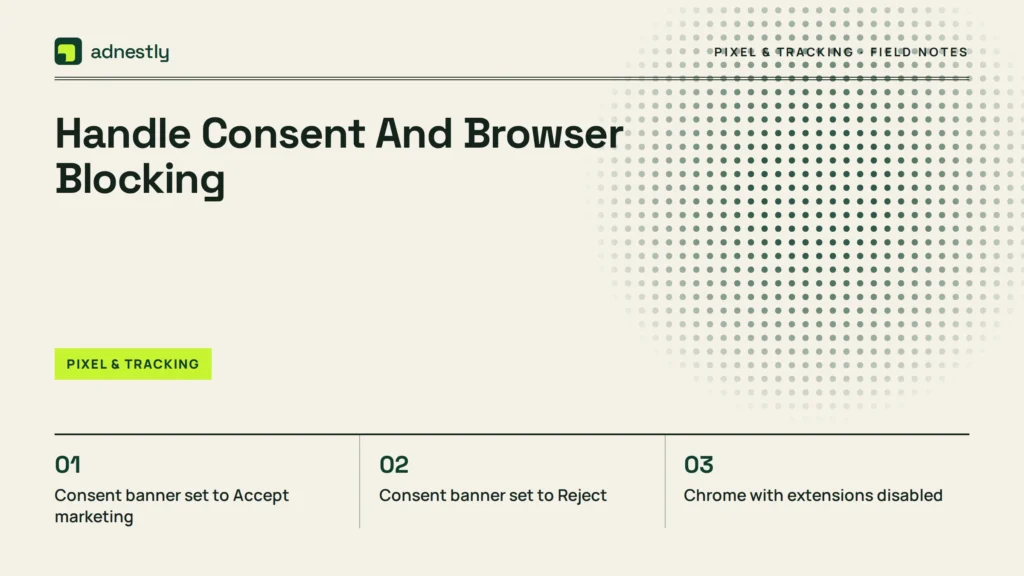
Privacy controls can make a correct Pixel look broken. A visitor who declines marketing cookies may not generate a browser Pixel event. That’s expected behavior, not necessarily a Teachable defect.
Test these variables separately:
- Consent banner set to Accept marketing
- Consent banner set to Reject
- Chrome with extensions disabled
- Safari with standard tracking protection
- Firefox with Enhanced Tracking Protection
- A mobile browser on cellular data
- A private window with no previous consent cookie
If events appear only after acceptance, your consent system is controlling the script. Review whether the banner categorizes Meta tracking as advertising or marketing and whether it loads the script only after valid consent.
If events appear in Chrome but not Safari, don’t immediately reinstall the Pixel. Compare:
- Storage and cookie permissions
- Cross-site tracking restrictions
- Content blockers
- Consent state
- Whether the test uses a custom domain or a Teachable subdomain
Browser-side reporting is inherently incomplete. Some visitors block scripts, clear cookies, reject consent, or use privacy tools. For important conversion measurement, compare Meta data with Teachable enrollments, payment records, and another analytics system. The totals won’t necessarily match, but major gaps can reveal a broken flow.
Verify Checkout And Purchase
Checkout tracking deserves its own test because it’s where many Teachable implementations stop working. The sales page may be yours to edit, while the checkout and confirmation pages may be controlled by Teachable.
Create a controlled test journey:
- Open the public sales page.
- Confirm PageView in Test Events.
- Click the actual enrollment or purchase button.
- Confirm whether InitiateCheckout appears.
- Complete a legitimate low-cost or test transaction if your setup permits it.
- Confirm the success page and look for Purchase.
- Compare Meta’s event details with the Teachable enrollment record.
Don’t use a fake URL parameter or manually refresh a confirmation page to generate a Purchase event. Refreshing can cause duplicate purchases, and manually visiting a thank-you URL may count someone who never paid.
Record whether the checkout is:
- A Teachable-hosted checkout
- A custom-domain checkout
- An external payment page
- A third-party funnel
- A subscription or recurring payment flow
- A free enrollment flow
| Checkout arrangement | Likely tracking challenge | Safer validation |
|---|---|---|
| Teachable-hosted checkout | Limited page-code control | Check native integration capabilities |
| Custom-domain checkout | Consent and domain configuration | Test the exact checkout domain |
| External payment page | Pixel may not follow the visitor | Verify the provider’s supported integration |
| Subscription checkout | Initial payment differs from renewal | Test initial Purchase separately |
| Free enrollment | No payment event exists | Use CompleteRegistration or Lead if supported |
If Purchase is unavailable through Teachable’s native tools, use the platform’s documented integration options rather than forcing a browser event onto the sales page. A reliable PageView plus verified enrollment data is better than inflated Purchase reporting.
Review Domains And Event Matching
Meta may receive events while your campaign still reports poor attribution. That usually points to domain, browser, or event-priority configuration rather than a missing Pixel.
Check that the domain in your ad destination matches the domain where the event occurs. These can differ:
yourcourse.comschool.teachable.com- A checkout subdomain
- An external payment domain
- A link-shortener destination
Also inspect event details for event name, URL, timestamp, and source. A PageView from the wrong domain can look like success while the advertised page remains untracked.
If you use a custom domain, confirm that:
- DNS points to the intended Teachable school
- The HTTPS version loads
- The campaign uses the HTTPS URL
- Redirects don’t send visitors to an untracked domain
- The Pixel is installed on the final destination, not only the redirecting page
Event matching may be weaker when browsers restrict cookies or when identifiers are unavailable. Keep your event names consistent, avoid sending personal information in URLs or parameters, and don’t create multiple nearly identical conversion events merely to fill reporting gaps.
Escalate With Useful Evidence
Contact Teachable support when the native integration is saved but the Pixel is absent from the live page, the integration produces a platform error, or expected checkout events are unavailable despite following the supported setup.
Contact Meta support when:
- The correct Pixel receives no events from any tested page
- Events Manager shows a disabled or restricted data source
- Your user can’t access the Pixel settings
- Events arrive under an unexpected data source
- Diagnostics report a persistent platform-side issue
Prepare a concise evidence packet:
- Pixel ID
- Public page URL
- Checkout URL, if relevant
- Exact event expected
- Date and time of the test
- Browser and device
- Screenshot of Events Manager
- Screenshot of Teachable’s integration setting
- Whether consent was accepted
- Whether extensions were disabled
- Whether the event appeared in Test Events
Don’t send payment details, passwords, access tokens, or customer names. Support teams need the technical path and timestamps, not private customer data.
A useful escalation message says: “PageView is present on this public URL, but InitiateCheckout is absent after the button click. The test used Chrome private mode with marketing consent accepted. Pixel ID ending in 1234 is selected in Teachable and Events Manager.” That’s much more actionable than “the Pixel is broken.”
Frequently Asked Questions
Why is my Teachable Pixel showing no activity?
Check the selected Pixel ID, public URL, consent status, browser extensions, and Events Manager test view. A delayed overview chart doesn’t prove failure. Test the live page in a clean browser and look for a PageView request or Test Events result before changing the installation.
Does Teachable automatically track purchases?
Not necessarily. Teachable’s available native tracking depends on its current integration and the pages your plan allows you to control. PageView may work while Purchase does not. Verify the complete payment journey and use only an event that represents a confirmed action.
Why do I see duplicate Meta Pixel events?
Usually, the Pixel is installed more than once—for example, in Teachable’s native setting and custom code, or through Google Tag Manager as well. Search all installation locations, keep one base Pixel, remove duplicates, publish, clear cache, and retest.
Why does the Pixel work in Chrome but not Safari?
Safari may restrict cookies, cross-site tracking, or scripts that Chrome allows. Test consent settings, content blockers, and the exact domain in both browsers. If only Safari fails, the issue is likely privacy behavior rather than an incorrect Pixel ID.
Can I add the Pixel to Teachable checkout?
Only where Teachable’s current settings or supported integration permits it. Don’t assume header code on a sales page runs on protected checkout or confirmation pages. Check the native integration, test the actual checkout domain, and avoid manually firing Purchase before payment succeeds.
How long should Meta reporting take?
Test Events is the quickest place to look for a live test signal. The general Events Manager overview may update later or show incomplete browser data. Use the test result, browser Network request, and Teachable enrollment record together rather than relying on one reporting screen.
Conclusion
Start with one public sales-page URL, one Pixel ID, and one clean-browser PageView test. Once that works, test checkout and purchase separately. Keep a written record of each result, then remove duplicate code or escalate with the evidence above instead of repeatedly changing a functioning installation.

Aaron Kelly writes about Facebook tools, account management, and business advertising. His content covers account security, Facebook Ad Accounts, Business Manager setup, Pixel and conversion tracking, Business Manager verification, and admin profile verification. He focuses on explaining technical processes and common account issues in practical terms, helping businesses and advertisers manage their Facebook assets more effectively and build a more secure, reliable advertising setup.
Checked against Meta’s own documentation. How we write and update guides