Wrong Time Zone on Your Facebook Ad Account: Your Options

If your ad account has the wrong time zone, keep it and adjust reporting, ask support about a correction, or create a new account. The best option depends on the platform, whether the account has active campaigns, and how much historical data you need to preserve.
$ part ofFacebook Ad Account Problems: How to Fix Every Common IssueThe complete guide this article belongs toOpen guide →Key Takeaways
- Check the platform first: Meta, Google Ads, Microsoft Advertising, and TikTok handle time-zone changes differently.
- Don’t assume reports are wrong because conversions appear on the previous or next calendar day; ad platforms group activity by the account’s reporting zone.
- Ask support before rebuilding. Some platforms may review a change request, while others permanently lock the setting after account creation.
- Create a new account carefully if the time zone can’t be changed and accurate daily reporting is essential.
- Use one reporting zone across analytics, CRM, and ad accounts so budgets, conversions, and sales reconcile cleanly.
- Document the old zone before making changes, including campaign schedules, billing dates, exports, and conversion windows.
What the Time Zone Controls
An ad-account time zone determines how the platform labels dates and times. It can affect daily spend limits, campaign start and end times, scheduled rules, reporting days, invoice periods, and the date assigned to conversions.
The setting usually does not change the physical audience location. A business in Los Angeles can advertise to customers in New York while its account reports in Pacific Time.
Common effects
Suppose an account is set to Pacific Time but your finance team works in Eastern Time. A sale at 12:30 a.m. Eastern may be recorded as 9:30 p.m. on the prior account day. Nothing necessarily disappeared; it was assigned to a different reporting date.
The setting may influence:
- Daily budgets and when a new spending day begins
- Ad schedules such as 8 a.m. to 6 p.m.
- Automated rules that run at a selected hour
- Daily reports and dashboard date filters
- Billing periods and invoice cutoffs
- Conversion dates in platform reports
- Learning and pacing interpretations during day-parting
- Data warehouse joins between advertising and order records
It usually doesn’t rewrite the timestamp stored in your website, CRM, payment processor, or server logs.
Time zone versus currency
Time zone and currency are separate account settings, but both can be difficult or impossible to change later.
Don’t delete an account merely because a report uses an unfamiliar currency. First identify whether the actual problem is the account zone, currency, business location, or browser display setting.
Is the Setting Changeable?
The first question is whether the platform permits an account-level edit. The answer can vary by platform, account type, country, billing setup, and whether the account has already delivered ads.
| Platform | Typical account-level rule | First action |
|---|---|---|
| Meta Ads | Availability can depend on account and billing setup; changing settings may create a new account or affect billing history | Check account settings, then contact Meta support |
| Google Ads | Time zone is generally selected during setup and isn’t normally changed afterward | Confirm the setting and ask Google Ads support |
| Microsoft Advertising | Account settings and billing arrangements determine available changes | Review account settings and contact support |
| TikTok Ads | Business-center and ad-account structure can affect whether a correction is possible | Check the ad account’s basic information and support options |
| LinkedIn Ads | Account configuration may restrict post-creation changes | Ask support before opening a replacement account |
These are general platform patterns, not a guarantee for every account.
What to record first
Before contacting support or making a replacement account, save:
- The current time-zone name, not just its UTC offset
- The account ID and business or manager account ID
- The date the account was created
- Active campaigns and campaign-level schedules
- Billing profile, payment method, and invoice history
- Conversion actions and attribution settings
- Existing exports for spend, impressions, clicks, and conversions
- Any automated rules, scripts, or third-party connectors
Use a named zone such as America/New_York, rather than “EST” or “UTC-5.” Named zones account for daylight-saving changes; fixed offsets do not.
Wrong Time Zone on Your Ad Account?
A wrong time zone isn’t always an urgent emergency. It becomes urgent when it causes an operational or financial error, such as ads running during closed hours, a daily budget resetting at the wrong local time, or finance reports failing to match the ledger.
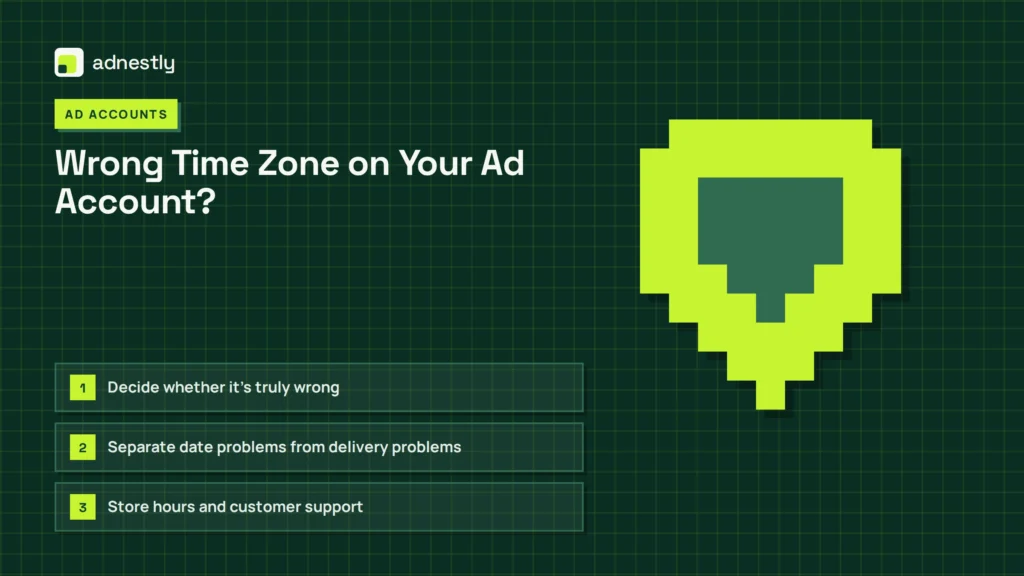
Decide whether it’s truly wrong
Check the account against the time zone used by its managers:
- Store hours and customer support
- Sales and fulfillment
- Finance and invoicing
- Website analytics
- CRM and marketing automation
- Data warehouse and reporting dashboards
A national or global company may intentionally choose one headquarters time zone.
Separate date problems from delivery problems
Wrong-date conversions may be a reporting mismatch, not a delivery problem. For wrong-hour delivery, inspect the schedule, account zone, and daylight-saving behavior.
Compare an event across:
- Ad-platform event time
- Website or server event time
- Payment processor time
- CRM creation time
- Analytics property time
Use several transactions across a date boundary. A conversion can be delayed or attributed differently.
Option 1: Keep the Account
Keeping the account is often the least disruptive option when campaigns have substantial history, reliable learning data, or complex integrations. You can preserve the existing account and standardize how everyone interprets its dates.
This is usually sensible when:
- The offset is only a few hours.
- Campaigns don’t rely on strict local opening hours.
- Finance can report using a consistent conversion.
- Historical continuity matters more than calendar-day precision.
- The account has valuable audiences, experiments, or optimization history.
Adjust campaign schedules
If your business wants ads to run from 9 a.m. to 9 p.m. in a specific local market, calculate the equivalent account time.
For example, a business operating on Eastern Time with an account set to Pacific Time normally needs a three-hour adjustment. A schedule intended for 9 a.m. Eastern begins at 6 a.m. Pacific.
| Business requirement | Account-zone action | Verification |
|---|---|---|
| Ads run during local store hours | Convert opening and closing times into account time | Preview the schedule and check delivery logs |
| Budget resets at local midnight | Treat account midnight as the official reporting boundary | Compare spend by hour for several days |
| Automated rule runs at 8 a.m. local | Schedule the equivalent account-zone hour | Confirm the rule’s execution history |
| Global campaigns use one clock | Keep one zone and document it | Add the zone to dashboards and exports |
Don’t rely on a mental conversion for every campaign.
Normalize reports
Choose a reporting standard and use it everywhere. You might use the ad-account day for platform billing, UTC for data engineering, and local market time for store operations.
- Export raw ad data with the original platform date and time.
- Preserve the raw timestamp without overwriting it.
- Convert it into UTC in your warehouse.
- Convert UTC into the business or market zone for analysis.
- Reconcile spend and conversions using the same date definition.
- Label dashboards with the zone and daylight-saving rule.
Avoid changing a date column without keeping the original.
Pro Tip: Add a visible note such as “Google Ads dates shown in Pacific Time” to dashboards, spreadsheets, and recurring email reports. This prevents a small configuration issue from becoming a recurring finance dispute.
Option 2: Request Support
Support is the right next step when the setting appears locked, the account has unusual billing requirements, or you’re unsure whether a change would affect existing data. Ask before opening a replacement account.
What to include
Write a concise request with:
- Account ID and manager account ID
- Current zone and requested zone
- Reason for the correction
- Whether campaigns are active
- Whether billing has already occurred
- Desired effective date
- Confirmation that you understand historical reports may not be rewritten
- Screenshots showing the setting, if permitted
- A request for written instructions before any change
Avoid saying only “my reporting is wrong.” Explain the operational impact: “Our campaigns must follow Central Time store hours, but the account is set to Pacific Time, causing schedules and daily budget reviews to use the wrong boundary.”
Questions to ask support
Ask whether the proposed action will:
- Change the time zone permanently or only for future reporting
- Alter existing campaign schedules
- Recalculate historical reports
- Affect invoices or tax documents
- Reset learning or optimization data
- Break conversion imports or offline events
- Require a new billing profile
- Preserve audiences, pixels, tags, and permissions
- Create a new account ID
- Allow a transition date
Get the answer in writing.
Warning: Don’t make major edits while a support case is open unless the agent confirms the sequence.
Option 3: Create a New Account
A new account is the cleanest long-term solution when the platform won’t change the zone and the mismatch creates material scheduling, reporting, or billing problems. It’s also the most disruptive option.
When rebuilding makes sense
Consider a replacement account when:
- The account is new and has little useful history.
- Accurate local-day reporting is essential.
- The current zone causes recurring budget or schedule errors.
- Multiple teams can’t reliably convert dates.
- Support confirms that the old setting is permanent.
- Your organization is already restructuring its business or billing setup.
Don’t rebuild merely because a dashboard looks unfamiliar. Historical performance, audiences, conversion signals, and account trust can be more valuable than a perfectly aligned calendar.
What may not transfer
A new account may not automatically preserve:
- Campaign history
- Optimization signals
- Learning status
- Saved audiences
- Custom conversions
- Offline conversion mappings
- Experiments
- Comments and change history
- Invoices and payment records
- Platform-specific eligibility
Some assets can be shared at the business or manager level; others must be recreated.
| Asset | Migration question | Safe handling |
|---|---|---|
| Campaigns | Can settings be copied without copying the wrong schedule? | Export, duplicate, then audit every date and hour |
| Tracking | Will the same pixel, tag, or app event be reused? | Test browser, server, and offline events |
| Audiences | Are memberships shareable across accounts? | Confirm eligibility and estimated population |
| Conversions | Will action names and values match? | Map each action and run test events |
| Billing | Is a new payment profile required? | Obtain approval from finance first |
| Product feeds | Does the catalog belong to the business or account? | Reconnect and validate feed permissions |
| Reporting | Will account IDs change? | Update connectors, dashboards, and warehouse joins |
Run a controlled transition
Create the new account while the old account remains available. Test a low-risk campaign before shifting spend.
Follow this order:
- Create the new account with the correct named time zone.
- Add users, permissions, billing, and business verification.
- Connect tracking assets and test events.
- Recreate one small campaign.
- Confirm schedules against local time.
- Verify spend, clicks, and conversions.
- Rebuild remaining campaigns.
- Shift budget gradually.
- Leave the old account accessible for historical reporting.
- Pause, rather than immediately delete, old campaigns.
Never run identical campaigns in both accounts without a deliberate plan. Duplicate auctions can increase competition against yourself, split conversion data, and make the transition results difficult to interpret.
Platform-Specific Limits
The platform matters because “time zone” may live at the ad-account, business-center, manager-account, or billing-profile level. A setting shown in one interface may be inherited from another.
Meta
Meta account structures can include a business portfolio, ad account, page, pixel, catalog, and payment method. Check which object owns the setting before assuming the business portfolio is wrong.
For Meta, inspect:
- Ad-account settings
- Billing and payment settings
- Campaign schedule
- Business portfolio permissions
- Pixel and Conversions API event timestamps
- Ads Manager date filters
A new ad account may preserve access to shared business assets, but it won’t necessarily preserve campaign history or optimization state.
Google Ads
Google Ads commonly establishes the time zone during account creation. Manager accounts can manage many client accounts, but a manager’s time zone doesn’t automatically make every client account use that same zone.
Check:
- Client account settings
- Campaign ad schedules
- Automated rules and scripts
- Conversion import timestamps
- BigQuery or API export handling
- Billing documents
Google Ads reports can use the account’s date interpretation even when your analytics property uses another zone.
Microsoft Advertising, TikTok, and LinkedIn
These platforms may expose time-zone information in different account or business settings. Before recreating an account, confirm:
- Whether the account zone is locked
- Whether currency is also locked
- Whether ad schedules use account or audience-local time
- Whether billing history can be retained
- Whether tracking assets can be reused
- Whether account-level API IDs will change
Don’t apply a Meta workaround to TikTok or a Google workflow to Microsoft Advertising.
Reporting And Billing Workarounds
A wrong zone can be tolerable for performance reporting but unacceptable for billing reconciliation. Treat those as separate workflows.
For performance reporting
Use a canonical timestamp in your data warehouse. Keep the original platform date, then create fields for UTC, account time, business time, and market time.
Useful dashboard fields include:
- Account ID
- Account time zone
- Report date
- UTC date
- Local market date
- Spend currency
- Conversion event time
- Attribution window
- Data refresh time
For finance
Match invoices and platform charges using the platform’s own billing period and account currency. Don’t force an invoice into local calendar days if the invoice is defined by the account’s billing clock.
Maintain separate invoice controls for:
- Invoice number
- Billing period
- Account ID
- Account time zone
- Currency
- Tax date
- Payment date
- Internal accounting period
A finance report can show local business dates, but it should retain the platform billing period for auditability.
For scheduled automation
Review scripts, API jobs, spreadsheets, and connectors. A job scheduled for midnight may run in server time, account time, or the employee’s browser time.
Check concrete systems such as:
- Google Ads Scripts
- Looker Studio extracts
- Supermetrics or similar connectors
- Snowflake or BigQuery pipelines
- HubSpot or Salesforce imports
- Shopify or WooCommerce order exports
- Zapier or Make workflows
Document the execution zone for each job.
Audit And Migrate Safely
Whether you keep the account or create a new one, use a before-and-after audit. The goal is to prove that the fix solved the operational issue without introducing tracking or billing errors.
Seven-day audit
Review a full week.
| Audit area | Before change | After change |
|---|---|---|
| Campaign delivery | Actual delivery hour in account time | Delivery hour in intended local time |
| Daily spend | Account-day totals | Expected business-day totals |
| Conversions | Platform date and event timestamp | Reconciled CRM or order date |
| Billing | Invoice period and amount | New invoice or unchanged invoice behavior |
| Automation | Rule execution time | Expected execution time |
| Tracking | Browser, server, and offline events | No duplicate or missing events |
| Dashboards | Old account ID and zone | New labels, joins, and filters |
Test date boundaries
Run tests around:
- 11:00 p.m. to 1:00 a.m.
- The first and last hour of a campaign schedule
- Midnight on the account clock
- The start and end of daylight saving time
- A month-end billing cutoff
- A conversion uploaded after the sale date
Look for duplicate conversions, missing events, unexpected budget resets, and date shifts of one day.
Pro Tip: Keep an “account configuration” page in your internal documentation. Record the account ID, time zone, currency, billing owner, data owner, and last verified date. This prevents the same mistake during future launches or agency handoffs.
Prevent The Next Mistake
Make time-zone verification part of account creation, not a later troubleshooting task. Assign one person to approve the account’s operational settings before campaigns are published.
Your launch checklist should include:
- Named time zone selected from the platform list
- Currency confirmed by finance
- Business address and billing country reviewed
- Campaign schedule converted from local operating hours
- Daylight-saving impact checked
- Analytics property zone documented
- CRM and warehouse timestamp rules documented
- Conversion imports tested
- Automated rules reviewed
- Dashboard labels updated
- Account ID stored in the media plan
- Screenshot of initial settings archived
Use a two-person review for accounts that will spend heavily or run time-sensitive promotions.
Related guides
Frequently Asked Questions
Can I change an ad account’s time zone?
Sometimes, but many platforms lock the setting after account creation or after billing activity begins. Check the account settings and contact platform support before making structural changes. If the setting can’t be edited, your choices are reporting normalization, schedule conversion, or a new account.
Will changing the time zone fix historical reports?
Usually, you shouldn’t assume it will. Historical reports, invoices, and exported data may retain the original account-day definitions. Ask support whether the change affects future reporting only, and preserve exports before approving any modification.
Does a wrong time zone change ad delivery?
It can change delivery when campaign schedules, automated rules, or daily budget resets use the account clock. It doesn’t necessarily change who sees the ad. Compare the account zone with the intended schedule and inspect actual delivery by hour.
Should I create a new ad account?
Create one only when the mismatch causes meaningful scheduling, billing, or reporting problems and the platform can’t correct it. Keep the old account available for historical records, and confirm that tracking, audiences, billing, and permissions can be transferred or shared.
Which time zone should my ad account use?
Choose the zone that best supports account management, budget control, and finance reconciliation. A global company may use headquarters time, while a local retailer may use store time. The important requirement is consistency and clear labeling across advertising, analytics, CRM, and accounting systems.
Conclusion
Start by recording the current account zone, currency, schedules, billing setup, and tracking dependencies. Then ask platform support whether a correction is possible; if not, choose between documented reporting adjustments and a controlled migration to a correctly configured account.

Aaron Kelly writes about Facebook tools, account management, and business advertising. His content covers account security, Facebook Ad Accounts, Business Manager setup, Pixel and conversion tracking, Business Manager verification, and admin profile verification. He focuses on explaining technical processes and common account issues in practical terms, helping businesses and advertisers manage their Facebook assets more effectively and build a more secure, reliable advertising setup.
Checked against Meta’s own documentation. How we write and update guides