Conversions API Events Not Matching Meta Pixel Events

Conversions api events not matching pixel events usually means the browser and server are sending different event details, or Meta can’t prove they describe the same action. The Pixel sends data from the browser, while the Conversions API sends data from your server or a partner platform. The two paths may use different event names, times, IDs, values, or customer details. That can create duplicate events, missing events, or counts that look too low. The fix is to compare one real action across both paths, then correct the fields that should match.
$ part ofFacebook Business Manager Problems: Fixes for Common ErrorsThe complete guide this article belongs toOpen guide →Why Conversions API and Pixel Events Differ
The browser and server paths do different work, but they should describe the same customer action when both are active. Check these parts first because each one can change the count Meta reports.
| Part or input | What it does | What you notice when it goes wrong |
|---|---|---|
| Event name | Identifies the action | Similar actions split apart |
| Event ID | Joins matching events | Duplicate conversions appear |
| Event time | Places action on timeline | Events fall into different dates |
| Event value | Records conversion amount | Revenue totals don’t match |
| Browser identifiers | Connects browser activity | Match quality drops |
| Server payload | Sends event details | Fields arrive missing |
The key comparison isn’t just the event count. Open one order or lead, then compare its browser event and server event field by field. A matching event_name and event_id usually matters more than two totals that happen to look close.
If both paths report the same action, pass the same event name and event ID through both paths. If the server event has a different ID, Meta may treat it as another conversion rather than as the browser event to deduplicate. Check this on a single known transaction before judging the totals for an entire campaign.
A time-zone or timestamp mismatch can also place matching activity on different dates without changing the underlying action. Compare the raw event times, not only the date shown in reporting. For revenue, compare both the numeric value and its currency. If the server payload contains the conversion but omits value, currency, or identifiers, the count may look correct while revenue or match quality does not.
How One Conversion Reaches Meta
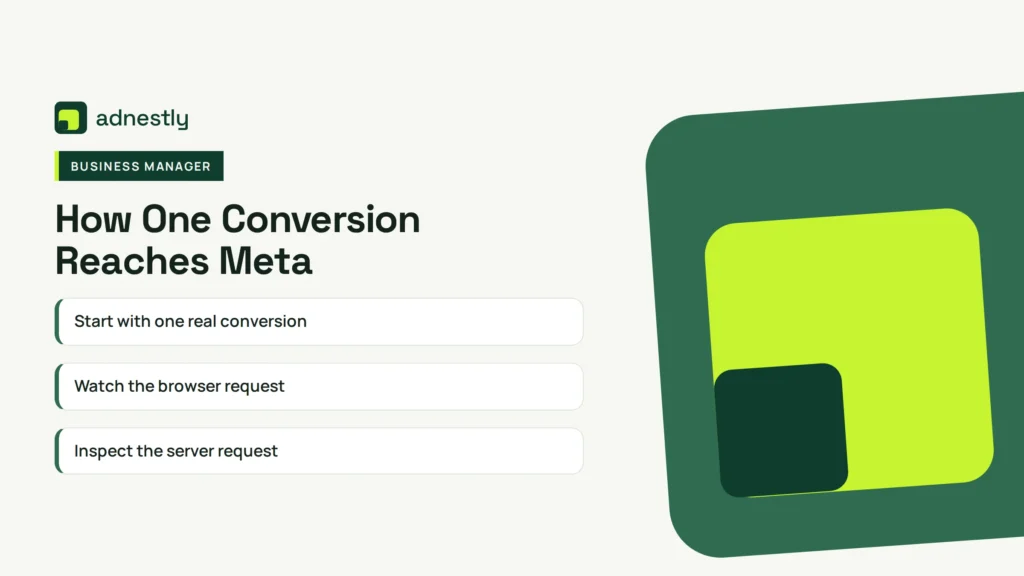
A complete check follows one customer action from the page to Meta’s processing and reporting. Use the same test order, form submission, or other conversion for the whole check, and record the order ID or lead ID before you begin.
-
Start with one real conversion. Use a test purchase or lead that your normal tracking allows, and write down its order or lead reference. Keep the test on the same website, browser, and account setup used by customers. Allow about 5 minutes to complete the action and save the details you can compare.
-
Watch the browser request. Use your browser’s developer tools or a tracking debugger to find the Pixel event. Record the event name, event ID, event time, value, currency, URL, and available browser identifiers. A simple check usually takes 10–15 minutes, depending on whether your site uses a tag manager.
-
Inspect the server request. Open your server log, gateway log, or partner-platform event record for that same conversion. Confirm that the server sends the same event name and the same event ID, not only the same order number. Give this check about 10 minutes if your platform exposes the raw payload.
-
Compare the event timing. Check whether both paths use the time of the customer action, rather than the time a delayed job or batch ran. Compare the timestamp and time zone in the raw records. If your system queues events, the comparison can take 15 minutes or longer because you must find the original action among delayed requests.
-
Check the conversion details. Compare value, currency, content IDs, and the action source. A purchase sent as
Purchasein one path and as a custom event in the other may not appear as one conversion. This comparison normally takes 5–10 minutes for one event. -
Review Meta’s result. Use Meta Events Manager to inspect the received event, warnings, diagnostics, and deduplication status. Compare several test actions, not just one, because a single successful request can hide a template or checkout problem. Spend about 20 minutes checking three different conversions.
-
Change one field group at a time. Fix event naming and IDs before changing values or customer details. Send new test events after each change, then compare the raw payloads again. Wait for the reporting view to update according to the delay shown in your Events Manager account; don’t treat an unchanged live count as proof that the new request failed.
Why Matching Fails
The most common cause is a missing or different event ID. If the Pixel sends Purchase with ID A123, but the server sends Purchase with ID B456, Meta may treat them as separate events. If the server sends no ID, it has less information to connect both records, so the reported total can rise above the number of actual purchases.
A different event name creates a different problem. Purchase, purchase, and a custom name aren’t automatically the same label for reporting. The same issue appears when one path sends Lead and the other sends a custom form event, even though both came from one form submission.
The event time can also split the records. A browser event may use the moment a person clicks the confirmation page, while a server integration uses the time an overnight job processed the order. The dates then differ, and a daily report can look wrong even if both events eventually arrive.
Values and currencies explain revenue differences without explaining event-count differences. A browser event might send the checkout total, while the server sends a subtotal after discounts, shipping, tax, or refunds. Compare the raw value and currency fields before changing the counting setup.
Customer information affects matching quality, but it doesn’t replace event deduplication. Browser identifiers such as _fbp and _fbc, along with permitted customer information, help Meta connect an event to an ad interaction. They don’t make two separate event IDs become one event.
Meta documents the required relationship between browser and server copies in its guide to deduplicating Pixel and server events. Use that guidance alongside the payload from your own integration, because a partner tool may rename fields or hide the server request.
A browser-only count can also be lower because a page doesn’t load, a person blocks tracking, consent limits data, or the user leaves before the event fires. A server-only count can be lower when the order system doesn’t send canceled, failed, or offline actions consistently. The symptom points to the path: browser gaps suggest page or consent checks, while server gaps suggest integration or order-state checks.
The gap size depends on consent, browser behavior, checkout design, event timing, and the connector you use; find your exact figure from the raw browser and server logs before judging a percentage difference.
What You Can Control in Event Setup
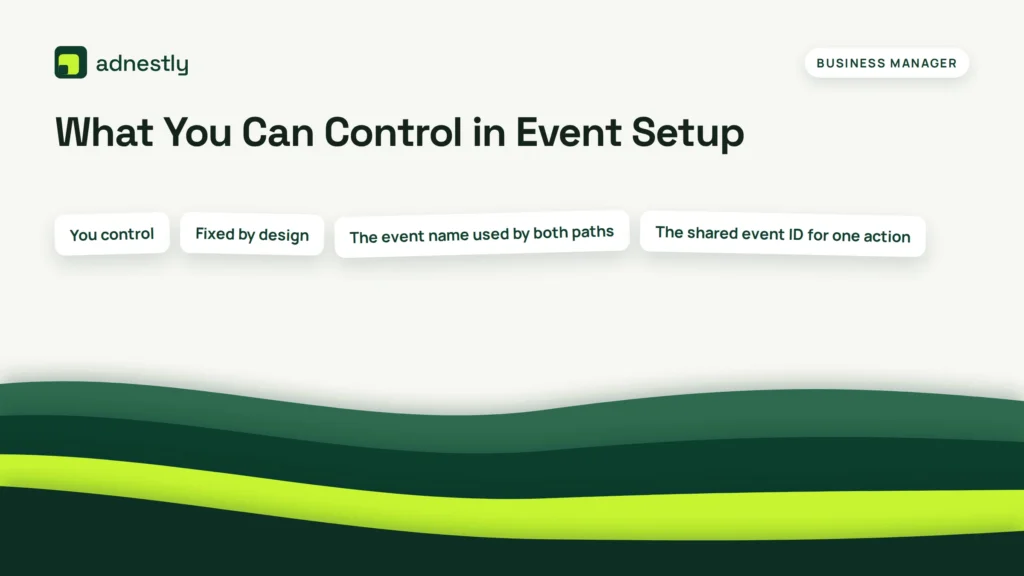
You control the fields and testing process, but you don’t control every browser decision or Meta’s reporting delay. Start with the inputs your website and server actually create, then separate them from limits built into the platform. Test the same action through both paths, and compare the raw requests before trusting a dashboard total.
You control
- The event name used by both paths.
- The shared event ID for one action.
- The event time and time zone.
- The value and currency sent.
- The browser and server data you pass.
For one customer action, confirm that both paths use the same event name and event ID. If the names differ, or one path omits the ID, Meta may treat the records as different actions rather than matching them.
Check event time as well as the date shown in reports. A wrong time zone can place an event on a different day, especially around midnight. Check value and currency separately; a correct count doesn’t prove that revenue data is correct.
Fixed by design
- A browser can block or limit tracking.
- Consent can restrict available data.
- Meta can process events with reporting delay.
- Different connectors expose different controls.
If a browser request is missing, server-side sending can’t prove that the browser was blocked, denied consent, or failed before the request was created. Compare the browser request, server request, event name, ID, timestamp, and permitted fields for the same test action.
If you use a partner app, tag manager, or custom server code, check its event-mapping screen and raw request log before editing code. Stop before changing server authentication, checkout code, or customer-data handling if you aren’t trained to do it safely; send that work to your developer, agency, or platform support team.
The trade-off is simple: sending richer permitted data can improve matching, but it also creates more privacy and consent work. If your setup can’t document permission and data handling, use the smaller data set your business can support rather than copying every available customer field.
This setup isn’t for someone who only wants one dashboard number and won’t inspect raw events. A summary report can show that counts differ, but it can’t tell you whether the cause is an ID, event name, timing, value, or blocked browser request.
Habits That Keep Events Aligned
Use one event dictionary for the browser and server paths. Write down each conversion name, its trigger, the shared ID source, the value rule, and the currency. If the checkout changes, update that dictionary before changing tags or server code.
Create the event ID at the start of one conversion and pass that same ID through the browser request, server request, and order record. Don’t create a new random ID in each system. Keep the ID stable when a request is retried, so a timeout doesn’t create a second event. That mistake can make one purchase look like two, which can distort campaign reporting and automated optimization.
Compare raw payloads after any checkout, consent, tag manager, or payment-provider change. Check one successful conversion and one failed or canceled attempt, because the second case can reveal a server rule that only counts completed orders. Also test a duplicate delivery or retry when the platform supports it; the result should remain one conversion, not two.
Keep event names and values consistent across your reports. If the browser sends the post-discount purchase amount, the server should use the same business rule. If a refund changes revenue later, record that as a separate business process rather than silently changing the original event. Confirm that both paths use the same currency code and amount convention, especially when one system stores whole units and another stores minor units.
Use Events Manager diagnostics as a signal, not as the only proof. If a warning appears, trace it back to the browser request, server payload, and order record. If the three records agree, a dashboard difference may reflect processing or attribution rules rather than a broken event.
Frequently asked questions
Can Pixel and Conversions API send the same event?
Yes, they can send the same customer action, but they need a shared event name and event ID for deduplication. The browser copy and server copy should also describe the same time, value, currency, and action source. Sending both paths without a shared ID can create separate records. Check the raw requests for one order, rather than comparing only daily totals.
Why are my server events higher than Pixel events?
Server events can be higher because the server still receives completed orders when a browser page fails to load, tracking is blocked, or consent prevents the Pixel from firing. They can also be higher because the server sends canceled or test orders that the browser never recorded. Compare order IDs, event status, and timestamps for several records before changing the integration.
How long does it take for Conversions API events to appear?
The exact delay is shown in your Meta Events Manager account and depends on the integration and processing path. For a useful check, compare a newly sent event with its raw server response first, then review Events Manager after the account’s reporting view updates. Don’t resend an event only because the dashboard is still unchanged, or you may create duplicates.
Is it safe to send both Pixel and Conversions API events?
Yes, sending both is the normal design when each action has a shared event ID and follows your consent and privacy rules. It isn’t safe to copy customer data without checking the permission and data-use requirements for your business. Review the fields your connector sends, remove data you don’t need, and ask a privacy or legal professional about rules that apply to your location.
What happens if event IDs are different?
Meta may treat the browser and server records as separate events instead of two copies of one action. That can inflate event counts and affect reports or optimization signals. The practical fix is to create one ID for the conversion and pass it unchanged through both paths. Test a new order after the change; old records usually won’t be repaired by editing the new setup.
Does event value matter when counts don’t match?
Event value matters for revenue and optimization, but it doesn’t by itself join two events. Matching counts depend first on whether both records describe the same action and use the correct shared ID. Compare the currency, discount rule, tax, shipping, and refund handling next. A count problem and a revenue problem can exist at the same time, but they need different fixes.
Conclusion
Keep checking your event data as your website, checkout, and tracking tools change. Set a regular review with the person who manages your ads, and watch for sudden gaps or duplicates in reporting. Small changes can affect matching without warning, but timely checks mean your campaigns won’t quietly drift from reliable reporting.

Aaron Kelly writes about Facebook tools, account management, and business advertising. His content covers account security, Facebook Ad Accounts, Business Manager setup, Pixel and conversion tracking, Business Manager verification, and admin profile verification. He focuses on explaining technical processes and common account issues in practical terms, helping businesses and advertisers manage their Facebook assets more effectively and build a more secure, reliable advertising setup.
Checked against Meta’s own documentation. How we write and update guides