Facebook Ads Manager Access Denied: What It Means and How to Fix It

An “ads manager access denied” message usually means Meta can’t confirm that your profile has the required permission, that the ad account is in good standing, or that your login session is trusted. It doesn’t always mean the ad account is permanently disabled. Work through the checks below in order, because the fix depends on the exact screen and error wording.
$ part ofFacebook Ad Account Problems: How to Fix Every Common IssueThe complete guide this article belongs toOpen guide →Key Takeaways
- Confirm that you’re using the correct Facebook profile, Business Portfolio, Page, and ad account before changing permissions.
- Ask a business administrator to grant access through Meta Business settings rather than sharing a password.
- Check Account Quality for advertising, business, Page, and payment restrictions.
- Complete two-factor authentication and remove unfamiliar users, apps, browsers, or business partners.
- Try a clean browser session only after verifying permissions; browser troubleshooting can’t fix a genuine restriction.
- Document the error, account ID, recent changes, and appeal status before contacting Meta support.
What “Access Denied” Means
Meta uses several separate access layers. A person may be allowed to manage a Facebook Page but blocked from the connected ad account. They may also have access to an ad account without permission to edit the Page, Instagram account, pixel, catalog, or payment method used by a campaign.
The message can therefore point to a permission mismatch, a security check, or an account-level restriction. The wording matters:
- “You don’t have permission” usually indicates a role, asset, ownership, or business relationship problem.
- “This ad account is disabled” indicates an advertising restriction rather than a normal user-permission issue.
- “Something went wrong” often points to a browser session, app, or temporary Meta service problem.
- “Confirm your identity” or “Secure your account” indicates a login or security requirement.
- “Payment account disabled” may prevent publishing or spending even when Ads Manager itself opens.
- “You can’t access this account” can mean the ad account belongs to another Business Portfolio.
Don’t immediately create a second ad account. That can make ownership, billing, and policy history harder to untangle. First identify which asset is blocked and whether the problem affects only you or every person who manages it.
Identify the Exact Error
Start by recording the full message, not just the words “access denied.” Take a screenshot that includes the browser address bar, selected business, selected ad account, and any reference number. Avoid including passwords, payment card numbers, government identification, or security codes.
Test the same asset from another authorized account.
| Test result | Most likely cause | First action |
|---|---|---|
| Only your profile is blocked | Missing role, security checkpoint, or profile restriction | Verify your profile and request the correct access |
| Every admin is blocked | Ad account, business, payment, or platform restriction | Check Account Quality and Business Support |
| Ads Manager opens but campaigns can’t publish | Policy, payment, Page, pixel, or identity issue | Review the publishing error and affected asset |
| One browser fails while another works | Cookies, extensions, cached session, or browser issue | Use a clean private window |
| Business appears but ad account is missing | Wrong Business Portfolio or no asset assignment | Switch businesses and verify ownership |
| Login loops repeatedly | Security verification or damaged session | Complete verification and reset the session |
Also write down the ad account ID. It’s visible in Ads Manager settings or the account selector. Record the Business Portfolio ID, Page name, Instagram username, and associated email.
Warning: Don’t accept a message from someone promising to “unlock” the account in exchange for a password, login code, remote-access session, or payment. Meta support doesn’t require you to surrender control of your profile.
Check Your Meta Account
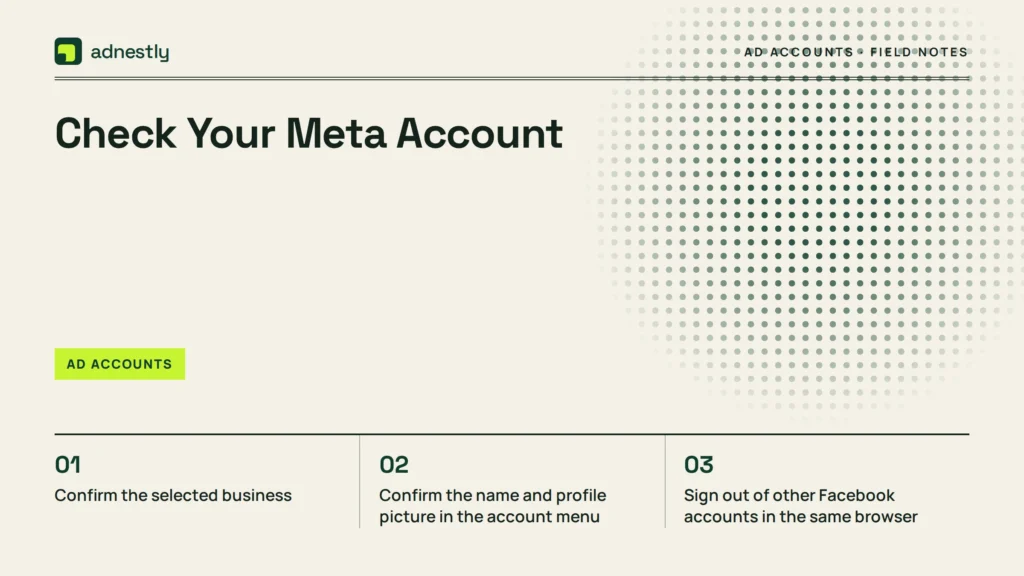
Before investigating the company’s assets, verify the profile that’s trying to open Ads Manager. A profile can appear logged in while actually using a different Facebook account, a secondary profile, or an account with an outdated email address.
- Confirm the name and profile picture in the account menu.
- Sign out of other Facebook accounts in the same browser.
- Confirm the email address and phone number on the profile.
- Look for a pending identity, login, or security confirmation.
- Check whether two-factor authentication is required by the business.
- Review recent login activity for unfamiliar locations or devices.
- Remove browser extensions that alter cookies, scripts, or page content.
- Make sure the date, time, and time zone on the device are correct.
If your profile itself is restricted, a business administrator can’t always override that restriction.
Confirm the selected business
Many access errors are caused by being in the wrong business context. In Meta Business Suite, open the business selector and check each Business Portfolio you can access. The same person may belong to several portfolios with similar names.
| What you see | What it usually means | What to do |
|---|---|---|
| The business isn’t listed | You were removed or never invited | Ask an admin to send a new invitation |
| The business is listed, but no ad account appears | No asset assignment or wrong portfolio | Ask an admin to assign the ad account |
| The ad account appears under another business | It’s owned elsewhere or shared as a partner asset | Contact the owning business |
| You can view data but can’t edit | Partial or task-based access | Request campaign management permissions |
| The account is greyed out or unavailable | Restriction, ownership issue, or pending invitation | Review the business and account status |
Invitations can expire or remain pending if they were sent to a different email address than the one used by your Facebook profile.
Verify Business Permissions
The most common genuine fix is assigning the right person to the right asset with the right task permissions. Business access and asset access are separate. Being added to a Business Portfolio doesn’t automatically grant control of every Page, ad account, catalog, pixel, or Instagram account inside it.
Ask an administrator to open Business settings and inspect:
- People: Is your correct Facebook profile listed?
- Partners: Is an agency or outside company connected correctly?
- Ad accounts: Is the affected account assigned to you?
- Pages: Can you manage the Page used by the campaign?
- Instagram accounts: Is the connected Instagram account available?
- Data sets: Can you use the pixel, Conversions API data set, or offline event set?
- Payment methods: Are you authorized to manage billing?
- Business verification: Is the business information complete and consistent?
For campaign work, request the smallest useful set of permissions.
Meta’s official process for assigning people and assets is described in its guide to adding people to a business portfolio. Follow your current interface’s labels; Meta changes their names and placement.
Page and Instagram access
An ad can be blocked if the person can’t use its attached identity.
Common mismatches include:
- The campaign uses a Page from Business Portfolio A, while the ad account belongs to Business Portfolio B.
- The Instagram account is connected to a different Page or business.
- The person has task access to the Page but can’t publish ads.
- The Page was transferred, renamed, merged, or placed under a different owner.
- The Instagram account has a separate login or unresolved security request.
Ask the Page owner to confirm that the correct ad account is assigned and that your access includes advertising or campaign-management tasks.
Ad account roles
Older account interfaces may show roles such as advertiser, analyst, or admin.
Use this practical permission check:
| Required task | Access to verify |
|---|---|
| Read reports | View insights or reporting access |
| Create drafts | Campaign and ad creation access |
| Publish campaigns | Campaign management plus required Page or identity access |
| Change billing | Finance or payment-management access |
| Add people | Business or asset administrator access |
| Manage pixel or data set | Data-source management access |
| Resolve restrictions | Appropriate business, asset, and support access |
If an administrator changes your role, sign out completely and sign back in. A permission update may not appear in an existing session immediately.
Is The Ad Account Restricted?
If every authorized user sees the problem, investigate the account rather than your personal role. Open Account Quality or the relevant business support area and inspect each category separately:
- Advertising account restrictions
- Business Portfolio restrictions
- Page restrictions
- Instagram restrictions
- Payment or billing issues
- Identity or business-verification requests
- Policy review results
- Commerce, catalog, or data-source issues
A disabled ad account may result from a rejected ad, repeated policy violations, suspicious activity, unusual payment behavior, compromised credentials, or an automated review.
A concise appeal should include:
- The business name and ad account ID
- The exact restriction message
- When access stopped working
- Whether all users are affected
- Security steps already completed
- Any relevant business-verification details
- A direct request for manual review, if available
Don’t submit duplicate appeals. Duplicate submissions may not speed up review.
Check payments separately
Payment problems can look like access problems. Confirm whether the payment method is expired, rejected, under review, over its limit, or associated with a billing profile that the current user can’t manage.
Check:
- Outstanding balance
- Recent failed charges
- Expired cards
- Bank or card fraud holds
- Billing threshold notifications
- Currency or country changes
- Mismatched legal business information
- A removed payment method still attached to active campaigns
If the account is disabled for a policy reason, adding another card won’t solve it. If the message specifically concerns payment, resolve billing first and then wait for the account status to update.
Fix Security And Login Blocks
Security controls can deny Ads Manager access even when the business permissions are correct. This is especially likely after a new device, unusual location, password change, mass permission change, or suspicious login alert.
- Open Facebook security or account settings from the profile that owns access.
- Complete any identity, email, phone, or two-factor prompt.
- Review logged-in sessions and sign out unfamiliar devices.
- Change the password if you see activity you don’t recognize.
- Remove unknown business users, partners, apps, and connected services.
- Ask the business administrator whether a security requirement was recently enabled.
- Reopen Ads Manager from the same verified device.
Use an authenticator app and store backup codes securely. Never send one-time codes to anyone claiming to be support.
Pro Tip: If an agency manages advertising for you, keep at least two trusted internal administrators with verified profiles and two-factor authentication. The agency should receive assigned asset access, not the only administrative control of the business.
Resolve Browser And App Problems
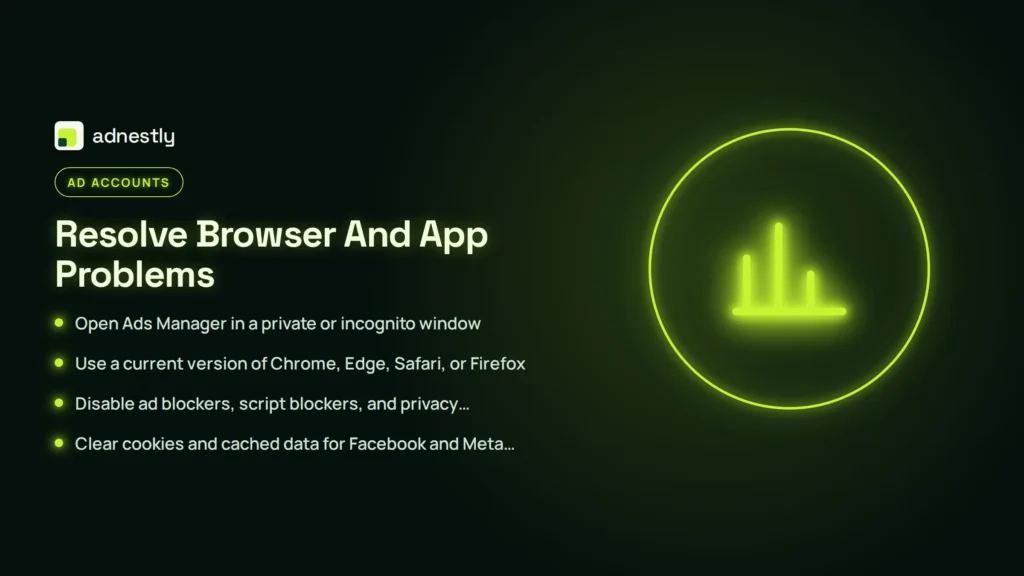
Browser troubleshooting is worthwhile when the error is inconsistent, appears after a recent update, or affects only one device. It won’t remove a real policy or permission restriction, but it can repair a broken session.
- Open Ads Manager in a private or incognito window.
- Use a current version of Chrome, Edge, Safari, or Firefox.
- Disable ad blockers, script blockers, and privacy extensions temporarily.
- Clear cookies and cached data for Facebook and Meta business domains.
- Sign out of all Facebook sessions, close the browser, and sign in again.
- Try a different network without a corporate proxy or VPN.
- Test from a desktop if the mobile app fails.
- Update or reinstall Meta Business Suite if only the app is affected.
Avoid changing several security settings while testing.
Record whether you can open other business assets. For example, if Business Suite works but Ads Manager fails, the issue may be the ad account.
Request Access Correctly When Ads Manager Access Is Denied
The person who owns the ad account should send the invitation. Ask for access to the exact ad account ID, not just the business name. If an agency or contractor needs access, the business owner can add the agency as a partner or assign the agency’s business ID, depending on the working arrangement.
- Your Facebook profile name and profile URL
- The email associated with your profile
- The ad account ID
- The Page and Instagram account you need
- The tasks you’ll perform
- The date access is needed
- The business administrator who can approve it
Use a request like: “Please assign me campaign-management access to ad account 123…, plus advertising access to the associated Page and Instagram account. I don’t need billing or business-admin permissions.” Replace the example with the actual account ID.
| Access situation | Best request |
|---|---|
| Employee managing campaigns | Campaign creation, editing, publishing, and reporting |
| Analyst preparing reports | Insights and reporting only |
| Finance employee | Billing and payment access without campaign control |
| Freelance media buyer | Assigned ad account and associated Page advertising access |
| Agency | Partner access to selected assets |
| Business owner | Full administration only when necessary |
Never solve an access issue by sharing an administrator’s password. Shared credentials weaken audit trails and can trigger security checks when several people log in from different places.
Escalate To Meta
Escalate only after checking the profile, business, asset assignment, restriction status, payment, and browser.
Prepare:
- Screenshot of the complete error
- Ad account ID
- Business Portfolio ID
- Page and Instagram names
- Your profile email
- Exact time the problem began
- Browsers, devices, and networks tested
- Steps already completed
- Restriction or appeal reference numbers
- Names of other administrators who can or can’t access the account
Use the support route displayed inside Meta Business Help or Business Suite for the affected business. Keep the case number and reply in the same case when possible. Don’t create multiple cases for the identical issue unless the available support route specifically instructs you to do so.
A useful support description is factual: “Three admins can’t open ad account ID…, while the Page remains available. The error began after a payment-method update on [date]. We completed two-factor authentication, tested two browsers, and found no unfamiliar users.” Avoid speculation, emotional language, or claims that the restriction is a mistake unless you can explain why.
If an appeal is available, submit the appeal from the business or ad account that received the restriction. A personal profile appeal may not reach the team responsible for the business asset.
Prevent Repeat Lockouts
Once access is restored, create a simple ownership and recovery plan. The goal is to ensure one employee leaving, one lost phone, or one agency contract ending doesn’t lock everyone out.
Maintain:
- Two or more trusted internal business administrators
- Two-factor authentication for every administrator
- A current list of asset owners and assigned users
- A record of ad account, Page, pixel, catalog, and Business Portfolio IDs
- A documented offboarding process
- A payment owner and backup billing contact
- Monthly review of business partners and third-party apps
- A secure location for backup codes and recovery information
Remove former employees promptly, but don’t delete the only administrator before confirming another administrator is active.
Pro Tip: Keep an access register with four columns: person, business asset, permission level, and review date. Reviewing it quarterly catches stale access before it becomes a security incident or an “access denied” mystery.
Avoid frequent ownership transfers, repeated Page disconnections, and unnecessary creation of new ad accounts. Stable asset relationships make it easier to identify the source of a problem and preserve billing and campaign history.
Frequently Asked Questions
Why does Ads Manager say I don’t have permission?
The usual reasons are that you’re signed into the wrong Facebook profile, the ad account wasn’t assigned to you, the invitation is pending, or you have Page access but not ad-account access. Ask an administrator to verify your profile and assign the exact ad account and tasks you need.
Can an admin fix my Ads Manager access?
An admin can correct missing people, asset, Page, and ad-account permissions. An admin can’t necessarily remove a personal profile restriction, identity checkpoint, or ad-account policy disablement. Those issues require the affected user or business to complete Meta’s security or review process.
Why can I access the Page but not Ads Manager?
Page access and ad-account access are separate. You may be able to publish Page content without permission to create campaigns, or the ad account may belong to another Business Portfolio. Check the ad account assignment and confirm that the campaign’s Page and Instagram identity are also available to you.
Does clearing cookies fix access denied?
Clearing cookies can fix a damaged login session, account switching problem, or browser conflict. It can’t fix a disabled ad account, missing permission, payment restriction, or policy decision. Test a private window and another browser, then investigate account status if the error remains.
How long does a Meta access appeal take?
There’s no dependable universal timeframe. It depends on the type of restriction, the information requested, and whether manual review is available. Submit one complete appeal, monitor the stated support channel, and avoid creating duplicate appeals that contain no new information.
Should I create a new ad account?
Usually not as a first response. A new account won’t solve a blocked personal profile, missing Page access, compromised business, or unresolved payment issue. It can also separate historical data and create additional verification or billing complications. Diagnose the original account before considering a new one.
Conclusion
Start by having a current business administrator verify your profile, ad account ID, asset assignment, and Account Quality status. Save the error screenshot and any case number, then test a private browser window. Those four pieces of evidence usually reveal whether you need a permission change, a security step, a payment fix, or a formal appeal.

Aaron Kelly writes about Facebook tools, account management, and business advertising. His content covers account security, Facebook Ad Accounts, Business Manager setup, Pixel and conversion tracking, Business Manager verification, and admin profile verification. He focuses on explaining technical processes and common account issues in practical terms, helping businesses and advertisers manage their Facebook assets more effectively and build a more secure, reliable advertising setup.
Checked against Meta’s own documentation. How we write and update guides