Facebook Ads Manager “Error Performing Query” Fix

The ads manager “error performing query” fix is usually a browser cache clear, a disabled ad blocker, or switching to Meta Business Suite. This error pops up when your browser can’t finish loading data from Meta’s servers, blocking you from editing campaigns or checking results. Clearing cookies and disabling extensions resolves it in most cases.
$ part ofFacebook Ad Account Problems: How to Fix Every Common IssueThe complete guide this article belongs toOpen guide →What this error actually means
This message appears when Ads Manager fails to pull or save campaign data. It isn’t a penalty on your account or a sign your ads got rejected. It’s a communication breakdown between your browser and Meta’s database. The system sends a request, the server tries to answer, and something interrupts the exchange before it finishes.
Advertisers use this tool daily to build audiences, set budgets, and track sales. When the query fails, you can’t load your dashboard, edit an active ad, or duplicate a winning campaign. It stops work completely until the connection clears up.
People often think their ad account is banned or suspended when they see this. That’s not true. A banned account shows a specific policy violation message, not a generic query failure. This error is almost always local to your machine or tied to a temporary server hiccup.
The root cause is usually stale data. Your browser saves files locally so pages load faster next time. If Meta updates its code but your browser still uses last week’s saved files, the two don’t match. The request breaks, and the error pops up. Browser extensions that block scripts or trackers cause the same mismatch by stopping pieces of code from running.
If your screen freezes on a blank table, it’s this problem. If you get a red banner saying your account is disabled, that’s a different issue entirely. Don’t mix them up.
How to fix the Ads Manager query error
Work through these steps in order. Start at the top because the first two solve the problem almost every time. Don’t skip ahead to reinstalling things before you’ve tried the basics.
- Turn off your ad blocker. Extensions like uBlock Origin or AdBlock Plus stop tracking scripts, but Ads Manager needs those scripts to load your data. Click your extension icon and pause it for facebook.com or business.facebook.com. Refresh the page.
- Clear your browser cache and cookies. Go to your browser settings. Select “Clear browsing data.” Check the boxes for cached images and cookies. Set the time range to “All time.” Click clear, close the browser completely, and open it again. This forces fresh files to download.
- Try a private or incognito window. Open a new incognito tab and log into Ads Manager. Private windows don’t load your usual extensions or old cache. If it works here, an extension or bad cookie was definitely the problem.
- Switch browsers. If you’re on Chrome, open Firefox or Edge. Log in and check your campaigns. This tells you if the issue is tied to one specific browser’s setup.
- Use Meta Business Suite instead. Go directly to business.facebook.com. The interface looks slightly different, but you can still manage ads, check metrics, and edit budgets without hitting the broken query path.
- Check Meta’s server status. Sometimes the problem isn’t on your end.
- Log out of all Facebook sessions. Go to your main Facebook settings. Find “Security and Login.” Log out of every active session. Then log back in only where you need to work. This resets your authentication tokens.
- Remove and re-add your payment method. If the error happens specifically when you try to change a budget, your billing info might be stuck. Remove the card, wait five minutes, and add it back.
The single judgment call here is knowing when to stop troubleshooting your own computer. If you’ve cleared the cache, turned off extensions, and tried two different browsers, the issue is likely on Meta’s side. Stop clicking buttons. Wait a few hours and try again. Pushing harder just wastes your afternoon.
Ads Manager query error settings to check

These are the exact numbers and toggles you’ll need while working through the steps above. Keep this list handy so you don’t have to guess which setting caused the break.
| Situation | What to use | How long | What to watch for |
|---|---|---|---|
| Clearing Chrome cache | Settings > Privacy > Clear data (select “All time”) | 2-3 minutes | Make sure “Cookies” and “Cached images” are both checked. |
| Using Incognito mode | Ctrl+Shift+N (Windows) or Cmd+Shift+N (Mac) | Instant | Don’t install extensions inside the private window; it defeats the purpose. |
| Waiting for server outage | Meta Business Suite as a backup | 1-4 hours typically | Refresh the normal Ads Manager page once an hour, no more. |
| Resetting login sessions | Facebook Settings > Security > Where you’re logged in | 5 minutes | You’ll need your password ready to log back in immediately. |
| Disabling ad blockers | Extension menu > Pause on this site | 30 seconds | Ensure it’s paused for both facebook.com and business.facebook.com. |
| Switching to Firefox | Download latest version from mozilla.org | 10 minutes | Don’t import your Chrome settings during setup; start clean. |
| Re-adding payment method | Billing settings > Remove card > Add card | 5-10 minutes | Wait at least 5 minutes between removing and adding the card back. |
Every row here assumes a standard desktop setup. If you’re working on a mobile browser, clearing the cache requires going through your phone’s main settings app instead of the browser menu, and it takes about the same amount of time.
Why some fixes work and others fail
Getting past this error comes down to isolating the variable that broke the connection. People who fix it fast don’t just click randomly. They test one thing, check the result, and move to the next only if the first didn’t work.
Start by separating your browser from your account. Open an incognito window. If Ads Manager loads perfectly there, your account is fine. The problem lives in your regular browser’s saved files or extensions. This simple split saves hours of pointless troubleshooting. Don’t skip it to go straight to logging out everywhere.
The order matters
Experienced advertisers handle extensions first, then cache, then browsers. Ad blockers inject code into every page you visit. Even if you whitelist Facebook, background filter lists update automatically and can break new scripts overnight. Turning the blocker off takes ten seconds and rules out the most common cause immediately.
Cache clearing comes second because it wipes everything else away. But don’t clear your cache while your blocker is still running. You’ll just download the same broken files again the moment the page reloads. Disable the blocker, then clear the data. That sequence prevents the error from coming right back.
What to leave alone
Don’t delete your campaigns or duplicate your ad sets hoping a fresh copy will bypass the glitch. The error isn’t attached to a specific ad. It’s attached to your session. Duplicating everything just creates a mess you’ll have to sort out later when the dashboard finally loads. Leave your structure exactly as it is. Fix the connection first.
Also, don’t contact support after five minutes. Meta’s automated systems take time to sync. If the server is having a slow day, opening a ticket won’t speed it up. Wait at least two hours after trying all your local fixes before escalating anything.
Ads Manager query error troubleshooting
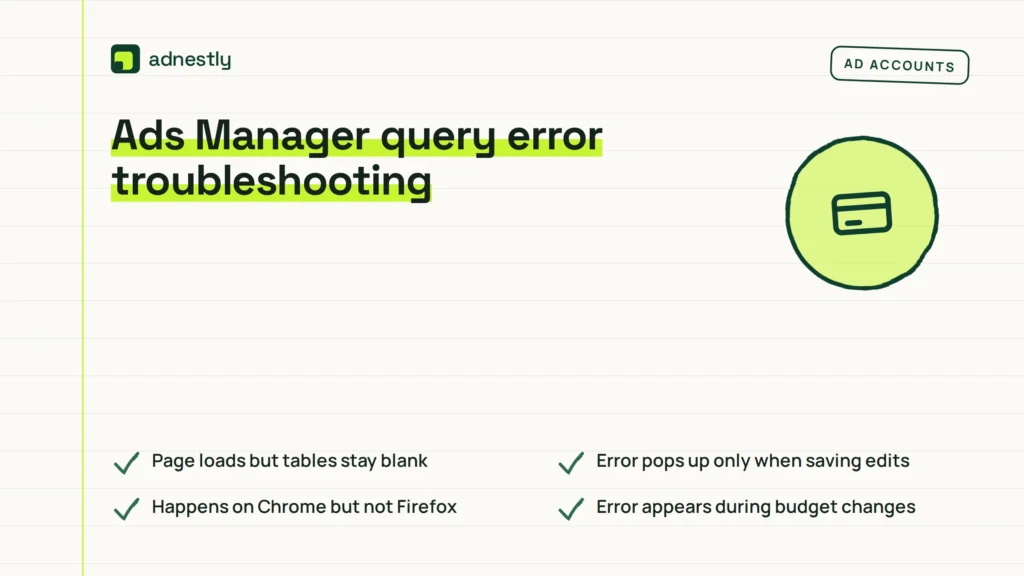
| What you notice | What it usually means | What to do first |
|---|---|---|
| Page loads but tables stay blank | Cache conflict or blocked script | Clear cache and disable ad blockers. |
| Error pops up only when saving edits | Authentication token expired | Log out of all sessions and log back in. |
| Happens on Chrome but not Firefox | Browser-specific extension issue | Run Chrome with all extensions disabled. |
| Error appears during budget changes | Payment method sync failure | Remove and re-add your billing card. |
| Every browser shows the same error | Meta server outage or account flag | Switch to Business Suite and wait an hour. |
Match what you see on your screen to the left column. Follow the action in the right column before trying anything else. Jumping around wastes time.
If the blank tables persist even after you’ve cleared your cache twice, check your network firewall. Some office networks block the specific ports Meta uses to deliver dashboard data. You’ll need to ask your IT department to whitelist business.facebook.com. Don’t try changing router settings yourself if you’re on a company network.
When the error only hits during budget changes, it’s almost never a browser issue. It’s a handshake failure between your stored card details and the current billing cycle. Removing the card forces a new handshake. Just remember to wait those five minutes before putting it back, or the system reads it as a duplicate failed attempt.
Rules around account access
Meta controls how you interact with its advertising tools through its Terms of Service and Platform Policies. You don’t have a legal right to uninterrupted access to Ads Manager. The platform operates as a licensed service, meaning Meta can restrict features or throttle connections without warning if their automated systems detect unusual traffic patterns from your IP address.
There’s no published threshold for how many times you can refresh a broken page before the system flags you, but hammering the reload button hundreds of times in an hour triggers rate limits. Once rate-limited, the query error persists as a temporary block until the timer resets. You can read Meta’s automated decision-making policies on their official transparency center pages.
If your account gets restricted because the system mistook your troubleshooting for bot activity, you must use the official Account Quality page to appeal. Don’t create a second ad account to bypass the error. Running multiple accounts to dodge restrictions violates Meta’s policies and leads to permanent bans across all your business assets.
For enterprise advertisers spending large budgets, your dedicated account representative can sometimes push a manual reset on stuck queries. Small advertisers don’t get this access. If you suspect a deeper API-level block rather than a simple browser glitch, you’ll need a developer who understands the Marketing API to diagnose it properly. Don’t guess at API permissions yourself.
Keeping Ads Manager running smoothly
Once the dashboard loads again, you want to keep it working. Don’t go back to the habits that caused the crash.
Keep your primary browser updated. Meta builds Ads Manager for the latest versions of Chrome, Firefox, Edge, and Safari. An outdated browser misses security patches and script updates, which causes query mismatches. Turn on automatic updates in your browser settings so you don’t have to remember.
Limit the extensions you run while managing ads. You don’t need five different marketing tools injecting code into your dashboard simultaneously. Keep one ad blocker installed, but make sure it stays paused on Meta domains permanently.
Log out at the end of your workday. Leaving a session open for weeks allows authentication tokens to expire silently. When they finally expire mid-click, you get the query error again. A quick logout and login each morning gives you a fresh, stable connection.
If you rely heavily on Ads Manager, bookmark Meta Business Suite as your fallback. It runs on a slightly different architecture. When the main dashboard throws errors, Business Suite usually keeps working. You won’t lose a whole day of optimization just because one interface went down.
Check your billing section once a week. Expired cards or bank declines don’t always show a clear alert. Sometimes they just manifest as broken queries when you try to scale a budget. Keeping your payment methods current prevents silent failures.
When this fix won’t work
Not every broken dashboard is a cache problem. There are situations where clearing cookies and turning off extensions won’t help at all.
If your ad account was recently restricted for policy violations, the query error might actually be a soft block. Meta sometimes degrades the interface instead of showing a hard ban message immediately. If you can’t publish any ads and your Account Quality page shows warnings, troubleshooting your browser is useless. You need to resolve the policy violation first.
If you’re using a third-party tool like Hootsuite or Sprout Social to manage ads, the error might live in their API connection, not your browser. Disconnecting the third-party app and logging directly into Meta is the only way to test this. If direct access works fine, the third-party tool’s integration is broken, and you’ll have to wait for them to patch it.
If your business manager has too many people assigned to it, permission conflicts can trigger query failures. Cleaning up user roles in Business Settings solves this, not clearing your cache.
Frequently asked questions
Can I fix this error on the mobile app?
No, the mobile app uses a different system. This specific query error happens on desktop browsers because of how web scripts load. If your desktop is broken, you can use the Meta Ads mobile app as a temporary backup to check basic metrics, but you can’t clear desktop browser cache from your phone.
Why does Ads Manager say error performing query?
It says this because your browser couldn’t complete a data request to Meta’s servers. The most common reasons are an ad blocker stopping a required script, outdated cache files clashing with new code, or an expired login session. It’s a connection issue, not an account penalty.
How long does the error last?
If it’s caused by your browser cache or extensions, it ends the minute you clear the data and refresh the page. If Meta’s servers are experiencing an outage, it typically lasts 1 to 4 hours. You can check their official status channels to confirm if the delay is on their end.
Is it safe to clear all my cookies?
Yes, it’s completely safe. You’ll just be logged out of websites you currently use. You won’t lose any ad data, campaigns, or billing history because all of that’s stored on Meta’s servers, not in your browser. You’ll just need your passwords ready to log back in.
What happens if I keep refreshing the page?
Refreshing repeatedly won’t fix a cache conflict. It just asks the server for the same broken files over and over. Worse, if you refresh dozens of times in a few minutes, Meta’s security systems might flag your IP address for bot-like behavior, which can lead to a temporary rate limit block.
Does switching browsers lose my ad drafts?
No. Your drafts and campaigns are tied to your ad account on Meta’s servers, not to the browser you used to create them. If you switch from Chrome to Firefox and log into the same account, every draft, active ad, and saved audience will be exactly where you left it.
Conclusion
Fixing this error is mostly about stripping away the extra layers your browser adds to the page. Start with the extensions, move to the cache, and switch interfaces if you need to keep working while the main dashboard recovers. Don’t panic and rebuild your campaigns—the data is safe on the server, waiting for a clean connection to display it again.

Aaron Kelly writes about Facebook tools, account management, and business advertising. His content covers account security, Facebook Ad Accounts, Business Manager setup, Pixel and conversion tracking, Business Manager verification, and admin profile verification. He focuses on explaining technical processes and common account issues in practical terms, helping businesses and advertisers manage their Facebook assets more effectively and build a more secure, reliable advertising setup.
Checked against Meta’s own documentation. How we write and update guides