Facebook Ads Prepaid Balance: How to Add Funds

Adding funds to a facebook ads prepaid balance usually takes only a few minutes: open Ads Manager, go to Billing or Payment settings, choose Add funds, enter an amount, select an approved payment method, and confirm. The exact menus, currencies, minimums, and available methods depend on your country, ad account, and payment setup.
$ part ofFacebook Ad Account Problems: How to Fix Every Common IssueThe complete guide this article belongs toOpen guide →Key Takeaways
- Check billing first: Confirm that the correct ad account is selected before adding money.
- Use Add funds: Look under Billing, Payment settings, or Payment activity for the prepaid-balance option.
- Confirm payment status: A bank approval doesn’t always mean Meta has credited the balance.
- Avoid duplicate payments: Wait for a transaction to finish before submitting it again.
- Keep records: Save the receipt, transaction ID, amount, and date for support or accounting.
- Know the billing type: Prepaid accounts spend an available balance; automatic-payment accounts charge a payment method after delivery.
What Prepaid Balance Means
A prepaid balance is money placed into an advertising account before your ads spend it. As your campaigns deliver, Meta deducts advertising costs from that balance. When the balance reaches zero, campaigns may stop delivering unless you add funds or switch to an eligible billing arrangement.
This is different from automatic billing. With automatic billing, ads can run first and Meta charges your payment method later when a billing threshold or date is reached. A prepaid account generally requires available funds before continued delivery.
Your account may use one of several arrangements:
- Manual payments: You add money before ads run.
- Automatic payments: Meta bills a card, bank account, or another eligible method after spending.
- Monthly invoicing: Approved businesses receive invoices under separate eligibility rules.
- Country-specific methods: Local bank transfers, vouchers, or cash-based methods may appear only in certain regions.
You can’t always change an automatic-payment account into a prepaid account yourself. Meta determines which payment options are available based on the ad account’s country, currency, business details, account history, and sometimes the account’s creation method.
A balance is also not the same as a campaign budget. A campaign budget controls how much a campaign may spend. A prepaid balance is the money available across eligible advertising activity in the account.
Check Your Payment Setup
Before adding funds, verify the account and billing mode. Many failed deposits happen because someone is viewing a different ad account, using a payment method attached to another business, or expecting a prepaid option that the account doesn’t support.
Confirm the ad account
In Ads Manager, check the account selector near the top of the screen. Compare the account name or ID with the one shown in Business Settings, invoices, or the campaign you intend to fund.
Then open the billing area. Depending on the interface, it may be labeled:
- Billing
- Payment settings
- Payment activity
- Billing & payments
- Finance or Business payments
Look for a current balance, payment method, billing threshold, or payment history. If you see only “Add payment method” and no balance or “Add funds” control, the account may be set up for automatic payments rather than prepaid funding.
Check permissions
You generally need advertiser, finance, or administrator access to add money. A person who can create ads may not have permission to manage payments.
Ask a business administrator to confirm:
- Your role includes payment management.
- The ad account is owned by the correct business.
- No spending limit or account restriction is blocking payment changes.
- Your business verification or tax information is complete if requested.
Review currency and country
The account currency is important because deposits are processed in that currency. A payment method issued in another country may be rejected, converted with extra costs, or unavailable.
| What to inspect | Where it usually appears | Why it matters |
|---|---|---|
| Ad account ID | Account selector | Prevents funding the wrong account |
| Currency | Billing or account settings | Determines deposit and reporting currency |
| Payment mode | Billing overview | Shows prepaid or automatic billing |
| Current balance | Payment activity | Confirms whether funds are already available |
| Account status | Account quality or billing area | Restrictions can block payment |
Don’t create a second ad account merely because the first one doesn’t show a prepaid option. That can split data, audiences, permissions, and billing history. First identify whether the existing account supports the funding method you need.
How to Add Funds to Facebook Ads
The labels can vary, but the process is broadly the same on desktop. Use Ads Manager rather than a random payment link, and make sure the address is the official Meta business interface.
Desktop steps
- Open Ads Manager. Sign in to the Facebook account that has access to the intended business.
- Select the ad account. Use the account selector and verify the account name and ID.
- Open Billing. Find Billing, Payment settings, or Payment activity from the business or Ads Manager navigation.
- Find the balance. Look for the current prepaid balance and a control such as Add funds, Add money, or Make a payment.
- Enter the amount. Type the amount you want to deposit, observing any displayed minimum or maximum.
- Choose a method. Select an existing card, bank method, local option, or Add payment method.
- Review details. Check account, currency, amount, taxes or fees, and the payment instrument.
- Submit once. Select the confirmation button and wait for the result.
- Record the transaction. Save the receipt or transaction ID.
- Check the balance again. Confirm that the available balance increased before changing campaign budgets.
The confirmation button may say Pay now, Add funds, Submit payment, or something similar. If you don’t see any funding control, don’t assume the page is broken. The account may not be eligible for manual payments, or you may lack the required role.
Mobile considerations
The Meta Ads Manager mobile app can show campaign and billing information, but payment controls may be more limited than on desktop. If Add funds is missing in the app, sign in through a desktop browser and open the billing section there.
Avoid entering card details into an unfamiliar page reached through a message or advertisement. Meta’s legitimate payment flow should be reached through your signed-in business or Ads Manager account.
Pro Tip: Take a screenshot of the final confirmation page only after removing or hiding full card numbers, security codes, and other sensitive details. The transaction ID and last four digits are usually enough for future identification.
Choose a Payment Method
The available method depends on the account’s country, currency, billing mode, and eligibility.
Common options may include:
- Credit cards: Visa, Mastercard, American Express, or another network accepted in your region.
- Debit cards: Bank-issued debit cards that permit online and recurring or advertising transactions.
- PayPal: Available only in supported countries and account configurations.
- Direct debit: Offered in some markets after eligibility or verification checks.
- Bank transfer: Often requires matching instructions, references, and processing time.
- Local payment methods: Regional wallets, vouchers, or cash-based services may be available.
| Method | Typical processing pattern | Common issue |
|---|---|---|
| Credit card | Often immediate if approved | Online, international, or recurring payments blocked |
| Debit card | Usually quick after authorization | Insufficient funds or bank fraud controls |
| PayPal | Authorization through PayPal | Unconfirmed funding source or account mismatch |
| Bank transfer | May take longer than card payment | Missing reference or incorrect beneficiary details |
| Local method | Varies by country | Option unavailable for the selected account |
Choose a method that the business can reconcile. A company card is usually easier to document than an employee’s personal card. If multiple people manage the account, store payment ownership and receipts in the organization’s normal accounting system.
Don’t repeatedly remove and re-add a card while a payment is pending. Multiple authorization attempts can produce temporary holds, duplicate-looking entries, or a bank security block even when only one deposit succeeds.
Verify the Transaction
A successful deposit has more than one signal. Check the payment result, the billing history, and the available balance rather than relying only on a bank notification.
What to confirm
| Confirmation | What it tells you | If it’s missing |
|---|---|---|
| On-screen success message | The platform accepted the request | Review for an error or pending status |
| Receipt or transaction ID | A reference for support | Check payment activity and email |
| Increased balance | Funds are available to ads | Wait, refresh, or investigate |
| Bank posting | Your bank processed or held money | A bank hold doesn’t prove account credit |
| Campaign delivery | Ads can spend the balance | Check approval, schedule, and account limits |
A bank may show a pending authorization before Meta finishes processing the payment. Conversely, a platform receipt may appear while the bank takes longer to post the final charge. The status should become clearer after the normal processing period shown in your account.
If the money left your bank but the balance didn’t change, don’t immediately pay again. Capture the amount, date, currency, payment method’s last four digits, and transaction status. Then check whether the original payment is pending, failed, reversed, or completed.
Warning: Never share a full card number, CVV, password, login code, or business access token with someone claiming to “fix” the payment. Support shouldn’t require your secret authentication details.
Why Funds Fail
A failed deposit can originate with Meta, your bank, the payment method, or the account itself. The exact error message is more useful than a general “payment failed” notice, so save it before leaving the page.
Bank and card causes
Typical causes include:
- Insufficient funds: The available balance is lower than the deposit or authorization amount.
- Online transactions disabled: The bank blocks internet purchases.
- International restriction: The card can’t process a foreign merchant or currency.
- Recurring-payment restriction: Some debit cards reject advertising or recurring billing.
- Fraud review: The bank pauses an unusual or repeated charge.
- Expired details: The expiration date, security code, or billing address is outdated.
- Daily limit: The transaction exceeds the bank’s card or transfer limit.
Contact the bank using the number on the card or its official app. Ask whether it declined a transaction from Meta and whether online, international, or recurring advertising charges are allowed. The bank may not disclose every fraud rule, but it can often confirm whether the decline came from its side.
Account causes
The account itself may be affected by:
- An unpaid balance from earlier advertising activity.
- A disabled or restricted ad account.
- A mismatch between business legal details and payment details.
- A new payment method awaiting verification.
- A spending limit, account limit, or billing threshold.
- A payment method already attached to another business with restrictions.
- A country or currency combination that doesn’t support manual funding.
Don’t try to bypass a restriction by opening multiple accounts or using someone else’s identity. That can make ownership and payment verification harder. Resolve the displayed issue through the account’s billing or account-quality workflow.
Fix Pending and Duplicate Payments
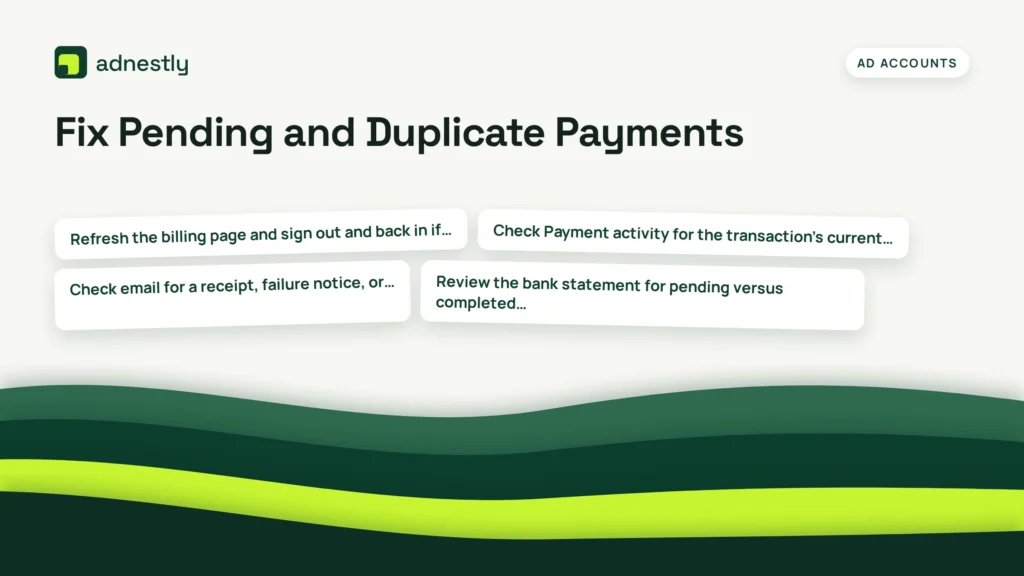
A payment marked pending may be waiting for bank confirmation, manual review, or a transfer to settle. The timing varies by method. Card authorizations are often faster than bank transfers, but neither should be treated as guaranteed until the account balance updates.
Use this sequence:
- Refresh the billing page and sign out and back in if necessary.
- Check Payment activity for the transaction’s current status.
- Check email for a receipt, failure notice, or verification request.
- Review the bank statement for pending versus completed entries.
- Wait through the processing window shown by the account.
- Contact support with the transaction ID if the status remains unresolved.
A duplicate-looking bank entry may be one completed charge and one temporary authorization. Ask the bank whether each entry is settled, pending, or reversed. Don’t dispute a legitimate completed charge before checking the platform status, because a chargeback can affect the ad account.
If you accidentally submit two deposits, compare the transaction IDs and balance changes. A successful extra deposit may remain available for future advertising, while a failed or reversed attempt may disappear later. Keep both records until the account and bank statement agree.
Manage Spending Safely
Adding funds only makes money available; it doesn’t determine how quickly campaigns spend it. Campaign budgets, ad-set budgets, schedules, audience size, optimization, and delivery settings control spending after the deposit.
Use a simple funding routine:
- Add only the amount needed for the next short test period.
- Set campaign or ad-set budgets before enabling delivery.
- Use an account spending limit where that control is available.
- Review spend, results, and remaining balance at least daily during a launch.
- Pause campaigns before making major billing changes.
- Keep a separate record of deposits and advertising spend.
A prepaid balance can make spending more predictable, but it isn’t a guarantee that campaigns will produce results. Ads may be rejected, delivery may be limited, or the balance may remain unused if campaigns are paused.
| Situation | Safer action | Why |
|---|---|---|
| New campaign | Add a modest test amount | Limits exposure while approval and delivery are evaluated |
| High-performing campaign | Increase budget gradually | Reduces sudden spending changes |
| Account access changing | Pause or review permissions | Prevents unauthorized billing activity |
| Payment issue | Stop resubmitting | Avoids duplicate charges and bank blocks |
| Campaign ending | Pause delivery first | Prevents continued balance deductions |
Pro Tip: Match deposits to an approved internal budget. Whoever adds funds should record the account ID, amount, currency, payment source, and business purpose immediately.
Refunds and Unused Balance
A remaining prepaid balance isn’t automatically refundable in every situation. Whether money can be returned depends on the payment method, country, account terms, legal requirements, charge status, and whether the funds were promotional credit or money you deposited.
Before requesting help, gather:
- The ad account ID.
- Business name and administrator email.
- Deposit date and amount.
- Currency and payment method.
- Transaction or receipt ID.
- Screenshot of the balance and payment status.
- Explanation of whether the payment was accidental, duplicated, failed, or unused.
Don’t confuse a refund with an ad credit. An ad credit may be promotional and subject to an expiration date or restricted use. A deposited cash balance may follow different rules. A reversed bank payment may also return automatically without creating a separate refund record.
If you close a business or stop advertising, first pause all campaigns and remove unnecessary payment access. Then review the account’s billing terms and submit a request through the official support path shown in the account. Keep copies of every response.
When Support Is Needed
Contact Meta support when the account shows a completed payment but the balance is wrong, a payment is stuck beyond the displayed processing time, or the billing page gives contradictory information. Support can investigate account-side records that aren’t visible in your dashboard.
Prepare a concise case:
- “I attempted to add [amount] in [currency] to ad account [ID].”
- “The payment was submitted on [date and time].”
- “The status says [pending, failed, completed, or reversed].”
- “The bank shows [pending, posted, or no entry].”
- “The balance changed by [amount or zero].”
- “Transaction ID: [reference].”
Don’t include full payment credentials. Mask card numbers so only the last four digits remain visible. If you use an agency, confirm whether the agency owns the ad account or merely manages it; the owner may be the party authorized to resolve billing.
Support may ask for proof of payment, identity, business ownership, or bank confirmation. Provide only documents requested through the signed-in official support workflow. A person who contacts you privately and asks for a password or one-time code isn’t a safe billing channel.
Frequently Asked Questions
How do I add money to my Facebook ad account?
Open Ads Manager, select the correct ad account, and go to Billing or Payment settings. If the account supports prepaid funding, choose Add funds or a similarly labeled control, enter the amount, select an approved payment method, and confirm. If no Add funds option appears, the account may use automatic billing or your role may not include payment permissions.
Why can’t I see an Add funds button?
The account may not support manual payments in its country or currency, may be configured for automatic billing, or may be restricted. You may also be viewing the wrong account or lack finance permissions. Check the account selector, billing mode, payment activity, and your business role before contacting support.
How long does a prepaid payment take?
Card payments may appear quickly when approved, while bank transfers and some local methods can take longer. The billing page’s status is more reliable than a bank notification. If your bank shows a charge but the balance hasn’t updated after the displayed processing period, save the transaction details and contact support instead of paying again.
Can I add funds from the Facebook mobile app?
Some accounts can view billing information in mobile tools, but payment controls may be limited or arranged differently. If the app doesn’t show Add funds, use Ads Manager in a desktop browser. Confirm the account ID and currency before submitting payment, especially when multiple businesses are connected to your login.
Can I get unused prepaid money refunded?
Possibly, but eligibility varies by country, payment method, account terms, and whether the balance came from a promotion or your own deposit. Stop campaigns, document the transaction, and use the account’s official support workflow. Don’t assume an unused balance will automatically return to your bank.
What should I do if I was charged twice?
First compare Payment activity with the bank statement and identify whether one entry is only a temporary authorization. Don’t submit another payment. Record both transaction IDs, wait for pending entries to settle or reverse, and contact the bank or Meta support with the complete timeline if two completed charges remain.
Conclusion
Start by selecting the correct ad account and opening its Billing area. Confirm whether it uses prepaid payments, follow the Add funds flow once, and save the receipt and transaction ID. If the balance doesn’t update, pause further attempts and investigate the original payment status before contacting support.

Aaron Kelly writes about Facebook tools, account management, and business advertising. His content covers account security, Facebook Ad Accounts, Business Manager setup, Pixel and conversion tracking, Business Manager verification, and admin profile verification. He focuses on explaining technical processes and common account issues in practical terms, helping businesses and advertisers manage their Facebook assets more effectively and build a more secure, reliable advertising setup.
Checked against Meta’s own documentation. How we write and update guides