Facebook Ads Manager Error: Payment Failed, Update Your Payment Method

If ads manager shows that a payment failed and asks you to update your payment method, you can usually resolve the error by checking the card’s billing details, clearing any overdue balance, confirming your ad account’s payment settings, and retrying with a supported payment method. The message doesn’t always mean the card is permanently unusable; it may reflect a bank decline, account restriction, verification issue, or temporary processing problem.
$ part ofFacebook Business Manager Problems: Fixes for Common ErrorsThe complete guide this article belongs toOpen guide →Key Takeaways
- Check the payment status in Ads Manager before adding another card, because a temporary authorization can appear as a duplicate charge.
- Match the cardholder name, billing address, ZIP code, expiration date, and security code exactly.
- Pay any outstanding balance before launching new campaigns or repeatedly retrying the failed charge.
- Ask the bank whether it blocked an online, international, recurring, or advertising transaction.
- Use a backup card or another available payment method only after reviewing the failed transaction details.
- Avoid deleting the only payment method while an account balance, refund, or payment review is still pending.
Ads Manager Payment Failed
Meta Ads Manager generally attempts to charge your selected payment method according to your account’s billing threshold, payment schedule, or account balance. A failed payment can stop active ads, prevent a campaign from starting, or leave the ad account temporarily restricted.
The exact wording may vary. You might see messages such as:
- “Payment failed”
- “We were unable to charge your payment method”
- “Your ads are paused”
- “Update your payment method”
- “There’s a problem with your payment”
- “Your account has been disabled from advertising”
A failed charge is different from a rejected ad. Ad rejection concerns policy or creative content; payment failure concerns billing. You may have both problems at once, but changing the card won’t fix an ad rejected for a policy violation.
What happens next?
When a charge fails, Meta may retry the payment automatically, pause delivery, or restrict spending until the balance is paid. The timing depends on the account, payment method, country, currency, and reason for failure.
Don’t assume the message means money was taken. Check:
- The payment activity inside Ads Manager
- Your bank or card statement
- Any pending authorization
- The current account balance
- Whether campaigns show “Active,” “In review,” “Not delivering,” or “Payment issue”
If your bank shows a pending authorization but Ads Manager shows a failed payment, wait for the transaction to settle or disappear before submitting repeated payments. Multiple retries can create several temporary holds even when only one payment eventually completes.
Check Account First
Before changing payment information, confirm that you’re working in the correct business portfolio and ad account. Many businesses manage several accounts, and a payment method added to one account may not resolve the balance on another.
Open Ads Manager and inspect the billing area. Depending on the current interface, look for Billing & payments, Payment settings, Payment activity, or Account overview.
Confirm the account details
Review these items:
- Correct ad account ID
- Correct business portfolio
- Account currency
- Account time zone
- Current account balance
- Outstanding invoice or failed transaction
- Primary payment method
- Account spending limit
- Any banner requesting identity or business verification
A payment card can’t generally correct an account-level restriction. If the account is disabled, under review, or subject to a spending limit, the payment screen may still tell you to update the payment method even though the main issue is elsewhere.
Check who can make changes
You need sufficient permissions to change payment settings. A person with access to campaigns may not have permission to manage billing. Ask a business administrator to review the account if the card section is missing, locked, or read-only.
| What you see | Likely meaning | First action |
|---|---|---|
| Payment failed with an amount due | A charge was declined or couldn’t be completed | Review the failed transaction and pay the balance |
| Ads paused after a failed charge | Delivery stopped because billing is unresolved | Resolve the balance before editing campaigns |
| Card can’t be added | Details, eligibility, or account permissions problem | Check billing address, permissions, and supported methods |
| Payment method accepted but not charged | The charge may be pending or below the threshold | Review payment activity and bank status |
| Account disabled from advertising | A broader account or policy restriction may exist | Follow the account review or support process |
Update Payment Method
If the existing card is expired, replaced, blocked, or no longer authorized for online charges, update it from the ad account’s payment settings rather than from a campaign screen.
Add a replacement card
Use a card issued in the same legal name and billing country as the ad account whenever possible. Enter every field manually or verify autofill carefully.
Check:
- Card number
- Expiration month and year
- Security code
- Cardholder name
- Street address
- City, state, and ZIP code
- Country or region
- Currency compatibility, if displayed
A billing mismatch is one of the most common reasons an otherwise valid card fails. Use the address recorded by the card issuer, not necessarily your business mailing address, office address, or shipping address.
If the card uses a virtual number, confirm that it allows recurring merchant charges. Some virtual cards are intended for one-time purchases, while some company cards require an administrator to approve advertising transactions.
Set the new method correctly
Adding a card doesn’t always make it the primary method. After adding it, select the option to make it the primary payment method, if available. Confirm that the new card is attached to the affected ad account, not merely saved to your personal account or another business.
Warning: Don’t remove the old payment method until you know whether it has a pending authorization or whether the account still identifies it as the primary method. Removing it too early can make reconciliation harder.
After saving the replacement method, return to payment activity and look for a button such as “Pay now,” “Retry payment,” or “Settle balance.” If no retry option appears, allow time for the system to process the new method, then check whether ad delivery resumes.
Clear Outstanding Balance
A new card may not automatically settle an amount that already failed. The account can remain restricted until you explicitly pay the overdue balance.
Open the billing or payment activity view and identify:
- The total amount currently due
- The date of the failed attempt
- The payment method used
- The transaction status
- Any tax, adjustment, or credit
- Whether a separate invoice is unpaid
Pay the amount due
Choose the outstanding transaction and use the available payment action. If the interface offers multiple methods, select the newly verified card rather than the card that already failed.
Keep the payment amount consistent with the displayed balance. Don’t manually submit a larger amount unless the interface specifically supports account credit or prepaid funds. An excess payment can create a credit that’s difficult to match to a particular invoice.
The account may not resume immediately after payment. Allow time for:
- The payment to move from pending to completed
- The billing restriction to clear
- Campaign delivery to restart
- Reporting and spend totals to update
If the amount appears twice, compare transaction IDs and dates before paying both. One line may represent an authorization, retry, reversal, or duplicate-looking record rather than two completed charges.
When the balance keeps returning
A recurring balance after a successful payment may indicate that:
- A second invoice became due
- Another ad account has an unpaid balance
- The card payment was reversed
- A refund or chargeback changed the account ledger
- Several campaigns continued spending before the restriction took effect
- Taxes or currency conversion changed the final amount
Save the confirmation number, payment date, amount, and last four digits of the card. Those details help support staff and your bank distinguish a real duplicate from a temporary authorization.
Review Payment Settings
Payment failures are easier to diagnose when you identify the billing arrangement. Meta ad accounts may use automatic payments, available funds, monthly invoicing, or country-specific methods. The available choices depend on location, currency, account history, and eligibility.
| Billing arrangement | How payment usually works | Common failure point |
|---|---|---|
| Automatic payments | The system charges a card or other method during billing events | Bank decline, expired card, threshold charge failure |
| Available funds | You add money before ads spend it | Top-up failure, insufficient funds, unsupported method |
| Monthly invoicing | Eligible businesses receive an invoice | Credit or invoice restriction, overdue payment |
| Local payment method | A supported regional method funds advertising | Expiration, account eligibility, processing delay |
Verify currency and country
A card may work for ordinary purchases but fail when the ad account processes a charge in a different currency or country. Ask the issuer whether the card permits:
- International e-commerce
- Recurring merchant billing
- Digital advertising charges
- Transactions processed outside your home country
- The currency used by the ad account
A currency mismatch can also occur when a business changes its location, creates a new ad account, or uses a payment method registered in another region. Don’t create a new ad account merely to bypass a billing error; that can separate historical data and create additional verification problems.
Review spending controls
Check whether your business or card provider has imposed a limit. Relevant limits include:
- Daily card purchase limit
- Monthly corporate-card limit
- Ad account spending limit
- Campaign budget
- Business portfolio payment threshold
- Bank fraud-prevention limit
A campaign budget can prevent delivery, but it usually doesn’t explain a declined card. An account spending limit or bank limit is more likely to stop a payment while leaving the card itself apparently valid.
Fix Common Card Problems
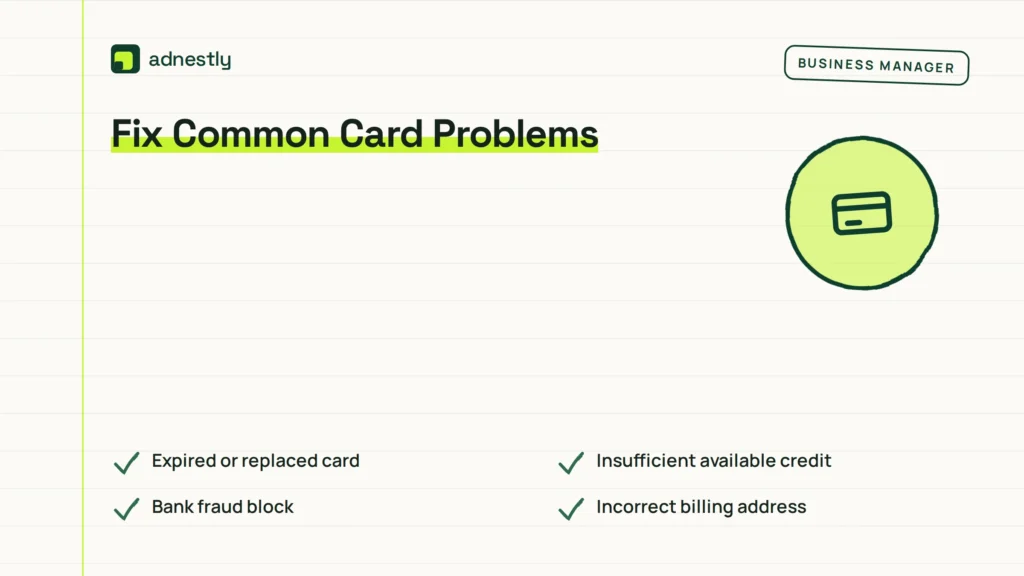
When a payment fails, troubleshoot both the card and the transaction context. A card can be open and funded yet still reject a particular merchant category or recurring charge.
Expired or replaced card
If the physical card was replaced, its number, expiration date, or security code may have changed. Update all fields rather than changing only the expiration date. A saved card token can also become invalid after replacement.
Insufficient available credit
Check available credit or balance, not just the account’s total credit line. A pending authorization, recent purchase, cash withdrawal, or corporate-card hold can reduce available funds.
Bank fraud block
Banks sometimes block unusual online or international transactions. Contact the issuer and ask specifically about the declined advertising charge. Ask whether the bank can approve future recurring charges from the merchant.
Incorrect billing address
Enter the exact address shown on the card account. Common errors include:
- A missing apartment or suite number
- An old ZIP code
- A business address instead of the cardholder address
- A state abbreviation the issuer doesn’t recognize
- A different country selected in the form
Card type or issuer restriction
Some prepaid, debit, virtual, gift, or corporate cards have limits on recurring transactions. The bank can tell you whether the card supports this merchant and payment pattern.
Security verification failure
A bank may require an approval in its mobile app, a one-time code, or an additional authentication step. Complete that prompt promptly, then return to Ads Manager and retry the payment if the option is available.
Pro Tip: If the bank says it approved the transaction but Ads Manager still reports failure, ask for the decline code or authorization result. “The card is fine” isn’t enough; the code can show whether the failure came from the issuer, a payment processor, or account-side screening.
Try Another Payment Route
If correcting the existing card doesn’t work, use one alternate method at a time. Testing several cards in quick succession can trigger more fraud checks and create multiple pending holds.
| Alternative | Best use case | Caution |
|---|---|---|
| Business credit card | Predictable recurring ad charges | Confirm available credit and issuer approval |
| Business debit card | Funded account with online payments enabled | Holds can reduce available cash temporarily |
| PayPal, where available | Card or bank-linked backup | Availability varies by country and account |
| Prepaid available funds | Accounts eligible for manual funding | Top-up rules and minimums may apply |
| Monthly invoicing | Established, eligible businesses | Approval isn’t available to every advertiser |
Choose a method owned by the business or an authorized account administrator. Personal cards can create bookkeeping, reimbursement, ownership, and access issues later.
Avoid risky workarounds
Do not:
- Use a card that belongs to someone without permission
- Enter a false billing address
- Use disposable payment details
- Open repeated ad accounts to avoid a balance
- Ask the bank to reverse a legitimate charge
- Keep retrying after every failure notification
- Add a card from a country unrelated to the ad account without checking eligibility
A clean payment trail helps if Meta, your bank, or your accounting team needs to investigate. Keep screenshots of the error, transaction date, amount, account ID, and payment method’s last four digits, but never send a full card number or security code.
Escalate to Meta Support
Contact support when the card issuer confirms approval, the balance remains unpaid, or the payment screen produces a technical error after you have checked the basics. Start with Meta’s own guidance for failed ad payments, then use the support option available in your Business account.
Prepare a concise case containing:
- Ad account ID
- Business portfolio ID, if relevant
- Exact error wording
- Date and time of each attempt
- Amount and currency
- Payment method type and last four digits only
- Bank decline code, if provided
- Screenshots with card details hidden
- Browser, device, and operating system
- Whether the payment is pending, reversed, or completed
Explain the sequence
Support can investigate faster if you describe the order of events:
- The original card failed.
- You checked the billing address and card status.
- The bank confirmed or denied the transaction.
- You added a replacement method.
- You attempted to pay the outstanding balance.
- The account still shows a restriction or failed payment.
Don’t send passwords, authentication codes, full card numbers, or security codes. Legitimate support shouldn’t need your complete payment credentials to locate a billing transaction.
When to contact the bank
Contact the card issuer first when:
- The transaction is marked declined by the bank
- You see a fraud alert
- Your card is frozen
- The available balance is too low
- A recurring or international payment is blocked
- You see a duplicate pending authorization
Contact Meta first when:
- The bank never received an authorization attempt
- The card works elsewhere but can’t be added
- The payment shows completed in the bank but unpaid in Ads Manager
- The account is disabled or under review
- The amount due changes unexpectedly
Prevent Repeat Failures
Once advertising resumes, reduce the chance of another interruption by setting up a deliberate billing routine. A backup method can help, but only if it’s current, funded, and authorized for the same business.
Maintain the payment profile
At least monthly, review:
- Expiration dates
- Available credit
- Billing address
- Business ownership
- Primary and backup methods
- Account currency
- Open invoices
- Payment activity
- Spending limits
Before a card expires, replace it and make a small controlled billing change only if necessary. Avoid changing multiple payment settings immediately before a major campaign launch.
Use a billing checklist
| Timing | Check | Action |
|---|---|---|
| Before launch | Card status and available funds | Confirm the primary method is valid |
| Weekly | Payment activity and account alerts | Resolve pending or failed items |
| Monthly | Expiration, address, and limits | Update outdated information |
| Before a promotion | Backup method and spending cap | Confirm coverage for planned spend |
| After a payment | Bank statement and Ads Manager | Match the completed transaction |
A backup plan should include an authorized administrator, a second approved payment method, and a record of the account ID. Store that information securely; don’t keep full card details in shared documents or chat messages.
Protect campaign continuity
If a campaign is time-sensitive, avoid raising budgets sharply immediately after a payment failure. First confirm that the account is unrestricted and that the new payment method has completed successfully. Then increase budgets gradually according to your normal approval process.
A payment fix doesn’t guarantee instant delivery. Campaigns can still be limited by review, audience size, bid strategy, schedule, budget, policy status, or account restrictions.
Related guides
- Facebook Ads Payment Declined: Every Reason and Fix
- Something Went Wrong Ads Manager: What It Means and How to Fix It
- Business Manager Error: Something Went Wrong, Try Again Fix
Frequently Asked Questions
Why did my Meta ad payment fail?
Common causes include an expired card, incorrect billing address, insufficient available funds, bank fraud screening, unsupported card type, recurring-payment restrictions, currency mismatch, or an unpaid account balance. Check the payment activity record and ask the card issuer for the decline reason before trying several new methods.
How do I update my payment method in Ads Manager?
Open the affected ad account, go to the billing or payment settings area, add the replacement method, verify the billing details, and make it primary if the option appears. Then return to payment activity and use the available option to retry or pay the outstanding balance.
Why is my card declined when it works elsewhere?
Advertising charges may be processed as recurring, international, online, or digital-service transactions. Your bank may allow ordinary purchases while blocking this category. Ask the issuer about the specific declined transaction, recurring merchant authorization, online purchases, and international processing.
Will my ads restart after I pay the balance?
Often, but not necessarily immediately. The payment must finish processing and any account restriction must clear. Campaigns may remain inactive because of a separate policy review, schedule, budget, account limit, or delivery problem. Check both billing status and campaign status after payment.
Can I use PayPal or a debit card?
Possibly, depending on your country, currency, ad account, and eligibility. Add only a method that the payment settings page presents as supported. Confirm that it allows online and recurring charges, and avoid switching methods repeatedly while an earlier payment is still pending.
What should I do if I was charged twice?
Compare the two entries in Ads Manager with your bank statement. One may be a temporary authorization, retry, or pending hold rather than a completed duplicate. Record the dates, amounts, transaction IDs, and last four digits, then contact the bank or Meta support without requesting a chargeback for a legitimate completed charge.
Conclusion
Start with the affected ad account’s payment activity, identify the exact failed transaction, and correct one cause at a time. Verify the billing address, contact the card issuer for a decline code, pay the displayed balance, and document every attempt so support can resolve any remaining restriction efficiently.

Aaron Kelly writes about Facebook tools, account management, and business advertising. His content covers account security, Facebook Ad Accounts, Business Manager setup, Pixel and conversion tracking, Business Manager verification, and admin profile verification. He focuses on explaining technical processes and common account issues in practical terms, helping businesses and advertisers manage their Facebook assets more effectively and build a more secure, reliable advertising setup.
Checked against Meta’s own documentation. How we write and update guides