Invalid Parameter Facebook Ads Manager: What It Means and How to Fix It

An invalid parameter in ads manager usually means Meta rejected one part of your ad request, not that your whole account is broken. Check the error details, then review the ad’s destination, creative, audience, budget, and permissions. Don’t open hardware or change hidden account settings.
$ part ofFacebook Ad Account Problems: How to Fix Every Common IssueThe complete guide this article belongs toOpen guide →The right fix depends on where the error appears, what you changed, and whether it affects one ad or every ad. A rejected field may need editing, while a browser problem may clear after a fresh session.
Who needs Ads Manager help
This page suits advertisers who can open Meta Ads Manager but can’t publish, edit, duplicate, or save an ad. You may see “Invalid parameter” beside an ad, ad set, campaign, or button, with little detail about the rejected field.
A new advertiser usually needs safe checks that don’t change billing or delete the campaign. An experienced user may already know the basics and need help separating a broken draft from an account, page, pixel, catalog, or payment problem.
An agency user may also need to check business permissions. Access to a Facebook Page doesn’t always give the same control over an ad account, Instagram account, pixel, catalog, or payment method.
This guide serves home users and small teams working in the normal Ads Manager website or mobile app. It assumes you can sign in and view the affected campaign. If you’re using the Marketing API, read Meta’s Marketing API error handling instead; API errors can require request and response details that Ads Manager doesn’t show.
What triggers the error
The affected field matters most. “Invalid parameter” is a broad message, so read the full warning, hover over the error icon, and check whether it appears at campaign, ad set, or ad level. If only one ad fails, inspect that ad first; if every ad fails, check account access, billing, or the browser session.
The destination is a common fault. A deleted page, unavailable website, broken app link, mismatched Instagram profile, or unsupported URL can stop publishing. Open the destination in a private browser window and compare it with the page, profile, app, or website selected in the ad.
The creative and format also change the result. A video, image, carousel, catalog item, or lead form can require different fields. Look for a missing media file, removed post, empty headline, unsupported placement, or field that appeared after you changed the format.
Permissions rank next. Confirm that you have access to the ad account and the connected Page, Instagram account, pixel, catalog, or lead form. The person who owns the business may need to grant access in Meta Business settings.
The mistake people miss most often is fixing the visible ad but not its copied settings. Duplicated ads can carry an old post, deleted asset, incompatible placement, or unavailable destination. Compare the failing copy with a new draft rather than assuming the original settings are still valid.
Safe checks before editing
-
Read the complete message. Open the affected campaign, ad set, or ad and expand every warning. The working level is the first useful clue; it tells you where to inspect.
-
Check delivery status. Look for Draft, Error, In Review, Rejected, or Not Delivering. If the error appears only during publishing, the problem is likely in a required field or connected asset.
-
Test the destination. Open the website, Page, Instagram profile, app link, or form in a private browser window. It should load the intended destination without a missing-page message or unexpected permission error; if it requires login, verify that the login flow works as intended.
-
Review the selected identity. Confirm that the Facebook Page and Instagram account are the intended ones. The identity shown in the ad preview should match the business you’re promoting.
-
Inspect the creative. Open the image, video, carousel card, or catalog item from the ad itself. If a file is missing, blank, or replaced by an error box, upload a known-good copy.
-
Check required text. Read the primary text, headline, description, call-to-action, and form fields. Remove empty fields, unusual pasted symbols, and text that appears only after a recent edit.
-
Compare placements. If the ad fails after changing placements, return to the previous working selection or choose only placements supported by that format. The preview should load for each selected placement.
-
Confirm account access. Ask the business owner to check your ad account, Page, Instagram, pixel, catalog, and form permissions. Don’t request broader access than the failed asset needs.
-
Try a clean session. Save your work if possible, then use a private browser window or another supported browser. If only one browser fails, the account may be fine.
-
Create a small test draft. Use the same account and identity with a fresh draft. If the new draft works, the old ad likely contains a damaged or outdated setting.
The key judgment is whether the error follows the asset or the account. If a fresh draft with a different destination works, rebuild the old ad; if every draft fails, stop changing ads and check permissions, billing, or Meta support.
Cases that change the fix
The right action depends on where the error appears and what you changed last.
| Situation | What to do | What it takes | What to watch for |
|---|---|---|---|
| One copied ad fails | Rebuild the ad | Moderate editing effort | Old settings may return |
| Every ad fails | Check account access | Owner or admin help | Don’t delete campaigns |
| Error follows one image | Replace the file | One fresh upload | Preview must load |
| Error follows one URL | Test destination access | Website or Page check | Redirects may break |
| Error starts after placements | Reduce placements | Format comparison | Some previews disappear |
| Browser alone fails | Use private session | Few minutes | Save draft first |
| Payment warning appears | Review billing details | Account owner access | Don’t retry repeatedly |
Details that protect the result
Check the level first
A clean diagnosis starts at the level showing the warning. Campaign settings affect the whole structure, ad set settings affect audience and delivery choices, and ad settings affect identity, creative, destination, and text.
People often edit the ad because it’s the most visible part. If the warning sits beside the ad set, changing the image won’t solve it. Read the row label and expand the exact error before making a change.
Rebuild only what’s damaged
A fresh ad is useful when the original was duplicated, imported, or edited through several formats. Keep the campaign and ad set if they work, then add the creative, identity, destination, and text again one at a time.
Don’t change five fields together. If the error disappears, you won’t know which field caused it. Change one item, save, and check whether the warning returns.
The result should look correct in preview and show no new error at the level you edited. Leave working audience, budget, and schedule settings alone unless their own row shows a warning.
Symptoms and Likely Fixes for Invalid Ads Manager Parameters
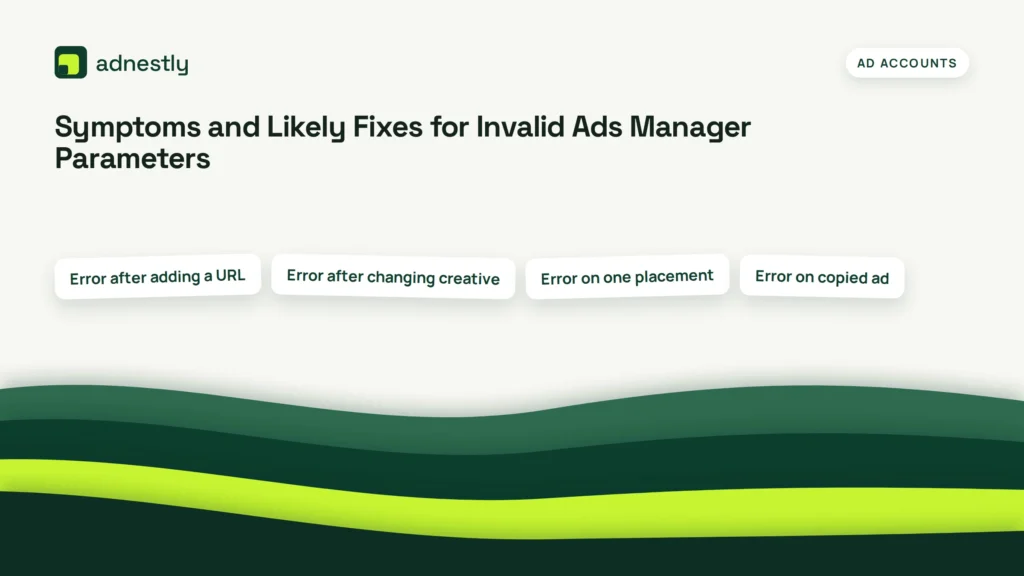
Start with the exact place where the warning appears. The table gives safe first checks, not instructions to bypass review or account controls.
| What you notice | What it usually means | What to do first | How to stop it happening again |
|---|---|---|---|
| Error after adding a URL | Destination field is rejected | Open and compare URL | Keep destination accessible |
| Error after changing creative | Asset or format mismatch | Replace media file | Check preview before saving |
| Error on one placement | Format lacks support | Remove failing placement | Use compatible placements |
| Error on copied ad | Old setting carried over | Build fresh ad | Duplicate only working ads |
| Error across campaigns | Account-level problem possible | Check access and billing | Keep permissions current |
| Button or form won’t save | Required field is incomplete | Review every field | Avoid blank optional-looking fields |
| Browser shows stale warning | Session or cache issue possible | Try private window | Use a current supported browser |
Rules and account limits
Meta’s own error guidance is the safest source for technical error details, because the exact code and request context can change. In Ads Manager, use the warning text, account notifications, and Account Quality area as the current record for your account.
Advertising rules also depend on the ad category, destination, audience, country, and selected features. A field that works in one campaign may be unavailable in another because the format or destination is different.
Meta may restrict an account, Page, business, or asset separately. Don’t try to bypass a restriction by creating repeated copies or using another person’s account. Ask the business owner or an account administrator to review the notice and use Meta’s appeal path when one is offered.
Country rules can add separate requirements for political, housing, employment, credit, health, or regulated products. Check the policy and authorization page shown for your country in Meta Business Help Center. If money, legal rights, or regulated claims are involved, ask a qualified local adviser before publishing.
The real cost of the error
The direct cost is usually lost time, but the larger cost can be an unwanted campaign change. Deleting a campaign to clear one broken ad may remove useful history, settings, or review context. Keep the original until a replacement works.
A fresh ad takes more effort than retrying the same button, but it gives you a cleaner test. Repeated retries are useful only when the warning looks temporary; if the same field fails again, stop and isolate that field.
Compare the time needed to repair the existing ad with the time needed to rebuild it. Repair it when the campaign structure and history matter; rebuild only the affected ad when its settings are copied, stale, or unclear.
If billing, account restrictions, or business ownership are involved, the real cost is waiting for the person who controls that item. Check the account’s notifications and payment screen before making changes that need an owner or admin.
After the error is cleared
Keep the working draft or ad until the replacement has saved and shows the expected status. Don’t delete the failed version immediately; its warning can help you compare the field that changed.
Record the working destination, identity, format, placements, and the exact warning text. This makes the next failure easier to match. If the same warning returns after a small edit, compare that edit with your record.
A warning needs attention again when it returns at the same level, when preview stops loading, or when the ad changes to an unexpected delivery status. Check the newest notice first; old screenshots may describe a setting that Meta has changed.
When Ads Manager isn’t the answer
Ads Manager isn’t the right place for a broken website, missing Page access, or a disabled business asset. Fix the website with its host, ask the Page or business owner to restore access, or use Meta’s account review process for the disabled asset.
A payment failure also needs the payment owner, not repeated ad edits. Have the account owner review the billing method and any account notice.
This guide isn’t for API code, automated uploads, or developer error responses. Use the relevant developer documentation or a qualified Meta marketing partner, and don’t change code or account ownership settings if you can’t verify the effect.
Frequently asked questions
Can invalid parameter stop my ad from publishing?
Yes, it can stop publishing when Meta rejects a required field, connected asset, destination, or format setting. Check the level showing the error and expand the message. If a fresh draft works, the original ad likely contains the rejected or outdated setting.
Why does Ads Manager say invalid parameter?
The message appears when a submitted value doesn’t fit the campaign, format, destination, or account context. It doesn’t identify one universal cause. Compare the last field you changed with the warning level, then test the destination and selected asset.
How long does an invalid parameter error last?
There’s no reliable fixed time for this message. A browser-session fault may clear after a private-window retry, while a rejected asset or account restriction remains until that item changes. If the same error returns in a fresh session, stop retrying and inspect the field or account notice.
Is it safe to duplicate the ad?
Usually, duplicating an ad is safe for testing, but the copy can carry the same broken URL, asset, placement, or identity. Duplicate only after recording the original settings. If the copy shows the same warning, build a fresh ad instead of making more copies.
What happens if I delete the broken ad?
Deleting it removes that ad from the campaign and can remove useful settings or review history. Keep it while testing a replacement unless it contains a serious mistake. If you delete it, the campaign and ad set may still remain, but check the account before confirming.
Does it matter where the error appears?
Yes, it matters. An ad-level warning points to creative, identity, destination, or text; an ad-set warning points to audience or delivery choices; an account-wide warning points toward access, billing, or restrictions. Start at the level named beside the message.
Can a browser cause invalid parameter?
Yes, a stale session or failed page load can produce a misleading save error, but it isn’t the only possibility. Try a private window and a different supported browser. If the warning follows the account and ad, inspect the settings instead.
First fix for Ads Manager errors
Start by opening the exact warning and checking the field or asset at that level. A successful fresh draft should save, preview correctly, and show the expected delivery status. Stop and contact the account owner or Meta support when the error affects every ad, billing, permissions, or an account restriction.

Aaron Kelly writes about Facebook tools, account management, and business advertising. His content covers account security, Facebook Ad Accounts, Business Manager setup, Pixel and conversion tracking, Business Manager verification, and admin profile verification. He focuses on explaining technical processes and common account issues in practical terms, helping businesses and advertisers manage their Facebook assets more effectively and build a more secure, reliable advertising setup.
Checked against Meta’s own documentation. How we write and update guides