Facebook Lead Ads Form Not Delivering Leads to CRM

A lead ads form not delivering leads to crm usually has a broken connection, missing lead-access permission, a disabled workflow, or a field-mapping error. Check the ad platform’s lead test first, then check the CRM connection, user permissions, field mapping, and automation logs. If the lead appears in the platform but not the CRM, the problem is in the integration. If it doesn’t appear in the platform, fix the form or campaign before checking the CRM. This guide covers the checks, timing clues, platform rules, and cases where a different setup is safer.
$ part ofFacebook Business Manager Problems: Fixes for Common ErrorsThe complete guide this article belongs toOpen guide →How the lead form delivers leads to CRM
A lead ad collects contact details inside an advertising platform, such as Meta or LinkedIn. An integration then copies that submission into your CRM, where it can create a contact, company, deal, task, or follow-up workflow. The form itself doesn’t usually send an email to your CRM. It sends data through a connection that needs access, field mapping, and an active workflow.
The connection normally has four parts: the ad account, the lead form, the CRM authorization, and the automation that receives the data. A failure in any one part can stop delivery. A successful ad submission isn’t proof that the CRM received it.
The common misconception is that every new form submission will appear automatically. In practice, the connected user may lose permission, the form may be connected to a different page or account, or a required CRM field may reject the record. Some tools also use a scheduled sync instead of an instant transfer, so a short delay doesn’t always mean the connection is broken.
This setup is for teams that want one place to manage leads from paid campaigns. It’s useful when sales needs routing, ownership, notes, or follow-up history. It’s not the same as exporting a spreadsheet. An export can contain the lead, but it won’t necessarily trigger the CRM workflow that assigns or contacts that person.
How to reconnect lead ads to CRM
Use the platform’s own lead record as your starting point. Don’t begin by changing the ad or rebuilding the form, because that can hide the original failure.
-
Submit one test lead with a unique email address. Use an address you can identify, such as a company test inbox. Record the ad account, page, form name, campaign, and submission time. Don’t use a real customer’s details for testing.
-
Check whether the platform saved the test lead. Open the lead center or lead-download area for the correct page and form. If the test lead isn’t there, check the campaign, form status, page selection, and date filter before touching the CRM.
-
Run the platform’s lead test tool when one is available. Meta provides a Lead Ads Testing Tool for checking lead-form delivery and permissions. Select the same page and form used by the campaign, then submit a new test record.
-
Reconnect the CRM authorization. Sign in with a user who has admin access to both the ad asset and the CRM integration. Confirm that the connection points to the correct ad account, page, business, workspace, or organization.
-
Review field mapping. Map the form’s email, phone, name, consent, and campaign fields to matching CRM fields. If the CRM requires a value that the form doesn’t collect, add a default value only when your privacy and sales process allow it.
-
Check the receiving workflow and filters. Make sure the workflow is published, the destination pipeline is active, and no filter excludes the test email, campaign, page, or form. Check whether the record was created but placed in a different owner, list, or pipeline.
-
Test a second submission after saving changes. Use a different test email. Search the CRM by email, not only by name, because duplicate rules may merge the record or update an existing contact instead of creating a new one.
The main judgment call is where the lead disappears. If it’s missing from the ad platform, fix the campaign or form; if it’s present there but absent from the CRM, fix access, mapping, or automation. If you need API work, custom webhooks, or changes to production workflows, send the issue to your CRM administrator or an approved integration specialist.
Lead ads CRM settings at a glance
These checks cover the main points where a submission can stop or appear late.
| Situation | What to use | How long | What to watch for |
|---|---|---|---|
| No lead in the ad platform | Correct page, form, and date filter | Check immediately after a test | You may be viewing the wrong ad account or form |
| Lead saved in the platform | Lead center or download record | Check immediately, then after the integration’s normal sync cycle | A saved lead proves the form worked, not the CRM connection |
| CRM connection recently changed | Admin authorization and asset selection | Allow the tool’s stated sync window | The connected user may not control the page or form |
| Lead reaches CRM but has wrong values | Field mapping | Review before the next test | Phone, consent, source, and campaign fields may use different formats |
| Lead becomes a duplicate | CRM email or phone search | Check after each test | Duplicate rules may update an old contact rather than create a new one |
| Lead is created but sales can’t see it | Owner, team, list, and pipeline filters | Check after record creation | Permission or view filters can hide a valid record |
| Workflow doesn’t start | Published automation and enrollment rules | Check after the record appears | Exclusions may remove test contacts or selected campaigns |
The exact delay depends on the CRM, connector, plan, and connection type. Read the integration’s own sync documentation for that value instead of treating every missing lead as an outage.
Details that keep lead delivery reliable
Prepare the test before changing anything. Write down the exact page, form, ad account, CRM workspace, and test email. Screenshots of the form name and the platform’s lead record can save time when different teams control the ad account and CRM.
Work in order from source to destination. First confirm the form created a record, then confirm the connector has access, then check field mapping, and only after that inspect workflows. Changing all four at once makes the result hard to read.
Check the record by email and by submission time. A CRM may merge a new submission into an existing contact, so a missing new contact doesn’t always mean missing data. Look at the contact’s activity, source, owner, and last-modified fields.
Leave the live campaign alone during the first test. Create one controlled submission instead of editing targeting, budget, form questions, and automation together. If the test passes, send one more record through the same live path before declaring the issue fixed.
The trade-off is speed versus clean evidence. Reconnecting an integration may restore delivery quickly, but it can also change ownership or duplicate behavior. If the lead appears in the platform, use the existing record and logs first; if no record exists, rebuild only the damaged form or connection.
A common costly mistake is testing with the same email every time. Duplicate protection can update one contact and make a repaired connection look broken. Use a new test address for each test, or check the CRM’s merge and update history before creating another form.
Lead ads delivery problems and fixes
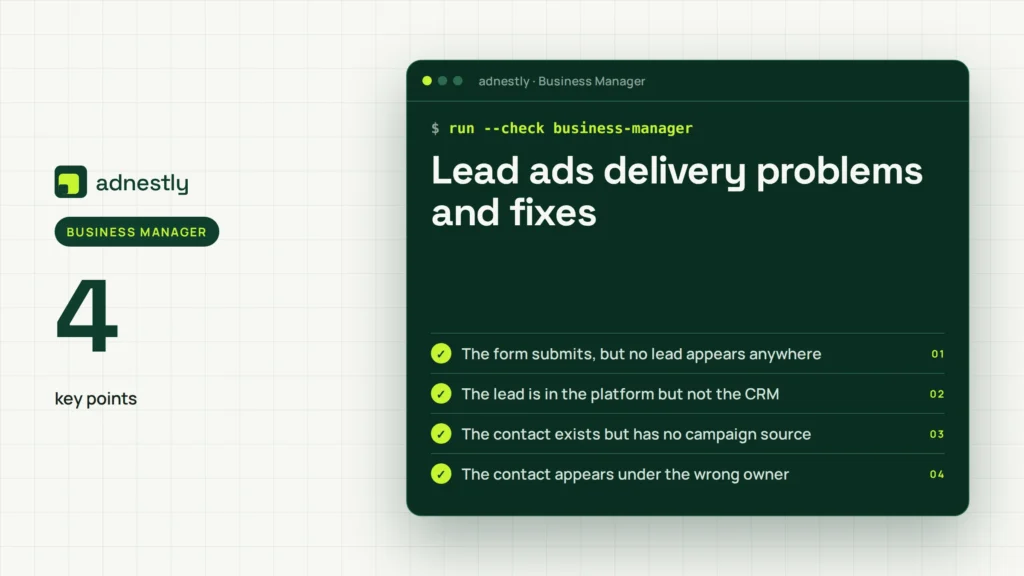
Start with the symptom, not with a random reconnect. The table helps separate a form problem from a CRM problem.
| What you notice | What it usually means | What to do first |
|---|---|---|
| The form submits, but no lead appears anywhere | The campaign may use a different form, page, or account | Check the live ad’s selected form and the platform’s lead center |
| The lead is in the platform but not the CRM | The connection, permission, or sync has failed | Recheck authorization and confirm the connected asset |
| The contact exists but has no campaign source | Source or hidden-field mapping is missing | Map the campaign, form, and platform source fields |
| The contact appears under the wrong owner | Routing rules or team access are wrong | Review assignment rules and the receiving user’s permissions |
| The same test keeps updating one contact | Duplicate matching is working | Use a new test email and inspect the CRM’s duplicate settings |
| Leads stopped after a staff change | The authorized user or token may no longer work | Have an admin reconnect the integration and test it |
If a connector reports an error, save the error text and the submission ID before retrying. Those details help the CRM vendor or integration provider find the failed request.
Platform access and privacy rules
Lead platforms control who can access submitted data. Meta’s business settings, page roles, lead access settings, and connected app permissions can all affect delivery. LinkedIn and other platforms have their own account, page, and organization permissions, so don’t assume a permission granted on one platform applies to another.
The CRM must also follow your organization’s privacy process. Only collect fields you need, explain why you’re collecting them, and make sure consent language matches the country and campaign. Your legal, privacy, or compliance team should approve the form language when the campaign involves sensitive data or regulated services.
A user who can create an ad may not be allowed to download leads or connect a CRM. If the next step needs admin access, an API token, a custom webhook, or a change to data-retention rules, don’t bypass the control. Ask the platform administrator, CRM administrator, or privacy officer to handle it.
The exact permission names can change after a platform update. Check the current help pages inside the ad platform and CRM rather than relying on an old screenshot or a copied setup guide.
Keep lead delivery healthy
Keep a simple record of the live form name, connected page, CRM destination, field map, and authorized user. Store it where both the advertising and sales teams can read it. This makes staff changes and account transfers easier to diagnose.
Run a controlled test whenever you change the form, connected account, CRM workflow, or authorized user. Use a new test email and tag it clearly so sales doesn’t treat it as a real inquiry. Remove or archive the test record according to your CRM process after the check.
Watch for the sign that delivery needs attention: a new lead appears in the platform but not in the CRM, a source field goes blank, or routing stops. When that happens, pause automated outreach to unverified records, keep the platform records available, and repair the connection before importing anything in bulk.
If the integration was down, export or download the affected lead records only through an approved admin process. Then check for duplicates before importing them. A bulk import can restore visibility, but it can also create duplicate contacts and trigger unwanted emails.
When lead ads aren’t the right choice
Lead ads aren’t a good fit when sales must verify a complex application before a record is created. Use a secure website form or an approved application system instead, especially for sensitive financial, medical, or identity information.
They’re also a poor choice when the CRM needs custom calculations, document uploads, or several conditional questions. A landing page with server-side validation may give you better control, even if it adds more steps for the user.
If your team can’t maintain platform permissions and field mappings, use a managed connector or have your CRM administrator own the integration. If the platform saves leads but the connector repeatedly fails, route leads to an approved backup inbox or lead queue while the vendor investigates.
This approach isn’t for teams that need guaranteed delivery without monitoring. If a missed lead could create a legal, safety, or major revenue problem, add a separate alert and reconciliation process rather than trusting one connection.
Related guides
- Facebook Ads Prepaid Balance: How to Add Funds
- Facebook Ads Outstanding Balance: How to Clear It
- Ads Manager Not Loading: Browser and Account Fixes
Frequently asked questions
Can a lead ad submit without reaching the CRM?
Yes. The ad platform can save the submission even when the CRM authorization, field map, workflow, or destination is broken. Search the platform’s lead center first, then search the CRM by the test email. If the platform has the record, the campaign worked and the handoff needs attention.
Why are Facebook leads not showing in my CRM?
Facebook leads may be missing because the wrong page or form is connected, lead access was removed, or the CRM workflow rejects the data. Check the lead record in Meta first. Then confirm the connected user can access that page and that the form fields match the CRM’s required fields.
How long do lead ads take to sync with a CRM?
The sync time is set by the CRM or connector, not by the form alone. Check the integration’s published sync window and compare it with the lead’s platform timestamp. If the record remains missing after that window, inspect authorization, mapping, filters, and error logs instead of submitting repeated tests.
Is it safe to reconnect a lead ad CRM integration?
Yes, it’s usually safe when an administrator reconnects the correct accounts and reviews routing before publishing changes. Reconnection can change the owner, destination, or duplicate behavior. Test with a new address, confirm the record and workflow, and don’t use real customer data for troubleshooting.
What happens if a CRM field doesn’t match the lead form?
The record may fail, arrive with a blank value, or enter the CRM without starting the expected workflow. The result depends on the connector’s rules. Compare the field type, required status, and allowed values on both sides, then test with a fresh submission.
Can I recover leads after the CRM connection stops?
Yes, if the advertising platform still stores the submissions and your account permits access. Export or download them through an administrator, compare them with existing CRM contacts, and import only approved fields. Check duplicates before triggering outreach, because an import can create records or update old ones.
Conclusion
Once the connection is working, send a few real test submissions and watch the next live leads closely. Keep a short record of the fix, permissions, and field changes so future issues are easier to trace. If delivery still fails, contact the platform or CRM support team with timestamps and sample lead details.

Aaron Kelly writes about Facebook tools, account management, and business advertising. His content covers account security, Facebook Ad Accounts, Business Manager setup, Pixel and conversion tracking, Business Manager verification, and admin profile verification. He focuses on explaining technical processes and common account issues in practical terms, helping businesses and advertisers manage their Facebook assets more effectively and build a more secure, reliable advertising setup.
Checked against Meta’s own documentation. How we write and update guides