Facebook Says You Can’t Create Ads: Causes and Fixes

When facebook says you can’t create ads, the causes and fixes usually involve account permissions, payment problems, policy restrictions, identity checks, or a broken setup. Check Account Quality, Business Settings, billing, and the ad’s destination before trying again. The right fix depends on whether Meta blocks the account, the Page, the ad account, or only one ad.
$ part ofFacebook Ad Account Problems: How to Fix Every Common IssueThe complete guide this article belongs toOpen guide →Why Facebook Says You Can’t Create Ads
Meta ads are paid promotions created through Ads Manager, the Meta Business Suite, or the boosted-post tool. You need access to a Facebook Page or Instagram account, an ad account, a payment method, and permission to create or manage ads.
The message can appear for different reasons. A personal account may have a security restriction, while the ad account has a billing problem or the Page has a policy issue. These restrictions can look similar, but they need different fixes.
The main misconception is that every error means the ad itself broke a rule. Sometimes you simply have the wrong role, the wrong business selected, or no usable payment method. In other cases, Meta has restricted the account because of policy, unusual activity, or a failed identity check.
Meta reviews ads before they run. The review can consider the ad’s text, images, video, audience, destination, and the wider account history. Meta’s Advertising Standards explain the rules that apply to these parts.
A rejected ad isn’t always the same as a restricted account. You may be able to edit and resubmit one ad, but an account restriction usually needs an appeal or action in Account Quality.
How to fix ad creation errors
Start with the exact message shown in Ads Manager. Take a screenshot and note the selected Page, Instagram account, ad account, campaign objective, and payment method. Don’t create several duplicate campaigns before you know which part is blocked.
-
Open Account Quality. In Meta Business Suite or Ads Manager, open the account menu and choose Account Quality, when that option is available. Check whether the notice applies to your personal profile, business, Page, Instagram account, or ad account.
-
Confirm the business and ad account. In Business Settings, check that you’ve selected the intended business portfolio and ad account. If you can see the account but can’t create ads, ask a business admin to confirm your role includes permission to create and manage ads.
-
Check Page and Instagram access. Confirm that the Page isn’t unpublished, age-restricted, or limited. Check that the Instagram account is connected to the correct Page and business. If the asset belongs to another business, its owner may need to assign your access.
-
Review billing. Open Billing & payments and look for a declined card, unpaid balance, expired payment method, or spending limit. Add or update a supported payment method only inside Meta’s own billing area, then allow the payment status to refresh.
-
Inspect the rejected item. If one ad was rejected, read the specific reason in Account Quality or the ad’s delivery column. Compare the claim, image, landing page, and targeting with Meta’s policy. Edit the actual problem instead of changing random words.
-
Complete security checks. Meta may ask for identity confirmation, two-factor authentication, or business verification. Use the requested details exactly, and don’t submit altered documents. If the check fails, use the review option shown in the notice.
-
Appeal the correct restriction. Choose Request review or the appeal option attached to the affected asset. Explain what changed, include the notice ID if one is shown, and keep the appeal focused. Sending repeated appeals with different explanations can make the case harder to follow.
-
Escalate a technical failure. If every asset is active, billing works, and the create button still fails, try a supported browser, clear the browser cache, and test Ads Manager again. Stop before changing business ownership, deleting an ad account, or adding unknown users; Meta Business Support should handle those account-level problems.
The key judgment is scope. If only one ad is rejected, fix that ad; if the whole ad account is restricted, changing the creative won’t solve the access problem.
Ad creation settings at a glance
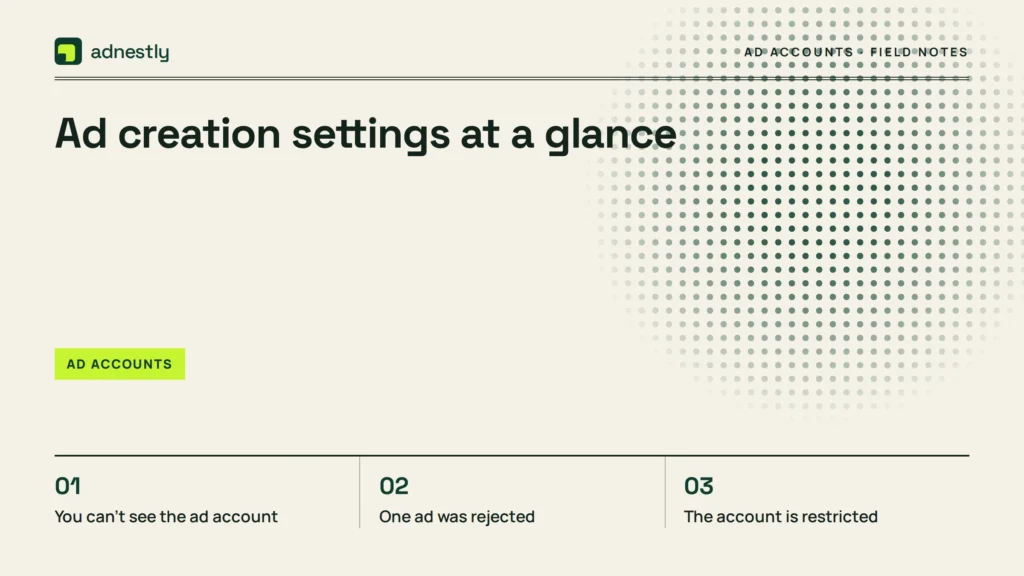
Use this table to match the message with the first place to look. The labels can vary slightly between Ads Manager, Business Suite, and account types.
| Situation | What to use | How long | What to watch for |
|---|---|---|---|
| You can’t see the ad account | Business Settings and asset access | Until an admin assigns access | The business portfolio may be different from the one you selected |
| One ad was rejected | Account Quality and the ad’s rejection reason | Until you edit or appeal | The landing page matters as much as the ad text |
| The account is restricted | Account Quality and Request review | Until Meta finishes the review | Don’t open a replacement account to bypass the restriction |
| Payment failed | Billing & payments | Until the balance and method update | A card can be valid but still declined for this transaction |
| A Page or Instagram asset is unavailable | Page settings and Business Settings | Until the asset owner changes access | Check ownership, connection, and publishing status |
| Identity or business verification is pending | The verification notice in Meta Business tools | Until Meta accepts or rejects the submission | Names and documents must match the requested details |
| The button or screen fails | Supported browser and Meta Business Support | Until the technical issue is resolved | Record the error, time, browser, and affected account |
There isn’t one safe waiting period for every case. A payment update, policy review, verification request, and software error follow different processes, so use the status shown in the relevant Meta tool.
Details that prevent repeat failures
Prepare the destination before you write the ad. Open the landing page on a phone and computer, check that it loads, confirm that the offer matches the ad, and remove broken links or missing product details. A clean destination won’t fix an account restriction, but it can prevent a second rejection.
Work from the business and ad account that own the assets. Then choose the Page, Instagram account, campaign, ad set, and ad in that order. Check the preview at the ad level before publishing, because a headline may look acceptable while the destination, call to action, or placement preview shows a different problem.
Check the account status after each meaningful change. If the notice says payment, fix billing first; if it says policy, edit the ad or appeal it; if it says permission, ask the admin to change access. If the problem is only a temporary display error, test the same action in another supported browser before rebuilding the campaign.
Leave active campaigns alone unless the notice names them. Deleting campaigns, removing payment methods, disconnecting Instagram, or creating several new ad accounts can remove useful history and create more access questions. The costly mistake is treating a restriction as a bad ad: you can spend time rewriting creative while the real issue remains an unpaid balance or missing role.
Common ad creation problems
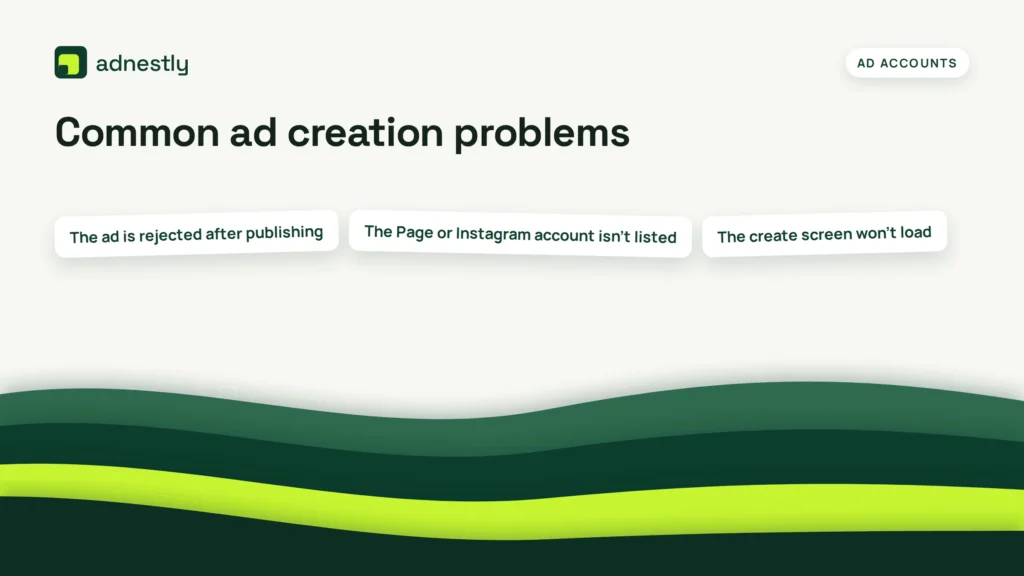
The wording of the error gives you the best starting point. Use the first matching row, then check Account Quality before making a second change.
| What you notice | What it usually means | What to do first |
|---|---|---|
| “You can’t create ads” after choosing a Page | Your profile or business role may not include ad access | Ask the business admin to check your Page and ad account permissions |
| “Ad account disabled” or “restricted” | Meta has limited the ad account | Open Account Quality and use the review or fix option shown there |
| “Payment failed” or an unpaid balance | Meta couldn’t charge the selected payment method | Check the balance, card status, and billing country in Billing & payments |
| The ad is rejected after publishing | The creative, audience, or destination may conflict with an ad rule | Read the rejection reason, edit the named issue, or request a review |
| The Page or Instagram account isn’t listed | The asset isn’t connected, published, or assigned to this business | Check ownership, connection, and assigned people in Business Settings |
| The create screen won’t load | A browser, session, or Meta service issue may be involved | Save the error details, sign in again, and test a supported browser |
If the notice asks for identity or business verification, don’t guess at the requested information. Follow the exact prompt, and contact Meta Business Support if the submission is rejected or the option is missing.
Meta advertising rules
Meta’s Advertising Standards apply to the ad and its destination. They cover areas such as prohibited products, personal attributes, misleading claims, discriminatory content, unsafe practices, and restricted goods. A compliant image can’t rescue a landing page that makes a prohibited or unsupported claim.
Meta also has separate rules for some categories, including housing, employment, credit, health, politics, and social issues. Those categories can have special targeting, authorization, or disclosure requirements. Check the current rule shown for your country and campaign type before publishing.
The person who controls the business should handle verification, billing ownership, and appeals. If the next step asks you to submit legal documents, change business ownership, or provide regulated-category information, send it to the business owner or an authorized Meta representative instead of guessing.
A restriction isn’t permission to evade review. Don’t use another person’s profile, buy an established ad account, or create replacement accounts to get around a block. Those actions can create ownership and security problems, and Meta may restrict the new setup too.
Keep ad access working
Keep the business name, Page ownership, payment details, and contact information current. Store copies of rejection notices, appeal messages, payment receipts, and important account IDs in one secure place. This record helps you explain what happened without submitting several conflicting appeals.
Review who has access to the business and remove people who no longer work on the account. Use two-factor authentication for the people who manage billing and permissions. Never share a login or upload identity documents through a message from an unknown sender.
Return to Account Quality when a new warning appears, not only when an ad stops delivering. If the same ad type is rejected again, pause that approach and rewrite the claim, offer, audience, or destination before submitting it again.
The result’s lifespan varies with the account’s review status, billing health, policy history, and Page access. You can read your own current status from Account Quality, Billing & payments, and the asset access list.
When another ad method fits better
Boosting a post isn’t a good substitute when the ad account itself is restricted. It still uses Meta’s advertising system, so fix the restriction or appeal it instead.
If you need detailed audiences, multiple placements, conversion tracking, or controlled testing, use Ads Manager rather than a quick boost. A boost is simpler, but it gives you less control over campaign structure and optimization.
If the offer belongs to a regulated category, or the ad makes health, financial, housing, employment, or political claims, get the business owner’s compliance review first. If you can’t verify the Page, Instagram account, domain, or business ownership, wait until those records are clear. Trying a different button won’t solve an ownership or policy problem.
Frequently asked questions
Can I create a new ad account if Meta restricted mine?
No. A new ad account doesn’t fix the reason for the restriction and may look like an attempt to bypass enforcement. Open Account Quality on the affected business and follow the review or payment instructions. If you don’t own the business, ask its admin to submit the appeal. Keep the original notice and account ID with your records.
Why can’t I create ads from my Facebook Page?
The usual reason is missing advertising access, an unpublished or restricted Page, or a business connection problem. Check that you’re using the correct business portfolio and that the Page is assigned to the ad account. If the Page belongs to another business, its owner must grant access. A Page admin role alone may not give every business permission you need.
How long does Meta ad review take?
Meta doesn’t give one guaranteed review time for every ad or account. A normal ad review may finish quickly, while identity, business, payment, or restriction reviews can take longer. Read the status beside the affected item. Don’t submit duplicate ads while the review is pending, because that creates more items without fixing the original case.
Is it safe to add another payment method?
Yes, if you add it inside Meta’s official Billing & payments area and the card belongs to an authorized business user. Check the billing country, currency, card details, and unpaid balance first. Don’t enter payment information through a link in an unexpected email or message. If the payment keeps failing, contact the card provider or Meta Business Support.
What happens if my ad is rejected twice?
A second rejection means the changed version still has an issue, or the review found a different problem. Read the newest reason instead of copying the first appeal. Check the full path from ad text to landing page and checkout. If the rule isn’t clear, stop submitting versions and use Meta’s review option or business support.
Can I advertise while my identity is being checked?
Usually not for the affected account or feature until Meta finishes the required check. Don’t submit altered documents or use another person’s profile. Make sure the name and details match the request, then follow the status shown in the verification area. If the check fails, use the official appeal or support path attached to that notice.
Conclusion
Before launching again, keep a simple record of any warnings, changes, and support replies. This makes future problems easier to spot and explain. If access still doesn’t return, contact Meta Support through the relevant business account and ask for a specific review rather than creating repeated accounts or ads.

Aaron Kelly writes about Facebook tools, account management, and business advertising. His content covers account security, Facebook Ad Accounts, Business Manager setup, Pixel and conversion tracking, Business Manager verification, and admin profile verification. He focuses on explaining technical processes and common account issues in practical terms, helping businesses and advertisers manage their Facebook assets more effectively and build a more secure, reliable advertising setup.
Checked against Meta’s own documentation. How we write and update guides