Facebook Business Manager Error: Something Went Wrong, Try Again


A business manager error message saying that something went wrong and to try again usually means Meta couldn’t complete a request, not that your entire account is permanently broken. The cause may be a temporary outage, an expired session, missing permissions, a restricted asset, a payment issue, or a browser problem. Work through the checks below in order so you don’t create duplicate assets or submit repeated failed requests.
$ part ofFacebook Business Manager Problems: Fixes for Common ErrorsThe complete guide this article belongs toOpen guide →Key Takeaways
- Check service status before changing settings; a Meta outage won’t be fixed by clearing cookies.
- Use the correct profile and confirm you have full control of the business portfolio and the specific asset.
- Try a clean browser session with extensions disabled, cookies allowed, and a stable connection.
- Inspect Account Quality for advertising, commerce, payment, identity, or policy restrictions.
- Record the exact failure—including the URL, asset ID, timestamp, and screenshot—before contacting support.
- Avoid repeated submissions for domains, payment methods, verification, or access requests while the first request is processing.
What the Business Manager Error “Something Went Wrong” Means
Meta uses a broad error message when its interface can’t explain the failed operation in a useful way. The wording doesn’t identify one universal problem. It can appear in Business Settings, Ads Manager, Events Manager, Commerce Manager, the Meta Business Suite app, or while connecting a Facebook Page or Instagram account.
The message commonly appears when you:
- Add or remove a Facebook Page
- Connect an Instagram professional account
- Create a pixel, dataset, catalog, or ad account
- Add a payment method or publish an advertisement
- Invite a person, partner, or agency
- Request domain, business, or identity verification
- Change two-factor authentication or business security settings
- Claim an existing asset owned by another business
- Open a support case or upload verification documents
The important distinction is whether the failure affects one action or everything. If only one asset fails, investigate that asset’s ownership, status, limits, or permissions. If every Business Manager page fails, start with the session, account, network, or Meta’s service availability.
Temporary versus account-specific
A temporary platform failure may disappear after a short interval, while an account restriction usually remains until you resolve a stated requirement. Don’t assume that waiting will remove a disabled ad account, an ownership conflict, or an incomplete verification request.
| Error pattern | Most likely area | First response |
|---|---|---|
| Every page fails | Session, browser, network, or outage | Check status, sign out, and test another browser |
| One asset fails | Ownership, permissions, or asset restriction | Open that asset’s settings and Account Quality |
| Login loops repeatedly | Security checkpoint or cookies | Use a clean private window and complete security checks |
| Payment action fails | Billing profile, bank, card, or account restriction | Review Billing and payment notifications |
| Invite or assignment fails | Permission level or business limit | Confirm full control and remove stale access |
| Verification upload fails | File, identity, or review workflow | Use supported files and avoid duplicate submissions |
Check Meta’s Service Status
Before editing your business, determine whether the problem is widespread. Meta may have an outage affecting Business Suite, Ads Manager, login, payments, messaging, or the Graph API. A service problem can produce misleading errors across unrelated tools.
Look for several matching symptoms:
- Ads Manager won’t load campaigns
- Business Settings pages remain blank
- Multiple people on the same business see the error
- Pages, catalogs, and pixels fail at the same time
- The error began suddenly without a settings change
- Reports or billing information are unavailable
Check Meta’s official status channels and, if possible, ask another authorized user to perform the same harmless action. Don’t ask several people to submit a verification form, create an ad account, or claim an asset; that can create duplicate requests.
Pro Tip: Capture the time the problem began and the affected product. If Meta restores service later, that timestamp helps you distinguish an outage from a persistent account issue.
If the platform is experiencing a disruption, pause troubleshooting that changes ownership, payment, or security settings. Retry only after the affected service appears stable. A failed creation request may still have partially completed, so search for the asset before trying to create another one.
Start With Fast Fixes
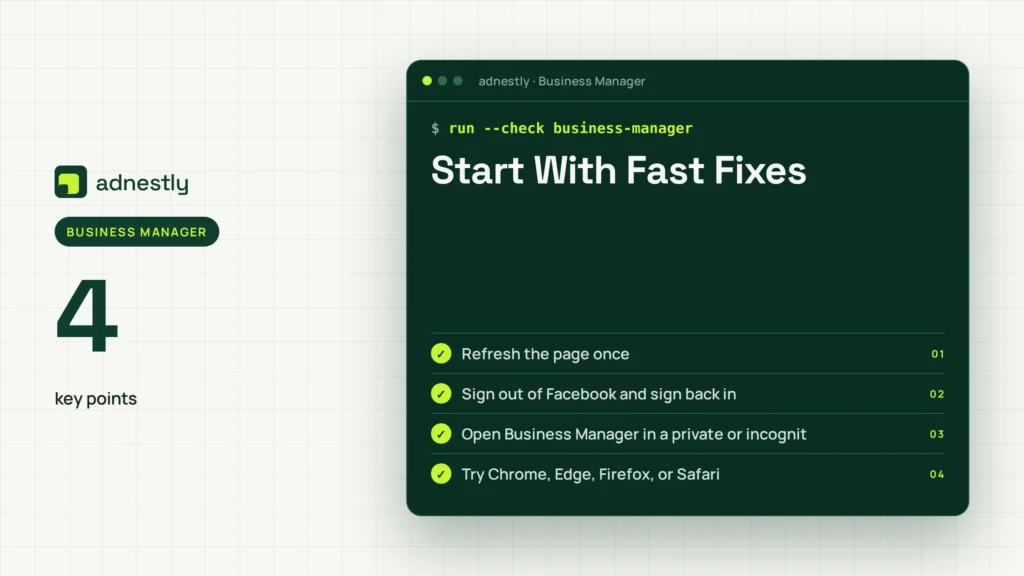
Run the low-risk fixes first. They take only a few minutes and can resolve expired authentication tokens, stale page data, or a temporary network interruption.
- Refresh the page once.
- Sign out of Facebook and sign back in.
- Open Business Manager in a private or incognito window.
- Try Chrome, Edge, Firefox, or Safari.
- Disable ad blockers, script blockers, and privacy extensions temporarily.
- Allow cookies and pop-ups for Facebook and Meta business pages.
- Disconnect a VPN, proxy, or corporate filtering service.
- Switch from Wi-Fi to a reliable wired or mobile connection.
- Test the same action from a different authorized administrator’s account.
- Update the Meta Business Suite mobile app if the error appears there.
Don’t clear every browser setting immediately. First note any unsaved changes, open support conversations, or verification details. Clearing cookies can sign you out and remove information needed to reproduce the issue, although it won’t delete your business assets.
| Test | What it tells you | Safe next step |
|---|---|---|
| Private window works | Cached data or extension conflict | Clear site data and re-enable extensions one at a time |
| Another browser works | Browser-specific problem | Update or reset the failing browser |
| Another admin fails too | Asset, service, or account issue | Review restrictions and service status |
| Mobile works but desktop fails | Desktop browser or network issue | Test without VPN and update the browser |
| Only office network fails | Firewall, DNS, or proxy issue | Ask the network administrator to review filtering |
| Nothing works anywhere | Outage or account-level problem | Check restrictions and contact Meta support |
Confirm Your Account Access
Many “something went wrong” failures are permission failures presented without a clear explanation. Being able to log in to Facebook doesn’t automatically give you full control of every business portfolio, Page, Instagram account, pixel, catalog, or ad account.
Open Business Settings and verify these items:
- You’re working in the correct business portfolio
- Your personal profile has full control, not only partial task access
- The Page is owned by, or properly shared with, the business
- The Instagram account is professional and connected to the intended Page
- You have access to the exact ad account, dataset, catalog, or pixel
- The business hasn’t reached a limit for users, assets, or invitations
- A former employee or agency hasn’t retained the required role
- A pending invitation hasn’t expired or been accepted by another person
Ask the business owner to check your access directly. An administrator may see a different menu from an employee with assigned tasks. If the business has multiple portfolios, confirm the business ID shown in the settings URL or account selector before changing anything.
Ownership conflicts
An asset can be connected to one business while a different business has permission to use it. This is especially common with Pages, Instagram accounts, domains, catalogs, and ad accounts transferred between agencies.
Don’t repeatedly claim the same asset. Instead, identify the current owner and request a release, partner access, or a formal transfer. If you can’t identify the owner, collect the asset URL, Page ID, Instagram handle, and business ID for support.
Clear Browser And App Issues
Browser problems are especially common when the error appears only on one computer. Business tools rely on multiple domains, pop-up windows, scripts, cookies, and account tokens. A privacy extension that blocks ordinary advertising may also block a required Meta business request.
Desktop checklist
- Use a current version of Chrome or Edge first
- Open a private window with extensions disabled
- Permit third-party cookies temporarily for the session
- Remove site data for Facebook, Instagram, and Meta business domains
- Turn off automatic translation for the failing page
- Keep only one Facebook account signed in during testing
- Allow pop-ups when Business Settings opens a dialog
- Test without a VPN, proxy, or remote desktop browser
Mobile checklist
- Force-close Meta Business Suite
- Update the app through the official app store
- Sign out and sign in again
- Check the phone’s date and time settings
- Switch between Wi-Fi and mobile data
- Reinstall the app only after recording pending drafts
- Use a desktop browser for verification, billing, and ownership changes
If clearing site data fixes the problem, re-enable extensions individually. A content blocker, password manager, antivirus web shield, or corporate security tool may be responsible. Don’t permanently weaken security controls on a shared or managed computer.
Check Business Assets
If the error occurs while adding, connecting, or creating something, inspect the asset itself. Meta may reject an action because the asset already exists, belongs to another portfolio, is disabled, or has a pending request.
Check these common assets separately:
- Facebook Page: published status, ownership, admin access, and existing business connection
- Instagram account: professional account type, linked Page, and correct login
- Ad account: active or disabled status, spending limit, currency, time zone, and owner
- Pixel or dataset: existing ID, assigned people, assigned ad account, and event source
- Catalog: commerce account, product feed, permissions, and business ownership
- Domain: existing verification method, DNS record, and another business’s claim
- Payment method: billing country, card details, account balance, and failed charges
- Partner access: partner business ID, requested asset, and required permission level
Search before creating anything new. A page may show an error after the asset was successfully created in the background. Creating another pixel, catalog, or ad account can leave you with duplicates and complicate reporting.
| Asset | What to verify | Common correction |
|---|---|---|
| Page | Owner and assigned permissions | Request access from the current owner |
| Professional status and Page link | Reconnect the correct Page | |
| Ad account | Status, billing, and spending limit | Resolve payment or restriction notice |
| Domain | Existing verification and owner | Use the approved verification method |
| Pixel/dataset | Existing ID and data permissions | Assign the asset instead of recreating it |
| Catalog | Commerce ownership and feed | Correct the business or partner assignment |
Warning: Never give a contractor your personal Facebook password or a login code. Use business roles, partner access, and task permissions instead. If an unknown person has access, remove that person and change your password after securing the account.
Review Security And Restrictions
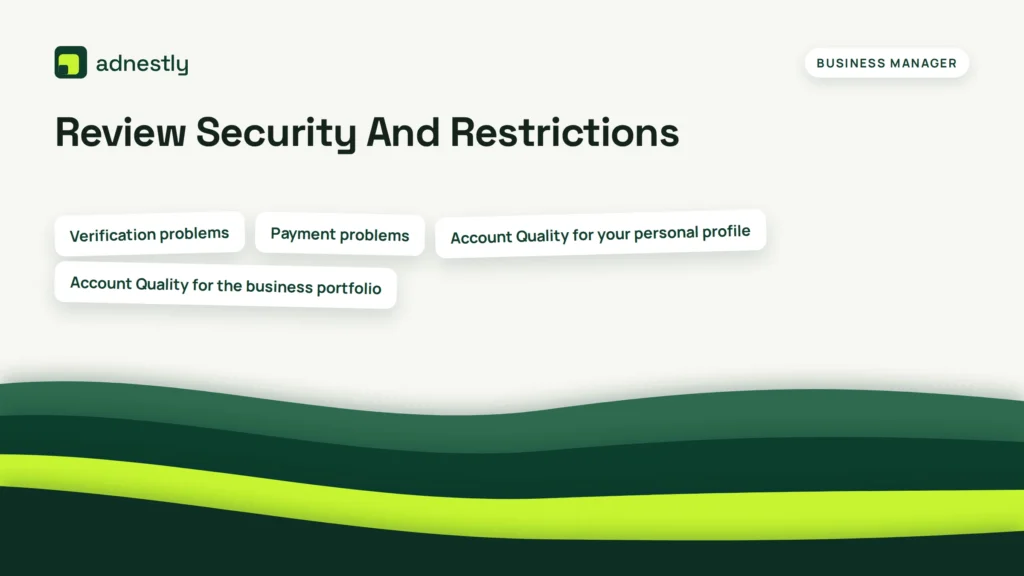
A security or policy restriction can prevent ordinary business actions. Meta may require identity confirmation, two-factor authentication, business verification, payment confirmation, or an appeal before allowing you to continue.
Inspect:
- Account Quality for your personal profile
- Account Quality for the business portfolio
- Ad account status and policy notifications
- Payment and billing alerts
- Business verification status
- Identity confirmation requests
- Two-factor authentication requirements
- Page quality and commerce eligibility notices
- Support Inbox messages and open cases
Read the exact notice rather than relying on the generic error. Look for words such as “restricted,” “disabled,” “under review,” “action required,” “identity,” “payment,” or “policy.” A restriction on one ad account may not affect the Page, but a personal profile security checkpoint can affect every business tool.
Verification problems
Use legal business information consistently across the business portfolio, website, payment profile, and submitted documents. Upload clear, current documents through the in-product request. Don’t send identity documents through an unsolicited email, chat message, or third-party form.
If a review is pending, avoid submitting the same documents repeatedly. Duplicate submissions can make it harder to tell which request is active. Save the confirmation screen, reference number, and date.
Payment problems
A declined card, unpaid balance, mismatched billing information, or bank verification request may block ad creation and publishing. Confirm the billing country, cardholder information, expiration date, available funds, and any bank approval request. If the card is valid but the account remains restricted, resolve the restriction rather than adding many replacement cards.
Rebuild The Failing Action
Once access, restrictions, browser, and service status look normal, repeat the action in a controlled way. Change one variable at a time so you can identify what fixes the problem.
Use this sequence:
- Open the business portfolio directly rather than from an old bookmark.
- Select the intended business and asset.
- Confirm the required permission before starting.
- Enter the smallest valid amount of information.
- Save once and wait for the response.
- Search for the result before submitting again.
- If it fails, copy the exact page URL and error details.
- Try the action from a second authorized administrator.
- Test a different asset only if doing so can’t create a duplicate.
- Stop after two controlled attempts.
For example, if adding a Page fails, first check whether it’s already owned by the business. If connecting Instagram fails, verify the professional account and Page relationship before reconnecting. If creating an ad fails, test whether the issue affects a draft campaign or the entire ad account; don’t keep duplicating campaigns.
A failed action can be caused by a stale tab. Close old Business Settings tabs and start a new session. This matters after changing permissions, accepting an invitation, completing verification, or switching between several business portfolios.
Contact Meta Support Correctly
Contact support after the basic checks, or immediately if the message involves a security compromise, disabled account, payment fraud, or an urgent advertising restriction. The Meta Business Help Center is the appropriate official starting point for business-product troubleshooting and support options.
Prepare a concise case containing:
- Business portfolio name and ID
- Personal profile email used to administer it
- Affected asset type and ID
- Exact action that failed
- Full error text
- Date, time, and time zone
- Browser, device, and operating system
- Whether private browsing and another browser worked
- Whether another administrator sees the same failure
- Screenshot with sensitive payment or identity details hidden
- Existing case number, if any
Describe what you already tested. “It doesn’t work” is less useful than “Adding Page ID X fails in Chrome and Firefox for two administrators, while the rest of Business Settings loads normally.” Include the final screen, not just a cropped message.
Pro Tip: Keep one support case for one root problem. Opening many duplicate cases can split the history between agents and make the issue harder to track. Reply to the active case with new evidence instead.
Never share a password, full card number, authentication code, recovery code, or unredacted identity document unless the official in-product process explicitly requests an approved document upload. Verify that any support interaction is inside an official Meta channel.
Prevent Repeat Errors
After the issue is resolved, reduce the chance of recurrence. Business access shouldn’t depend on one employee, one browser, or one undocumented password.
Create a simple operating routine:
- Keep at least two trusted administrators with full control
- Require two-factor authentication for business users
- Remove former employees and expired agency access promptly
- Record business, Page, ad account, pixel, catalog, and domain IDs
- Maintain a list of asset owners and assigned permissions
- Use a dedicated browser profile for business administration
- Keep billing information current
- Save verification confirmations and support case numbers
- Review Account Quality before launching time-sensitive campaigns
- Avoid making many ownership changes in one session
Use role-based access instead of giving everyone full control. An agency may need task access to campaigns or reporting without needing ownership of the Page, domain, or business portfolio. Review partner access on a regular schedule.
Keep a short incident log with the error, affected asset, browser, timestamp, and resolution. The next occurrence will be easier to classify as an outage, permission issue, restriction, or browser problem.
Related guides
Frequently Asked Questions
Why does Meta Business Manager say something went wrong?
The message is a general failure notice. Common causes include a temporary Meta service issue, expired login session, browser extension, missing permission, asset ownership conflict, payment problem, security checkpoint, or account restriction. Determine whether one asset or every business tool is affected before choosing a fix.
Is my Business Manager permanently disabled?
Not necessarily. A generic error alone doesn’t prove permanent disablement. Check Account Quality, support notifications, billing alerts, and verification requests for a specific restriction. Permanent or long-term action is usually accompanied by a more direct status message, while a temporary outage or session problem may clear after basic troubleshooting.
Why can another admin do something I cannot?
Administrators can have different roles across the business portfolio and individual assets. You may have full control of the business but no permission for a particular ad account, catalog, Page, or dataset. Ask an administrator to inspect your asset assignment and grant only the task access you actually need.
Why does Meta fail when I add a Facebook Page?
The Page may already belong to another business, be connected to a different portfolio, have an ownership conflict, or be inaccessible to your profile. Check the Page’s current owner and business connection before trying again. If it’s already present, assign access instead of attempting to add or claim it again.
How long should I wait before retrying?
For a suspected outage or temporary session issue, wait until service appears stable and then make one controlled attempt. Don’t repeatedly resubmit verification, domain claims, payment changes, or ownership requests. If a restriction or review is shown, follow that workflow and use the case reference rather than starting duplicates.
What information should I send Meta support?
Send the business portfolio ID, affected asset ID, exact action, complete error wording, timestamp, time zone, browser, device, screenshots, and results from your tests. Include an existing case number and hide passwords, authentication codes, full card numbers, and unnecessary identity information.
Conclusion
If the error remains, stop making repeated changes and open one well-documented Meta support case. Include the asset ID and a precise timeline, then monitor that case while preserving your access, billing, and security settings.

Aaron Kelly writes about Facebook tools, account management, and business advertising. His content covers account security, Facebook Ad Accounts, Business Manager setup, Pixel and conversion tracking, Business Manager verification, and admin profile verification. He focuses on explaining technical processes and common account issues in practical terms, helping businesses and advertisers manage their Facebook assets more effectively and build a more secure, reliable advertising setup.
Checked against Meta’s own documentation. How we write and update guides