Purchase Facebook Event Not Tracking on Shopify: Causes and Fixes

A missing Shopify purchase event usually comes from a broken pixel, an event name mismatch, checkout restrictions, consent settings, or a reporting delay—not from the order itself failing. This guide to purchase event not tracking on Shopify shows how to identify the failure point, verify the data, and fix tracking for Meta, Google, TikTok, and other advertising platforms.
$ part ofMeta Pixel Not Working? How to Fix Tracking on Any PlatformThe complete guide this article belongs toOpen guide →Key Takeaways
- Confirm that Shopify recorded the order before troubleshooting any advertising platform.
- Use Shopify’s pixel event tester and the browser developer tools to identify whether the event fires.
- Check that the event is named
purchaseor uses the exact standard event name required by the destination platform. - Review cookie consent, ad blockers, checkout extensibility, and payment redirects because each can interrupt browser-side tracking.
- Compare the Shopify order count with platform-reported purchases only after allowing for attribution windows and reporting delays.
Start With the Failure Point
First, determine whether the problem is in Shopify, the browser, the tracking pixel, or the advertising platform.
Place one test order, then answer these questions:
- Does the order appear under Shopify Admin > Orders?
- Does Shopify’s event tester show a purchase event?
- Does the browser send a request to Meta, Google, TikTok, or another destination?
- Does the destination platform receive the request but reject or deduplicate it?
- Is the event visible in reporting after the platform’s normal processing delay?
The location of the failure tells you what to fix.
| What you observe | Most likely issue | Next action |
|---|---|---|
| No Shopify order exists | Checkout or payment failure | Fix checkout before tracking |
| Shopify order exists, no event fires | Pixel, app, or event configuration | Inspect the pixel setup |
| Event fires in browser, no platform result | Destination ID or request error | Check network requests and account settings |
| Platform receives event but shows zero conversions | Event mapping, attribution, or reporting delay | Review conversion configuration |
| Purchases are duplicated | Multiple pixels or browser/server overlap | Remove duplicate implementations |
Warning: Don’t place a second pixel in the theme just because the first one appears inactive. Duplicate implementations can create double purchases, inflated revenue, and unreliable ad optimization.
Why Purchase Events Stop Tracking
A purchase event can fail at several separate layers. The most common causes are below.
Pixel installed twice
Shopify may send the same event through its integration, a custom pixel, and theme code.
Typical symptoms include:
- Two purchase events for one order
- Different order values from different requests
- A sudden conversion spike after installing an app
- Browser and server events with no matching event ID
Wrong event name
A platform may require Purchase while custom code sends another name. Some systems require manual mapping for custom names.
Checkout is outside the tracked page
The final transaction can involve Shopify Checkout, Shop Pay, PayPal, Klarna, or an external redirect.
Consent blocks tracking
If a visitor declines marketing cookies, Shopify or a consent platform may block the pixel or purchase event.
Browser privacy and extensions
Privacy settings, ad blockers, and network filters can block pixel requests.
Check Shopify Pixel Setup
Shopify’s customer events system separates pixels from ordinary theme JavaScript. A custom pixel runs in Shopify’s customer events environment and must subscribe to the correct event.
Open the Shopify admin and inspect:
- Settings > Customer events
- Connected sales channels, such as Meta, Google, or TikTok
- Custom pixels
- App pixels installed by marketing or analytics apps
- Customer privacy and consent settings
A standard purchase subscription generally needs to listen for Shopify’s checkout completion event.
Shopify documents this in its Shopify customer events guide.
Confirm the pixel is connected
A pixel can exist in the admin without being connected to the correct account. Verify:
- The pixel ID matches the advertising account
- The correct business, ad account, and data source are selected
- The store domain is allowed by the destination platform
- The pixel status is active rather than draft or disconnected
- The app has permission to access customer events
Check event permissions
Some apps ask whether they may access customer data, checkout data, or marketing events. Restricted permissions may allow page views but block completed checkout data.
Pro Tip: Record the pixel ID, app name, and installation date before changing anything.
Verify the Event Name
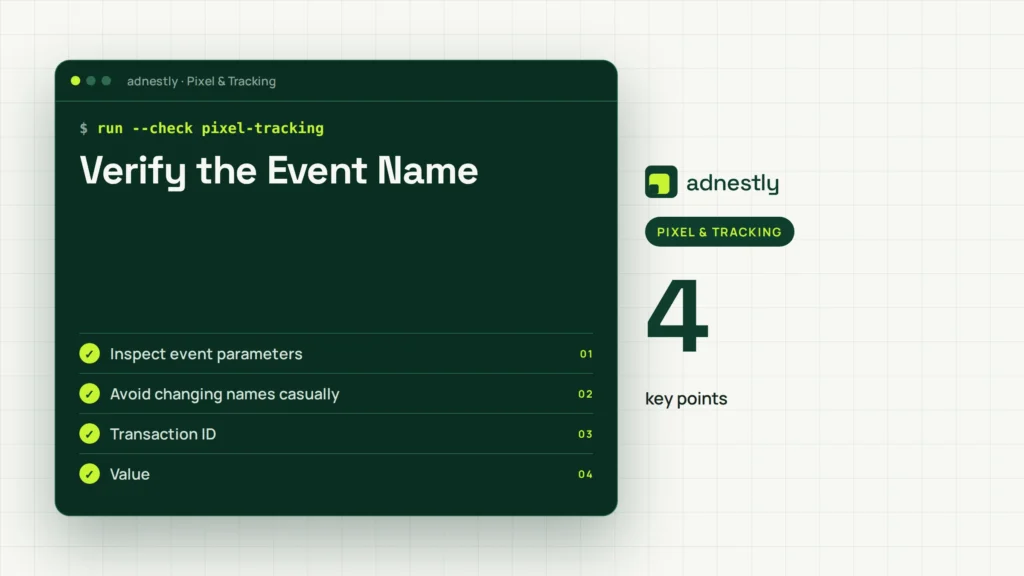
An event must be recognized at both ends: Shopify must publish the source event, and the advertising platform must receive the expected destination event.
Common naming differences include:
| Platform or setup | Common purchase event | Frequent mistake |
|---|---|---|
| Meta Pixel | Purchase |
Sending purchase as an unmapped custom event |
| Google Ads | Conversion action | Sending an event without the correct conversion ID or label |
| Google Analytics 4 | purchase |
Omitting transaction ID or value |
| TikTok Pixel | CompletePayment |
Using Purchase without platform mapping |
| Custom analytics | Defined by implementation | No documented event schema |
For Google Analytics 4, the event should normally include a unique transaction or order ID, currency, value, and item details.
Inspect event parameters
A purchase request commonly needs:
- Transaction ID or order ID
- Value or total revenue
- Currency
- Product or line-item data
- Quantity
- Event timestamp
- Consent status
- Event ID for deduplication when using server-side tracking
A missing value may cause the event to appear but produce zero revenue.
Avoid changing names casually
Don’t rename events in several systems at once. Change one layer, test one order, and document the result. Otherwise, you may fix the event but lose historical comparisons or create a second conversion action.
Test the Browser Request
Use a clean test session to determine whether the browser sends the purchase request.
Prepare a controlled test
Before placing the order:
- Open an incognito or private browser window
- Disable browser extensions for the test
- Use a real product with a low-risk payment method
- Keep the browser developer tools open
- Note the order number and final order value
- Use the same domain and checkout method customers use
Don’t rely on a cached thank-you page. A reload can fire the event again, especially if the implementation doesn’t use a transaction ID or one-time guard.
Inspect network activity
In Chrome or another Chromium browser:
- Open Developer Tools.
- Select the Network tab.
- Filter for terms such as
collect,events,pixel,tr,conversion, orpurchase. - Complete the checkout.
- Select relevant requests and inspect the URL, payload, response, and status code.
A request with a 200-level response suggests the endpoint accepted the request, but it doesn’t prove that the platform counted it as a conversion.
Use platform diagnostics
Check the relevant tools:
- Meta Events Manager Test Events
- Google Tag Assistant and Google Ads conversion diagnostics
- Google Analytics 4 DebugView
- TikTok Events Manager
- Shopify customer events test mode
| Test result | Meaning | Fix |
|---|---|---|
| No request appears | Pixel didn’t run or was blocked | Check installation, consent, and checkout scope |
| Request has wrong ID | Incorrect account connection | Replace the ID or reconnect the app |
| Request has no value | Parameter mapping failed | Map total price and currency |
| Request repeats on refresh | No one-time protection | Add transaction ID and deduplication |
| Request succeeds but remains absent | Processing or attribution issue | Wait, then inspect platform diagnostics |
Review Consent and Privacy
Consent settings can intentionally suppress marketing and analytics events. A store may track an order internally while withholding advertising requests until a visitor grants the required permission.
Check the relationship between:
- Shopify customer privacy settings
- Your cookie banner or consent management platform
- Regional rules for visitors in the United States, Canada, the European Economic Area, or the United Kingdom
- Google Consent Mode settings
- Meta, TikTok, or other platform consent requirements
Test at least two scenarios:
- A session that grants marketing consent
- A session that declines marketing consent
The first should generally produce the configured marketing event.
Look for consent timing
Late consent may cause the purchase event to be skipped. Some implementations don’t replay an event after permission changes.
Check regional behavior
A store can appear to track correctly from one location but not another because the banner or privacy rules vary by region. Test the affected customers’ country, currency, and checkout path.
Warning: Never remove a consent banner or bypass a customer’s choice merely to increase reported conversions. Fix the integration so it behaves consistently within your privacy requirements.
Inspect Checkout and Thank-You Pages
Shopify checkout changes can affect legacy scripts. A script that worked in an older checkout configuration may stop working after checkout extensibility changes or a migration to a newer thank-you page structure.
- The pixel only exists in the theme, not the checkout
- A thank-you page customization was removed
- Shop Pay uses a different path than standard checkout
- PayPal sends the customer away and back
- An accelerated checkout completes without loading the expected page
- The customer closes the tab before the browser request finishes
- The order is created by draft order, POS, subscription, or an app rather than standard online checkout
Compare payment methods
Place separate test orders through:
- Standard Shopify checkout
- Shop Pay
- PayPal
- Apple Pay or Google Pay
- Buy now, pay later providers
- Subscription checkout, if applicable
If only one payment method fails, the issue is probably path-specific rather than a general pixel failure.
Account for order status
A purchase event might fire when an order is created, while your business may define a conversion as paid, fulfilled, or not refunded. Then align Shopify, Google Analytics, and advertising platforms to that definition.
Check Server-Side Tracking
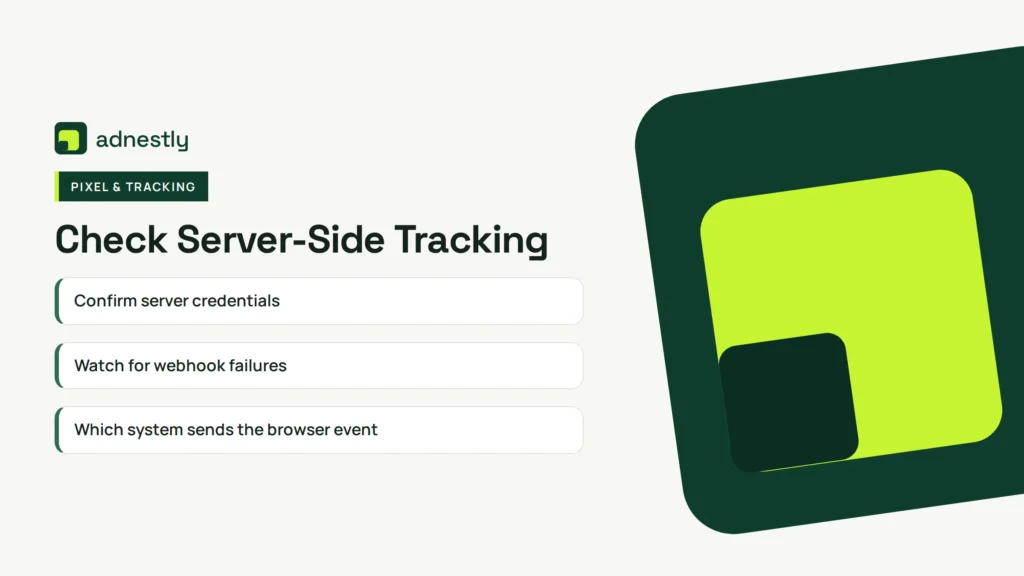
Server-side tracking can improve resilience when browser events are blocked, but it can also create duplicates if the browser and server send separate purchases without a shared event ID.
Define:
- Which system sends the browser event
- Which system sends the server event
- The shared event ID
- The transaction ID
- The rule for cancelled or refunded orders
- The source of value and currency
- The expected delay before reporting
For example, a browser purchase and a server purchase for the same order should include identifiers that allow the destination platform to deduplicate them.
Confirm server credentials
Check that the server integration still has:
- A valid access token
- The correct data source ID
- Required API permissions
- A functioning webhook
- Current API version compatibility
- An unexpired secret or signing key
A token can expire or lose permission.
Watch for webhook failures
For webhook-dependent server events, inspect delivery logs.
Fix Common Platform Problems
Once testing identifies the failing layer, apply the narrowest fix.
| Problem | Corrective action | Don’t do this |
|---|---|---|
| Meta receives no purchase | Reconnect the official channel or correct the custom event | Install another Meta Pixel |
| Google Ads shows no conversion | Verify conversion ID, label, and action settings | Treat GA4 data as automatic Google Ads data |
| GA4 has purchases but Ads does not | Import or configure the intended conversion action | Create multiple duplicate imports |
| TikTok misses checkout completions | Confirm CompletePayment mapping and pixel ID |
Rename every event without testing |
| Revenue is wrong | Map discounts, shipping, tax, and currency consistently | Compare gross and net totals as if identical |
| Orders are duplicated | Add transaction and event IDs; remove extra senders | Deduplicate by manually deleting reports |
Meta-specific checks
Inspect Test Events and Diagnostics. Confirm Purchase, valid value and currency, and deduplicated browser/server events. Also check whether a domain, dataset, or event configuration is connected to the correct ad account.
Google-specific checks
Separate GA4 and Google Ads tracking. Verify status, counting method, value settings, and attribution window.
TikTok-specific checks
TikTok commonly uses CompletePayment for a completed transaction. Confirm that the event mapping, currency, value, and pixel ID are correct. Check whether the event is received in Events Manager before judging campaign reporting.
Compare Data Correctly
A Shopify order count and an advertising platform’s reported purchase count aren’t expected to match perfectly.
| Metric | Shopify | Analytics | Ad platform |
|---|---|---|---|
| Orders | Created or paid orders | Sessions with purchase events | Attributed conversions |
| Revenue | Store order totals | Event value after mapping | Reported conversion value |
| Time zone | Store setting | Property setting | Ad account setting |
| Attribution | Usually not ad-attributed | User or session models | Click/view attribution |
| Refund treatment | Order adjustments | Depends on implementation | Depends on imported data |
Compare trends rather than demanding identical totals.
Allow for processing time
Browser diagnostics can appear immediately, while campaign reporting may take longer. Wait for the platform’s normal processing period before changing code again.
Prevent Future Tracking Loss
A reliable tracking setup needs documentation and routine checks, not just one successful test order.
Create a tracking inventory containing:
- Pixel and tag names
- Account and data source IDs
- Event names
- Required parameters
- Browser and server senders
- Consent conditions
- Checkout paths
- Deduplication rules
- Order status counted as a purchase
- Last successful test date
Schedule regular checks
| Frequency | Check | Owner |
|---|---|---|
| After every theme or checkout change | Place a test order | Store developer |
| Weekly | Review platform diagnostics | Marketing operator |
| Monthly | Compare Shopify and platform trends | Ecommerce manager |
| Quarterly | Audit duplicate pixels and consent behavior | Developer or agency |
| Before major campaigns | Verify IDs, values, and conversion actions | Marketing team |
Use a staging or test process. Keep a change log with the date, app, pixel, code version, and result.
Pro Tip: Keep one canonical purchase definition. If Shopify counts paid orders but Google counts completed checkout events, investigate the difference before judging campaign performance.
A Practical Recovery Workflow
Follow this sequence instead of changing several settings simultaneously.
Step 1: Confirm the order
Place a test order and record its details.
Step 2: Confirm the source event
In Shopify’s customer events tools, check for checkout_completed or the relevant source event.
Step 3: Confirm the browser request
Use developer tools to verify the destination request includes the expected ID, event name, value, currency, and transaction ID.
Step 4: Confirm platform receipt
Use the destination platform’s diagnostic tool. A successful browser request alone isn’t enough.
Step 5: Check duplication
Search tracking tools for additional purchase senders.
Step 6: Wait before comparing
Allow reporting time, then compare the order with platform diagnostics. If it still fails, export the request details and give them to the app developer or platform support team.
What to provide support
A useful support ticket includes:
- Store domain
- Test order number
- Date and time with time zone
- Payment method
- Affected platform
- Pixel or conversion ID
- Screenshot of the diagnostic result
- Network request status
- Whether consent was granted
- List of tracking apps and custom pixels
This evidence is much more useful than saying only that “purchases are missing.”
Frequently Asked Questions
Why is Shopify tracking add-to-cart but not purchase?
Add-to-cart usually occurs on storefront pages where theme or app scripts are active. Purchase events happen during or after checkout, where different permissions, pages, consent rules, and payment redirects apply. Check checkout event subscriptions, thank-you page behavior, payment methods, and the destination conversion configuration.
How do I test a Shopify purchase pixel?
Place a controlled test order in a private browser window, open developer tools, and inspect network requests for the destination platform. Also use Shopify customer events testing and the platform’s diagnostic tool, such as Meta Test Events or Google Analytics DebugView. Record the order ID and confirm the request contains value and currency.
Why does Meta show fewer purchases than Shopify?
Meta may miss browser events because of consent choices, ad blockers, privacy protections, redirects, or closed tabs. It also reports only purchases attributed under its selected attribution settings. Check event diagnostics, browser/server deduplication, event IDs, domain configuration, and the reporting date range before changing the pixel.
Why does GA4 show purchases but Google Ads does not?
GA4 and Google Ads use separate conversion configurations. A GA4 purchase event may be valid while no Google Ads conversion action imports it or while the action is inactive. Check the linked property, imported conversion status, conversion action settings, value, counting method, and attribution window.
Can installing two pixels fix missing purchases?
No. Installing duplicate pixels usually creates duplicate events rather than recovering missing ones. Identify the existing senders in Shopify customer events, connected sales channels, theme code, tag managers, and apps. Keep one controlled browser implementation and one coordinated server implementation when needed.
How long should I wait before deciding tracking is broken?
Browser test tools can show receipt quickly, but advertising dashboards may process conversions later. Wait through the platform’s stated processing period while checking diagnostics. If the event never appears in the platform’s test tool, waiting won’t fix it; inspect the request, consent state, event ID, and account connection instead.
Conclusion
Start with one real test order and follow the event from Shopify through the browser request to the destination platform. Record each result, remove duplicate senders, correct the event schema, and only then compare reporting totals. That process usually identifies whether the problem is configuration, consent, checkout scope, attribution, or platform processing.

Aaron Kelly writes about Facebook tools, account management, and business advertising. His content covers account security, Facebook Ad Accounts, Business Manager setup, Pixel and conversion tracking, Business Manager verification, and admin profile verification. He focuses on explaining technical processes and common account issues in practical terms, helping businesses and advertisers manage their Facebook assets more effectively and build a more secure, reliable advertising setup.
Checked against Meta’s own documentation. How we write and update guides