Facebook Pixel Not Working on Shopify: Fix the App Connection

When the Facebook Pixel is not working on Shopify, start with the Facebook & Instagram app: check that it is connected to the right Meta business and Pixel, that data sharing is turned on, and that Shopify lists the Meta pixel as connected under Customer events. Then test the live store in a clean browser with marketing cookies accepted.
$ part ofMeta Pixel Not Working? How to Fix Tracking on Any PlatformThe complete guide this article belongs toOpen guide →Most Shopify stores send Pixel data through that one app connection, not through code in the theme. So when events stop, the cause is usually a disconnected app, the wrong Pixel selected, a low data sharing setting, a consent choice, or old code that no longer runs after Shopify’s checkout upgrade.
Who this guide is for
This guide is for a Shopify store owner or marketer who connected the Facebook Pixel, now called the Meta Pixel, and expects page views, add to carts or purchases to appear in Meta Events Manager. You might see no activity at all, activity that stopped on a certain day, or only some events.
It focuses on the connection between Shopify and Meta: the Facebook & Instagram app, its data sharing setting and Shopify’s own privacy and customer event settings. If your page views work and only purchases are missing, our guide to a purchase event not tracking on Shopify goes deeper into checkout. For a wider list of causes, including theme code and third-party apps, see Meta Pixel not working on Shopify: how to fix tracking issues.
It assumes you can open the Shopify admin, the Facebook & Instagram app and your Meta business account. If a developer installed custom tracking or a server-side setup for you, involve them before changing anything.
Where the Pixel lives on Shopify
The Facebook & Instagram app
Meta’s Facebook & Instagram app for Shopify is the usual way to connect a store. During setup you choose a Facebook account, a business portfolio and a Pixel (also shown as a dataset). If any of those choices is wrong, the store sends events to a Pixel you are not looking at, and the one you check stays empty.
The data sharing level
The app’s settings include a data sharing level for customer events. Higher levels send events from Shopify’s servers as well as from the browser, through the Conversions API, which keeps more events when ad blockers or privacy settings stop the browser Pixel. If data sharing has been turned off or lowered, fewer events reach Meta even though the app still looks connected.
Customer events in Shopify
Shopify now runs marketing pixels through its Customer events area in the admin settings. The Meta app’s pixel should appear there as connected. Custom pixels added in the same area run separately, so a custom Meta pixel plus the app can send every event twice.
Consent and privacy settings
Shopify’s customer privacy settings and cookie banner decide whether marketing tracking may run for a visitor. If you test after declining marketing cookies, or from a region where consent is required and not yet given, the Pixel may correctly stay silent.
Old theme or checkout code
Older stores often have Pixel code pasted into the theme, or purchase code added to the order status page through “Additional scripts”. Stores on Shopify’s upgraded checkout no longer run that checkout code, which is a common reason purchases stopped on a specific date while page views kept working.
Safe checks for the Shopify connection
Work through these in order. None of them needs code changes or affects payments.
-
Open the Facebook & Instagram app. In the Shopify admin, open the app and check that it shows as connected, with no warning about permissions or an expired connection.
-
Confirm the business and Pixel. Note the business portfolio and Pixel the app uses, then open Meta Events Manager and check you are looking at that exact Pixel ID, not one with a similar name.
-
Check the data sharing level. In the app’s settings, make sure customer data sharing is on. If it was lowered, raise it to the level your privacy policy and consent setup allow.
-
Look at Customer events. In Shopify’s settings, open Customer events and confirm the Meta pixel shows as connected. Note any custom pixels that also send Meta events.
-
Accept marketing cookies. Open the live store in a private window, accept the cookie banner’s marketing option and only then start testing.
-
Use Test Events. In Events Manager, open Test Events for the Pixel, browse a product page and add an item to the cart. Events should appear within a minute.
-
Compare another browser or device. If events appear on one device and not another, a blocker, extension or consent choice on the first device is the likely difference.
-
Search for old code. In the theme code and any old checkout settings, look for a second Meta Pixel script. Do not delete anything yet; note where it is and who added it.
Stop before removing code if you are not sure which script the store depends on. Removing the wrong one can break tracking that currently works.
The key test is the live store after consent: if a clean session sends page views and add to carts to the right Pixel, the app connection works and the remaining issue is a specific event, consent behaviour or duplicate code.
Shopify pixel cases at a glance
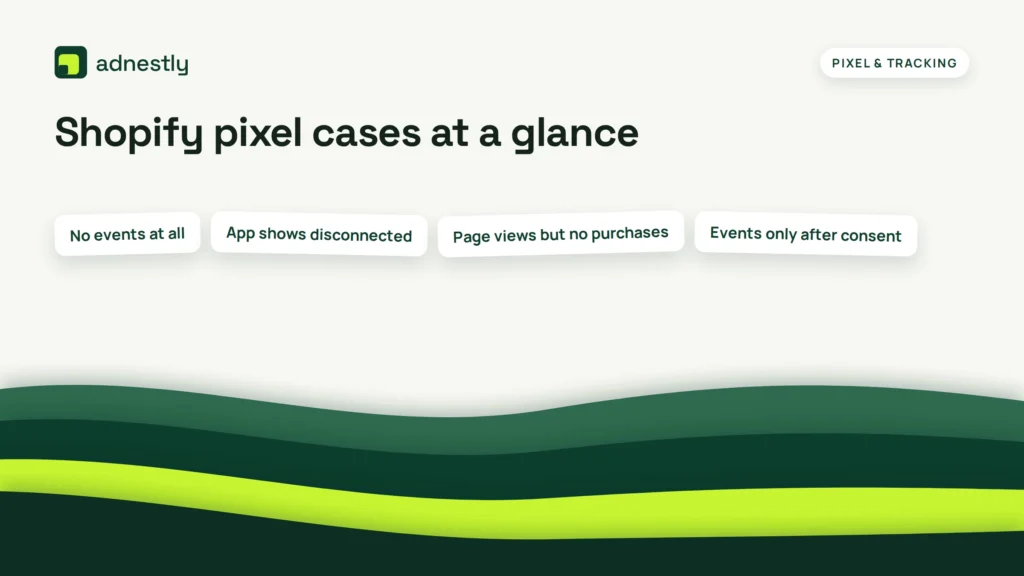
The right next step depends on what Events Manager already shows.
| Situation | What to do | What it takes | What to watch for |
|---|---|---|---|
| No events at all | Check the app connection and Pixel ID | Shopify admin access | Wrong business or Pixel selected |
| App shows disconnected | Reconnect with the original accounts | Meta business admin access | Connecting a new Pixel by mistake |
| Page views but no purchases | Check the purchase event and checkout | A test order or test mode | Old order status page code |
| Events only after consent | Review customer privacy settings | Cookie banner settings | Regional consent rules |
| Events counted twice | Remove the duplicate source | Theme and Customer events review | Inflated conversions |
| Fewer events than orders | Raise the data sharing level | App settings access | Browser-only tracking losses |
| Events stopped on one date | Compare with app or checkout changes | Change history | Checkout upgrade or permission change |
Details that protect your data
Check before you reconnect
Before you disconnect and reconnect the app, take screenshots of the connected business portfolio, Pixel ID, catalog and data sharing level. Reconnecting with a different account can quietly create or select a new Pixel, which splits your history and empties the audiences built on the old one.
Make sure the person reconnecting has admin access to the Meta business that owns the Pixel. If a former agency owns it, request access or a transfer first instead of connecting a new one.
Leave a working setup alone
If page views and add to carts work but one event is missing, keep the app connection as it is and fix that event. Replacing the whole integration to repair one event is the fastest way to break the parts that were working.
The trade-off with extra code is the same on every platform: it can add special events, but it also adds a second source of the same data. If the Facebook & Instagram app covers the events you need, rely on it rather than adding a custom pixel.
Shopify pixel symptoms and fixes
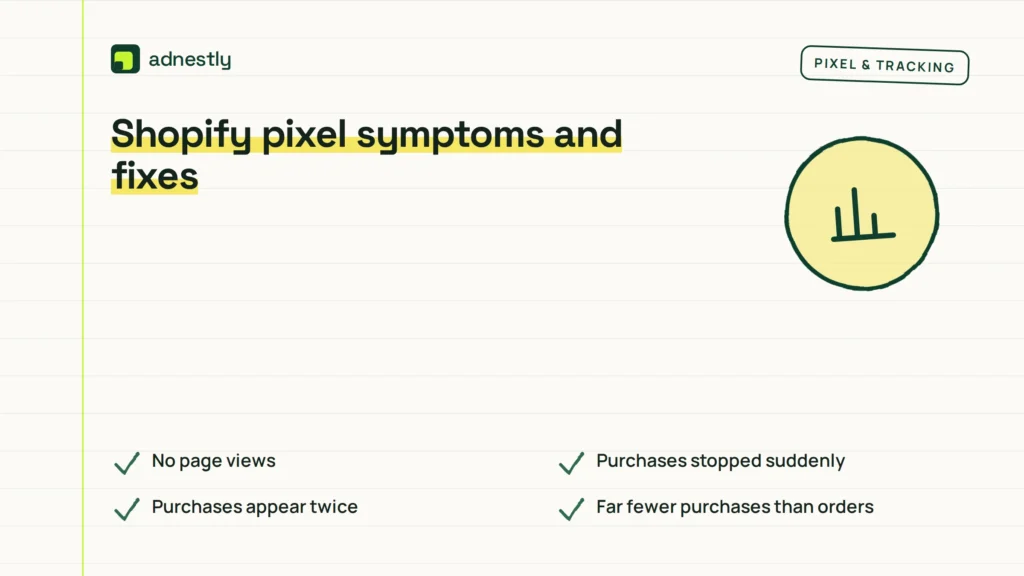
Start with the symptom you can prove in Events Manager, not the cause you expect.
| What you notice | What it usually means | What to do first | How to stop it happening again |
|---|---|---|---|
| No page views | Wrong Pixel or app disconnected | Match the Pixel ID in the app | Document the connected accounts |
| Purchases stopped suddenly | Old checkout code no longer runs | Check the app’s purchase event | Keep tracking in the app only |
| Purchases appear twice | App and custom code both send them | Review Customer events and theme | Use one source per event |
| Far fewer purchases than orders | Browser events blocked | Raise the data sharing level | Review the setting after app updates |
| Events only on your device | Other visitors decline consent | Test with consent declined | Record how consent affects tracking |
| Events go to an old Pixel | App connected to another business | Check the business portfolio | Limit who can reconnect the app |
| Test Events stays empty | Wrong Pixel open or blocker on | Use a clean browser session | Test one event at a time |
Rules for Meta tracking on Shopify
Pixel tracking involves privacy law as well as settings. What applies depends on where your visitors are, what data you collect and how you use it. The EU’s GDPR and ePrivacy rules may apply to European visitors, the UK’s data protection regulator publishes its own guidance on cookies, and several US states have their own privacy laws.
Use Shopify’s customer privacy settings and cookie banner to collect consent where it is needed, and set the app’s data sharing level to match what your privacy policy says. Meta’s own Meta Pixel documentation explains what each event and setting sends.
Never bypass a visitor’s consent choice to make events appear. If you are unsure whether your tracking needs consent, ask a privacy professional. This page can help you diagnose a technical problem, but it cannot decide your legal obligations.
The real cost of a broken pixel
A broken Pixel rarely breaks the store itself. What it breaks is measurement. Without reliable purchase and add to cart events, Meta has less information for reporting, retargeting and optimising sales campaigns, and you make budget decisions on incomplete numbers.
The time cost depends on the cause. A wrong Pixel selected in the app may take five minutes to spot. Duplicate events from old theme code, or purchases lost after the checkout upgrade, can take longer because you need to find every source of tracking and decide which one to keep.
Paid help makes sense when several apps, custom pixels and a server-side setup overlap. Ask for a written scope that names the Pixel ID, the events to test and the evidence you will receive, such as Test Events screenshots.
Keep Shopify tracking healthy
Keep a short record of the connected Meta business, Pixel ID, data sharing level and the events you expect. It makes the next check fast when someone changes the store, the theme or app permissions.
After a theme change, a new checkout setting, a consent banner change or an app update, run a quick test again: browse, add to cart and confirm the events arrive in Test Events. Compare weekly purchases in Ads Manager with your Shopify orders; a sudden gap usually means something in the setup changed.
If events start appearing twice, stop adding code and review Customer events and the theme first. One source per event is the simplest rule to keep reports trustworthy.
When app troubleshooting isn’t enough
These checks cover the standard Facebook & Instagram app connection. They are not enough when a developer built a custom server-side integration, when several apps send Meta events at the same time, or when a headless or heavily customised checkout is involved. In those cases, ask the developer who built the setup to trace each event from the store to Events Manager.
If the real question is legal consent rather than missing data, speak to a privacy professional. Don’t remove the cookie banner or force marketing tracking to make Events Manager look busy.
Frequently asked questions
Do I need to add Pixel code to my Shopify theme?
Usually not. The Facebook & Instagram app sends the standard events for you. Adding Pixel code to the theme as well often causes duplicate events. Only add code if you need an event the app does not send, and then make sure it does not repeat one the app already sends.
Why did my purchase events stop after Shopify’s checkout upgrade?
Code added to the old checkout or order status page, for example through “Additional scripts”, does not run on the upgraded checkout. If your purchase tracking depended on that code, move it to the app or to Shopify’s Customer events, and test a purchase again.
What does the data sharing level change?
It controls how much customer event data Shopify shares with Meta and whether events are also sent from the server through the Conversions API. Higher levels usually record more events, because server events are not stopped by browser blockers. Choose the level your privacy policy and consent setup support.
Is it safe to disconnect and reconnect the app?
It can be, as long as you reconnect to the same Meta business, Pixel and catalog. Take screenshots of the current settings first. Reconnecting with a different account can create a new Pixel and split your data.
Why do I see events on my phone but not on my laptop?
The laptop probably has an ad blocker, a strict privacy setting or a declined cookie choice. Test again in a private window with extensions off and marketing cookies accepted.
How long until events show in Events Manager?
In Test Events, usually within a minute of the action. Regular reports can take longer to update. If Test Events stays empty after a clean test, check the app connection and Pixel ID before waiting.
What to do next
Open the Facebook & Instagram app, confirm it is connected to the right business and Pixel, and check that data sharing is on. Then confirm the Meta pixel is connected under Customer events, accept marketing cookies on the live store and watch Test Events while you browse and add to cart.
If page views arrive but purchases don’t, focus on the purchase event and any old checkout code. If events repeat, find the second source before adding anything else. And if a clean test still fails, stop changing settings and have someone with access to both Shopify and your Meta business review the connection together.

Aaron Kelly writes about Facebook tools, account management, and business advertising. His content covers account security, Facebook Ad Accounts, Business Manager setup, Pixel and conversion tracking, Business Manager verification, and admin profile verification. He focuses on explaining technical processes and common account issues in practical terms, helping businesses and advertisers manage their Facebook assets more effectively and build a more secure, reliable advertising setup.
Checked against Meta’s own documentation. How we write and update guides