Instagram Account Can’t Be Added to Business Manager

If your instagram account can’t be added to Business Manager, the cause is usually a permission mismatch, an account already claimed elsewhere, an account-type problem, or a temporary Meta error. The fix is rarely to keep clicking “Add”; it’s to identify which ownership, access, or security condition is blocking the connection and correct that condition first.
$ part ofFacebook Business Manager Problems: Fixes for Common ErrorsThe complete guide this article belongs toOpen guide →Key Takeaways
- Confirm that the Instagram profile is a professional account and that you can log in to it directly.
- Make sure you have full control of the correct Meta business portfolio, not merely employee or task access.
- Check whether another business portfolio, Facebook Page, or former agency already owns or claims the Instagram account.
- Connect the Instagram profile through Business Settings, not only through Ads Manager or the Instagram mobile app.
- Remove expired authorizations, verify two-factor authentication, and wait before repeatedly retrying failed requests.
- If the account is restricted, disabled, or under review, resolve that status before attempting another connection.
Check The Account Type
Meta generally requires an Instagram professional account—a Business or Creator profile—for business portfolio connections. A personal Instagram profile may work with some Facebook features, but it can’t always be claimed, assigned, or used for business tools in the same way.
To check the account type:
- Open Instagram and go to the profile.
- Tap the menu, then open Settings and activity.
- Look for For professionals, Account type and tools, or a similar option.
- Confirm whether the account is listed as Business or Creator.
- If it’s personal, choose the option to switch to a professional account.
- Complete the category and contact-information prompts.
- Return to Meta Business Settings and try the connection again.
A Creator account can be suitable for many professional uses, including advertising and branded content. However, some permissions and business workflows may behave differently from a Business account. If the profile belongs to a company, retailer, agency, or local organization, a Business account is usually the clearer choice.
Check direct login access
The person adding the account should be able to log into the Instagram profile directly. A Facebook login alone may not be enough if the Instagram account was created separately or if its credentials have changed.
Verify these concrete items:
- The Instagram username is typed correctly.
- The password works in a private browser window.
- The account isn’t locked behind an uncompleted security challenge.
- The email address and phone number can receive verification codes.
- The account isn’t already connected to an unrelated Facebook Page.
- The profile hasn’t recently changed its username, password, or account type.
Warning: Don’t give an agency or freelancer your Instagram password just to solve a connection error. Use assigned business permissions instead, and change the password if credentials have already been shared widely.
Confirm Business Permissions
Many people see the right business in Meta Business Suite but still lack the permission needed to add an Instagram asset. Business access and asset access are separate. Someone may be able to create posts while being unable to claim or assign an account.
Open Meta Business Settings and review:
- Users > People: confirm your own access level.
- Accounts > Instagram accounts: check whether the profile is already listed.
- Accounts > Pages: verify the related Facebook Page.
- Business portfolio information: confirm that you’re working in the intended business.
- Partners: look for an agency or outside company with existing access.
- Security Center: review two-factor authentication requirements.
The person who adds or claims an Instagram account typically needs full control of the business portfolio or the relevant administrative permission. If someone else owns the portfolio, ask that person to perform the addition or upgrade your access.
Employee access versus full control
The labels can vary as Meta changes its interface, but the practical distinction remains:
| Access situation | What you can usually do | Can it block the addition? |
|---|---|---|
| Employee or basic access | Work on assigned tasks and assets | Yes, often |
| Partial asset access | Publish, message, or advertise on selected assets | Yes |
| Full control of portfolio | Manage people, settings, ownership, and assets | Usually sufficient |
| Partner access | Work as an outside agency or service provider | Yes, unless assigned correctly |
| Admin of Facebook Page only | Manage the Page itself | Yes; Page admin doesn’t always equal portfolio admin |
Ask the current owner to open Business Settings > Users > People, select your profile, and grant the appropriate control. They may also need to assign the Instagram account and connected Page separately. Being an administrator of a Facebook Page doesn’t automatically make you an administrator of every business portfolio associated with it.
Use The Correct Connection Path
The most reliable route is through Business Settings, where ownership and asset assignment are handled together.
Standard connection steps
- Sign in to the Facebook account that has full control of the business portfolio.
- Open Meta Business Suite or Business Settings.
- Select the correct business portfolio from the account switcher.
- Open Settings.
- Choose Accounts, then Instagram accounts.
- Select Add or Connect your Instagram account.
- Enter the Instagram username and password.
- Complete any security or login confirmation.
- Select the Facebook Page associated with the profile, if prompted.
- Assign people, agencies, and permissions after the account appears.
The labels may differ slightly by account, country, or Meta interface version. Look for the area that manages business assets rather than starting from an ad campaign.
| Connection method | Best use | Common limitation |
|---|---|---|
| Business Settings | Claiming and assigning the Instagram asset | Requires sufficient business control |
| Meta Business Suite | Managing content, messages, and daily work | May redirect you to Business Settings |
| Instagram app | Switching account type and checking login | Doesn’t establish portfolio ownership by itself |
| Ads Manager | Creating campaigns after setup | Not the best place to fix ownership |
| Facebook Page settings | Connecting a Page and Instagram profile | May not resolve portfolio conflicts |
After the profile is added, open its Connected assets or assignment area. Confirm that the intended Facebook Page, people, and partner accounts are attached. A successful login doesn’t always mean the account is fully assigned for publishing, messaging, or advertising.
Resolve Ownership Conflicts
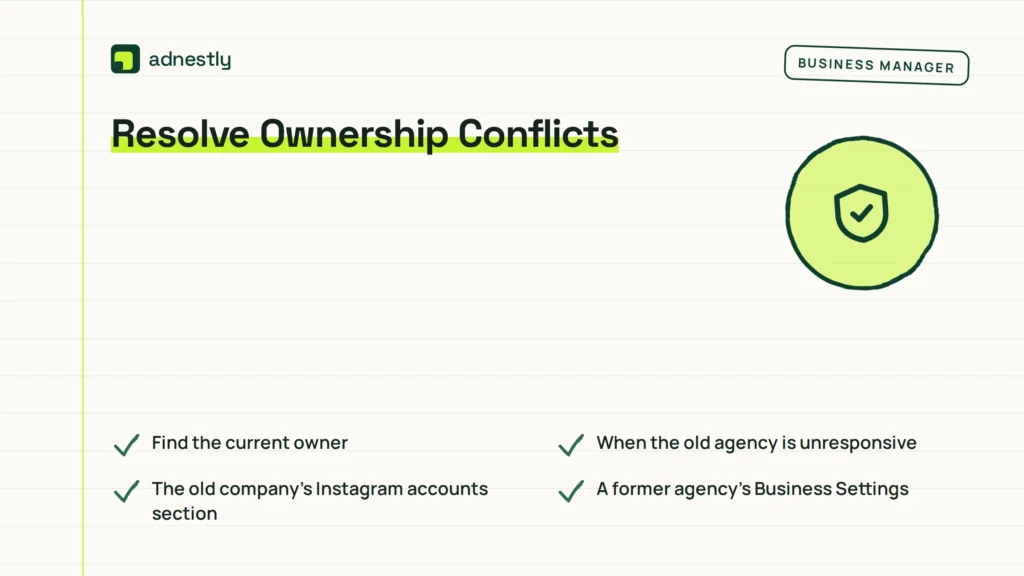
An Instagram account can generally be controlled by only one business portfolio at a time for certain ownership functions. If a former agency, previous employer, or old business portfolio claimed it, a new portfolio may show an error such as “already owned,” “already connected,” or “you don’t have permission.”
Find the current owner
Check these locations:
- The old company’s Instagram accounts section.
- A former agency’s Business Settings.
- Partners and assigned businesses.
- The Facebook Page connected to the Instagram profile.
- Any portfolio created during a previous advertising setup.
- Emails from Meta about business access or asset requests.
If you can access the old portfolio, remove the Instagram account from it only after checking what will be affected. Removing an asset may interrupt scheduled posts, messaging tools, catalogs, pixels, ad accounts, or agency workflows.
If another legitimate business owns the account, ask its full-control administrator to release it or assign your business as a partner. If the owner is unknown, gather evidence before contacting Meta: the Instagram username, business registration details, Page URL, account email, screenshots, and dates of previous ownership.
Pro Tip: Keep a simple ownership record containing the portfolio ID, Page ID, Instagram username, and current administrators. This prevents a common mistake: trying to fix the wrong business because several portfolios have similar names.
When the old agency is unresponsive
Don’t create several new portfolios and repeatedly submit ownership requests. That can make the situation harder to track. Instead:
- Identify the exact old business portfolio.
- Contact the agency through an existing contract or business channel.
- Request removal of the Instagram asset and related partner access.
- Ask for written confirmation when the change is complete.
- Wait for the asset status to update.
- Try the new connection once.
If the agency won’t cooperate, use Meta’s support process from a portfolio where you have full control. Supply specific evidence rather than a general complaint that the account “doesn’t work.”
Check Facebook Page Connections
Instagram and Facebook Page relationships are a frequent source of confusing errors. The Instagram profile may be connected to a Page owned by a different portfolio, or you may be trying to select a Page you can manage personally but not through the business portfolio.
First, check the Instagram app:
- Open Edit profile or Accounts Center.
- Review the connected Facebook Page.
- Disconnect an obsolete Page only if you’re authorized and understand the impact.
- Connect the correct Page.
- Confirm that the Page and Instagram account use the intended business identity.
Then check the Page inside Business Settings. The Page should be present in the same portfolio, or the portfolio should have the necessary partner access. If the Page is owned by another business, adding the Instagram profile may fail even when you have Page-level admin rights.
| Page situation | Likely result | Recommended action |
|---|---|---|
| Page and Instagram belong to same portfolio | Usually straightforward | Add Instagram, then assign assets |
| Page belongs to another portfolio | Ownership conflict possible | Request partner access or release |
| Instagram is linked to an old Page | Wrong asset may appear | Change the Page connection carefully |
| You manage Page personally only | Portfolio setup may fail | Add Page to the correct portfolio |
| Page is restricted or unpublished | Connection may be limited | Resolve Page status first |
Avoid disconnecting a working Page during a busy campaign unless necessary. A change can affect Instagram publishing, comments, inbox access, catalogs, and active advertising.
Review Security And Restrictions
A blocked addition may be a security problem rather than an ownership problem. Meta can require extra verification after a new device login, password change, unusual location, repeated failed attempts, or changes to business administrators.
Check the following:
- Instagram and Facebook two-factor authentication.
- Recent login activity and unfamiliar devices.
- Account Quality for the business portfolio.
- Instagram notices about disabled features or verification.
- Facebook Page restrictions.
- Pending identity or business verification.
- Unconfirmed email addresses and phone numbers.
- Payment or advertising restrictions, if the connection is for ads.
Account Quality can reveal restrictions affecting the business, Page, advertising account, or user. Resolve the specific violation or review request shown there rather than opening unrelated support cases.
Distinguish restriction types
- Login restriction: You can’t access Instagram normally.
- Feature restriction: You can log in but can’t publish, message, or advertise.
- Business restriction: The portfolio can’t add assets or perform administrative actions.
- Page restriction: The connected Page has limited functionality.
- Verification hold: Meta needs identity, business, or security confirmation.
The remedy depends on the type. A password reset won’t fix a business restriction, and adding a new administrator won’t fix a disabled Instagram profile.
Warning: Never pay a person who promises instant “Meta verification” or asks for a six-digit security code. Legitimate support doesn’t need your one-time login code sent through an unsolicited message.
Clear Browser And Authorization Errors
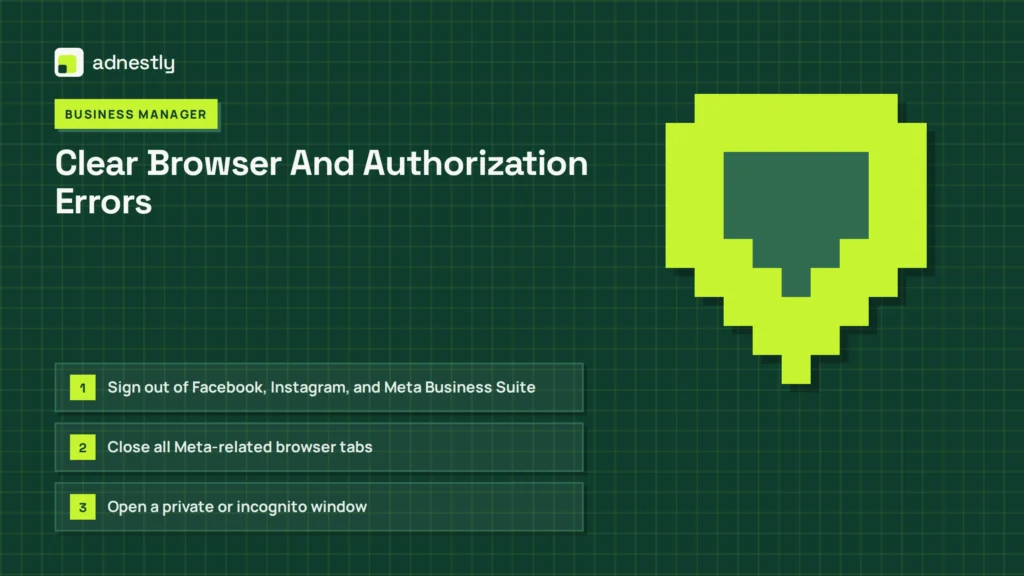
Sometimes the account and permissions are correct, but an old browser session or authorization token causes the connection form to loop, return to the start, or show a blank screen.
Use this controlled reset:
- Sign out of Facebook, Instagram, and Meta Business Suite.
- Close all Meta-related browser tabs.
- Open a private or incognito window.
- Sign in to the correct Facebook account first.
- Select the intended business portfolio.
- Open Business Settings directly.
- Add the Instagram account again.
- Approve every permission prompt.
- Test in a second supported browser if needed.
Also try disabling browser extensions that block scripts, pop-ups, or tracking during the setup. Corporate networks, VPNs, strict privacy tools, and managed browsers can interfere with authentication.
If the connection partially completed, don’t immediately repeat the process. Check Instagram accounts, Connected assets, and Partners first. Repeated attempts can produce duplicate pending requests or make it unclear which authorization is current.
Match Errors To Fixes
The wording of the message often points to the underlying issue. Record the exact error before changing anything.
| Error message or symptom | Most likely cause | First fix |
|---|---|---|
| “Already owned by another business” | Existing portfolio claim | Locate the owner and request release |
| “You don’t have permission” | Insufficient control | Ask a full-control admin to add you |
| Login loops back to Add | Stale session or authorization | Sign out, use private browser, retry once |
| Instagram account not found | Wrong username or account type | Verify username and switch to professional |
| Page doesn’t appear | Page isn’t in the portfolio | Add or request access to the correct Page |
| Verification code never arrives | Wrong contact method or delivery delay | Check email, phone, spam, and security settings |
| Account is restricted | Policy, security, or verification issue | Review Account Quality and complete appeal |
| “Something went wrong” | Temporary system or browser problem | Wait, change browser, and check status later |
| Account appears but can’t publish | Asset not assigned correctly | Assign people and connected assets |
| Ads can’t use Instagram placement | Ad account or Page setup issue | Confirm Page, ad account, and Instagram permissions |
Take a screenshot that includes the message, but hide passwords, security codes, and private customer data. Screenshots help support staff distinguish an ownership error from a temporary interface failure.
Reconnect Without Losing Access
Disconnecting and reconnecting can solve a stale relationship, but it should be a deliberate step. Before removing anything, list the active tools connected to the Instagram profile:
- Facebook Page publishing.
- Meta Business Suite inbox.
- Instagram direct-message tools.
- Product catalog or shop features.
- Ad campaigns and Instagram placements.
- Scheduling platforms.
- Agency or partner access.
- Lead forms and customer-service integrations.
A connection reset may remove assignments even when it doesn’t delete content. Export important campaign information, note current administrators, and confirm that you can log back into Instagram directly.
A safer sequence is:
- Add the correct people to the portfolio first.
- Confirm the Page is available.
- Record current asset assignments.
- Remove only the obsolete connection.
- Sign out and back in.
- Reconnect from Business Settings.
- Reassign users and partners.
- Test publishing, messaging, and advertising separately.
Pro Tip: Test with a harmless draft or internal post before launching a campaign. A profile can appear connected while a specific person still lacks publishing or inbox permission.
Contact Meta Support Properly
Contact support after checking ownership, permissions, account type, Page connection, security, and browser issues. Support is more useful when the request contains a short timeline and precise identifiers.
Include:
- Instagram username and profile URL.
- Facebook Page name and URL.
- Business portfolio name and ID.
- Your Facebook account email.
- Exact error wording.
- Date and approximate time of the failed attempt.
- Browsers and devices tested.
- Whether another business previously owned the account.
- Screenshots with private codes removed.
- Proof of business or account ownership when requested.
Use the support option available inside the affected Meta business portfolio. Keep one case focused on one problem. Opening many duplicate tickets can split the evidence across different agents and produce contradictory instructions.
Don’t send your Instagram password, Facebook password, authentication code, recovery code, or full payment-card details. Support may ask for identification or business documentation, but requests should come through an authenticated Meta support workflow.
Prevent The Problem Returning
Once the account is connected, establish a small access policy so the next staff change doesn’t recreate the problem.
Recommended maintenance
- Keep at least two trusted full-control administrators.
- Require two-factor authentication for administrators.
- Review people and partners every quarter.
- Remove former employees promptly.
- Remove agencies when contracts end.
- Keep business portfolio and Page IDs in a secure record.
- Use individual user accounts instead of shared logins.
- Document which portfolio owns each Page and Instagram profile.
- Review Account Quality before major campaigns.
- Store recovery methods where the business can access them.
Don’t create a new business portfolio for every campaign, employee, or client. Multiple portfolios with similar names are a major source of ownership confusion. An agency should generally use partner access to a client’s assets rather than claiming the client’s Instagram account as its own.
Related guides
Frequently Asked Questions
Why can’t I add my Instagram account to Business Manager?
The most common causes are a personal account type, insufficient business permissions, an existing ownership claim, a mismatched Facebook Page, or an account restriction. Check the Instagram account type, your portfolio access, the Page connection, and Account Quality in that order.
Does Instagram need to be a business account?
It needs to be a professional account for many Meta business functions. Both Business and Creator profiles are professional accounts, although some features and permissions can differ. If the profile represents a company and will be managed by several people, a Business profile is usually the more suitable setup.
How do I know which business owns my Instagram?
Open Business Settings and inspect Accounts > Instagram accounts, Partners, and connected Facebook Pages in every portfolio you control. If the account is owned by an agency or former employer, ask that portfolio’s full-control administrator to release it or provide partner access.
Why does Instagram say I don’t have permission?
You may have access to the Facebook Page without having full control of the business portfolio, or the Instagram asset may belong to another business. Ask the portfolio owner to grant full control or perform the connection themselves, then assign your specific publishing, messaging, or advertising permissions.
Will disconnecting Instagram delete my posts?
Disconnecting a business relationship normally doesn’t delete the Instagram profile or its posts, but it can affect Page links, scheduling, inbox access, catalogs, ads, and assigned users. Record the existing setup and confirm direct Instagram login before disconnecting anything.
How long should I wait before trying again?
If you have already made several attempts, wait until the current security prompt, ownership request, or temporary error clears rather than repeatedly submitting it. Recheck after a few hours, then use a private browser and the correct full-control administrator. Persistent ownership or restriction errors need support, not more retries.
Conclusion
Start by confirming the Instagram account type and identifying the business portfolio with full control. Then check the connected Facebook Page, remove any obsolete ownership claim, and make one clean connection attempt through Business Settings. If the exact error remains, document it and contact Meta support from the affected portfolio.

Aaron Kelly writes about Facebook tools, account management, and business advertising. His content covers account security, Facebook Ad Accounts, Business Manager setup, Pixel and conversion tracking, Business Manager verification, and admin profile verification. He focuses on explaining technical processes and common account issues in practical terms, helping businesses and advertisers manage their Facebook assets more effectively and build a more secure, reliable advertising setup.
Checked against Meta’s own documentation. How we write and update guides