Security Center Shows Red Alerts on Facebook: What Each One Means


Windows Security uses red alerts for firewall off, missing antivirus, outdated software, disabled accounts, and blocked apps. Each alert means a specific protection layer on your PC isn’t working right now. A firewall warning points to network traffic, while an antivirus alert focuses on file scanning. Don’t panic when you see them, but don’t ignore them either.
$ part ofFacebook Business Manager Problems: Fixes for Common ErrorsThe complete guide this article belongs toOpen guide →What Each Windows Security Red Alert Means
Every red warning in the app falls into one of these five areas. Each row below names the alert, what it protects, and where you’ll actually see it.
| Alert name | What it protects | Where you see it |
|---|---|---|
| Firewall warning | Network traffic rules | Firewall & network protection page |
| Antivirus warning | Files and downloads | Virus & threat protection page |
| Update warning | System patches | Windows Update settings screen |
| Account warning | Your login details | Account protection page |
| App control warning | Blocked programs | App & browser control page |
Firewall warning
A firewall warning means your PC isn’t filtering incoming or outgoing network traffic. It suits anyone connected to Wi-Fi, especially on public networks like cafes or airports. Without it, other devices on the same network can try to reach your files directly.
- Stops unknown devices from connecting to your shared folders.
- Blocks background apps from sending data out without permission.
- Keeps local network scanners away from your open ports.
- Forces new programs to ask before they use the internet.
You won’t notice this warning doing anything while you browse normally. It only matters when something tries to reach your machine from the outside. If you’re on a home network behind a router, the router handles some of this work. But if you connect straight to a modem or use public Wi-Fi, the Windows firewall is your only wall. Turning it off saves zero battery and doesn’t speed up your downloads. Leaving it off just leaves a door open.
The trade-off here is convenience versus safety. You might turn it off to get an older game working online, but you leave every other port wide open while you play. Check the exact status by opening Windows Security, clicking “Firewall & network protection,” and reading the green or red text under each network profile. For Microsoft’s own guidance on managing these profiles, read their firewall network protection steps.
If your network drops completely after turning it back on, note which app triggered the block in the notification history instead of disabling the whole firewall again.
Antivirus warning
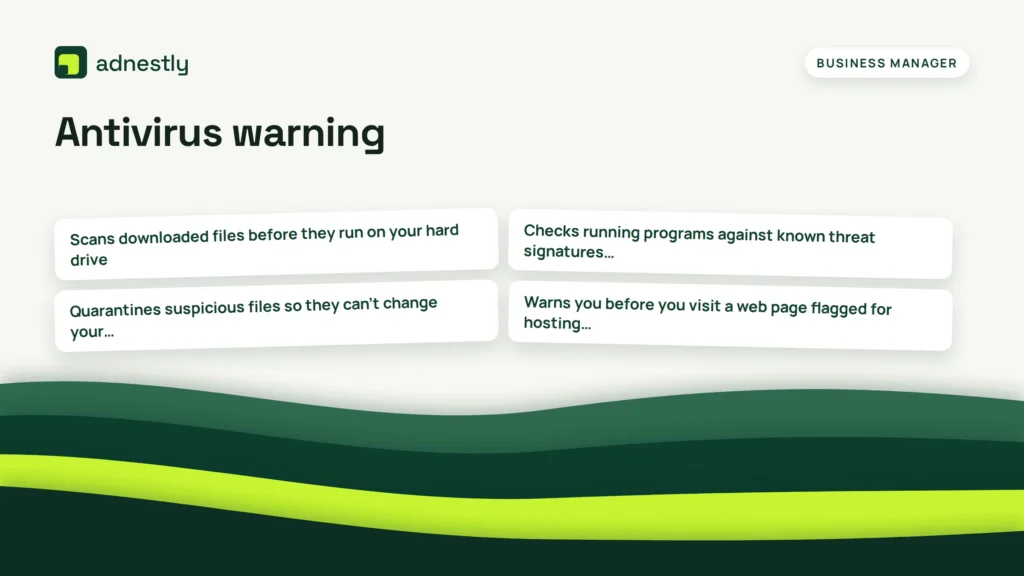
An antivirus warning means real-time scanning of your files has stopped. This one does what the firewall doesn’t: it looks inside the files you download and open, rather than just watching the network doors. It suits everyone who downloads files, opens email attachments, or uses USB drives.
- Scans downloaded files before they run on your hard drive.
- Checks running programs against known threat signatures every few minutes.
- Quarantines suspicious files so they can’t change your system settings.
- Warns you before you visit a web page flagged for hosting malware.
Real-time protection checks files as you touch them, not just during a scheduled scan. If it turns red, your PC will still run, but nothing is checking the files you open next. You might think a quick manual scan fixes this, but a manual scan only checks what’s already there. Real-time protection catches things the moment they arrive.
If you installed a second antivirus program, Windows Defender turns itself off to avoid conflicts. That’s normal. But if you didn’t install another one and the shield turned red, something crashed or was forced off. Don’t assume a third-party cleaner turned it off safely; check the “Virus & threat protection” page yourself. Click the toggle under “Real-time protection” to switch it back on. If it flips off again immediately, a program on your PC is actively fighting it.
For example, if you open a 50 MB ZIP file from an email while real-time protection is off, nothing scans the contents until you manually trigger a full scan later. By then, a script inside could have already changed your startup folder.
Update warning
An update warning means your operating system missed its latest security patch. It suits anyone whose PC stays on for days without restarting. While the antivirus scans files, this alert tells you the ground those files walk on has a known hole in it.
- Installs fixes for flaws hackers already know how to use.
- Replaces old system files that cause crashes with newer versions.
- Updates the built-in list of bad websites and file signatures.
- Patches drivers so hardware doesn’t expose memory to attacks.
Updates don’t just add features; they close doors that were left open in the code. If your screen says “Your device is missing important security and quality fixes,” you’re behind. How far behind depends on the date shown next to the last successful install in your Windows Update settings.
Don’t pause updates for more than a week to avoid restarts. Pausing them for a month leaves you exposed to threats published while you waited. If you need to finish work, pick a specific time for the restart instead of pausing indefinitely. Go to Settings, click Windows Update, and look at the status message. If it asks you to restart, do it when you save your current file.
A concrete case: if a patch for a Bluetooth flaw came out on Tuesday and your PC hasn’t restarted since Monday, anyone within 30 feet of your laptop can potentially send commands to it. The fix takes two minutes to apply during a reboot. Ignoring the red banner costs you that protection every hour you delay.
Account warning
An account warning means your sign-in method is weak or your Microsoft account isn’t linked properly. It suits anyone logging in with just a four-digit PIN or no password at all. Unlike the previous three, this doesn’t protect the system from outside; it protects your identity from whoever sits at your keyboard.
- Prompts you to set up Windows Hello for fingerprint or face login.
- Asks you to link a local account to a Microsoft one for recovery.
- Flags dynamic lock setups that forget to pair with your phone.
- Reminds you to turn on two-step verification for your email access.
A local account without a password means anyone who opens your laptop lid has full access to your files. Linking it to a Microsoft account lets you reset that password from your phone if you forget it. But linking it also syncs your settings to the cloud, which is the trade-off you accept for that safety net.
If you use a short PIN, make sure Windows Hello requires a physical presence check, like a fingerprint, alongside it. A four-digit PIN alone is compromised instantly if someone watches you type it. Open the “Account protection” tab in Windows Security to see exactly what it wants you to fix. If it asks you to verify your identity, follow the prompt immediately rather than dismissing the banner.
For instance, if your account shows a red X because dynamic lock failed, it means your paired phone disconnected via Bluetooth. Walk back to your desk with your phone in your pocket, let it reconnect, and the alert clears without you typing a new password.
App control warning
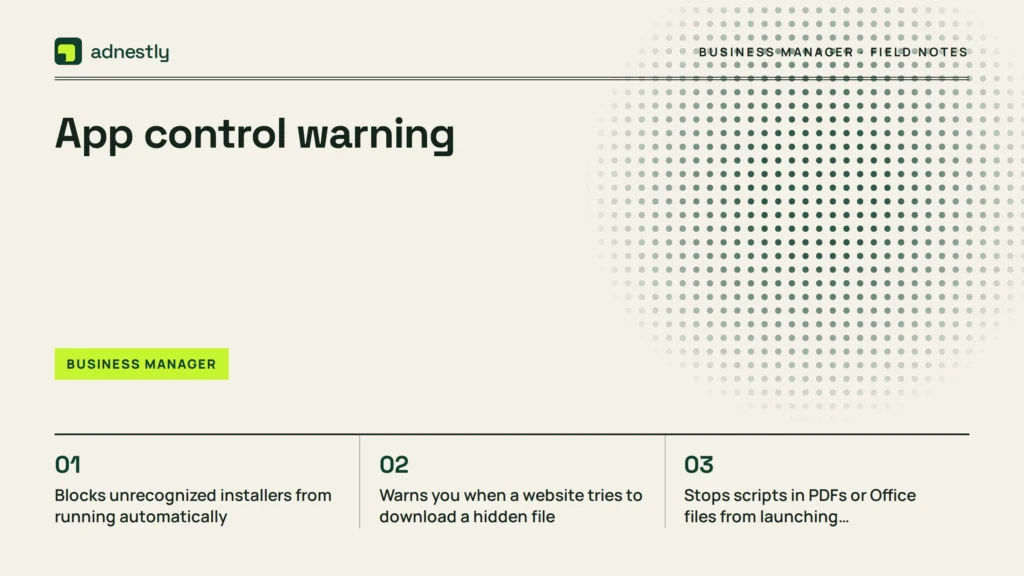
An app control warning means SmartScreen or exploit protection settings are turned down. It suits people who download software from smaller websites instead of official stores. This differs from antivirus scanning because it judges a program’s reputation before the file even finishes downloading.
- Blocks unrecognized installers from running automatically.
- Warns you when a website tries to download a hidden file.
- Stops scripts in PDFs or Office files from launching command prompts.
- Prevents older, unpatched apps from taking over system memory.
SmartScreen checks downloaded files against a list of known safe and unsafe programs. If you turn it off to force an installer to run, you lose that check for everything else you download that day.
The limit here is strict: if you disable exploit protection to get a legacy 32-bit application to launch on Windows 11, that application runs without memory safeguards, and any flaw in it becomes a direct path into your system. If you need to run unsupported legacy software that forces you to lower these shields, stop and ask a qualified IT professional to sandbox it properly.
Check the “App & browser control” page to see which toggles are grayed out or switched off. If you clicked “Run anyway” on a warning yesterday, SmartScreen remembers, but it won’t warn you about the next bad file unless you turn the reputation check back on.
As an example, if you download a 10 MB tool from a forum and SmartScreen flags it as unrecognized, leaving the protection on stops it from executing until you verify the publisher’s signature yourself.
Other security warnings to know
- Device security alerts tell you if your processor lacks virtualization-based protection. Reach for this if you handle sensitive work files and need hardware-level isolation from other running apps.
- Ransomware protection notices appear when Controlled Folder Access is off. Use this if you keep personal photos or documents in default folders that backup tools don’t cover daily.
- Hardware health warnings flag failing drives or bad memory blocks. Check this if your PC freezes randomly, as software shields can’t fix broken physical storage sectors.
- Family options reminders show up when child accounts lack content filters. Turn to this if minors use your PC and you need to block adult sites without installing third-party software.
- Network inspection alerts pop up if your DNS settings route through an unknown server. Look here if pages load strangely or you suspect your internet traffic is being watched.
Choosing the right fix for your alert
The alert you fix first depends entirely on what you’re doing right now and where your computer sits. Your physical location and your current task settle the order.
If you’re sitting in an airport or a coffee shop using public Wi-Fi, fix the firewall warning first. Public networks let strangers sit on the same digital street as your PC. The firewall closes your doors. Leave the update warning for later, since downloading patches on slow public Wi-Fi wastes time and bandwidth.
If you’re at home behind a router but you just opened an email attachment from someone you don’t know, fix the antivirus warning immediately. Your home router handles basic network traffic, but it doesn’t scan the files you open. Real-time protection is the only thing standing between a bad attachment and your hard drive.
If you haven’t restarted your PC in over a week and you see the update warning, handle it tonight. Missing patches leave holes that neither the firewall nor the antivirus can fully cover. You don’t need to do it this exact second if you’re in the middle of a video call, but don’t push it past your bedtime.
If you share your laptop with family members, clear the account warning before letting anyone else log in. A weak PIN or missing two-step verification puts your emails and saved passwords at risk the moment someone else touches the keyboard.
Picking one doesn’t mean ignoring the others permanently. These protections stack together. You can restart your PC to clear the update warning, which naturally reboots the firewall and antivirus services too. But if you have to choose what to click right now, match the alert to your immediate surroundings.
Related guides
- Pixel Shows Active but No Purchases Recorded: Fix It
- Ads Manager Showing Zero Results: Fix It Step by Step
- Ad Account Has Been Closed Message: What It Means, Fix
Frequently asked questions
Can I ignore a red security alert?
No, you shouldn’t leave a red alert active for more than a few hours. Red means a core protection layer is completely off. Yellow means something needs attention but is still partially working. If you ignore a red firewall warning on public Wi-Fi, your shared folders are visible to everyone on that network. Fix it before you continue browsing.
Why did my antivirus turn red suddenly?
It usually turns red because another program told it to shut down. Installing a second antivirus tool forces Windows Defender to step back. Sometimes a heavy registry cleaner disables real-time scanning by mistake. Open the “Virus & threat protection” page and flip the real-time toggle back on. If it switches off again instantly, uninstall the conflicting software.
How long does a security scan take?
A quick scan takes 2 to 5 minutes on a standard SSD with fewer than 100,000 files. A full scan takes 30 to 90 minutes depending on your drive size and speed. If you’re using an older mechanical hard drive, double those times. You can keep working during a quick scan, but a full scan will slow down your other apps significantly.
Is it safe to pause Windows updates?
Yes, you can pause them for up to 5 weeks in the settings menu. But pausing them stops security patches from installing. If a major flaw is discovered while your updates are paused, your PC stays vulnerable until you resume. Only pause them if you need guaranteed stability for a specific project deadline this week.
What happens if my firewall blocks my game?
Your game won’t connect to the multiplayer servers, and you’ll see connection timeouts. Don’t turn the whole firewall off to fix this. Instead, go to “Allow an app through firewall” in your settings and check the box next to your game’s name. This opens only the specific network paths the game needs while keeping everything else locked.
Does a red alert mean I have a virus?
Not necessarily. A red alert means a shield is down, not that an attack got through. However, some malware actively disables your antivirus and triggers that red warning on purpose. If you didn’t turn the protection off yourself, run a manual offline scan using the Microsoft Defender Offline tool to check for hidden infections.
Do these alerts drain my battery?
The alerts themselves are just text on a screen and use zero extra power. But the background scans triggered when you turn antivirus back on will use your CPU heavily for a few minutes. If you’re at 5% battery, plug in your charger before re-enabling real-time protection so the scan finishes without the laptop dying mid-process.
Fixing your Windows Security alerts
Open Windows Security and click the red icon at the top of the dashboard to jump straight to the problem area. Follow the button prompt to turn the service back on or run the required scan. You’ll know it worked when the dashboard changes from red to green. If the alert returns after a restart, contact Microsoft Support.

Aaron Kelly writes about Facebook tools, account management, and business advertising. His content covers account security, Facebook Ad Accounts, Business Manager setup, Pixel and conversion tracking, Business Manager verification, and admin profile verification. He focuses on explaining technical processes and common account issues in practical terms, helping businesses and advertisers manage their Facebook assets more effectively and build a more secure, reliable advertising setup.
Checked against Meta’s own documentation. How we write and update guides