Unable to Create Campaign Facebook Ads Manager: What It Means and How to Fix It

An unable to create campaign error in Ads Manager usually means Meta has blocked one required step, such as access, payment, account status, or campaign details. Check the warning text first, then review permissions, billing, account quality, and the selected objective.
$ part ofFacebook Ad Account Problems: How to Fix Every Common IssueThe complete guide this article belongs toOpen guide →The right fix depends on whether the problem affects one campaign or the whole ad account. Your account role, business verification, payment method, policy status, browser session, and campaign setup can all change the answer.
Who Is Unable to Create a Campaign
This page serves people who can open Meta Ads Manager but can’t create a new campaign. You may be managing your own Facebook or Instagram ads, working inside a small business portfolio, or using an account that another person created.
An account owner usually needs a quick cause check and a safe way to restore access. An employee or freelancer may instead need the correct task permission from the business owner. A person who sees a disabled account or payment restriction needs an appeal or billing review, not repeated campaign attempts.
This guide assumes you can sign in and reach Ads Manager. It doesn’t cover hacked accounts, legal disputes, chargebacks, or advanced Business Manager setup. For those cases, use Meta’s account recovery or support process, and ask the business owner to handle access changes.
If you only need to create a campaign but don’t control the ad account, this page may not solve the problem. Ask the portfolio admin to confirm your access level first.
What blocks campaign creation
Account status matters most. A disabled ad account, spending restriction, unresolved policy issue, or incomplete business check can stop campaign creation. Open the account status or Account Quality area and read the exact notice shown for the ad account, page, Instagram account, and business portfolio.
Your role can block the action. Seeing campaigns doesn’t always mean you can create them. A person with limited access may view reports but lack permission to create ads, manage billing, or use the selected page. Check the ad account’s people and permissions in Business Settings.
Billing can stop a new campaign. An expired card, failed charge, payment review, account spending limit, or unsupported payment setup may prevent publishing. Open Billing & payments and look for an unpaid balance, payment failure, or request for verification. Don’t add several new cards at once, because that can make the account history harder to review.
The campaign setup may be invalid. Meta checks the objective, buying type, special ad category, conversion location, page, Instagram account, audience, and budget together. A choice that worked in an older campaign may not be available with the current objective. Compare the failed draft with a recent campaign that published successfully.
A temporary technical problem is less common but possible. If the same account works in another browser while the first one fails, the problem may be a stale session, extension, or cached page. If every user sees the same error, account status or Meta’s service may matter more.
Safe Ads Manager checks
Use these checks in order. They confirm the cause without opening equipment, changing account ownership, or repeatedly submitting the same campaign.
- Copy the exact error text into a note, including the campaign objective and ad account name. The check worked when you have the full wording, not only “something went wrong.”
- Open the correct ad account from the account selector. The check worked when its name and account ID match the account that should pay for the ads.
- Check your role in Business Settings under Accounts and Ad accounts. The check worked when your role includes campaign creation, not only reporting access.
- Review Account Quality and restrictions for the ad account, page, Instagram account, and business portfolio. The check worked when you can see either a clear restriction or no active notice.
- Open Billing & payments and inspect the payment method, balance, spending limit, and recent payment result. The check worked when no failed charge or verification request remains.
- Create a draft with the same objective but don’t publish it. The check worked when the draft saves at campaign, ad set, and ad level without a red error.
- Try a private browser window with extensions disabled, using the same account. The check worked when Ads Manager loads normally and the result differs from the regular window.
- Ask another authorized admin to test access without changing the campaign. The check worked when you know whether the issue follows your user or the ad account.
Don’t open browser developer tools to change requests, bypass a restriction, or edit account files. If Meta asks for identity, business, or payment documents, stop and follow the official request; a business admin or Meta support should handle any appeal.
The key judgment is whether the error follows the account or the user session. If every authorized user sees it, focus on account status or billing; if only you see it, focus on permissions or your login session.
Ads Manager cases at a glance
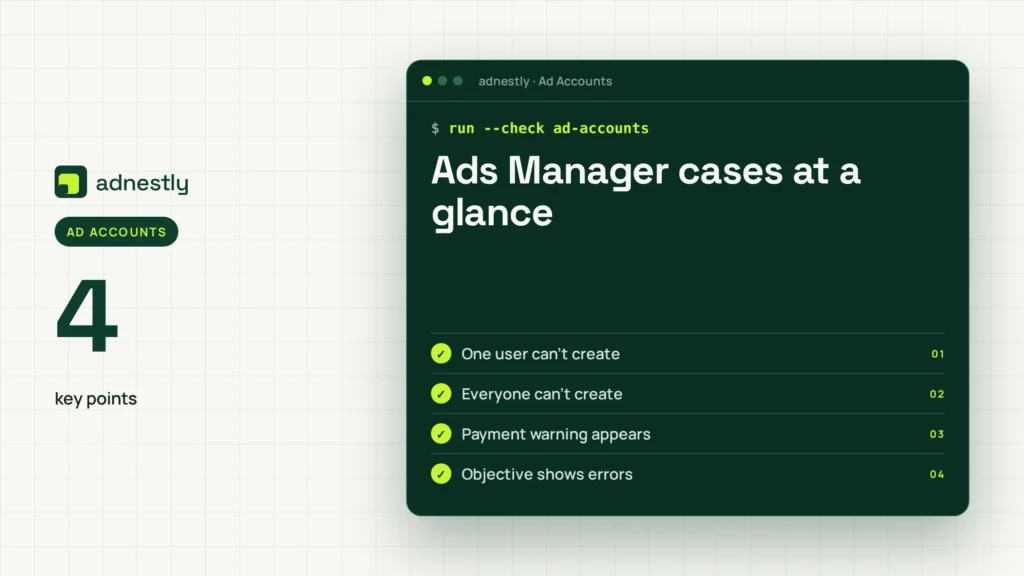
The correct response changes with the failure point, so don’t treat every creation error as a disabled account.
| Situation | What to do | What it takes | What to watch for |
|---|---|---|---|
| One user can’t create | Check role access | Admin review | View access isn’t enough |
| Everyone can’t create | Check account status | Status review | Restrictions may affect publishing |
| Payment warning appears | Review billing | Payment verification | Don’t retry failed charges |
| Objective shows errors | Rebuild the draft | Setup changes | Features vary by objective |
| New browser works | Clear session issues | Short browser check | Extensions can interfere |
| Page won’t connect | Confirm page access | Page admin help | Instagram access may differ |
| Appeal is available | Submit requested details | Meta review time | Use accurate documents |
Details that improve Ads Manager results
Prepare the account first
Check the destination page, connected Instagram account, ad account, and payment method before building the campaign. The names should match the business you intend to promote. If one asset is missing from a selector, don’t keep refreshing; ask an admin to inspect its access.
Use a recent successful campaign as a comparison, but don’t duplicate every setting blindly. Objectives and conversion locations can offer different fields, so compare the error-producing choice with an available option in the current interface.
Check without changing too much
Change one variable at a time. If you switch the objective, audience, page, budget, and payment method together, you’ll lose the clue that identifies the problem.
People also try to fix a restriction by creating several new ad accounts. That can add confusion and may leave the original billing or policy issue unresolved. Leave rejected ads, disabled notices, and review requests in place while you read the reason.
Ads Manager errors and fixes when unable to create a campaign
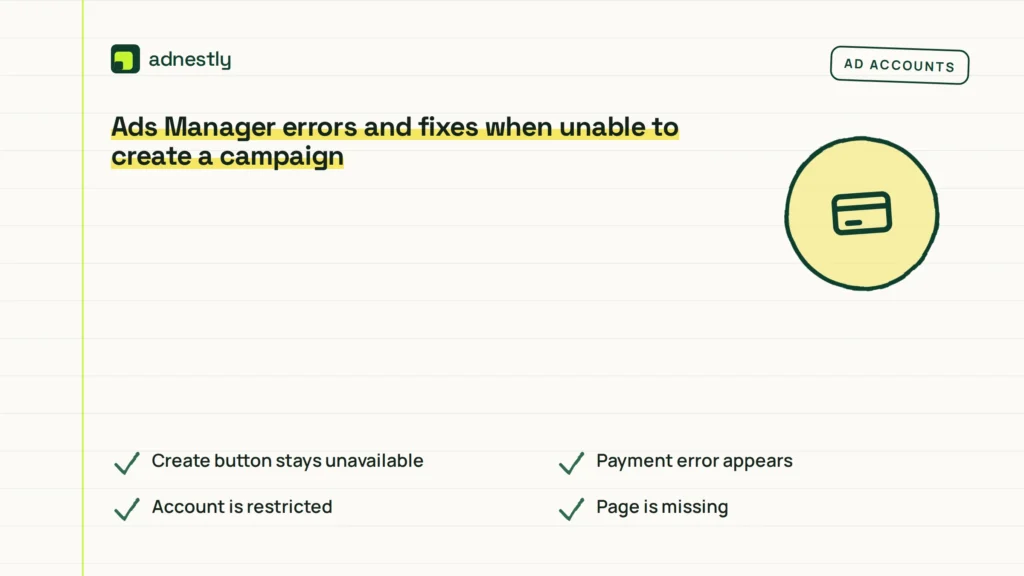
Start with the exact symptom, because the same red banner can come from different account states.
| What you notice | What it usually means | What to do first | How to stop it happening again |
|---|---|---|---|
| Create button stays unavailable | Missing permission | Ask admin to review role | Keep role records current |
| Payment error appears | Billing needs attention | Open payment settings | Keep one verified method |
| Account is restricted | Review or policy issue | Read Account Quality notice | Check policy before launching |
| Page is missing | Asset access is absent | Confirm page permissions | Use approved business access |
| Draft won’t save | Setup conflict | Compare objective fields | Recheck required fields |
| Only one browser fails | Session or extension issue | Try private browsing | Keep extensions off temporarily |
| Every user sees the error | Account-level problem | Stop repeated attempts | Follow Meta’s review process |
Rules that govern campaign creation
Meta’s advertising policies decide whether an ad account, page, product, audience, or creative can be used. The exact restriction can depend on the ad content, destination, special ad category, account history, and country. Read the notice attached to the affected asset rather than relying on a general policy summary.
Meta also controls access through Business Settings. The available actions depend on the person’s assigned business and ad account permissions. A person may be able to view performance but still lack permission to create or publish campaigns.
Payment requirements can vary by country, currency, payment method, and account setup. Check the Billing & payments page inside the affected account for the current instruction. If Meta requests identity or business documents, submit them only through the account’s official review flow.
For a direct account-status check, use Meta Account Quality. If the notice involves a legal complaint, payment dispute, or suspected account takeover, stop self-service changes and contact Meta support or the business owner.
What the error really costs
A simple Ads Manager error costs more than the time spent clicking again. It can delay a launch, leave a draft with incomplete settings, or create confusion when several people make changes at once.
The largest cost usually comes from the wrong response. Repeated payment attempts can create more billing questions, while repeated account creation can split data, permissions, and payment history. The safer trade-off is slower diagnosis now versus a harder account review later.
Time also depends on the cause. A browser-session issue may clear after a private-window test, while an account restriction or identity review depends on Meta’s review process. Read the notice and record its date, account ID, affected asset, and requested action.
Compare any campaign delay with the value of the planned launch. If the campaign is time-sensitive, an authorized admin may need to use an already approved account, but don’t bypass a restriction by moving ads without checking ownership and permissions.
Keep Ads Manager ready
Keep a record of the ad account ID, business portfolio owner, page owner, authorized users, and payment contact. This makes it easier to identify the right admin when a permission or billing issue appears.
Review the account when Meta shows a new warning, a payment fails, a user leaves the business, or a page or Instagram account changes ownership. Don’t wait for a campaign deadline to discover that the only admin no longer has access.
After fixing the issue, save a draft and confirm that each level opens correctly. If the same red notice returns, record the exact wording again. That sign means the problem wasn’t fully cleared, so return to Account Quality, permissions, or billing instead of rebuilding everything.
When Ads Manager is the wrong approach
Ads Manager isn’t the right place if you can’t verify who owns the ad account or payment method. Ask the business owner to restore official access; don’t use another person’s login.
It’s also the wrong approach for a suspected hacked account, unknown payment charge, or account takeover. Secure the account and contact Meta support before creating campaigns, because new changes can complicate recovery.
If your campaign needs regulated claims, sensitive targeting, or legal review, send the creative and landing page to the relevant compliance or legal professional. Don’t try to solve a policy restriction by changing small words without checking the complete notice.
Frequently asked questions
Can I create a campaign without admin access?
Sometimes, but only with the required ad account permission. A person may see campaigns and reports yet lack permission to create or publish them. Ask the business admin to check your assigned role, the selected page, and the connected Instagram account before changing anything else.
Why does Ads Manager say I can’t create a campaign?
The cause is usually a restriction, missing permission, billing problem, invalid setup, or temporary session issue. Read the exact warning and check whether another authorized user sees it. If everyone sees the same message, focus on the ad account rather than your browser.
How long does Meta account review take?
Meta doesn’t give one reliable review time for every account. The deciding factor is the notice type and the documents requested. Read the review status in Account Quality, submit only accurate information, and don’t create replacement accounts while the original review is open.
Is it safe to try another browser?
Yes, trying a private browser window is generally a low-risk diagnostic check. Use the same Meta login and don’t change billing, permissions, or campaign ownership during the test. If the error remains across browsers, stop treating it as a local browser problem.
What happens if my payment method fails?
The campaign may remain blocked until the billing issue is resolved. Check the failed transaction, account balance, currency, and requested verification in Billing & payments. Don’t keep submitting the same payment repeatedly; contact the payment owner or Meta support if the charge is unclear.
Does changing the campaign objective matter?
Yes, it can change the fields and assets Meta requires. A page, conversion location, or optimization choice available for one objective may not appear for another. Compare the failed draft with a recent campaign, then choose only an objective that matches the real business result.
Can I make a new ad account to fix it?
Usually, no. A new ad account won’t solve missing business access, an unpaid balance, or a policy restriction on the original account. Use the existing account’s review and support paths unless the business owner has a genuine, documented need for separate advertising accounts.
Fix Ads Manager access first
Start by recording the exact error, then check the selected account, your role, Account Quality, and billing in that order. A successful draft save is the expected sign. Stop and contact the business admin or Meta support if the account is restricted, compromised, or requesting documents.

Aaron Kelly writes about Facebook tools, account management, and business advertising. His content covers account security, Facebook Ad Accounts, Business Manager setup, Pixel and conversion tracking, Business Manager verification, and admin profile verification. He focuses on explaining technical processes and common account issues in practical terms, helping businesses and advertisers manage their Facebook assets more effectively and build a more secure, reliable advertising setup.
Checked against Meta’s own documentation. How we write and update guides