Restricted from Advertising: What It Means for Your Facebook Profile

Being restricted from advertising usually means the platform has limited your ability to create, run, or manage ads. Your personal profile may still work, but an ad account, business account, Page, payment method, or specific campaign could be affected. The restriction may be temporary or permanent, and only the platform’s Account Quality or Business Support area can show the reason and appeal option. The checks below help you find the blocked asset, avoid making it worse, and choose the right next step.
$ part ofFacebook Ad Account Problems: How to Fix Every Common IssueThe complete guide this article belongs toOpen guide →What restricted advertising means for your profile
An advertising restriction is a platform action that stops or limits paid promotion. On Meta, it can affect your personal advertising access, an ad account, a Page, a business account, a payment method, or one advertisement. These are separate assets, so a restriction on one doesn’t always mean your whole profile is disabled.
You might still be able to log in, post normally, send messages, and use organic features. You may simply lose the ability to publish ads, create new campaigns, add payment methods, or manage ads for a business.
The notice often uses broad wording. “Your account is restricted from advertising” doesn’t always identify the exact asset or event that caused the action. Open the platform’s account-status area and look for the affected account, policy reason, review button, and any deadline shown there.
The main misconception is that every restriction means you deliberately broke a rule. Automated checks can flag unusual payment activity, a hacked account, misleading landing-page content, repeated rejected ads, or a business identity problem. That doesn’t prove the decision is wrong, but it does mean you should check the evidence before changing everything.
Ad review is based on more than the image. Meta’s Advertising Standards cover ad content and related experiences, including the destination people reach after clicking. A clean-looking ad can still fail because of its claims, targeting, payment setup, or landing page.
Steps to check and appeal
Start with the affected asset, not with a new ad account. Creating replacement accounts or repeatedly changing payment details can make the account history harder to review.
-
Write down the exact notice. Copy the wording, date, account ID, Page name, and any policy category. Take a screenshot before you make changes. If the notice names a personal profile, business account, ad account, or payment method, record that exact item.
-
Open Account Quality or Account Status. Use the official app or website you normally use, then check the account-status area for each connected business asset. Look for active restrictions, rejected ads, disabled assets, outstanding identity checks, and a Request Review button.
-
Check recent activity and security. Review login sessions, admins, business partners, ad changes, and payment activity. If anything looks unfamiliar, secure the profile first by changing the password, enabling two-factor authentication, and removing unknown access.
-
Review the ad and its destination. Compare the rejected copy, image, video, audience, offer, and landing page with the platform’s policies. Remove unsupported promises, unclear pricing, fake urgency, prohibited products, and pages that don’t match the ad.
-
Fix only the confirmed issue. If the platform identifies a payment problem, use the legitimate payment method owned by the business. If it asks for identity or business documents, submit clear, current documents through the platform’s own form. Don’t send them to an unofficial “support” contact.
-
Request one clear review. Explain what happened, what you checked, and what you changed. Include the affected asset ID when the form asks for it. Keep the message factual; angry language, repeated forms, and several different explanations won’t strengthen the case.
-
Wait for the platform’s response before rebuilding. If the review is pending, don’t open several replacement accounts or submit the same appeal repeatedly. If the button is missing, use the support route shown inside the business dashboard rather than a random phone number or social-media account.
If the notice involves stolen access, identity documents, a large payment, or a permanent business loss, stop DIY changes and contact the platform’s official business support or a qualified cybersecurity or legal professional. You shouldn’t give private documents or account passwords to someone promising an instant unban.
The key judgment is whether the problem is a bad ad or a damaged account. If one ad is rejected and the account is otherwise clear, correct that ad; if the account, payment method, or identity is restricted, appeal the account issue instead of endlessly editing the creative.
Advertising restriction timeframes
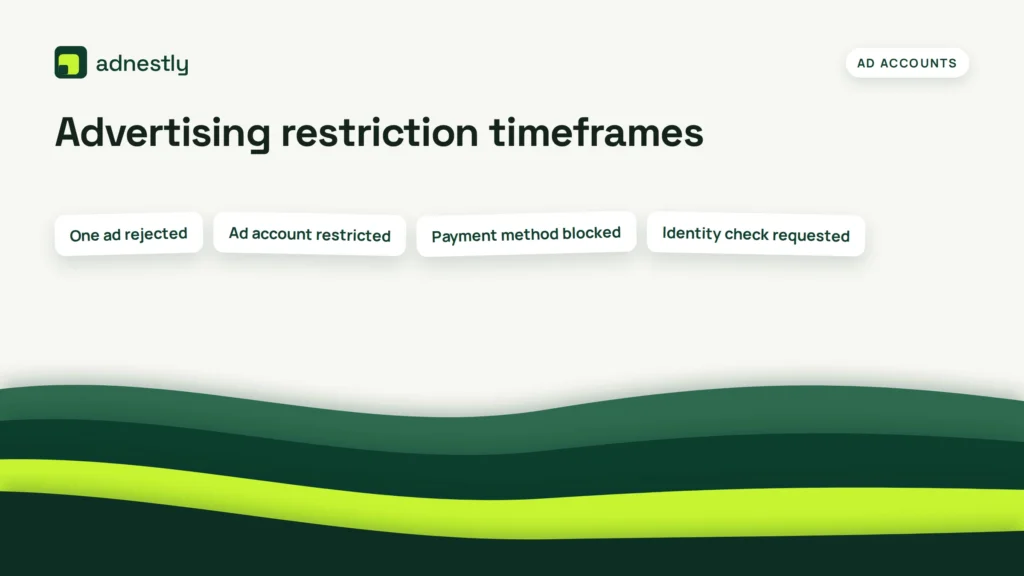
There’s no universal restoration time. The platform may show a review status, a deadline, or no time estimate at all, so use the notice on your specific account rather than a number from a forum.
| Situation | What to use | How long | What to watch for |
|---|---|---|---|
| One ad rejected | Edit or replace the ad | No fixed period | The same claim may fail again |
| Ad account restricted | Account Quality review | No fixed period | Don’t create replacement accounts |
| Payment method blocked | Verified business payment method | No fixed period | Check failed charges and unfamiliar activity |
| Identity check requested | Official verification form | No fixed period | Submit matching, readable documents |
| Business account limited | Business support or review | No fixed period | Confirm the correct business and admin |
| Hacked or unknown access | Security recovery tools | No fixed period | Remove unknown admins and sessions |
| Review denied | Available appeal or support route | No fixed period | Read whether the decision is final |
The restriction can be tied to one asset or several assets. If only one campaign is affected, don’t delete a healthy Page or personal profile. If the warning covers the business account, review every person, partner, payment method, and connected Page before you appeal.
Details that improve your review
Check the account history before you change the ad. Note whether the restriction appeared after a new payment method, a login from a new location, a large batch of ads, a Page ownership change, or a rejected landing page. These details help you describe the event without guessing at a cause.
Review the complete customer journey in order: ad, offer, click destination, checkout or lead form, and follow-up message. The wording should match across those places. A claim such as “guaranteed results” can create trouble when the landing page gives conditions that the ad hides.
Check the destination on a normal phone and desktop browser. It should load, show the business identity, explain the offer clearly, and avoid forced downloads, fake system warnings, or pages that redirect somewhere unrelated. If the page is broken, fix the page before asking for another ad review.
Experienced account managers also check access roles. Remove people or agencies who no longer work on the account, confirm that the billing owner is legitimate, and keep one responsible administrator. Don’t remove the only admin while trying to clean up access.
A common costly mistake is deleting the rejected ad and immediately duplicating it into several new campaigns. That can create more policy signals, waste budget if one copy runs briefly, and leave you with less evidence about the original problem. Save the original notice and change the smallest confirmed issue first.
Leave approved ads alone when they aren’t connected to the warning. Constant edits can trigger fresh review and make it harder to tell whether the problem came from the copy, the account, or the payment setup.
Common restriction problems
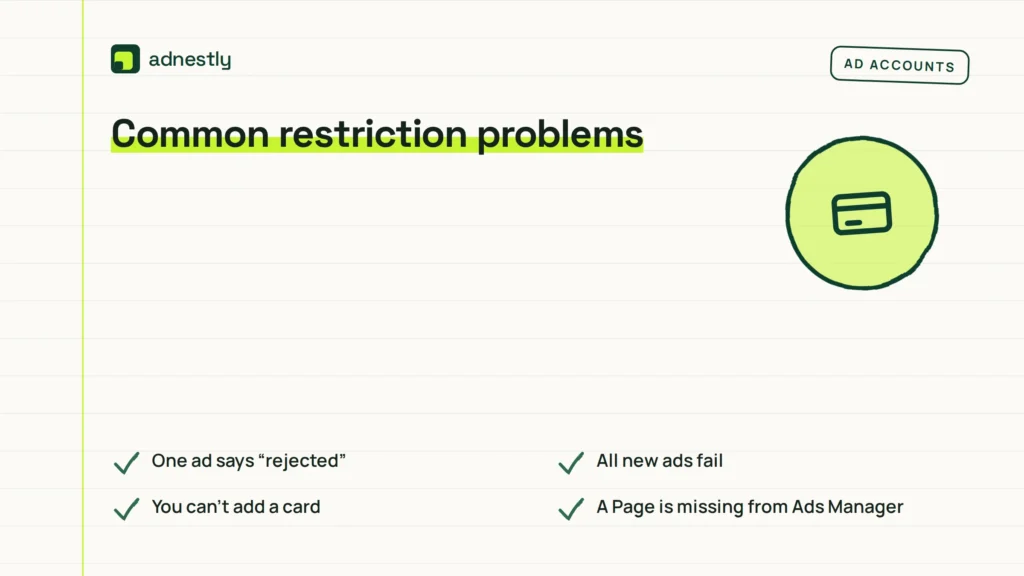
The message you see usually points to the next safe check, but it may not explain every detail. Use this table to separate a content problem from an access, payment, or security problem.
| What you notice | What it usually means | What to do first |
|---|---|---|
| One ad says “rejected” | That ad failed review | Read the stated policy and check the full landing page |
| All new ads fail | The account or payment setup may be limited | Check Account Quality, billing, and recent admin activity |
| You can’t add a card | Payment or account verification issue | Use the billing screen and confirm the payment owner |
| A Page is missing from Ads Manager | Your access or Page connection changed | Check business roles and Page permissions |
| A review button is missing | The asset may have no active appeal path | Read the notice carefully and use official support |
| Ads changed without your action | Someone else may have account access | Secure the profile and remove unknown users first |
Don’t assume a declined card proves an advertising policy violation. Billing failures, bank declines, spending limits, and identity checks can block delivery even when the ad itself follows the rules.
If the restriction remains after you secure the account and complete the available review, stop making random edits. An official support response, not repeated campaign duplication, is the next useful source of information.
Meta advertising rules
Meta’s rules can apply to the ad, the audience, the business, the payment activity, and the destination. The Advertising Standards address prohibited content, restricted content, personal attributes, unacceptable business practices, and misleading experiences. The policy page is the source to read for the current wording.
A policy check isn’t the same as legal approval. You’re still responsible for consumer-protection, privacy, copyright, health, financial, employment, housing, and industry rules that apply where you advertise. Meta may reject content that isn’t illegal, and approval by Meta doesn’t make an offer lawful.
Some categories have extra limits. Alcohol, financial products, health-related offers, political content, employment, housing, and certain regulated products may require special conditions, accurate disclosures, or regional controls. The exact rule can change by country and campaign type, so check the platform’s current policy for the market you target.
If the account asks for government ID, business records, or payment proof, submit them only through the official account workflow. For a suspected takeover, use platform recovery tools and a cybersecurity professional; don’t hire someone who asks for your password or promises access to an internal employee.
Keep your ad account healthy
Keep a simple record of ad IDs, rejection messages, review dates, payment changes, admin changes, and final decisions. This makes a later appeal clearer and helps you spot whether the same asset keeps triggering problems.
Use stable business details across the profile, Page, billing information, website, and verification documents. If the legal business name changes, update the relevant business records rather than mixing old and new identities across several accounts.
Review access whenever a staff member, freelancer, or agency leaves. Remove old permissions, check connected apps, and keep two-factor authentication active. Don’t share one login among several people when the platform provides individual roles.
There’s no reliable universal lifespan for an advertising restriction. The point when you need attention again is a new rejection, a security alert, an unexpected payment, or a change in account status—not a calendar date copied from another advertiser.
When a clean ad is rejected, save the notice before editing. When a business asset is restricted, return to the account-status page and use the available review path instead of trying to hide the affected asset.
When another ad approach fits better
This approach isn’t for an account that may be hacked. If you see unknown campaigns, admins, or charges, secure the profile and contact official platform support before editing ads. Your first goal is to stop unauthorized access, not to improve the campaign.
It’s also the wrong approach for a product that needs legal or specialist review. Health claims, investments, credit, housing, employment, alcohol, and political advertising can carry rules beyond platform approval. Ask a qualified lawyer or compliance professional to review the offer before you appeal.
A replacement ad account isn’t a good answer to a business-level restriction. If the same business, website, payment method, or offer caused the problem, the new account may face the same action and could make your history look evasive.
If the platform has marked the decision as final and offers no review route, stop repeated submissions. Keep your records, use any official support option still available, and consider an alternative marketing channel only after checking its rules and your legal obligations.
Frequently asked questions
Can a restricted advertising profile still post normally?
Yes, it can. An advertising restriction may affect paid campaigns while leaving posts, messages, and other organic tools available. The result depends on whether the platform restricted your personal advertising access, a business asset, or only one ad. Check the exact affected item in Account Quality or Account Status before assuming the whole profile is disabled.
Why did my ad profile get restricted without warning?
A restriction can follow a policy review, unusual payment activity, suspicious access, repeated ad rejections, or a business verification issue. The notice may not explain every signal used by an automated system. Review recent logins, admins, billing events, rejected ads, and landing-page changes, then use the official review option if one appears.
How long does an advertising restriction review take?
There’s no single review time that applies to every account. The platform may show a status or estimate, but some notices give no timetable. The asset type, verification request, policy category, and review queue can affect the process. Check the account-status screen for the current message, and don’t create duplicate accounts while you wait.
Is it safe to create a new ad account after a restriction?
No, not as a first response. A new account can still be connected to the same business, payment method, Page, website, or user, so it may receive the same restriction. It can also make the situation harder to explain. Appeal or resolve the original asset first, unless official platform support tells you to use another account.
What happens if my appeal is denied?
A denied appeal means the platform didn’t restore the affected asset through that review. Read the notice to see whether another official appeal or support route exists. Don’t submit copied appeals repeatedly or send identity documents to unofficial contacts. If the decision is final, preserve your records and review lawful alternative channels.
Can a payment problem cause an advertising restriction?
Yes, it can affect delivery or account access, but a declined payment doesn’t prove that an ad violated policy. Check bank declines, failed charges, spending limits, payment ownership, and any verification request. Use a legitimate payment method connected to the business, and resolve billing issues through the platform’s own payment screen.
What should I do if someone else changed my ads?
Secure the account first. Change the password, enable two-factor authentication, review active sessions, remove unknown admins or partners, and report unauthorized activity through the official recovery process. Check charges and campaign changes after access is restored. Don’t confront an unknown contact through a private message or share your login while seeking help.
Conclusion
If the restriction remains, save the notice, review the platform’s policy, and contact official support through your account. Don’t create replacement profiles or keep submitting repeated appeals, as these actions can make review harder. Follow any requested changes, wait for the decision, and use the time to prepare compliant ads for when access returns.

Aaron Kelly writes about Facebook tools, account management, and business advertising. His content covers account security, Facebook Ad Accounts, Business Manager setup, Pixel and conversion tracking, Business Manager verification, and admin profile verification. He focuses on explaining technical processes and common account issues in practical terms, helping businesses and advertisers manage their Facebook assets more effectively and build a more secure, reliable advertising setup.
Checked against Meta’s own documentation. How we write and update guides