Purchase Facebook Event Not Tracking on BigCommerce: Causes and Fixes

A missing or broken script on the order confirmation page is usually why a purchase event not tracking on BigCommerce happens. Confirm this by completing a dummy order in a test browser using a sandbox payment gateway, then check the Network tab filtered by “Fetch/XHR” for an analytics request. Find your theme’s script requirements in BigCommerce’s Stencil documentation.
$ part ofMeta Pixel Not Working? How to Fix Tracking on Any PlatformThe complete guide this article belongs toOpen guide →Why purchase event tracking fails on BigCommerce
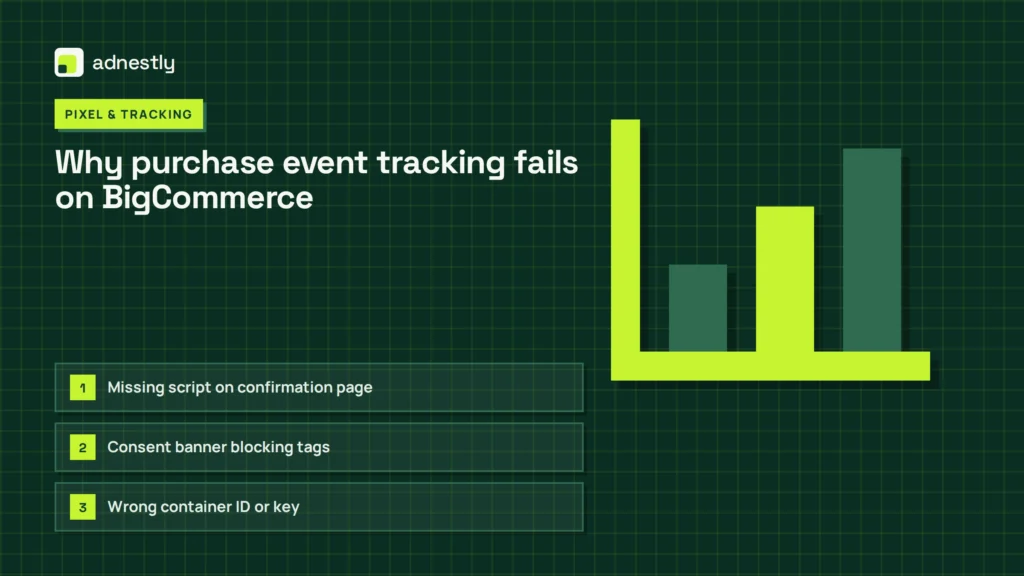
Each cause below points to a different part of the checkout flow. Read down the list from top to bottom, because the first row is the one you should check before anything else.
| Cause | How common | How to confirm it | Fix it yourself? |
|---|---|---|---|
| Missing script on confirmation page | Most frequent | Check Network tab after test order | Yes |
| Consent banner blocking tags | Very common | Accept cookies then retest checkout | Yes |
| Wrong container ID or key | Common | Compare settings with analytics dashboard | Yes |
| Checkout customization breaking code | Common | Switch back to default optimized checkout | Yes with care |
| Theme update removing snippets | Less common | Check theme files for deleted code | Yes |
| Server-side integration failure | Rare | Check webhook delivery logs in platform | No |
The confirmation page script is missing
The order confirmation page must fire a piece of JavaScript to tell your analytics tool a sale just happened. If that script isn’t there, or if it’s placed in the wrong section of your store’s control panel, the signal never leaves the browser. This doesn’t affect the actual order — your customer still pays and gets their receipt. It only blinds your marketing reports.
You can verify this without guessing. Open an incognito window so old cookies don’t interfere. Add a cheap item to your cart and walk through the whole checkout using a test payment method. When you land on the “Thank You” page, press F12 to open developer tools. Click the Network tab, type your analytics provider’s domain into the filter box, and refresh the page once.
If the list stays empty, the script isn’t running. Go to your BigCommerce control panel. Navigate to Storefront > Script Manager. Look for the active script meant for the order confirmation page. Its placement setting must be “Footer” or “Body”, and its location must include “Checkout”. If it says “Header” only, or if the location is limited to the storefront pages, move it. Save the change and run the test order again.
This fix takes about ten minutes if you already have the correct code snippet. You don’t need to buy anything new; you’re just moving text that’s already sitting in your control panel to the right slot.
If your theme uses custom template files instead of the Script Manager, you’ll need to open the order.html file inside your Stencil theme and paste the snippet before the closing </body> tag. That path requires downloading the theme via the control panel or managing it with the Stencil CLI, editing the file locally, and uploading the updated theme back.
Don’t skip the test order step. A script that looks correct in the editor might still fail if it references a variable your theme doesn’t support. If you use a third-party app to inject the code instead of the native Script Manager, disable the app temporarily and try pasting the raw code directly. Apps sometimes load too late in the page cycle, meaning the confirmation event fires before the analytics library has finished initializing.
Your cookie banner blocks the tracking pixel
Consent management platforms stop analytics scripts from loading until a visitor clicks “Accept”. If your banner is set to block all non-essential cookies by default, the purchase signal gets trapped behind that wall. You’ll know this is your problem if the test order tracks perfectly when you accept cookies first, but fails silently when you ignore the banner.
To test this properly, clear your browser cookies completely. Load your store’s homepage and don’t touch the consent banner. Proceed straight to checkout as a guest and finish the test order. Check your analytics real-time report. If the order is missing, go back, clear cookies again, accept the banner immediately, and repeat the checkout. If the second order appears in your reports, your banner is the blocker.
Fixing this means adjusting your consent manager’s settings. Most tools let you categorize scripts. Your purchase tracking snippet needs to be classified correctly according to your local privacy laws, or exempted if your legal framework allows transactional data collection without prior consent for basic business operations. Don’t just turn the banner off to solve this. That creates legal exposure depending on where your customers live.
Instead, log into your consent management platform’s dashboard. Find the category settings for your analytics vendor. Ensure the purchase-specific script is allowed to fire under the rules that apply to your store’s primary market. Some platforms offer a “strictly necessary” category that bypasses the block for essential business functions. Whether transaction tracking qualifies depends entirely on your jurisdiction and your published privacy policy.
This adjustment usually takes fifteen minutes inside the consent tool’s interface. There’s no extra cost if you’re already paying for the banner software. The trade-off here is real: stricter privacy controls give you cleaner legal standing but leave gaps in your revenue reporting. Looser controls fill those gaps but increase compliance risk. Pick the setting your legal guidelines actually require rather than what makes the dashboard look best.
The container ID or API key is wrong
A single typo in your tracking ID sends every purchase signal to an empty account or someone else’s dashboard. This happens frequently when stores copy settings from a staging environment to a live one, or when a team member generates a new property ID without updating the store’s script.
You can spot this quickly. Open your store’s Script Manager or your tag manager workspace. Copy the measurement ID, container ID, or pixel number currently pasted there. Open a plain text document and paste it. Then log into your analytics platform, navigate to your property settings, and compare the two strings character by character. Watch out for trailing spaces — they’re invisible but they break the connection.
If the IDs match, check the data stream or view configuration inside your analytics tool. A valid ID pointing to a deleted data stream will still fail to record anything. Create a new stream if the old one was accidentally archived. Update the store’s script with the new stream ID immediately afterward.
This check takes under five minutes. It costs nothing. But leaving a wrong ID in place means you might run ads for weeks optimizing toward phantom data, which drains your budget fast. Always verify the ID against the live property settings page, not against an old email or a screenshot saved in a shared folder. Those sources go stale the moment someone clicks “create new property” in the analytics dashboard.
Checkout customizations broke the event trigger
BigCommerce offers an Optimized One-Page Checkout that handles events differently than the legacy multi-step version. If you recently switched between these, or if you added custom fields and scripts directly to the checkout page, the standard purchase trigger might no longer fire at the right moment.
The clearest sign here is that everything tracked fine last month, but stopped working right after a checkout setting changed. To isolate this, go to Settings > Checkout in your control panel. Temporarily switch back to the default optimized checkout layout without any custom scripts attached. Run a test order. If it tracks, your customization is the culprit.
Fixing this means identifying exactly which custom field or injected script interrupts the page load sequence. Remove your custom additions one by one, testing after each removal. Custom JavaScript that forces a page reload, or CSS that hides the final confirmation element before the analytics script reads it, are the usual suspects.
If you rely on a third-party checkout app that replaces the native BigCommerce flow entirely, that app must provide its own method for passing purchase data back to your analytics tool. Native scripts won’t execute on a page they don’t control.
Reverting a checkout change takes seconds, but rebuilding your custom fields afterward might take an hour. Weigh whether that custom field is worth losing your revenue data over. Sometimes moving the custom logic to the cart page instead of the checkout page solves the conflict without losing the functionality.
Other reasons BigCommerce misses the sale
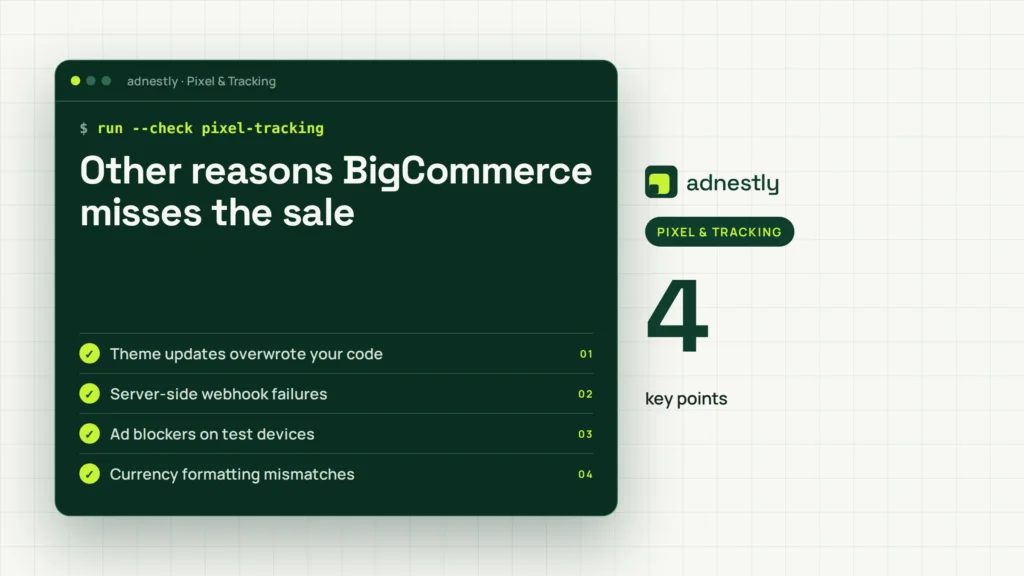
These causes happen less often, but they leave the exact same blank space in your reports. Work through them only after the four main checks above come back clean.
- Theme updates overwrote your code: A recent theme update replaced your modified
order-confirmation.htmlfile with the default version, erasing the manual script placement you added months ago. - Server-side webhook failures: Your analytics tool relies on a backend webhook instead of a browser script, and the delivery logs in your BigCommerce control panel show repeated 500 errors from the receiving server.
- Ad blockers on test devices: You’re testing from a browser or network that runs aggressive content filtering, which strips the tracking request before it leaves your machine while real customers on mobile networks aren’t affected.
- Currency formatting mismatches: Your store passes the order total as a formatted string like “$1,200.50” instead of a raw number, causing the analytics endpoint to reject the payload entirely.
- Data layer timing issues: The variables holding the order details populate half a second after the tracking script executes, sending an empty object to your analytics platform.
If your webhook logs show persistent server errors, or if fixing the data layer requires rewriting how your theme compiles JSON objects, this stops being a settings adjustment. Changing core template logic or debugging failed server-to-server authentication requires a developer who works with the BigCommerce Stencil framework directly.
What fixing the tracking actually takes
Getting your purchase data flowing again demands different things depending on which cause you found. For a missing script or a wrong container ID, you only need access to your BigCommerce control panel and about ten minutes. You’re just copying and pasting text into the Script Manager. The effort is roughly equal to changing a product description.
Cookie banner adjustments take slightly longer. You’ll spend twenty to thirty minutes inside your consent management platform, reading its specific category rules. You don’t need new software, but you do need to understand how your current banner classifies different scripts. If you guess wrong here, you either keep blocking the signal or expose your store to compliance issues.
Checkout rollbacks are fast — flipping a toggle takes seconds. However, if that rollback removes a custom shipping calculator your customers rely on, you face a harder choice. You’ll need a developer to rewrite that calculator so it doesn’t interrupt the page load sequence. That work costs more than a simple app subscription, similar in scale to hiring someone for a small theme redesign.
For server-side webhook failures, you can’t fix this inside the storefront settings alone. You need whoever manages your receiving server to check its error logs and confirm it’s accepting POST requests from BigCommerce’s IP ranges.
Getting a real quote for this means showing a developer your exact webhook delivery logs from Settings > Advanced > Webhooks, not just describing the symptom. They need to read the specific HTTP status codes your store is generating to know if the problem lives on your end or theirs.
Frequently asked questions
Can I test purchase tracking without spending money?
Yes, you can. Use your payment gateway’s sandbox or test mode to complete a checkout without charging a real card. BigCommerce supports test transactions natively when you enable the designated test gateway in your payment settings. The confirmation page loads exactly as it does for real buyers, firing all the same scripts. Just remember to switch back to your live gateway before real customers arrive.
Why did my tracking stop after a theme update?
Updates overwrite modified template files with the theme developer’s new defaults. If you pasted your tracking code directly into order-confirmation.html or other checkout templates instead of using the Script Manager, that code disappears during the update. Always use the Script Manager for analytics snippets. It keeps your code separate from the theme files, so updates won’t erase your configuration.
How long does it take for a fixed event to show up?
Standard reports take 24 to 48 hours to process new data, assuming you’re using the default processing pipeline in most major analytics platforms. Real-time dashboards update within 30 to 60 seconds of the test order completing. If your real-time view shows the hit but your daily report doesn’t, wait two full days before assuming the fix failed. Processing delays vary based on your account’s data volume.
Is it safe to put analytics code in the checkout?
Yes, provided you use the official Script Manager or your theme’s designated script area. Pasting raw code into text fields meant for customer instructions can break the page layout or create security warnings. The Script Manager sanitizes placement and ensures the code loads in the correct sequence without interfering with payment form validation or SSL certificate checks.
What happens if I ignore the missing purchase signal?
Your ad platforms lose their ability to optimize for sales. Algorithms that rely on conversion data start bidding based on incomplete information, which typically raises your cost per acquisition over the following 7 to 14 days. You’ll also see a permanent gap in your revenue reporting for every day the signal remains broken.
Does it matter which checkout version I am using?
Yes, it changes how scripts execute. The Optimized One-Page Checkout loads differently than the legacy multi-step flow. Scripts designed for the older version might fire too early or fail to find the correct data layer variables on the new layout. Check your analytics provider’s setup guide specifically for the BigCommerce Optimized Checkout rather than following generic installation steps.
How many test orders should I run to be sure?
Run three test orders after applying any fix. The first confirms the script fires at all. The second verifies that dynamic values like order totals and item names pass through correctly. The third ensures your cookie consent settings aren’t intermittently blocking the signal across different browser sessions. Space them five minutes apart to avoid analytics filters grouping them as duplicate spam.
Conclusion
Every store’s setup differs slightly based on installed apps and chosen themes. The exact line of code you need lives in your analytics provider’s setup guide, matched to your specific BigCommerce checkout version. Keep your test transactions documented until your daily reports reflect accurate numbers for three consecutive days.

Aaron Kelly writes about Facebook tools, account management, and business advertising. His content covers account security, Facebook Ad Accounts, Business Manager setup, Pixel and conversion tracking, Business Manager verification, and admin profile verification. He focuses on explaining technical processes and common account issues in practical terms, helping businesses and advertisers manage their Facebook assets more effectively and build a more secure, reliable advertising setup.
Checked against Meta’s own documentation. How we write and update guides