Meta Pixel Not Working on BigCommerce: How to Fix It

When a meta pixel is not working on bigcommerce, the fix usually starts with checking the pixel id, storefront script, browser events, and consent settings. If the id is wrong, replace it; if the code is present but events are blocked, check consent tools, ad blockers, and checkout limits before changing anything.
$ part ofMeta Pixel Not Working? How to Fix Tracking on Any PlatformThe complete guide this article belongs toOpen guide →Your result also depends on the BigCommerce theme, the event you’re testing, and whether the test happens on a storefront page or checkout. The checks below are safe for store owners and stop before developer-only work.
Who needs this BigCommerce Pixel guide
This guide serves a BigCommerce store owner who has added a Meta Pixel but sees no activity in Events Manager. You may already have a Meta Business account, a Pixel, and access to your BigCommerce control panel. You need a safe way to find the cause without editing complex theme files.
A marketing manager may only need to confirm whether page views and purchases are arriving. A developer may need browser logs, theme access, and consent-platform settings. A store owner using an agency may need a clear list of checks before sending the issue to that agency.
This page is best for a standard BigCommerce storefront with one main Meta Pixel. It isn’t the best guide for server-side Conversions API setups, headless storefronts, or custom checkout integrations. Those systems need their own implementation records and technical logs.
The rest of this guide assumes you can view your Pixel in Meta Events Manager and open your BigCommerce store in a normal browser window.
What controls the Pixel result
The Pixel ID matters most. A Pixel can appear correctly configured while sending data to the wrong business account. In Meta Events Manager, open the data source and copy its ID; compare it with the ID shown in your BigCommerce settings or theme script. If the numbers differ, the wrong source is receiving the event.
The installation method is next. BigCommerce may use a built-in channel, a script manager entry, or custom theme code. Check which method your store uses, then look for duplicate installations. Two copies can create duplicate PageView events and make purchase reporting unreliable.
The event itself changes the result. A home-page visit should normally be tested as a page view, while a purchase needs a completed order and a matching event setup. Don’t judge the Pixel from a product or cart page if you’re checking a purchase event.
Consent and browser blocking often get blamed on BigCommerce, but they can stop a browser event before Meta receives it. Test in a private window with extensions disabled, then test again with your normal consent choice. If the event appears only after consent, your consent settings are controlling the result.
The most commonly missed check is the test environment. A staging domain, password-protected store, preview theme, or cached page may not use the same code as the live storefront. Read the live page source and confirm that the Pixel ID is present there.
Safe checks for BigCommerce Pixel
Use these checks in order. They only inspect settings, pages, and browser behaviour; they don’t require opening equipment, changing checkout files, or using developer tools that could damage the store.
-
Open Meta Events Manager and select the intended Pixel. Confirm the data source name and ID match your advertising account. The correct Pixel should be clearly selected before you test a page.
-
Open the live BigCommerce storefront in a private browser window. Use the real published domain, not a theme preview or staging URL. The page should load without a password or maintenance screen.
-
Visit the home page and one product page. Wait for each page to finish loading, then check Meta’s Test Events view. A PageView or browser event should appear for the selected Pixel.
-
Compare the Pixel ID on the live page. Use the browser’s page-source search for
fbqor the Pixel ID. A matching ID shows that the storefront contains the intended script. -
Repeat the test after accepting the store’s marketing consent. Record whether the event appears before consent, after consent, or never. This separates consent behaviour from a missing installation.
-
Test with browser extensions disabled. Turn off ad blockers and privacy extensions for one test session. If the event appears only then, the browser was blocking the request.
-
Check the event that actually matters. For a purchase event, place a low-risk test order only if your store and payment setup allow it. Confirm the order reaches the normal confirmation page before checking Meta.
-
Compare one live page with one preview page. If the live page contains the Pixel but the preview does not, the theme or script placement differs. Stop there and publish through BigCommerce’s normal theme process.
The key judgement is whether the event is missing everywhere or only under one condition. If it appears after consent or without extensions, the Pixel may be installed correctly; changing the code could create a second problem.
If the check reaches custom JavaScript, checkout files, or server-side events, stop and use a BigCommerce developer or the person who manages your Meta integration.
BigCommerce Pixel cases at a glance

The right fix depends on where the event disappears and what your store is allowed to change.
| Store situation | What to do | What it takes | What to watch for |
|---|---|---|---|
| No events anywhere | Check ID and installation | Settings review | Wrong data source |
| Events after consent | Review consent settings | Consent test | Regional differences |
| Events with extensions off | Test blocked requests | Private browser test | False failure |
| Page views only | Check event setup | Page comparison | Purchase not configured |
| Duplicate events | Find repeated scripts | Source inspection | Inflated reporting |
| Live page differs | Compare published theme | Theme review | Preview confusion |
| Custom checkout involved | Call a developer | Technical review | Unsafe file edits |
Details that improve BigCommerce Pixel checks
Prepare the test correctly
Use one Pixel, one live domain, and one browser session at a time. Write down the data source ID, page tested, consent choice, and whether extensions were enabled. Without these details, two tests can look different even when the code hasn’t changed.
Test the simplest page first. A home page or product page usually gives a cleaner PageView check than a cart or checkout page. If a page view fails, don’t spend time diagnosing a purchase event yet.
Meta’s own Pixel implementation guide describes the browser-code setup and event structure. Use it to compare the expected base code with what your BigCommerce page actually contains.
Leave working parts alone
A useful comparison is the event count and the event location, not only the green status in Events Manager. If one browser session creates one PageView and another creates none, compare consent and extensions before changing the script.
Don’t add a second Pixel because the first test looks slow. Don’t paste the same code into both a built-in integration and the theme unless the person managing the setup has confirmed that both are needed. Duplicate scripts can cost you clean reporting and may create repeated conversions.
BigCommerce Pixel symptoms and fixes
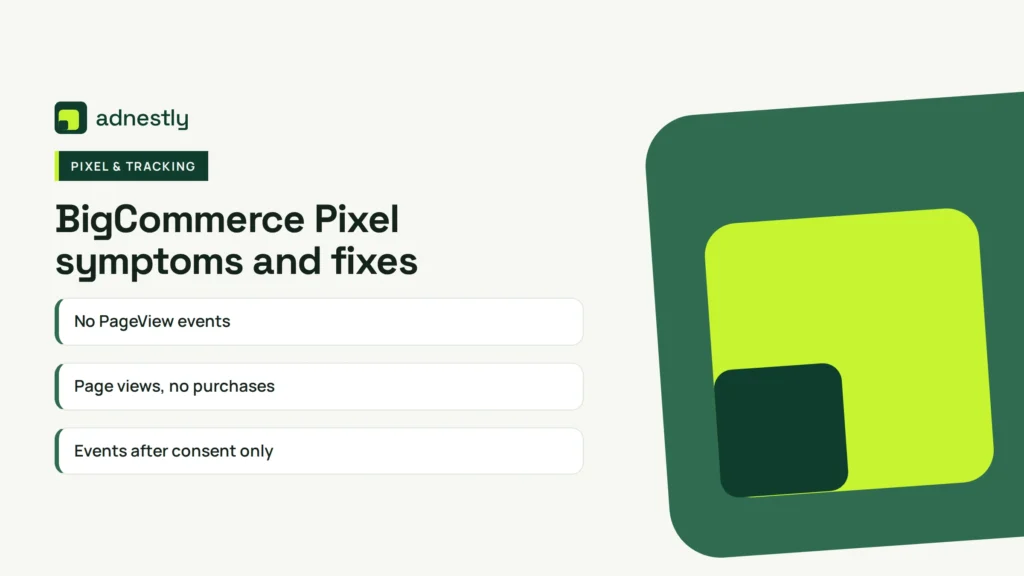
The visible symptom usually tells you which check should come first. Don’t make a code change until you know which row matches your store.
| What you notice | What it usually means | What to do first | How to stop it happening again |
|---|---|---|---|
| No PageView events | Missing or wrong Pixel | Compare Pixel IDs | Keep one source record |
| Page views, no purchases | Purchase event absent | Test confirmation page | Document event mapping |
| Events after consent only | Consent blocks marketing code | Review consent choice | Keep consent settings aligned |
| Two events per visit | Duplicate installation | Search scripts | Remove repeated placement |
| Test Events stays empty | Browser request blocked | Disable extensions | Test clean browser sessions |
| Live and preview differ | Themes use different code | Compare published versions | Recheck after publishing |
| Events reach wrong account | Wrong data source selected | Verify business account | Record the approved Pixel ID |
Rules for tracking on BigCommerce
Tracking rules depend on where your customers live and how your store collects consent. The European Union’s General Data Protection Regulation can require a lawful basis before non-essential tracking starts, while California privacy duties can apply under the California Consumer Privacy Act and related regulations. The exact duty depends on your business and customers.
Use the privacy page and consent settings that match your selling regions. The European Data Protection Board publishes guidance for organisations handling personal data, and California’s Privacy Protection Agency publishes state privacy information. Check those bodies’ current pages for your situation rather than copying a rule from another country.
Meta’s business tools also have platform terms and data-use requirements. If your Pixel sends customer or purchase information, ask the person responsible for privacy compliance to review the setup.
Stop before changing consent scripts or checkout tracking if you’re not responsible for legal compliance. A privacy professional or qualified developer should handle that work.
The real cost of a broken Pixel
The direct cost may be zero if the problem is a wrong ID or a blocked browser test. The larger cost is unreliable campaign data: you may pause a useful ad, increase spending on a poor one, or report sales against the wrong campaign.
Time rises when the test has no record. Save the Pixel ID, live URL, event name, consent choice, browser, and test result. A short record can prevent repeated checks by your marketing team or developer.
Technical work costs more when the store uses custom themes, several consent tools, multiple Pixels, or a custom checkout. Compare the setup with the simplest working version: one approved Pixel, one published storefront, and one documented event path.
Prices change by agency, region, and scope, so compare quotes by deliverables. Ask whether the work includes duplicate-code removal, event testing, consent review, and a written record of the final Pixel ID.
Keeping BigCommerce Pixel healthy
Keep a record of the approved Pixel ID, the BigCommerce installation method, and the events your campaigns use. Store it with the theme name and consent tool so a future theme change doesn’t erase the setup history.
Check the Pixel after publishing a new theme, changing the checkout, adding a consent platform, or moving to a new domain. A new design can change scripts even when the store owner didn’t edit tracking directly.
The sign that attention is needed is a change in the expected event pattern. If PageView events disappear, purchases stop arriving, or one action creates duplicates, return to the live-page and consent checks before changing code.
If the event works again, don’t start over. Record what changed and leave the working installation in place.
When BigCommerce Pixel isn’t the right approach
This guide isn’t the right choice for a headless BigCommerce store. A headless build may use a separate front end, so its developer must inspect the application code and event calls instead.
It’s also the wrong approach when you need server-side measurement, deduplication, or a Conversions API setup. Use Meta’s documented server-side implementation with a qualified developer rather than adding browser scripts repeatedly.
Don’t edit checkout files when you don’t know which checkout type your store uses. If an event involves custom payment pages, customer data, or legal consent, stop and contact your BigCommerce developer or privacy adviser.
A Pixel also isn’t a complete sales record. Keep using your order system and approved analytics reports to compare campaign data with actual completed orders.
Frequently asked questions
Can a BigCommerce theme stop Meta Pixel events?
Yes, a theme can omit the Pixel, load the wrong ID, or include it twice. Check the published storefront, not only the theme editor. If the live page has the right ID but events still fail, test consent settings and browser extensions before changing the theme.
Why is my Meta Pixel showing page views but no purchases?
The purchase event may not be installed on the correct confirmation page. Complete a permitted test order and check whether the event fires after the order finishes. If PageView works but Purchase does not, the issue is likely event placement or checkout access.
How long does Meta Pixel take to show an event?
A test event should appear during the active test session when the correct Pixel is selected and the browser request is allowed. If nothing appears after a fresh page visit, check the ID, consent choice, extensions, and live-page code rather than waiting indefinitely.
Is it safe to add the Meta Pixel twice?
No, adding the same browser Pixel twice can create duplicate events and unreliable conversion counts. Check whether BigCommerce already adds the Pixel before pasting custom code. If two installations exist, have the integration owner remove the unnecessary one.
What happens if my ad blocker blocks Meta Pixel?
The browser event may never reach Meta, even though the store page looks normal. Test once with extensions disabled and once with them enabled. Use the clean test to judge installation, but remember that real visitors may still block browser tracking.
Does consent affect Meta Pixel tracking?
Yes, consent settings can control whether marketing scripts load. The result may differ by visitor location and by the choice made in the consent banner. Check the store’s consent tool and privacy configuration before treating a consent-based difference as a broken Pixel.
Can I fix Meta Pixel without editing code?
Often, yes, when the issue is a wrong Pixel ID, disabled integration, or consent setting. If the issue involves custom JavaScript, checkout files, or server-side events, stop making changes and use a qualified BigCommerce developer.
First BigCommerce Pixel check
Start by comparing the Pixel ID in Meta Events Manager with the ID on your live BigCommerce page, then test one page after your consent choice. A working setup should show the expected event for that page. If custom checkout code or privacy settings are involved, stop and get specialist help.

Aaron Kelly writes about Facebook tools, account management, and business advertising. His content covers account security, Facebook Ad Accounts, Business Manager setup, Pixel and conversion tracking, Business Manager verification, and admin profile verification. He focuses on explaining technical processes and common account issues in practical terms, helping businesses and advertisers manage their Facebook assets more effectively and build a more secure, reliable advertising setup.
Checked against Meta’s own documentation. How we write and update guides