Business Verification Button Missing in Facebook Business Manager

The business verification button missing in business manager usually means your account isn’t currently eligible, you don’t have the right admin access, or Meta has moved verification into another security flow. Check your business portfolio, permissions, account quality, and any open Meta request before trying to create a new account. The checks below show where the button normally appears, what can hide it, and when verification isn’t needed.
$ part ofFacebook Business Manager Problems: Fixes for Common ErrorsThe complete guide this article belongs toOpen guide →What the verification option means
Business verification confirms that Meta can connect your business account with a real organization. Meta may ask for your legal business name, address, phone number, website, or official documents. The exact information depends on your business portfolio and the Meta products you’re using.
The option is mainly for businesses that need access to features with extra trust or security requirements. These can include certain advertising, messaging, developer, or app features. It’s not a general badge that every business must obtain.
The button can be missing because your business hasn’t met Meta’s current eligibility conditions. It can also be hidden when you’re not a full business portfolio admin, when your portfolio is incomplete, or when Meta has started verification through a specific product instead of the general Business Settings page.
A common misunderstanding is that creating a Facebook Page automatically creates a verification option. A Page, ad account, and business portfolio are separate assets. They can have different owners, roles, restrictions, and verification requirements.
Meta also changes its menus and eligibility rules. So an older tutorial may show a button that no longer appears for your account. Your own Business Settings screen and any message inside the relevant Meta product are better evidence than a video made for another account type.
Check business manager access
Start with the account that owns the business portfolio. If you only have employee, analyst, advertiser, or partner access, you may see the business but still lack permission to start verification.
- Open Meta Business Suite or Business Settings, then select the correct business portfolio. If you manage several portfolios, check the business name before changing anything.
- Open Settings, then look for Business info, Security Center, or a verification area. Meta may place the option in a different location based on the products connected to your portfolio.
- Check your role under People or Business portfolio users. You’ll normally need full control or business admin access, not access to only a Page or ad account.
- Review the business details. Enter the legal name, address, phone number, website, and country exactly as they appear on your official records. Don’t use a brand nickname if the documents show a registered legal name.
- Check Account Quality, security notices, and any active request from Meta. Resolve restrictions, identity prompts, or missing two-factor authentication before looking for the button again.
- Open the product that requires verification, such as a messaging or developer tool. If it starts verification there, follow that flow instead of creating a second business portfolio.
- If the option is still absent, compare the screen with Meta’s current help guidance and contact Meta Business Support from an eligible account. Include the portfolio ID and a screenshot, but remove passwords and sensitive document numbers.
The key judgment is whether you’re looking at the correct portfolio with full control. If you have full control and the product still shows no verification path, the likely limit is eligibility—not a broken browser button.
Document uploads, identity checks, and account-security changes can affect access to ads or business tools. If Meta requests official records and you’re unsure which document is valid, use Meta Business Support rather than uploading random files.
Business Manager verification settings
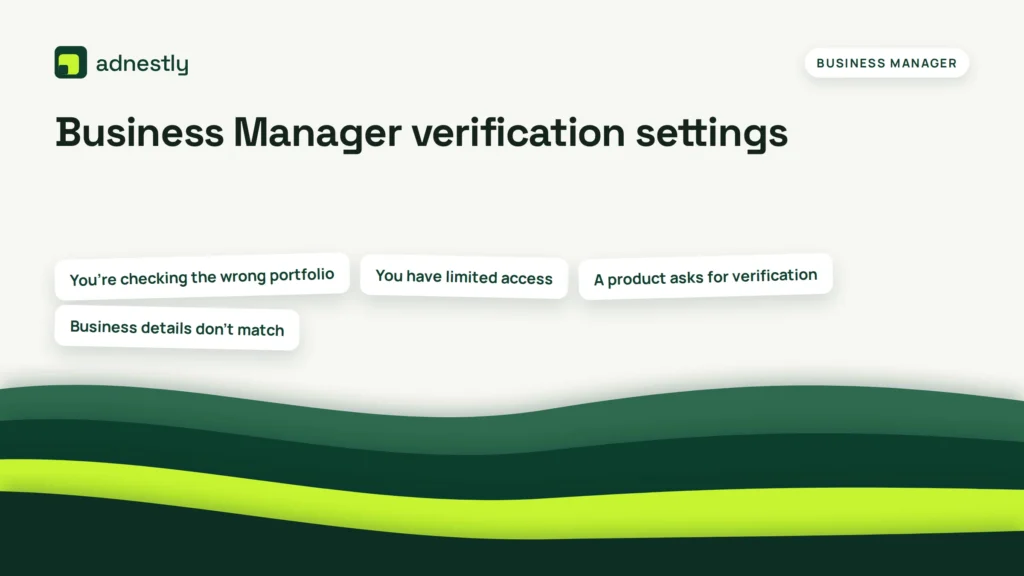
The screen you see depends on the business situation, not just the browser or device. Use the row that matches your account before assuming the missing button is an error.
| Situation | What to use | How long | What to watch for |
|---|---|---|---|
| You’re checking the wrong portfolio | Correct Business Settings account | No fixed time | Confirm the legal business name and portfolio ID |
| You have limited access | Full control from the portfolio owner | After permission changes | Page access alone may not be enough |
| A product asks for verification | Verification flow inside that product | No fixed time | Follow the product’s request instead of a general guide |
| Business details don’t match | Exact legal records | Until details match | Names, addresses, and phone numbers must be consistent |
| Security setup is incomplete | Account security and two-factor authentication | Until Meta accepts the setup | A security prompt may replace the usual button |
| The business isn’t eligible | Meta Support or the product’s requirements | No guaranteed timeline | Don’t create duplicate portfolios to force access |
There isn’t one reliable waiting period for a missing option. Meta can show different settings by country, business type, product, account history, and current eligibility.
Details that affect the result
Check ownership before changing the business information. The person who created a Page may not own the business portfolio, and an agency may only be a partner with assigned assets. Changing details in the wrong portfolio won’t make the verification option appear in the one you need.
Use the legal business information consistently. If your website uses a trade name but your registration document uses a legal name, keep the legal name in the business details and show the trade name clearly on the website. Don’t edit a legal name just to match an old tutorial or a rejected submission.
Review the setup in a fixed order: portfolio, role, business details, security, product requirement, then support. This order helps separate an access problem from an eligibility problem. It also avoids submitting documents before the account is ready.
Check the exact message shown by Meta before you retry. “Not eligible,” “action required,” “verification in progress,” and “restricted” point to different next steps. A screenshot of that message is more useful to support than a note saying only that the button is missing.
One costly mistake is creating several new portfolios after the option disappears. That can split Pages, ad accounts, pixels, catalogs, and payment history across different owners, making access harder to trace. If the business already has a portfolio, fix its access and details first.
The trade-off is simple: a clean, accurate setup takes longer now, but repeated edits or duplicate accounts can create more review work later. Leave business names, addresses, and documents alone once they match your real records.
Why the verification button is missing
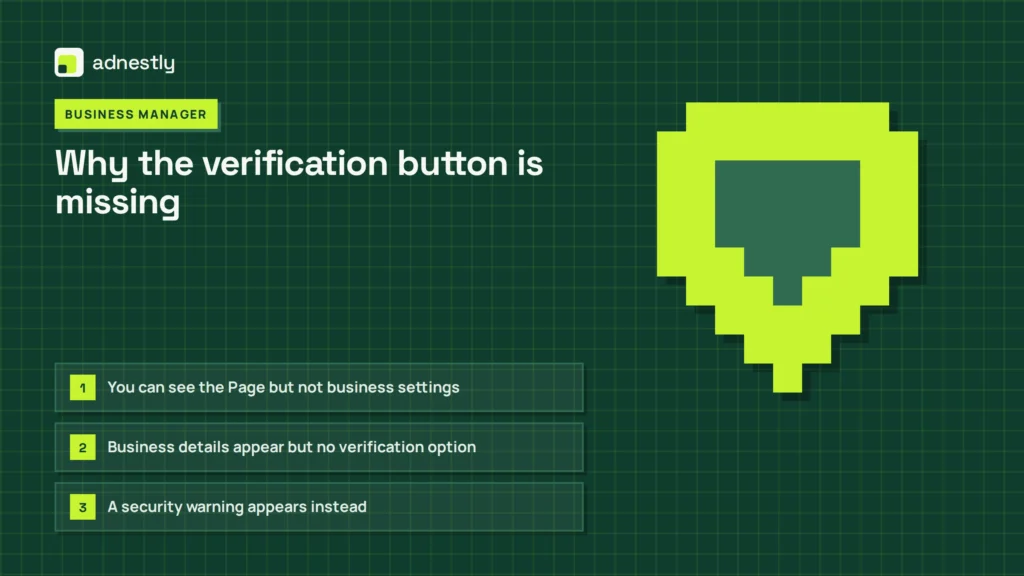
A missing option usually reflects account state rather than a failed click. Match the visible symptom with the safest first check.
| What you notice | What it usually means | What to do first |
|---|---|---|
| You can see the Page but not business settings | You have asset access, not full portfolio control | Ask the portfolio owner to review your role |
| Business details appear but no verification option | The portfolio or product may not be eligible | Open the product that requested verification |
| A security warning appears instead | Meta wants an account-security action first | Complete the security prompt from the account owner |
| Verification was started before | A current request may replace the button | Check status, notifications, and Account Quality |
| The option appears for another business | Eligibility differs between portfolios | Compare ownership, country, products, and restrictions |
Don’t keep refreshing the page as your main fix. If the same option is missing after checking the correct portfolio and role, record the account details and use the support route available inside Meta Business Suite.
Meta verification requirements
Meta controls the verification path and can change which businesses qualify. Its requirements may include confirming business information, showing a connection to the business, and completing account-security checks. The available path can also depend on the product that needs access.
Meta may ask for documents from an authorized business source. The document should support the legal name and contact information entered in Business Settings. A random invoice, personal document, or altered file can lead to rejection or another review.
For the current process, read Meta’s business verification requirements before submitting anything. That page is more reliable than a third-party checklist because Meta can change accepted documents and eligibility.
If the request involves identity, legal ownership, or an advertising restriction, don’t try to bypass it with a new account. Ask the business owner or an authorized administrator to handle the request. A lawyer, accountant, or local registration office can help with business records, but only Meta can decide whether its platform requirements are met.
A missing button doesn’t prove that Meta has denied verification. It may simply mean that no active request is available for that portfolio or product.
Keep the account ready
Keep the business portfolio connected to the real owner, using individual accounts rather than a shared login. Remove old staff, contractors, and agencies when their work ends, then check that they no longer retain access through another role or connected asset. Require two-factor authentication for people who can change business, billing, or security settings.
Review the business name, address, phone number, website, and country after a legal change. Update the information consistently across the portfolio and supporting documents, and keep evidence of the change. If a detail is only a typo or formatting difference, correct it through the normal business settings; don’t alter accurate information just to trigger a new review.
Save the portfolio ID, Page IDs, ad account IDs, and any Meta case numbers in a secure business record. Keep copies of submitted documents in a restricted folder, with the submission date and the related case or request if available. Don’t store passwords, recovery codes, or one-time authentication codes with those documents.
Return to the account when Meta shows a new security notice, a product asks for verification, or business information changes. There’s no universal recheck interval published for every portfolio. The visible notice, Account Quality message, or product prompt tells you when attention is due; don’t submit duplicate requests while one is still under review.
If verification is approved, avoid transferring the portfolio casually. Ownership changes can affect who can manage settings and who receives future security requests. Make the change only when the legal owner has changed, and record who approved it and when.
When this method isn’t right
This troubleshooting path isn’t for a person who only needs a blue verification badge. Business verification and Page or profile verification are different processes, so use the specific eligibility guidance for the badge you want.
It’s also the wrong approach when an agency owns the portfolio and you’re only a partner. Ask the agency or portfolio owner to check the option, or request the exact permissions needed for your job.
If you need a product feature urgently and Meta doesn’t offer a general verification button, follow that product’s own onboarding flow. A messaging, developer, or advertising requirement may use a separate review process.
Don’t use this method to work around a restriction, rejected identity check, or disabled ad account. In that case, appeal through the notice shown by Meta and provide the requested information. A new portfolio may leave the original problem unresolved.
The exact menu location varies by Meta product, country, and account state. You can read your own situation from the message beside the missing option: it tells you whether the next move is permission, security, product eligibility, or support.
Frequently asked questions
Can I verify a business without the button?
No, you can’t start the general process without an available Meta verification path. First confirm that you’re using the correct business portfolio and have full control. Then open the product that requires verification, because that product may provide its own request. If neither place offers a path, only Meta Support can confirm whether the portfolio is eligible.
Why does Meta Business Suite show different options?
Different options appear because Meta connects settings to the portfolio, your role, location, account history, and the products you use. Two businesses can therefore show different menus while both are working normally. Compare the portfolio name, ownership, permissions, and product request before treating the difference as a technical fault.
Is it safe to create another business portfolio?
No, not as a first fix. A second portfolio can separate your Pages, ad accounts, catalogs, pixels, payment methods, and staff access from the original business. That split may create ownership confusion and make support cases harder. Create another portfolio only for a real separate business, not to make a missing verification option appear.
What happens if my business information doesn’t match?
Meta may pause, reject, or ask for more information during review. The legal business name, address, phone number, and documents should describe the same organization. If the business recently changed its legal details, update the official records first. Don’t submit edited or misleading documents to make old information fit.
How long does Meta business verification take?
There’s no single guaranteed review time for every business. The timing can change with document quality, account status, country, product, and whether Meta requests more information. Watch the status inside Business Settings, Account Quality, or the product that started the request. A new request or security prompt may replace the original view.
Is business verification required for every business?
No, not every business needs it. The requirement usually appears when a particular Meta product, security flow, or eligibility condition calls for confirmation. A business can use some Pages or advertising features without seeing a verification option. Check the exact product notice instead of assuming that every portfolio must complete the same process.
Conclusion
If the option still doesn’t appear after your access and account details are correct, contact Meta Business Support from the affected portfolio. Include screenshots, recent error messages, and your business details so an agent can check eligibility without starting over. Keep monitoring your account for new requests or security prompts.

Aaron Kelly writes about Facebook tools, account management, and business advertising. His content covers account security, Facebook Ad Accounts, Business Manager setup, Pixel and conversion tracking, Business Manager verification, and admin profile verification. He focuses on explaining technical processes and common account issues in practical terms, helping businesses and advertisers manage their Facebook assets more effectively and build a more secure, reliable advertising setup.
Checked against Meta’s own documentation. How we write and update guides