Facebook Ad Account Is Not Active: What It Means and How to Fix It

If you see “ad account isn’t active” in Meta Ads Manager, your account currently can’t deliver ads, but the message doesn’t identify the cause by itself. The restriction may involve payment, identity verification, policy review, account setup, permissions, or a temporary platform error. The quickest fix is to find the account-level notice, resolve the specific issue, and request a review when Meta offers one.
$ part ofFacebook Ad Account Problems: How to Fix Every Common IssueThe complete guide this article belongs toOpen guide →Key Takeaways
- Check Account Quality and the account’s delivery status before changing campaigns.
- Confirm that your payment method is valid, charged successfully, and assigned to the correct ad account.
- Complete business verification, identity checks, and two-factor authentication if requested.
- Don’t create replacement accounts or repeatedly submit appeals while an active review is pending.
- If no reason appears, record the error, inspect permissions, try a clean browser session, and contact Meta support.
What “Ad Account Not Active” Means
An ad account marked inactive isn’t currently eligible to run or deliver advertising. This can affect every campaign in the account, including campaigns that previously ran successfully. It’s different from a campaign, ad set, or individual ad being paused.
The status can mean several things:
- Account disabled: Meta has restricted the account, often because of suspected policy, payment, security, or authenticity issues.
- Account closed: Someone with sufficient access permanently closed it, or the account was shut down after a restriction.
- Payment hold: An unpaid balance, failed charge, chargeback, or spending-limit issue prevents delivery.
- Verification required: Meta needs identity, business, domain, or payment information before allowing ads.
- Not fully configured: The account lacks a payment method, business connection, page, pixel, or other required setup.
- Access problem: You’re viewing the account through a business portfolio or user profile that no longer has the right role.
- Technical status error: Ads Manager is displaying an incorrect or delayed status.
An inactive account doesn’t automatically mean your business is permanently banned. In many cases, the account can be restored after you correct the underlying issue or complete a review.
Account status versus ad status
A campaign can show “not delivering” while the ad account remains active. That usually points to a budget, audience, approval, scheduling, bid, or campaign-setting issue. By contrast, an account-level inactive notice generally blocks delivery across multiple campaigns.
Look at the highest level showing a problem:
- Business portfolio: access, verification, or security issue.
- Ad account: payment, policy, account integrity, or account closure issue.
- Campaign: objective, schedule, budget, or special-category setup.
- Ad set: audience, placements, bid, or optimization issue.
- Ad: creative, destination, text, or review issue.
This distinction prevents you from editing dozens of ads when the actual problem is an unpaid balance or missing verification.
Find the Exact Restriction
Start with the account that’s showing the inactive label, not merely the campaign you were trying to publish. Meta often displays related notices in several locations, and one location may contain more detail than another.
Check these locations
Open each area you can access:
- Ads Manager: select the correct business and ad account, then inspect the account banner.
- Account Quality: look for restricted assets, policy decisions, disabled accounts, and review options.
- Billing and payments: review outstanding balances, failed transactions, payment-method errors, and spending limits.
- Business settings: check business verification, people, partners, pages, Instagram accounts, and assigned assets.
- Notifications and email: search for messages about disabled advertising, identity checks, unusual activity, or payment failure.
Write down the exact wording, date, affected account ID, and any reference number. A notice such as “payment failed” requires a different response from “circumventing systems,” even though both can produce an inactive account.
| Notice or symptom | Most likely area | First action |
|---|---|---|
| “Account disabled” | Policy, security, or integrity | Open Account Quality and read the decision |
| “Payment failed” | Billing | Replace or verify the payment method |
| “Verify your identity” | Personal security | Complete the requested identity process |
| “Business verification required” | Business settings | Submit consistent legal business details |
| No visible reason | Access or technical error | Confirm permissions and contact support |
| Account disappeared | Wrong business or account selected | Check account ID and business portfolio |
Pro Tip: Take screenshots before making changes. Include the full notice, account ID, date, and browser address bar where possible. Support agents can investigate faster when they can see the original status rather than a paraphrased description.
Check Payment Problems
Payment failures are among the fastest issues to resolve, provided the account hasn’t also received a policy restriction. An account may become inactive after a card is declined, a bank blocks a recurring charge, a payment is reversed, or an unpaid balance reaches the account’s collection threshold.
Review the following:
- Outstanding balance: Confirm whether an amount is overdue or a recent charge failed.
- Payment method: Check expiration date, billing address, card limit, and online or international transaction settings.
- Funding source: Determine whether the card, PayPal account, bank account, or manual-prepay balance still works.
- Chargeback history: Ask the payment provider whether a transaction was disputed, reversed, or blocked.
- Account assignment: Make sure the payment method belongs to the correct business and ad account.
- Spending limit: Check whether an account, campaign, or business-level limit has been reached.
Don’t repeatedly click “pay now” if the same transaction keeps failing. Multiple attempts can create duplicate authorization holds or trigger additional bank security checks. Instead, confirm the card details with the issuer, add an approved alternative payment method if available, and settle the balance once.
| Payment issue | What to inspect | Practical fix |
|---|---|---|
| Expired card | Expiration and CVV details | Update the card or add a valid replacement |
| Declined charge | Bank fraud controls and available credit | Ask the issuer to approve the transaction |
| Incorrect billing information | Address, name, currency, and country | Match the payment profile exactly |
| Unpaid balance | Billing history and invoices | Pay the balance through the account |
| Chargeback | Dispute or reversal status | Resolve the dispute and retain documentation |
| Manual payment exhausted | Remaining prepaid funds | Add funds using an accepted method |
After payment succeeds, delivery may not resume immediately. Allow time for the billing status to update, then refresh Ads Manager and check whether a separate restriction remains. A paid balance doesn’t override a policy or identity suspension.
Complete Verification and Security
Meta may stop advertising until it can confirm who controls an account, whether a business is genuine, or whether the account activity is legitimate. Verification requests can apply to an individual, business, payment method, phone number, domain, or business portfolio.
Use information that matches across documents and account settings:
- Legal business name: Match the registered name rather than a shortened brand name.
- Business address: Use the address shown on official business records.
- Business documents: Provide current registration, tax, license, or incorporation records when requested.
- Personal identity: Submit an acceptable government-issued document if the request concerns the account administrator.
- Phone and email: Use contact details controlled by the business, not a temporary address.
- Domain ownership: Verify the website domain through the available business settings process.
- Two-factor authentication: Enable it for administrators and people with advertising access.
Avoid uploading edited screenshots, blurry documents, mismatched records, or files with unexplained differences in names and addresses. Those inconsistencies can delay review. Submit only what the form requests, and cover unnecessary sensitive information only when the instructions permit it.
Warning: Never send passwords, full payment-card numbers, authentication codes, or identity documents to a person who contacts you through an unsolicited message. Use the support path inside the official business interface, and check the browser domain before signing in.
Security-related restrictions can also follow a compromised profile. Change the password, remove unknown administrators, review recent logins, revoke unfamiliar business integrations, and enable two-factor authentication before requesting another review.
Review Policy and Account Integrity
An inactive account may result from a rejected ad, repeated rejected ads, suspicious account behavior, or activity that Meta believes attempts to evade enforcement. Common triggers include misleading claims, prohibited products, poor landing pages, unauthorized use of personal data, and rapid changes in account ownership or payment details.
Review the ad and the destination together. Problems may appear in:
- Creative claims: guaranteed income, unrealistic health outcomes, extreme before-and-after images, or deceptive urgency.
- Landing page: a broken URL, missing business information, pop-ups that block access, or content unrelated to the ad.
- Targeting: restricted audience categories, sensitive personal attributes, or prohibited discriminatory targeting.
- Business model: counterfeit goods, regulated products, financial services, supplements, or subscription offers without clear terms.
- Account behavior: repeated resubmissions, many new accounts, rapid payment changes, or attempts to bypass a prior restriction.
- User experience: malware warnings, forced downloads, misleading buttons, or a page that behaves differently for reviewers.
Meta’s Advertising Standards describe the categories and requirements that govern ad review. Read the standard relevant to your offer, then compare both the ad and its destination against the wording rather than relying on a general impression that the ad is harmless.
Don’t simply duplicate a rejected ad with minor punctuation changes. Remove the claim, redesign the creative, repair the destination, or change the offer so the underlying issue is genuinely addressed.
When to request a review
Request a review when:
- You believe the restriction was applied in error.
- You corrected the issue identified in the notice.
- Your business documents are accurate and current.
- The ad and landing page now comply.
- The account was compromised and you restored security.
Keep the appeal factual and concise. State the account ID, explain what changed, identify any relevant documentation, and ask for a manual review. Don’t accuse reviewers, submit contradictory explanations, or create a new account to continue advertising while the case is open.
Check Access and Account Selection
Sometimes the ad account is active, but the person viewing it lacks the required permission or has selected a different account. Business portfolios can contain multiple ad accounts with similar names, so an incorrect selection can look like a suspension.
Confirm these details:
- Compare the displayed account ID with the ID on invoices, campaign exports, or prior screenshots.
- Check that you’re inside the correct business portfolio.
- Open People and confirm your profile has advertising or administrative access.
- Review Partners if an agency or contractor manages the account.
- Confirm that the page, Instagram account, pixel, catalog, and domain are assigned to the same business.
- Ask another legitimate administrator whether the account appears active for them.
If a former employee or agency owns the only administrator role, regain access through the business’s official documentation and support process. Don’t pay an unknown “account recovery” service or share login credentials with a contractor.
Common permission symptoms
A missing account often means wrong business, while a visible account with disabled controls may mean insufficient role. An account that appears for one administrator but not another usually points to permissions or portfolio assignment rather than account-wide inactivity.
Keep an internal record of who owns the business, who has full control, which agency has partner access, and where billing is managed. Clear ownership reduces delays when someone leaves the company.
Fix a Technical Status Error
If no payment, security, policy, or verification issue appears, treat the message as a possible interface or synchronization problem. Technical troubleshooting can’t remove a genuine restriction, but it can reveal whether the notice is local to your browser or account view.
Try these steps in order:
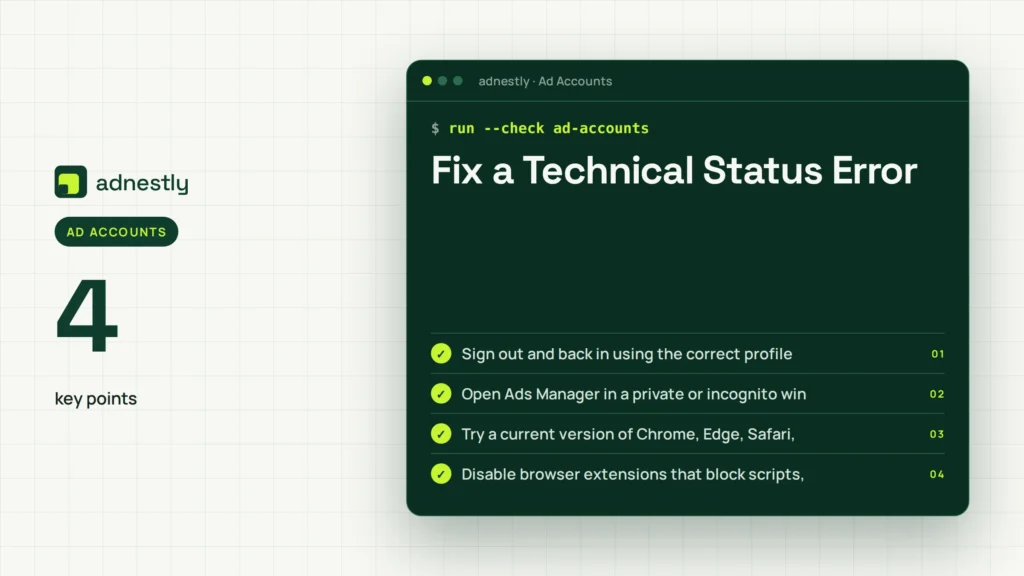
- Sign out and back in using the correct profile.
- Open Ads Manager in a private or incognito window.
- Try a current version of Chrome, Edge, Safari, or Firefox.
- Disable browser extensions that block scripts, cookies, or pop-ups.
- Clear site data for Meta business pages.
- Try a different network, but avoid repeated logins from many locations.
- Check whether another administrator sees the same status.
- Wait for a short period after a successful payment or completed verification.
- Export or screenshot the notice before it changes.
Don’t delete campaigns, remove the business, or close the ad account as a troubleshooting step. Those actions can destroy useful history and may make recovery harder.
Pro Tip: Record a short screen capture showing the account selection, error banner, and navigation path. Remove passwords, codes, customer data, and payment details before sharing it with support.
Contact Meta Support Properly
Contact support after you have checked the exact restriction and completed any obvious correction. Support can’t usually override a payment decline or approve an ad that violates policy, but it can clarify an unexplained status, investigate a technical error, or route a review.
Prepare this information:
- Ad account ID
- Business portfolio ID
- User profile and role
- Exact error text
- Date and time first observed
- Payment receipt or transaction reference
- Review or case number
- Steps already completed
- Screenshots with sensitive details removed
Use one clear case for one issue. Opening many duplicate tickets can scatter the history and produce inconsistent responses. Reply in the existing case when possible, and keep a simple timeline of submissions, replies, requested documents, and status changes.
| Situation | Best support request | Include |
|---|---|---|
| Payment succeeded but account remains inactive | Ask for billing-status synchronization | Receipt, account ID, payment date |
| No restriction reason is visible | Ask for the specific enforcement category | Screenshot, exact wording, account history |
| Verification is stuck | Ask what document or field is missing | Submission date, business records |
| Account was compromised | Request security investigation | Unauthorized changes, login timeline |
| Appeal was denied | Ask whether another review path exists | Decision notice, corrected ad details |
| Agency can’t access account | Ask about business ownership or permissions | Portfolio ID, authorized business contact |
Be cautious of messages promising instant restoration for a fee. Legitimate support shouldn’t require your password or one-time security code.
Prevent Another Inactive Account
Prevention is mostly disciplined account management. Keep the business identity, payment information, access controls, and advertising practices consistent over time.
Use this maintenance routine:
- Review billing weekly for failed payments and unexpected charges.
- Keep at least two authorized administrators, each protected with two-factor authentication.
- Remove former employees, vendors, and agencies promptly.
- Maintain current business documents and a matching legal address.
- Test landing pages after redesigns, redirects, or domain changes.
- Keep a record of approved claims, disclaimers, licenses, and product documentation.
- Make changes gradually instead of creating multiple accounts after one rejection.
- Review rejected ads before resubmitting similar versions.
- Use a stable payment method with sufficient available funds.
- Keep campaign, ad, and business ownership records organized.
Avoid risky workarounds such as buying aged accounts, borrowing another company’s payment card, masking your location, or opening replacement accounts to evade enforcement. These actions can create additional integrity signals and make an appeal less credible.
A Fast Recovery Checklist
Work through this checklist from top to bottom:
- Copy the exact inactive-account message.
- Confirm the correct business portfolio and ad account ID.
- Open Account Quality and inspect the restriction.
- Review billing, balance, payment method, and spending limits.
- Complete identity, business, domain, or security verification.
- Audit the ad, landing page, offer, and account behavior against policy.
- Check administrators, partners, assigned assets, and two-factor authentication.
- Try a clean browser session and compare the status with another administrator.
- Submit one clear review request if the option is available.
- Contact support with screenshots, identifiers, and a concise timeline.
- Don’t create replacement accounts while the review is pending.
- Recheck delivery only after the account status changes to active.
The order matters. Fixing a payment issue won’t resolve a security restriction, and rewriting an ad won’t restore access that was removed because the wrong business portfolio is selected.
Frequently Asked Questions
Why is my Meta ad account inactive?
The account may be inactive because of a failed payment, unpaid balance, identity or business verification request, policy enforcement, suspicious activity, account closure, missing permissions, or a technical display error. Open Account Quality and Billing first; the exact notice usually determines the correct fix.
Can I reactivate a disabled ad account?
Often, yes, if Meta provides a review option and the restriction is reversible. Correct the stated issue, secure the account, submit accurate documents, and request one review. Permanent enforcement, repeated evasion, or serious integrity violations may not be reversible.
How long does account review take?
Review timing varies by issue, account history, document quality, and support workload. Payment updates may appear sooner than identity or policy reviews. Avoid repeated submissions, because duplicate appeals can complicate the case. Keep the case number and check the official account notices for updates.
Should I create a new ad account?
Usually not. A replacement account can look like an attempt to evade enforcement, especially when the original account has a policy or security restriction. First determine whether the issue is billing, permissions, verification, or a genuine account-level decision, then follow the available review path.
Why is my account active but my ads aren’t delivering?
An active account can still have a paused campaign, rejected ad, exhausted budget, narrow audience, future schedule, bid issue, learning limitation, or payment problem. Check delivery columns at the campaign, ad set, and ad levels instead of assuming the entire account is disabled.
What should I include in an appeal?
Include the ad account ID, exact restriction, brief explanation, corrections made, and relevant documentation requested by the form. Be factual and consistent. Don’t include passwords, authentication codes, unnecessary personal data, or emotional accusations.
Conclusion
The next best step is to copy the exact notice, verify the account ID, and inspect Account Quality and Billing side by side. Resolve the specific issue you find, save evidence of each change, and submit one complete review request rather than opening replacement accounts or sending repeated appeals.

Aaron Kelly writes about Facebook tools, account management, and business advertising. His content covers account security, Facebook Ad Accounts, Business Manager setup, Pixel and conversion tracking, Business Manager verification, and admin profile verification. He focuses on explaining technical processes and common account issues in practical terms, helping businesses and advertisers manage their Facebook assets more effectively and build a more secure, reliable advertising setup.
Checked against Meta’s own documentation. How we write and update guides