Facebook Ads VAT: When You Pay It

You pay Facebook ads VAT when your billing country requires it and you haven’t entered a valid business tax ID in Meta’s settings. For businesses inside the European Union, the rate matches your home country’s standard percentage. If you’re outside the EU but your local law taxes imported digital services, Meta adds that too. The exact amount depends on where your ad account is registered and whether you’ve supplied a VAT number. This guide covers how to check your status, enter your details correctly, and fix common billing problems.
$ part ofFacebook Ad Account Problems: How to Fix Every Common IssueThe complete guide this article belongs toOpen guide →What this charge actually is
VAT is a consumption tax governments collect on goods and services sold within their borders. When you run paid campaigns on Meta’s platforms, you’re buying a digital service from a company based in Ireland. That transaction falls under specific tax rules depending on where your business operates.
For companies inside the EU, Meta applies the reverse charge mechanism if you provide a valid VAT number. This means they don’t add the tax to your invoice. Instead, you report it on your own local tax return. Without that number, Meta must charge you the standard rate for your country directly on every bill.
Businesses outside Europe face different rules. Countries like Australia, India, and South Africa require foreign digital providers to collect local taxes on advertising services. Meta complies with these laws automatically based on the address in your payment settings.
The one thing people get wrong is assuming this is an extra fee Meta invented to increase costs. It isn’t. It’s a legal obligation passed through to you exactly as your government demands. You can verify your country’s specific digital service tax requirements through EU VAT rules for digital services if you operate in Europe.
Your actual cost per click or impression doesn’t change because of this. The tax applies only to the total amount billed at the end of your cycle.
How to set up VAT for Facebook ads
Getting this right takes about five minutes inside Ads Manager. The steps below assume you’re using a desktop browser logged into your business account.
- Open Ads Manager and click the gear icon in the bottom left corner to reach your account settings.
- Select “Payment Settings” from the menu, then find the “Business Info” section near the top of the page.
- Check that your country and business address are completely accurate. Meta uses this exact address to decide which tax laws apply to your account.
- Look for the field labeled “VAT Number” or “Tax ID.” Type your official registration number here without spaces or dashes.
- Click “Save” and wait for the system to validate your number. Validation usually takes less than 30 seconds for EU numbers.
- Go to “Billing History” and open your most recent invoice. Check the line items to confirm the tax is either removed or applied at the correct rate.
- If you see an error message saying your number is invalid, contact your national tax authority to confirm your registration is active before trying again.
The single judgment call here is whether to register as a business or stay as an individual advertiser. If your monthly spend is high enough and your country allows business deductions, registering saves you real money by shifting the tax reporting to your own returns.
If your spend is relatively low or you run personal projects, leaving the field blank and paying the added percentage is simpler. Changing your account type later requires contacting support and can pause active campaigns while they review it.
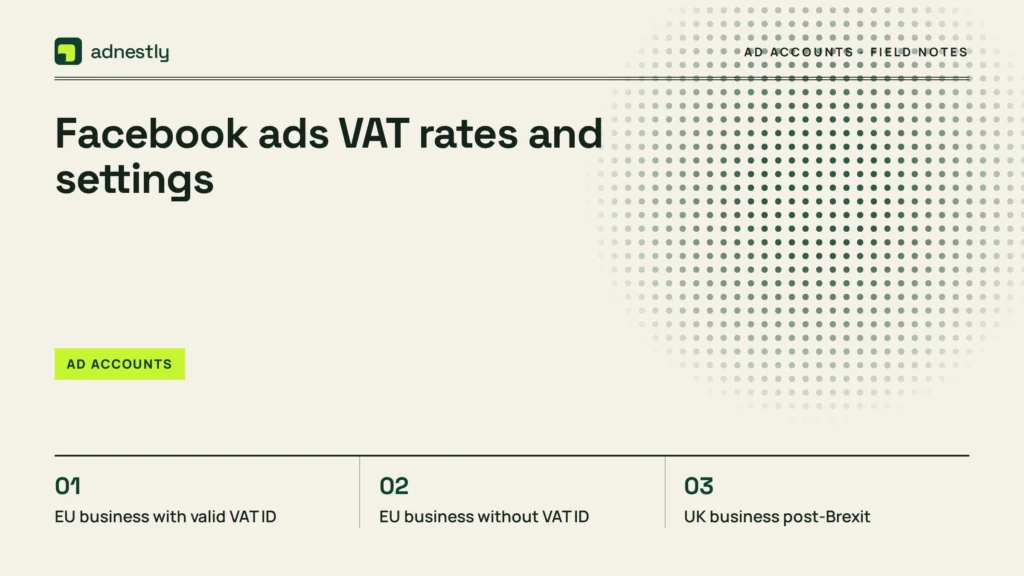
Facebook ads VAT rates and settings
These figures apply to standard business accounts with automatic payments enabled. Manual payment methods sometimes trigger charges at different points in your billing cycle.
| Situation | What to use | How long | What to watch for |
|---|---|---|---|
| EU business with valid VAT ID | Reverse charge (0% added by Meta) | Applies instantly after validation | Must report it yourself on local returns |
| EU business without VAT ID | Your country’s standard rate (19-27%) | Every invoice until you add the ID | Higher total cost per billing cycle |
| UK business post-Brexit | UK standard rate (20%) | Every invoice automatically | Need a GB-prefixed number for exemptions |
| Australian business | GST (10%) | Every invoice automatically | Requires an ABN to claim input credits |
| Indian business | Equalisation levy (varies) | Applied per transaction | Check current rates with your accountant |
| US-based business | No federal VAT; state sales tax varies | Depends on your state | Some states now tax digital ad services |
| Non-EU business with no local digital tax | Nothing added | Permanent unless laws change | Verify your country hasn’t passed new rules |
The table assumes you’ve entered the correct country in your payment settings. If your physical office is in Germany but you accidentally selected Greece, Meta will apply Greek rates instead. Fixing this requires updating your address and waiting for the next billing cycle to reflect the change. Always match your payment address to the country where your business is legally registered.
Getting the reverse charge to work
The difference between paying extra tax and handling it yourself comes down to preparation. Accounts that fail validation almost always have formatting issues in their registration numbers.
Before you type anything, pull up your official registration document. Copy the number exactly as printed, including any country prefix letters. The system rejects numbers with extra spaces, missing prefixes, or swapped characters. A German company needs the “DE” followed by nine digits. A French one starts with “FR” plus eleven characters.
Once you save a valid number, check your very next invoice carefully. The tax line should read zero or show a note about the reverse charge applying. Don’t assume it worked just because the system accepted your input. Sometimes validation passes locally but fails against the central database during the actual billing run.
If you notice the tax still appears after three days, delete the number and re-enter it. This forces a fresh check against the registry. Leaving an unvalidated number sitting in your settings costs you money every single billing cycle. At a 20% rate on a $2,000 monthly budget, that’s $400 you didn’t need to pay upfront.
The limit here is straightforward: your tax identification number either validates against your national registry or it doesn’t, and you can read its current status directly inside your Payment Settings screen. No amount of troubleshooting inside Ads Manager fixes a number your government has deactivated.
Why your invoice shows unexpected charges

When the final bill looks higher than your campaign budget, something in your setup needs attention. Here’s what usually causes it and how to fix it fast.
| What you notice | What it usually means | What to do first |
|---|---|---|
| Tax appears despite entering your ID | Validation failed silently | Delete and retype the number exactly |
| Rate doesn’t match your country | Wrong address in settings | Update your business address immediately |
| Charged twice in one week | Threshold billing triggered early | Check your billing threshold amount |
| No tax shown but you expected it | Account registered as non-business | Verify your account type in settings |
| Invoice currency differs from bank | Exchange rate applied before tax | Set your ad account currency to match your bank |
A mismatched currency setting catches people off guard. If your bank account uses euros but your ad account is set to dollars, Meta converts the amount first and then applies the tax percentage to the converted figure. This creates rounding differences that make reconciliation painful. Change your account currency before launching campaigns, because you can’t alter it once you’ve spent money.
Rules that govern your charges
Tax obligations for digital advertising aren’t optional suggestions. They’re enforced by national governments and collected by Meta as a legal requirement. The European Commission established the current framework for cross-border digital services within the EU, mandating that suppliers charge the customer’s local rate rather than their own.
In the United Kingdom, HM Revenue & Customs requires overseas digital service providers to collect VAT from UK customers who haven’t provided a valid registration number. Similar frameworks exist in Australia under the Australian Taxation Office’s GST rules for imported services.
If your business crosses certain revenue thresholds in your country, you might be legally required to register for a tax ID even if you operate alone. Operating without one when the law demands it shifts the liability entirely onto you. You’ll owe the tax amount plus potential penalties when audited.
Handling cross-border tax compliance for large advertising budgets often requires professional help. If your company runs campaigns across multiple countries simultaneously, consult a certified accountant who specializes in international digital commerce. Trying to manage multi-jurisdiction filings yourself risks costly errors that take months to untangle.
Keeping your settings accurate
Tax registrations expire or change, and your ad account won’t update itself. Check your billing invoices at least once every quarter to ensure the correct treatment still applies.
If your business moves to a new country or changes its legal structure, update your payment settings immediately. Don’t wait for the next invoice to arrive with the wrong rate applied. Changes to your address take effect on future charges, not past ones. You can’t get a refund for months of incorrect billing caused by outdated information you forgot to update.
Keep a copy of every invoice Meta generates. Store them in a dedicated folder organized by month. Your accountant needs these documents to file accurate returns, especially when the reverse charge mechanism applies. Missing invoices create gaps in your records that complicate audits.
Watch for emails from Meta regarding payment issues. They send alerts when a tax ID fails periodic re-validation against government databases. Respond to these notices within 48 hours to prevent unexpected charges on your next bill. Ignoring them means the system defaults to charging you the full rate until you intervene manually.
When this method doesn’t fit
Running everything through a single standard ad account doesn’t work for every situation. If you manage campaigns for clients in different countries, mixing them under one tax ID creates reporting nightmares. Each client’s local laws apply to their specific spend, not yours. Use separate business manager accounts for each distinct legal entity or client group.
If your monthly spend is substantial and you operate across several EU nations, consider setting up direct invoicing through a Meta representative. Standard self-serve billing handles small amounts fine, but enterprise-level spending benefits from consolidated monthly invoices tailored to your corporate structure.
Agencies acting as resellers face another problem. If you pay Meta directly but bill your clients afterward, you become the supplier in the eyes of tax authorities. You must charge your clients the appropriate rate on top of your management fee. Treating ad spend as a simple pass-through cost without adding the required tax leaves your agency liable for the difference. In that case, switch to an agency model where clients fund their own ad accounts directly.
Frequently asked questions
Can I get a refund for VAT I already paid?
No, Meta doesn’t issue retroactive refunds simply because you forgot to add your tax ID earlier. Once an invoice is generated and paid, the tax portion goes directly to the relevant government authority. You can only prevent future charges by validating your number now. If you believe Meta charged the wrong rate due to their system error, contact their billing support with your invoice number ready.
Why is my rate different from my neighbor’s?
Your rate depends entirely on the country listed in your payment settings. Two businesses in the same building might see different charges if one registered under a foreign parent company’s address. The physical location of your server or office matters less than the legal address tied to your billing profile. Check your settings to confirm which country Meta associates with your account.
How long does validation take after I enter my number?
Validation typically completes within 30 seconds for EU numbers checked against the VIES database. Non-EU numbers might take up to 24 hours depending on the country’s verification system. If it takes longer than a day, your number likely contains a typo or your registration is currently inactive. Contact your local tax office to confirm your status before attempting another submission.
Is it safe to put my tax ID in Ads Manager?
Yes, providing your official registration number through Meta’s secure payment portal is standard practice for businesses worldwide. They encrypt this data and only use it to verify your status against government registries. Never share this number in public comments, messages, or unsupported third-party tools. Keep it restricted to your official billing settings where it serves its intended purpose.
What happens if I leave the field blank permanently?
Leaving the field blank means Meta treats you as a private consumer rather than a registered business. You’ll pay the full tax percentage on every invoice without the ability to reclaim it through your company’s tax returns. Over a year of consistent spending, this adds up significantly. There’s no penalty for leaving it blank, but it costs you money you could otherwise recover legally.
How often should I check my billing settings?
Review your payment settings every three months or whenever your business undergoes structural changes. Tax laws update regularly, and your registration status might shift without warning. Setting a calendar reminder ensures you catch validation failures before they affect multiple billing cycles. Don’t rely solely on email notifications, since they sometimes land in spam folders unnoticed.
Conclusion
Keeping your billing details accurate saves you from surprise charges each month. If you’re unsure whether your current setup is correct, log into your Meta account today and double-check the tax section. It only takes a minute, and you’ll avoid unnecessary headaches later.

Aaron Kelly writes about Facebook tools, account management, and business advertising. His content covers account security, Facebook Ad Accounts, Business Manager setup, Pixel and conversion tracking, Business Manager verification, and admin profile verification. He focuses on explaining technical processes and common account issues in practical terms, helping businesses and advertisers manage their Facebook assets more effectively and build a more secure, reliable advertising setup.
Checked against Meta’s own documentation. How we write and update guides