Facebook Ads Invoice for Tax Purposes: How to Get It Right

A facebook ads invoice for tax purposes is a billing receipt you download from Meta’s Ads Manager to prove your ad spend. You’ll find it under Billing & Payments, where each document lists the date, amount, currency and your business details. This guide covers the exact clicks to get that file, how to read the numbers on it, when the default setting fails you, and what to hand your accountant so your deduction holds up.
$ part ofFacebook Ad Account Problems: How to Fix Every Common IssueThe complete guide this article belongs toOpen guide →What an ad billing receipt actually is
It’s a formal record of money Meta charged you for running ads. When your account hits a billing threshold or the month ends, the system takes payment and generates this document automatically. It isn’t just a screen showing what you spent; it’s the proof a tax authority accepts when you claim advertising as a business expense.
You need it if you run paid campaigns and file taxes for a business. Freelancers, shop owners and agencies all rely on these files to back up their deductions at the end of the year. Without them, you’re asking an auditor to take your word for it.
The big misconception here is that the campaign dashboard equals your accounting record. The dashboard shows estimates, pacing and delivery metrics. Your actual receipt shows the exact charge that hit your bank card or credit line. Those two numbers don’t always match on the same day, because billing cycles and reporting periods work differently.
Meta issues these documents based on your account settings. If your country requires value-added tax, the document splits the base cost from the tax amount. That split matters because some businesses can reclaim the tax portion while others treat the whole figure as one expense.
If you pay by credit card, your bank statement will show “META” or “FACEBOOK” followed by a string of numbers. The receipt links that vague bank line to specific campaigns, which is exactly why your bookkeeper asks for both.
How to download your Facebook ad invoices
Getting the right file takes about two minutes if your account is set up correctly. Follow these steps in order, because skipping the setup check first is where things go wrong.
- Log into Meta Ads Manager using the profile that owns the ad account. Don’t use a personal profile that only has view access, because hidden menus won’t let you download anything.
- Click the menu icon (three horizontal lines) in the top left corner, then select Billing & Payments from the list.
- Look at the top of the page for a dropdown menu labeled “Payment settings.” Check that your business name and address are filled in completely. If they’re blank, type them in now and save. A missing address means the downloaded file won’t have your company name on it.
- Click the Transactions tab. You’ll see a list of every charge. Use the date filter at the top right to select the exact month or quarter you need for your taxes.
- Tick the checkbox next to each transaction you want to include. To grab everything in that filtered period, tick the master checkbox at the very top of the column.
- Click the Download button that appears above the list. Choose “Invoice” as the file type, not “Receipt,” if your local tax office requires a formal invoice format.
- Save the PDF directly to a dedicated folder on your computer or cloud drive. Name the file with the month and year, like “Ads-Oct-2026,” so you don’t overwrite last month’s copy.
The single judgment call that separates a clean tax filing from a messy one happens before step four. If your ad account uses multiple currencies or shares a payment method across different business pages, filtering by date alone will mix unrelated charges together. In that case, filter by the specific ad account ID first, then apply the date range.
Facebook ad invoice settings at a glance
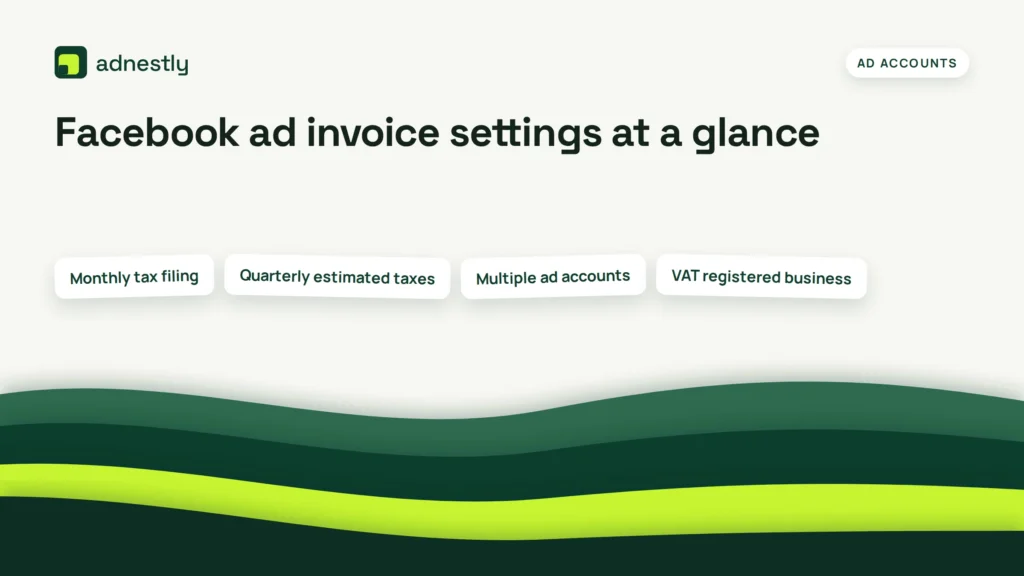
These figures assume a standard monthly billing cycle for a US-based business paying in dollars. If your account operates in euros, pounds, or another currency, the tax labels change but the download steps stay the same.
| Situation | What to use | How long | What to watch for |
|---|---|---|---|
| Monthly tax filing | Download full month PDF | 2 minutes per month | Ensure the total matches your bank statement exactly |
| Quarterly estimated taxes | Filter by 3-month range | 5 minutes per quarter | Don’t miss the transition days between months |
| Multiple ad accounts | Switch account ID first | Adds 1 minute per account | Mixing accounts puts other clients’ costs on your return |
| VAT registered business | Check “Tax” column split | Same download time | Base cost and tax must be recorded in separate ledger columns |
| Year-end audit preparation | Bulk download entire year | 10 to 15 minutes | File sizes get large; save to desktop, not a phone |
| Changed business address | Update settings before clicking download | 3 minutes to update | Old addresses print permanently on past documents |
Check your own billing threshold inside the Payment Settings tab. That number decides whether you get billed daily or once a month, which changes how many individual PDFs you’ll need to download to cover a single tax period.
Getting the details right on Facebook ads invoices
The difference between a smooth tax season and a rejected deduction comes down to three small details. None of them happen inside the download button itself; they happen in the settings you configure weeks before you actually need the file.
Business information and tax IDs
Your legal business name and tax identification number must live in the Payment Settings before the charge processes. Meta prints whatever is in those fields onto the PDF at the moment of billing. If you add your tax ID after the charge goes through, the old document doesn’t update retroactively. You’ll have a receipt with no tax ID on it, and your accountant will send it back.
Go into your settings today. Type the exact name registered with your government tax agency. If you trade as “Smith Consulting LLC,” don’t just write “Smith.” Auditors look for an exact match between the name on the receipt and the name on your tax return.
Currency and exchange rates
If your bank account is in US dollars but your ad account is set to euros, you face a hidden math problem. The PDF shows the euro amount. Your bank statement shows the dollar amount charged that day, including whatever exchange fee your bank added.
Those two numbers won’t match. When you hand both to your bookkeeper without explaining the gap, they might think a charge is missing or duplicated. Keep a simple spreadsheet noting the exchange rate on the day Meta billed you. This saves hours of digging later.
Who shouldn’t handle this manually
This manual download process works perfectly if you run one or two ad accounts spending an amount that’s inexpensive relative to the alternative. If you manage ten client accounts or spend heavily across multiple regions, downloading PDFs one by one becomes unworkable. At that scale, the manual approach breaks down entirely.
Agencies handling multiple clients should connect the Meta API to accounting software like Xero or QuickBooks. Pulling files by hand for twenty accounts guarantees you’ll eventually miss a billing cycle or save a file to the wrong client’s folder.
Fixing common Facebook ad invoice problems
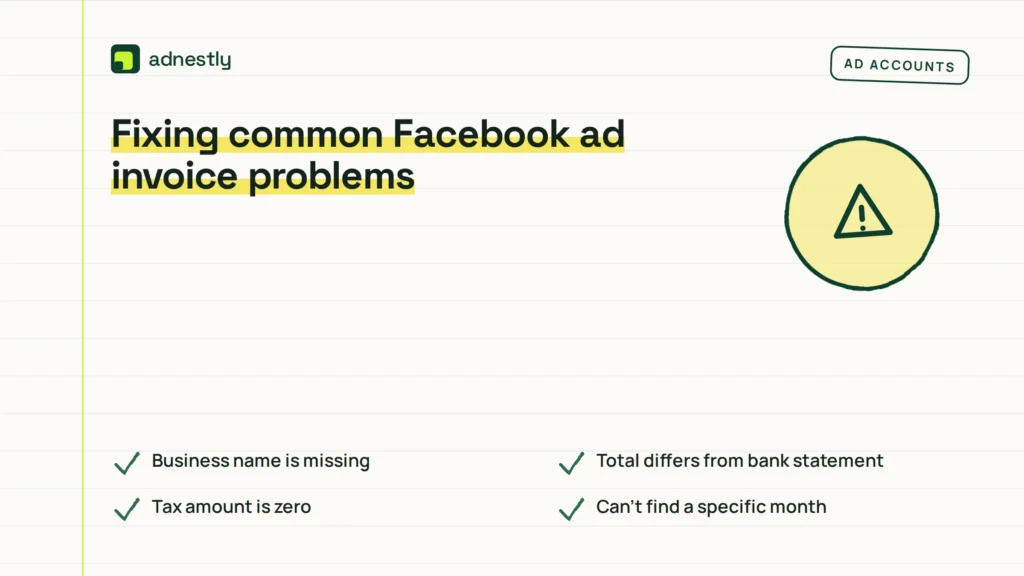
When something looks wrong on the document, the cause is almost always a setting you changed after the billing cycle started. Here is how to match what you see to the actual fix.
| What you notice | What it usually means | What to do first |
|---|---|---|
| Business name is missing | Settings were blank during billing | Update settings, but accept the current file lacks it |
| Total differs from bank statement | Currency conversion or pending authorization | Check your bank’s foreign transaction fees and hold amounts |
| Tax amount is zero | Account region is set incorrectly | Verify your physical address in the main business settings |
| Can’t find a specific month | Date filter is set too narrow | Clear the date filter entirely and scroll manually |
| Download button is greyed out | You only have “view” permissions | Ask the account admin to grant you “manage” access |
If the download button stays grey even after an admin upgrades your role, log out completely and clear your browser cache. Permissions sometimes take an hour to sync across Meta’s servers. Don’t keep clicking; wait sixty minutes and try again.
When the total on the PDF doesn’t match your credit card charge, don’t alter the PDF to force a match. The IRS requires you to report what you were actually billed. Note the bank fee separately in your ledger as a financial charge, distinct from the advertising expense.
Tax rules for digital ad expenses
Advertising costs are generally deductible as ordinary business expenses, provided they relate directly to your current trade. The Internal Revenue Service outlines this under Section 162 of the tax code, which allows deductions for necessary expenses paid during the taxable year. You can read the specific requirements on the IRS business expense deductions page.
However, deductibility depends on your business structure and location. A freelancer operating as a sole proprietor claims this on Schedule C. A corporation handles it differently. The receipt proves the amount; your tax form determines where it goes.
Value-added tax rules add another layer outside the United States. If you operate in the UK or EU, Meta collects VAT based on the address you provide. Businesses registered for VAT can usually reclaim this portion, but you must hold a valid receipt showing the VAT amount separately. If your account address is wrong, Meta charges the wrong country’s tax rate, and your local authority won’t let you reclaim it.
Don’t guess your local thresholds. If you aren’t sure whether a specific campaign qualifies as a deductible business expense rather than a capital cost, ask a certified public accountant. Getting the classification wrong can trigger penalties that cost far more than the original deduction was worth.
Storing your ad billing records
Once you’ve downloaded the files, keeping them safe is your responsibility. Meta retains transaction history in your dashboard, but relying solely on their platform is risky. Accounts get disabled, passwords expire, and interfaces change.
Save every PDF in a dedicated folder structured by year and month. Cloud storage like Google Drive or Dropbox works well, provided you enable two-factor authentication. If you face an audit, you’ll need to produce these files quickly, and hunting through a messy desktop folder wastes time you don’t have.
How long should you keep them? The IRS generally recommends holding records that support income or deductions for three years from the date you filed the return. Some situations, like claiming a loss from worthless securities, require keeping them for seven years. Check your local jurisdiction’s exact statute of limitations, as state rules sometimes extend beyond federal ones.
When it’s time to review your spending for the new year, don’t delete the old files. Instead, move them to an archive folder. You might need to reference a past campaign’s cost to justify a similar budget request later.
When manual downloads are the wrong choice
Downloading PDFs by hand works for straightforward setups, but it fails completely in a few specific situations. Recognizing these early prevents lost data and wasted hours.
If you run ads through a third-party agency, you likely don’t own the ad account. The agency does. You can’t log into their billing portal to grab your receipts. In this case, your contract must explicitly require the agency to provide itemized billing documents monthly. Don’t assume they’ll send them automatically.
If your business spans multiple countries with different tax registrations, a single ad account creates a mess. One receipt might blend US sales with European VAT. You can’t legally use a blended receipt to claim a specific VAT refund in Germany. You must create separate ad accounts for each tax jurisdiction, each with its own localized payment settings.
Finally, if your spend reaches a level where manual tracking is inexpensive relative to the alternative but still introduces human error, a single missed download skews your quarterly profit margins. Connect your ad account directly to accounting software via an automated integration tool designed for high-volume advertisers. Let the software pull the daily totals so you only review exceptions.
Frequently asked questions
Can I use my bank statement instead of a Facebook ad invoice?
No, a bank statement alone isn’t enough for a tax deduction. It shows money left your account, but it doesn’t prove what you bought or who sold it to you. An auditor needs the receipt from Meta to confirm the charge was specifically for advertising services tied to your business.
How long does Meta keep my billing history available?
Meta typically keeps transaction records accessible in your Ads Manager for several years. However, interface updates occasionally move or hide older data. Don’t trust the platform as your only backup. Download and store your files locally at the end of every single month.
Why is there no tax listed on my ad receipt?
This usually means your account’s country or region setting is incorrect, or you haven’t entered a valid tax identification number. Meta applies tax rules based strictly on the address you provide in the billing settings. Update your address and tax ID to ensure future charges reflect the correct amounts.
Is it safe to give my accountant access to Ads Manager?
It’s safer to download the PDFs and email them securely rather than sharing your login credentials. If your accountant needs direct access to verify numbers, assign them a “Finance Editor” role in your Business Manager. Never share your personal password or bypass Meta’s built-in permission controls.
How often should I download these files for taxes?
Download them monthly, even if you only file taxes annually. Waiting until December to grab a whole year’s worth of data increases the chance of hitting a glitch, losing access, or discovering a settings error that affected January’s documents. Monthly habits prevent year-end panic.
What happens if my business address was wrong during billing?
The generated PDF will permanently display the incorrect address. You can’t edit a past receipt. Update your settings immediately so future documents are accurate. For the flawed ones, keep a written note explaining the error alongside the file in case an auditor questions the mismatch.
Conclusion
Keep your process simple and consistent. Set a recurring calendar reminder for the first day of every month to download the previous month’s documents. Store them in the same folder, named the same way, every single time. That routine removes the stress from tax season and ensures your advertising spend is fully accounted for when you file.

Aaron Kelly writes about Facebook tools, account management, and business advertising. His content covers account security, Facebook Ad Accounts, Business Manager setup, Pixel and conversion tracking, Business Manager verification, and admin profile verification. He focuses on explaining technical processes and common account issues in practical terms, helping businesses and advertisers manage their Facebook assets more effectively and build a more secure, reliable advertising setup.
Checked against Meta’s own documentation. How we write and update guides