Meta Pixel Not Working on WooCommerce: How to Fix It


If you searched for meta pixel not working on woocommerce, the problem is usually one of four things: the Pixel is installed twice, browser tools are blocking it, the wrong Pixel is selected, or WooCommerce events stop before checkout. The fastest fix is to test the browser event, verify the Meta data source, then isolate plugins and consent settings one at a time.
$ part ofMeta Pixel Not Working? How to Fix Tracking on Any PlatformThe complete guide this article belongs toOpen guide →Key Takeaways
- Use Meta Pixel Helper, your browser’s developer tools, and Meta Events Manager together; each reveals a different failure.
- Confirm the Pixel ID in WordPress matches the data source selected in Meta Business settings.
- Disable duplicate tracking from Google Tag Manager, theme code, Facebook for WooCommerce, and other marketing plugins.
- Test events in a private browser window with ad blockers disabled and cookie consent granted.
- Check product, add-to-cart, checkout, and purchase events separately instead of assuming one test proves everything works.
- Record changes before deactivating plugins so you can restore your original configuration safely.
Confirm the Pixel Installation
Start by identifying exactly how the Pixel was added. A WooCommerce store commonly has tracking code in more than one place, especially after a redesign or plugin change.
Look for these installation methods:
- Meta for WooCommerce, formerly known as Facebook for WooCommerce
- Google Tag Manager, often inserted through Site Kit, GTM4WP, or a theme setting
- Header and footer plugins, such as Insert Headers and Footers
- Theme files, including
header.php, a custom child theme, or a theme options panel - Marketing plugins, such as PixelYourSite, MonsterInsights integrations, or customer-data platforms
- Consent-management tools, such as CookieYes, Complianz, or Cookiebot
The Pixel base code should load where tracking is permitted. View the page source and search for fbq(, connect.facebook.net, or the Pixel ID.
Match the ID exactly
Copy the numeric Pixel ID from Meta Business settings. Compare it with every WooCommerce tracking location.
| Location to inspect | What to compare | Common mistake |
|---|---|---|
| Meta Events Manager | Data source name and Pixel ID | Looking at the wrong business or ad account |
| WooCommerce integration | Selected Pixel or dataset | Old Pixel remains selected after a migration |
| Google Tag Manager | Tag ID and trigger | A workspace contains an unpublished old tag |
| Theme or header code | Numeric ID inside fbq |
Hard-coded code survives plugin removal |
| Consent platform | Marketing script settings | Pixel is blocked until a category is accepted |
If you find two methods, keep the one managing WooCommerce events and disable the other. Don’t simply paste another base code over the existing one.
Warning: Save a backup or export your settings before changing theme files, tag containers, or checkout code. Repairs shouldn’t remove payment, tax, or shipping functionality.
The official Facebook for WooCommerce documentation explains the integration’s setup and supported connection flow. Use the documentation that matches your installed extension, because similarly named third-party plugins can have completely different settings.
Meta Pixel Not Working on WooCommerce
Once you know how the Pixel was installed, test it from the visitor’s point of view. Don’t rely only on WordPress settings screens; those screens can report that a connection exists while the browser never sends an event.
Run a clean browser test
Use a private window. Before testing:
- Disable browser extensions that block advertisements, analytics, or scripts.
- Open the store’s homepage.
- Accept marketing or analytics cookies if your consent banner offers that choice.
- Browse to a product page.
- Add a product to the cart.
- Open checkout without completing payment.
- Watch for events in Meta Events Manager’s Test Events area.
Useful tools include:
- Meta Pixel Helper, which flags base-code and event issues
- Chrome or Edge DevTools, especially the Network and Console panels
- Firefox Developer Tools, if your team uses Firefox for testing
- WooCommerce’s status report, under WooCommerce and Status
- Your consent platform’s scan or script-log panel
Meta Pixel Helper is useful but not definitive.
Read the event sequence
A normal product journey may produce this approximate sequence:
| Store action | Expected event | What failure suggests |
|---|---|---|
| Open homepage | PageView |
Base code, consent, or JavaScript problem |
| Open product | ViewContent |
Product template or integration problem |
| Add item | AddToCart |
AJAX fragment or button trigger problem |
| Begin checkout | InitiateCheckout |
Checkout template or URL rule problem |
| Enter payment or shipping | AddPaymentInfo or related event |
Gateway or checkout integration issue |
| Complete order | Purchase |
Thank-you page, order status, or server event issue |
Event names can vary by integration.
If PageView works but ViewContent does not, investigate product templates and the active integration.
Check Events in Meta
Meta Events Manager can show a delay, warning, or missing event even when the store appears to work. Check the correct business portfolio, ad account, and data source before making changes.
Open the data source and inspect:
- Test Events, while performing a fresh store journey
- Overview, for recent event volume and diagnostics
- Diagnostics, for warnings about parameters, deduplication, or matching
- Settings, for Pixel ID, Conversions API, and domain-related controls
- Event Match Quality, when customer information is sent in a permitted way
Use a unique test session.
Check the payload, not just the name
A Purchase event with no value or currency may technically arrive but still be unsuitable for revenue optimization. Inspect whether the event includes relevant fields such as:
- Value and currency, for purchase revenue
- Content IDs, for product matching
- Content type, such as product or product group
- Event ID, for browser/server deduplication
- External ID, when your approved integration supports it
- Customer information, only when lawfully collected and properly hashed by the integration
Don’t add sensitive customer data to JavaScript without understanding the risks.
Pro Tip: Take screenshots of Test Events before and after each change. A timeline makes it much easier to identify whether a plugin update fixed the issue, introduced duplicate events, or merely changed the event source.
Fix WooCommerce Plugin Conflicts
Plugins can alter WooCommerce carts, checkouts, scripts, and sessions. A Pixel can work on a product page and fail only after one of those plugins replaces the normal button or checkout flow.
Common conflict sources include:
- Caching plugins, such as WP Rocket, W3 Total Cache, and LiteSpeed Cache
- Optimization plugins, including Autoptimize and Asset CleanUp
- Checkout builders, such as CartFlows, FunnelKit, and Elementor checkout templates
- Cart tools, including WooCommerce Cart Fragments replacements
- Payment gateways, such as Stripe, PayPal, Square, and Klarna
- Security tools, including Wordfence, Sucuri, and server firewalls
- Consent tools, such as Complianz, CookieYes, and Cookiebot
- Tracking plugins, including PixelYourSite and GTM4WP
Use a controlled conflict test
Don’t deactivate everything on a live store without a plan. Create a staging copy if your host provides one. If staging is unavailable, test during a low-traffic period and keep a written list of active settings.
- Confirm the problem with a clean browser.
- Clear page-cache, object-cache, CDN, and optimization-cache layers.
- Temporarily disable JavaScript delay, combination, minification, and deferral.
- Test again with the payment gateway left active.
- Switch to a default WooCommerce-compatible theme on staging.
- Deactivate nonessential plugins in groups.
- Reactivate one plugin at a time until the event disappears.
- Exclude Pixel scripts and WooCommerce checkout scripts from optimization.
| Symptom | First suspect | Useful test |
|---|---|---|
| No events on any page | Consent, base code, or JavaScript error | Console and page-source check |
| Product views work, cart does not | AJAX cart or optimization | Disable script delay and cart-fragment changes |
| Checkout events stop | Checkout builder or gateway | Test the default checkout template |
| Purchase fires twice | Two tracking integrations | Search source and tag container |
| Event appears only after refresh | Deferred script or cached HTML | Disable delay and purge all caches |
| Works on desktop, not mobile | Mobile template or consent rule | Test an actual mobile layout |
Avoid using a cache purge as the only “fix.” It may temporarily reveal events while the underlying optimization setting continues to break new pages. After locating the cause, re-enable performance features one by one and add only the necessary exclusion.
Audit Browser Privacy Issues
A browser can prevent tracking without any WordPress error. Ad blockers, privacy browsers, DNS filters, Safari settings, and consent banners may stop the request before it reaches Meta.
Test with:
- Chrome or Edge in a private window
- Firefox with Enhanced Tracking Protection temporarily adjusted for testing
- Safari on an iPhone or Mac
- A mobile browser on cellular data
- A browser with extensions disabled
- A normal visitor who hasn’t accepted marketing cookies
Don’t interpret a blocked personal test as proof that every visitor is untracked.
Inspect consent behavior
A consent banner may hold the Pixel until a visitor selects “Accept marketing,” “Allow advertising,” or an equivalent option. Verify that:
- Marketing consent actually changes from denied to granted
- The banner doesn’t reload the page before scripts initialize
- The Pixel is assigned to the correct consent category
- Consent remains available during checkout
- A withdrawal choice removes or stops future marketing scripts
- Region-specific rules aren’t accidentally applied to every visitor
Some systems block connect.facebook.net but leave server-side integration active.
Warning: Never tell customers to disable privacy controls permanently. Use a controlled test account or a browser profile created specifically for diagnostics, then restore the normal privacy settings.
Review Event and Domain Settings
A Pixel may be installed correctly but still be unsuitable for advertising because event configuration is incomplete. Review the domain and event setup after confirming basic browser delivery.
Verify the website domain
Make sure Meta recognizes the exact domain visitors use:
example.comversuswww.example.com- A staging domain versus the production domain
- A checkout domain hosted by a payment provider
- Country or language subdomains
- HTTP redirects to HTTPS
Domain verification and event configuration are separate from basic Pixel installation. A verified domain doesn’t prove that events are firing, and a firing Pixel doesn’t prove that the domain is configured for advertising.
Review prioritized events
If your advertising setup uses aggregated event measurement, prioritize the events that matter to your business. A typical WooCommerce store may need:
- Purchase
- InitiateCheckout
- AddToCart
- ViewContent
- Lead, if the store collects quote or wholesale requests
The exact setup depends on your campaigns, sales process, and current Meta requirements.
Check product matching
Catalog sales and dynamic ads depend on matching the product in the event with the catalog item. Compare:
- WooCommerce product ID
- Meta catalog item ID
- SKU, when your feed uses SKU-based matching
- Product URL
- Variant ID
- Currency and availability
A product event can fail when the feed uses a variation ID but the Pixel sends the parent ID.
Test Checkout Events
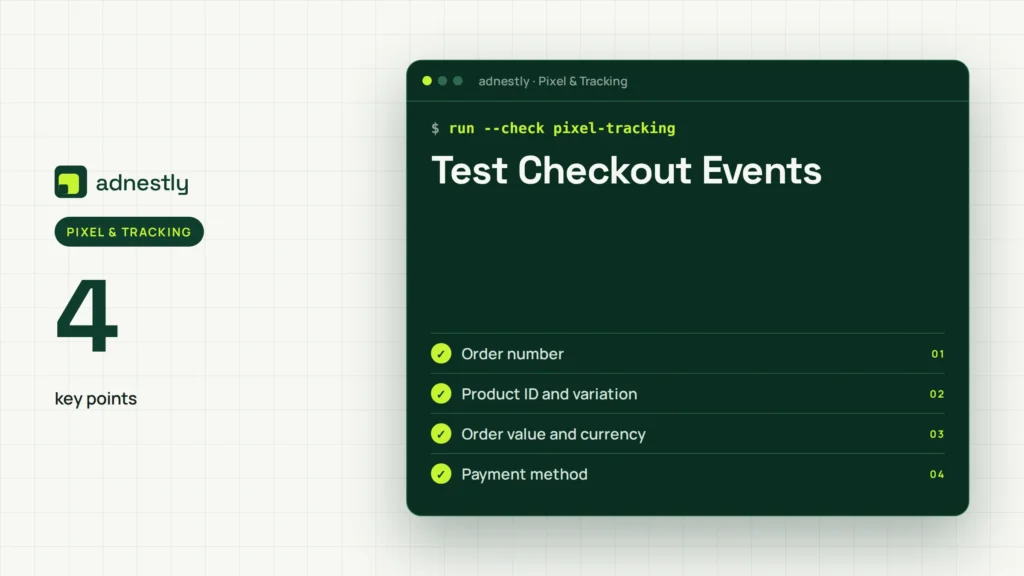
Checkout is the most common place for a WooCommerce Pixel to appear broken. Payment gateways can redirect shoppers, use iframes, replace buttons, or complete the order through a return URL that caching tools mishandle.
Create a controlled test order using a low-cost product or a gateway’s test mode. Record:
- Order number
- Product ID and variation
- Order value and currency
- Payment method
- Whether the customer stayed on your domain
- URL shown after payment
- Event time in Meta Test Events
Then compare the WooCommerce order with the event received by Meta.
| Checkout result | Likely cause | Next action |
|---|---|---|
| Order succeeds, no purchase event | Thank-you script blocked | Test order-received URL and consent |
| Event fires before payment succeeds | Trigger uses button click | Configure a successful-order trigger |
| Purchase fires twice | Browser and server copies lack matching ID | Inspect event ID deduplication |
| Revenue is zero | Value variable unavailable | Map order total and currency |
| Wrong product appears | Parent and variation IDs differ | Align catalog and event identifiers |
| Event missing after gateway redirect | Return URL or session loss | Test gateway callback and checkout logs |
Don’t trigger a fake purchase by refreshing the thank-you page repeatedly. A correct integration should use an order identifier or a server-side safeguard to prevent repeated revenue counting.
Resolve Duplicate Tracking
Duplicate events are a different problem from missing events. They can inflate purchases, carts, and page views, causing ad reporting and optimization to become unreliable.
Search for duplicate sources in:
- Meta for WooCommerce and PixelYourSite running together
- Google Tag Manager plus direct theme code
- A theme’s built-in Facebook integration plus a plugin
- Browser Pixel plus Conversions API
- A checkout builder’s purchase script plus the main integration
- Staging code accidentally copied into production
Use Network and Meta Test Events to compare duplicates.
Keep one owner per event
Choose one integration to own each standard event.
Remove abandoned code from:
- Child-theme header files
- Old staging snippets
- Customizer scripts
- Tag Manager workspaces
- Header-injection plugins
- Checkout page HTML blocks
Pro Tip: Search the entire codebase and tag container for the Pixel ID, not just the words “Facebook” or “Meta.” Old integrations may use a generic script name but still contain the same numeric ID.
Compare Fix Options
The best solution depends on where tracking fails, how much customization your store has, and whether you need browser-only or browser-plus-server measurement. Avoid choosing a new plugin before identifying the actual failure.
| Fix option | Best for | Trade-off |
|---|---|---|
| Official WooCommerce integration | Standard products and checkout | Less control over unusual funnels |
| Established tracking plugin | Advanced events and custom rules | More settings and conflict risk |
| Google Tag Manager | Centralized multi-platform tags | Requires careful triggers and publishing |
| Custom theme code | Narrow, developer-managed needs | Easy to break during theme updates |
| Conversions API integration | More resilient measurement | Requires deduplication and privacy review |
| Developer debugging | Persistent custom checkout failures | Costs time or development budget |
Use the simplest option that accurately covers your customer journey.
Check whether each integration supports:
- Variable product IDs
- Refund or cancellation handling
- Server-side deduplication
- Consent controls
- Order status logic
- Multiple currencies
- Subscription or recurring orders
- Custom checkout fields
- Catalog matching
A plugin update can change event names, trigger timing, or consent behavior.
Prevent Future Breakage
Tracking needs routine checks because WooCommerce, WordPress, themes, gateways, browsers, and advertising platforms all change independently.
| Frequency | Check | Record |
|---|---|---|
| After every major update | Homepage, product, cart, checkout | Event sequence and errors |
| Monthly | Test Events and Diagnostics | Warnings, missing parameters |
| Monthly | One controlled purchase | Order ID, value, currency |
| Quarterly | Consent and privacy flow | Grant, deny, and withdraw behavior |
| Before campaigns | Domain and catalog matching | Pixel, catalog, and ad account |
| After redesigns | Theme and checkout templates | Duplicate scripts and triggers |
Keep a tracking inventory with the Pixel ID, owner, consent category, GTM container, catalog ID, domain, and last test date.
Use a repeatable release test
Before publishing changes, test:
- Homepage
PageView - Product
ViewContent - Add-to-cart
AddToCart - Checkout
InitiateCheckout - Successful order
Purchase - Mobile layout
- Accepted-consent path
- Denied-consent path
- Returning-customer path
- Payment failure and retry path
Keep browser extensions disabled only for the diagnostic session, then repeat one test with normal privacy settings. That distinction tells you whether the issue is technical or expected browser behavior.
Frequently Asked Questions
Why is my Meta Pixel not firing on WooCommerce?
The most common causes are an incorrect Pixel ID, duplicate integrations, blocked marketing consent, JavaScript optimization, or a custom checkout that bypasses the normal event trigger. Test the homepage, product page, cart, and purchase separately. If PageView is missing, start with installation; if only Purchase is missing, investigate checkout and order-status logic.
How do I know whether my WooCommerce Pixel works?
Open Meta Events Manager’s Test Events, then use a clean browser to view a product and add it to the cart. Look for PageView, ViewContent, and AddToCart. Complete a controlled order if possible and confirm Purchase includes the correct value, currency, product identifier, and order-related deduplication data.
Why does the Pixel work on products but not checkout?
Checkout may use a custom template, AJAX requests, a payment iframe, or a gateway redirect. Optimization plugins can also delay the script only on checkout pages. Test the default WooCommerce checkout on staging, temporarily disable JavaScript delay, and inspect the order-received page. Don’t fire Purchase merely when the customer clicks the payment button.
Can I use Meta Pixel and Conversions API together?
Yes, many integrations use both browser events and server events, but they must share matching event names and event IDs so Meta can deduplicate them. If the IDs differ, purchases may be counted twice. Review your integration’s configuration and verify the result in Test Events before changing live campaigns.
Should I install another Pixel plugin?
Usually not. Adding another plugin before finding the cause often creates duplicate PageView, AddToCart, or Purchase events. First identify the current owner of each event, remove abandoned code, and test consent, caching, checkout, and payment behavior. Add a different integration only when it solves a documented requirement your current setup can’t support.
Conclusion
Run one complete journey today—from a fresh browser session to a controlled WooCommerce order—and write down which event first disappears. That single breakpoint will tell you whether to correct installation, consent, optimization, checkout logic, or duplicate tracking rather than changing several settings at once.

Aaron Kelly writes about Facebook tools, account management, and business advertising. His content covers account security, Facebook Ad Accounts, Business Manager setup, Pixel and conversion tracking, Business Manager verification, and admin profile verification. He focuses on explaining technical processes and common account issues in practical terms, helping businesses and advertisers manage their Facebook assets more effectively and build a more secure, reliable advertising setup.
Checked against Meta’s own documentation. How we write and update guides