How to Raise Your Facebook Ads Spending Limit

You can raise your facebook ads spending limit by editing or removing the account spending limit in Meta Ads Manager, if Meta gives your account that option. If the limit is set by Meta, you can’t force a higher amount; you’ll need to keep payments current and request a review through Business Support.
$ part ofFacebook Ad Account Problems: How to Fix Every Common IssueThe complete guide this article belongs toOpen guide →The result depends on whether you set the limit yourself, whether your payment method works, and whether Meta has placed a risk or billing restriction on the account. Your account role and billing country also matter.
Who needs a higher ads limit?
Three groups usually search for this answer. A small business owner may have created an account spending limit and now needs more room for an active campaign. They need the exact place to edit or remove it without changing the campaign budget.
A marketing employee may see a limit that they didn’t create. They need to check their account permissions, payment settings, and any billing alert before asking an administrator to act.
An agency may manage several ad accounts with different limits, currencies, and payment methods. It needs to identify the correct ad account first, because changing one account won’t change another.
This page serves best if you can access Ads Manager and have admin or finance permissions. It assumes you’re trying to change an account spending limit, not a daily campaign budget or a Meta billing threshold. If Meta itself has restricted spending, use Business Support instead of repeatedly changing campaign settings.
What controls the spending limit?
The first thing to check is the type of limit. An account spending limit is a total amount that stops ad delivery after the account reaches it. A daily budget controls expected campaign spend, while a billing threshold controls when Meta charges you. People often change the daily budget when the real problem is the account limit.
Your account role also changes what you can do. An administrator or finance editor may be able to edit billing settings, while an employee with ad access may only be able to view them. Open Business Settings and check your permissions before trying several workarounds.
Payment status is the next major factor. A failed card, unpaid balance, expired payment method, or payment review can stop delivery even after you raise a manually set limit. Check Billing & payments for a failed charge or warning before increasing budgets.
Meta may also apply an account-level restriction. You can’t remove that type of limit by editing the account spending limit field. Check Account Quality and the payment notices in Ads Manager; if Meta shows a review option, use it rather than opening duplicate accounts.
The most common error is confusing the account spending limit with the billing threshold. Read the label beside the amount before you change anything. If the label says billing threshold, the steps below won’t raise it.
Raise the account spending limit
Use these steps for a limit that you or another account administrator created. Menu names can vary by account type, country, and Meta interface version.
- Open Meta Ads Manager at
adsmanager.facebook.comwhile signed in to the correct Facebook profile. Confirm the business and ad account shown in the account switcher before continuing. - Open Billing & payments from the main Ads Manager menu. The correct page should show the ad account, currency, payment method, and current balance.
- Find the account spending limit in the payment or billing controls. Confirm that it says account spending limit, not daily budget or billing threshold.
- Select the edit option beside the limit. If the option is missing, check that you have administrator or finance permissions before changing anything else.
- Enter the new total limit in the account currency. Use an amount above the current spend and planned spend; don’t enter a daily budget in this field.
- Save the change and complete any security check Meta displays. The new amount is active only after the page confirms that the update succeeded.
- Check the remaining balance on the same billing page. The account should show available spending room rather than a limit-reached warning.
- Review campaign delivery in Ads Manager. If active campaigns still show “Payment failed,” “Account spending limit reached,” or a restriction notice, the limit wasn’t the only problem.
If Meta doesn’t offer an edit or removal control, stop changing budgets. That limit may be imposed by Meta, tied to payment risk, or controlled by another administrator. Use Account Quality or Meta Business Support; payment disputes and identity checks can require information only the account owner should submit.
Common spending-limit situations
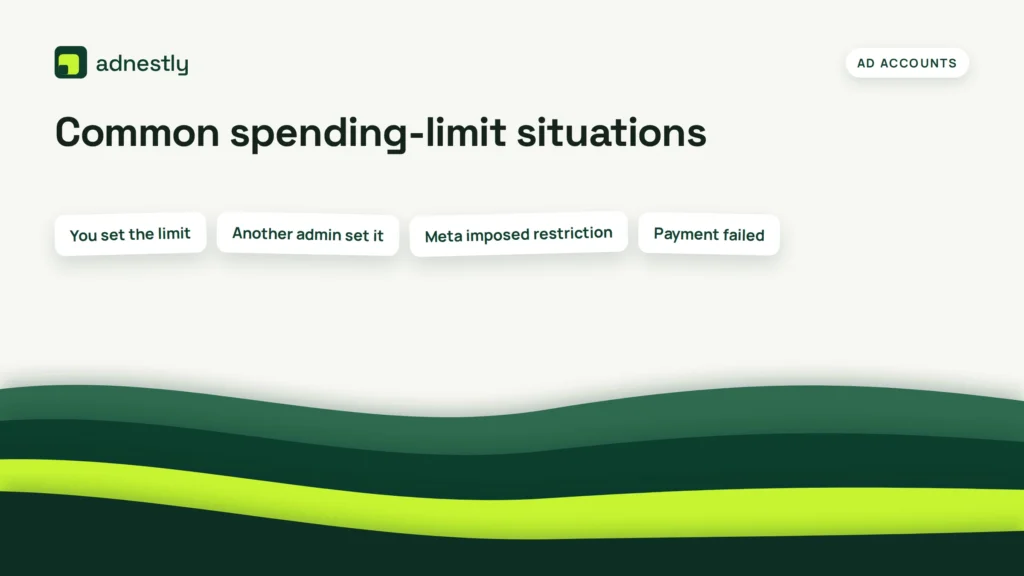
The right fix depends on the message you see and who controls the limit. Match the situation before changing an amount.
| Situation | What to do | What it takes | What to watch for |
|---|---|---|---|
| You set the limit | Edit or remove it | Admin access required | Confirm account name |
| Another admin set it | Ask that admin | Permission needed | Record the new amount |
| Meta imposed restriction | Request account review | Support response time | Don’t open duplicate accounts |
| Payment failed | Fix payment method | Valid card or method | Check unpaid balance |
| Daily budget too low | Raise campaign budget | Campaign edit access | Delivery may spend faster |
| Billing threshold confused | Review billing label | No account change | Threshold isn’t a cap |
| Account reached limit | Add more room | Available edit control | Check remaining balance |
Details that protect delivery
Check the account before editing
Start with the ad account ID, currency, and business name. Agency users can easily edit the wrong account when several accounts appear in the switcher. Compare the account ID in Billing & payments with the account ID shown in the campaign view.
Check the payment method before raising the limit. If the card is expired or the bank declined a charge, a higher limit won’t restore delivery. Fix the payment issue first, then return to the spending-limit field.
Experienced account managers also save screenshots of the old amount and the confirmation screen. Don’t share full card details in screenshots.
Watch delivery after the change
A successful limit change doesn’t guarantee immediate delivery. Ads can still be limited by review, audience size, campaign budget, bid controls, account quality, or a payment hold.
Look at the Delivery column and the payment notice together. If delivery says Active but the account has no impressions, check campaign dates, audience settings, and budget. If delivery says Payment issue or Restricted, stay in billing and Account Quality instead of rebuilding the campaign.
The trade-off is simple: removing a self-set limit gives campaigns more room, but it also removes a useful spending guard. If several people manage the account, keep a written approval amount and review spend daily until delivery is stable.
Spending-limit problems and fixes
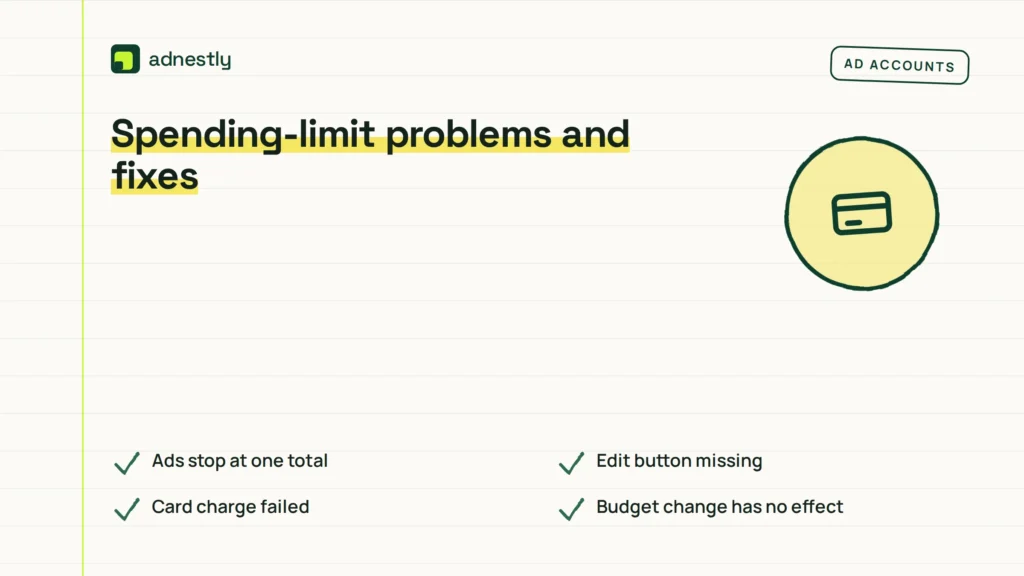
A visible symptom often points to a different control. Use the first safe check in each row instead of changing several settings at once.
| What you notice | What it usually means | What to do first | How to stop it happening again |
|---|---|---|---|
| Ads stop at one total | Account limit reached | Check billing controls | Set approved limit |
| Edit button missing | Permission or Meta control | Check user access | Keep admin list current |
| Card charge failed | Payment method declined | Update payment method | Keep backup method |
| Budget change has no effect | Wrong limit type | Read billing label | Name controls clearly |
| Account shows restriction | Meta review required | Open Account Quality | Follow review requests |
| Spend remains at zero | Campaign delivery issue | Read delivery status | Check dates and approvals |
Rules around Meta ad spending
Meta’s controls vary by account, country, currency, payment method, and billing setup. There isn’t one public spending-limit figure that applies to every advertiser. Read the notices inside Billing & payments and Account Quality for the account-specific rule.
Meta can ask for identity, business, payment, or account information before restoring advertising access. Don’t send documents through email addresses or messages that you can’t verify inside the official Meta account flow. Use the account’s support and review tools.
The Meta help guidance for account spending limits explains the control and related billing steps. Interface labels can change, so the page shown in your account remains the best check for the current process.
If the next action involves a payment dispute, identity verification, or a disabled account, stop there. An account administrator should handle the request through Meta Business Support; don’t try to bypass the restriction with a new account.
The real cost of raising it
Raising a self-set limit usually costs no separate fee, but it increases the amount your account can spend before that guard stops delivery. The real cost is financial exposure if a campaign, audience, or payment setting is wrong.
Your exposure moves with the account limit, campaign budgets, active dates, and the number of campaigns running. Compare the new account limit with the total planned campaign budgets, not just one campaign. Also check whether automatic placements or budget settings can change delivery across the campaigns you manage.
A useful control is to set the account limit slightly above the approved campaign plan, then review delivery and billing after the change. If several campaigns share one account, calculate their approved totals before removing the limit.
Meta’s charge timing can vary by billing setup. Check Billing & payments for the current balance, payment method, and transaction history instead of relying on an old screenshot or a remembered threshold.
Keep billing ready afterwards
Keep one current payment method attached to the correct ad account and check Billing & payments after any card replacement. A successful limit edit won’t fix an unpaid balance or a declined charge.
Watch for a new payment warning, an account spending limit reached message, or a Delivery status that changes to Payment issue. Those signs mean the account needs attention again. Check the billing page first, then Account Quality if Meta shows a restriction.
Keep a simple record of the account ID, approved limit, date changed, and person who approved it. If a campaign must stop at a fixed amount, use the account spending limit as a guard rather than removing it without another spending control.
If the amount no longer matches the approved plan, lower the limit or pause campaigns through Ads Manager. Don’t delete the ad account to reset a billing problem.
When raising the limit is wrong
Raising the limit is the wrong choice when the card has failed or the balance is unpaid. Fix the payment method and settle the billing issue first; a larger limit won’t solve it.
It’s also wrong when a campaign has unexpected spend, incorrect dates, or an audience setting you haven’t checked. Pause the affected campaign, review its budget and schedule, then restart only after the numbers match your approval.
Finally, don’t use a new ad account to avoid a Meta restriction. Use Account Quality and Meta Business Support instead. If Meta asks for identity or business documents, the authorized account owner should complete that process.
Frequently asked questions
Can I raise my Facebook ad account spending limit?
Sometimes. You can edit a limit that your business or an administrator created, if the edit control appears in Billing & payments. A Meta-imposed restriction needs review or support, and changing a campaign budget won’t remove it.
Why can’t I increase my Facebook spending limit?
Permissions or a Meta restriction are the usual reasons. You may lack admin or finance access, or Meta may have limited the account after a payment, identity, or policy review. Check the exact notice in Billing & payments and Account Quality.
How long does a Facebook spending-limit review take?
Meta doesn’t provide one universal review time. The timing depends on the review type, account information, and payment issue. Read the status shown in Account Quality or the support case instead of relying on a fixed estimate.
Is it safe to remove my account spending limit?
Only if you have another spending control. Removing it allows campaigns to continue without that account-level stop. Keep campaign budgets, approved totals, and billing checks in place if more than one person can publish ads.
What happens if I reach my Facebook account spending limit?
Ad delivery can stop after the account reaches the limit. Editing or removing a self-set limit may restore room, but a payment failure or Meta restriction can still prevent delivery.
Does raising the limit raise my daily ad budget?
No. The account spending limit is a total account control. A campaign’s daily budget is a separate setting, so you must edit that campaign if its daily amount is the problem.
How much should my Facebook spending limit be?
Set it above the approved total campaign spend. Add the planned budgets for the active campaigns and leave only the buffer your business has approved. Check the account currency and billing page before saving the amount.
Raise Facebook ads spending limit safely
Open Billing & payments for the correct ad account, then identify the account spending limit before changing anything. Don’t edit a campaign budget or payment threshold by mistake; those controls affect delivery or billing differently. Record the current limit so you can tell whether the change saved.
Enter the new limit only if Meta allows the field to be edited, and review the account and currency shown before saving. After a successful edit, confirm that the available spending room has increased. Stop if Meta shows a restriction, failed payment, missing permission, or an error, and resolve that issue before trying again.

Aaron Kelly writes about Facebook tools, account management, and business advertising. His content covers account security, Facebook Ad Accounts, Business Manager setup, Pixel and conversion tracking, Business Manager verification, and admin profile verification. He focuses on explaining technical processes and common account issues in practical terms, helping businesses and advertisers manage their Facebook assets more effectively and build a more secure, reliable advertising setup.
Checked against Meta’s own documentation. How we write and update guides