Purchase Facebook Event Not Tracking on ClickFunnels: Causes and Fixes


A purchase event not tracking on ClickFunnels is almost always caused by a missing or misconfigured integration pixel, often placed in the wrong funnel step or lacking correct trigger conditions. Confirm this by checking your browser’s network tab during a test transaction. You can also verify your setup inside ClickFunnels tracking documentation and compare it against your funnel’s tracking tab.
$ part ofMeta Pixel Not Working? How to Fix Tracking on Any PlatformThe complete guide this article belongs toOpen guide →Why ClickFunnels misses purchase events
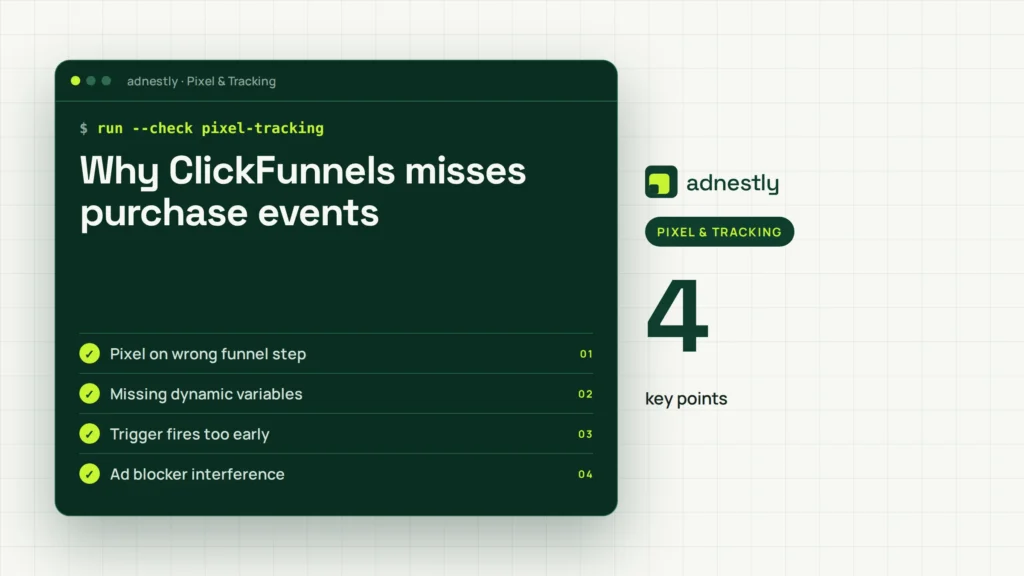
| Cause | How common | How to confirm it | Fix it yourself? |
|---|---|---|---|
| Pixel on wrong funnel step | Very common | Check page tracking settings | Yes |
| Missing dynamic variables | Common | Inspect pixel payload data | Yes |
| Trigger fires too early | Common | Watch network tab timing | Yes |
| Ad blocker interference | Less common | Test with extensions disabled | Yes with care |
| Platform API disconnect | Less common | Check integration status page | Yes |
| Server-side tracking failure | Rare | Review server logs | No |
| Custom code syntax error | Rare | Run through code validator | Yes with care |
The most expensive mistake here is placing the purchase pixel on the order form instead of the thank-you page. Visitors who abandon checkout still fire the event, inflating your return on ad spend until you scale a losing campaign.
Missing dynamic variables usually means the value parameter passes as zero or blank. Your ad platform records a conversion but attributes no revenue, which breaks automated bid strategies that rely on purchase amounts.
A trigger firing too early happens when the pixel loads before the payment processor confirms the charge. You see the event in your analytics dashboard while the transaction remains pending or fails entirely.
Ad blockers strip third-party scripts before they execute. If twenty percent of your traffic uses them, your reported purchases will always lag behind actual bank deposits by that same margin.
Tracking code placed on the wrong page
The pixel must live on the exact order confirmation page, not the checkout page itself. When you put tracking code on the checkout page, it fires before the customer finishes paying. This means your analytics platform records an event that never actually resulted in money changing hands.
If your funnel has multiple steps, check each one individually. The code needs to sit specifically in the “Tracking Code” section of the final success page. Go to your funnel settings, click the specific page, and look for the footer or header tracking boxes.
A common mistake is pasting the same pixel into every step of the funnel to be safe. That approach inflates your conversion numbers with duplicate events from a single buyer. Your ad platform then optimizes toward people who start checkout but never finish it.
To confirm this is your issue, run a test purchase using a sandbox payment method. Open your browser’s developer tools, switch to the network tab, and filter by the name of your tracking pixel. Complete the checkout process entirely.
If the pixel request doesn’t appear after the final page loads, you’ve found the gap. Move the code from the checkout page to the confirmation page immediately. Save your changes and run another test transaction.
This fix takes about ten minutes if you know which page holds the code. It costs nothing but your time. However, if your funnel uses a custom redirect after payment, the confirmation page might be hosted outside ClickFunnels entirely. In that case, you’ll need to place the pixel on the external URL instead. Always verify where the buyer actually lands after paying.
Watch for URLs that append unique order IDs as parameters after a successful charge. If your pixel relies on those dynamic values to report revenue, placing it on a static page will break that data feed completely.
Dynamic order values left out of the pixel
Your tracking code needs actual numbers passed into it, not just static placeholders. A pixel that fires without pulling the real order total will report every sale as zero dollars or fail to register the conversion value completely.
This happens when the integration lacks the specific merge tags that ClickFunnels uses to pull transaction data. Every platform uses different variable names for the order amount and currency. If you paste a generic snippet without swapping in the right tags, the data stays blank.
You can tell this apart from a placement issue easily. The pixel fires successfully in your network tab, but the response payload shows empty or incorrect values for the purchase amount. The event registers, yet your dashboard shows no revenue attached to it.
To fix this, locate the exact merge tags required for your specific tracking platform. Replace the static numbers in your code with these dynamic variables. For example, if your pixel expects a value parameter, insert the tag that represents the cart total rather than typing a fixed number.
Test this by completing a purchase for a known amount. Check your analytics dashboard to see if the reported value matches what you paid. If the numbers align, the variables are working correctly.
Fixing this takes roughly fifteen minutes once you have the correct tags. The trade-off here is between using a simple static pixel that only counts conversions versus a dynamic one that tracks actual revenue. The dynamic setup requires more precise configuration but gives you real financial data. Without it, you’re flying blind on return on ad spend.
The pixel trigger fires before payment clears
A tracking script that runs on page load will often fire before the payment processor confirms the transaction. This creates false positives in your analytics, counting people who reached the final page but whose cards were actually declined.
ClickFunnels loads pages sequentially, but payment confirmation happens asynchronously. If your pixel is set to trigger immediately when the DOM is ready, it doesn’t wait for the gateway to say the charge went through. The browser renders the page while the payment request is still traveling to the bank.
To check if this is happening, watch the exact timing in your network tab. Look at when the pixel request leaves compared to when the payment gateway returns a success response. If the pixel fires first, your trigger condition is wrong.
Instead of relying on a standard page load event, configure the pixel to fire only after the specific success callback executes. Some integrations require you to wrap the tracking code inside a function that listens for the confirmed transaction state.
If you use a tag manager, change the trigger from “Page View” to a custom event that only pushes after payment success. This adjustment ensures you only track completed sales.
This fix might take thirty minutes depending on how your tag manager is structured. It prevents wasted ad spend based on inflated conversion data. If you leave it on page load, you’ll optimize campaigns toward incomplete checkouts. That mistake drains budgets fast because you’re bidding on traffic that reaches the end but doesn’t actually buy.
Other reasons the event won’t record
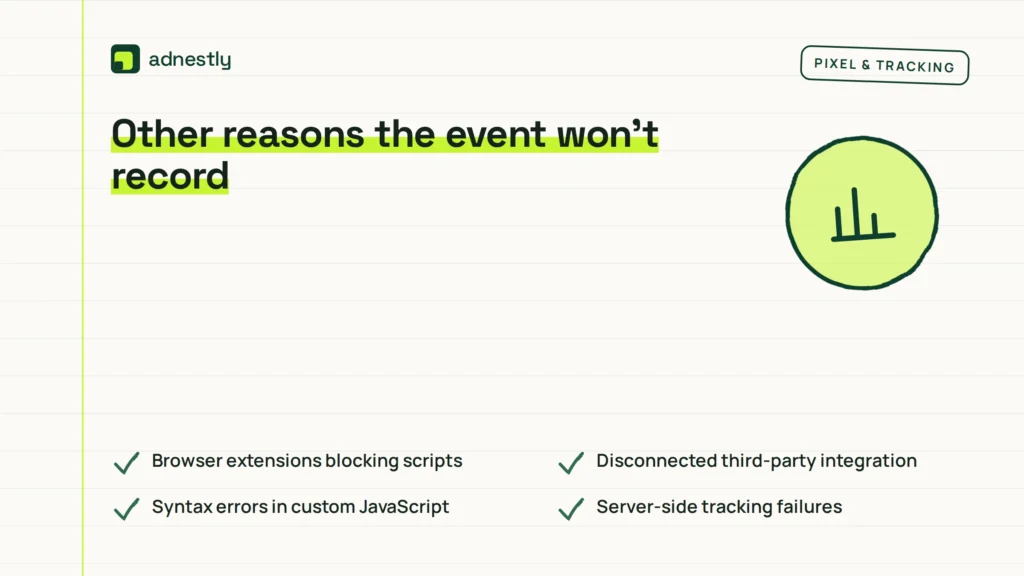
Sometimes the main three causes aren’t the problem, and something smaller is blocking the signal. These issues happen less frequently, but they still stop data from flowing when you least expect it.
- Browser extensions blocking scripts: Ad blockers or privacy tools installed on your testing browser prevent pixels from loading. Disable all extensions during test purchases.
- Disconnected third-party integration: The authorized link between ClickFunnels and your analytics tool expired. Reconnect the app through your account settings.
- Syntax errors in custom JavaScript: A single missing bracket or quote in your tracking code breaks the entire script. Validate your code using a free online linter before pasting it.
- Server-side tracking failures: If you rely on backend webhooks instead of browser pixels, a failed webhook delivery stops the event entirely. Checking server logs requires technical access you might not have. If your setup depends on server-to-server communication and basic checks fail, hand this to a developer who manages your hosting environment.
- Caching plugins serving stale pages: A performance plugin might store an older version of your checkout page that lacks your newest tracking snippet. Clear your site cache immediately after editing any funnel step.
- Order bumps bypassing the trigger: Events often fire only when the primary order button is clicked. If a customer completes their purchase entirely through an order bump form, the standard submission listener never activates. Map a separate event to your bump element if you track those conversions.
The exact reason varies based on your specific funnel architecture and the payment gateway you selected. You can read your own pixel status directly in the network tab of your browser’s developer tools during a live test transaction.
What fixing the tracking takes
Resolving a broken tracking setup demands different things depending on which cause you identified. If the code was simply on the wrong page, you only need about ten minutes and access to your funnel editor. No special tools are required beyond your web browser.
Replacing missing dynamic variables takes slightly longer, usually around fifteen to twenty minutes. You’ll need the official documentation for whatever analytics platform you’re connecting to find the correct merge tags. The effort is comparable to setting up the initial integration from scratch.
Changing a trigger condition inside a tag manager requires the most attention. Expect to spend thirty minutes adjusting the firing rules and running multiple test transactions to confirm the timing is correct. You don’t need extra software, but you do need patience to verify the sequence.
The overall effort scales with how deeply customized your funnel is. A standard template with basic tracking takes very little time to repair. A heavily modified funnel with custom scripts and external redirects will demand significantly more work to untangle.
If the issue involves server-side webhooks or backend API failures, this stops being a task you handle alone. You’ll need someone who manages your server infrastructure or a developer familiar with your specific payment gateway’s API. To get a real estimate of the work involved, review your funnel’s complexity and count how many custom scripts are currently active. Compare that against a basic, unmodified funnel setup to gauge the difference in effort required.
Frequently asked questions
Can I test purchase tracking without spending real money?
Yes, you can test it completely free. Switch your payment gateway to its sandbox or test mode inside the ClickFunnels integration settings. Use the fake credit card numbers provided by your gateway’s documentation to complete a mock checkout. Watch your network tab to confirm the pixel fires correctly with the test data. Remember to switch back to live mode before real customers visit your funnel.
Why does my pixel show zero dollar amounts?
Zero amounts mean your dynamic variables aren’t passing the order total correctly. The pixel fires, but the value field remains empty or defaults to zero. Check your tracking code for the specific merge tag that represents the cart total in ClickFunnels. Replace any hardcoded numbers with that exact tag. Run another test purchase to verify the real amount now populates in your analytics dashboard.
How long does it take for tracked events to appear?
Events typically appear within 5 to 15 minutes after a successful test purchase, assuming standard processing times for most major analytics platforms. If you use a tag manager, add another minute or two for the container to sync. If nothing shows up after 30 minutes, the pixel likely didn’t fire at all. Check your network tab immediately after the next test transaction to catch the failure in real time.
Is it safe to edit tracking code on a live funnel?
Editing code on a live funnel risks losing real sales data while you troubleshoot. Duplicate your funnel first and run all tests on the unpublished copy. Once the tracking works perfectly in the duplicate, transfer the exact same code block to your live version. This keeps your actual revenue stream uninterrupted while you fix the technical setup behind the scenes.
What happens if I leave the broken tracking unfixed?
Leaving it broken means you’re spending ad money without knowing which campaigns actually generate sales. Your analytics dashboard will show fewer conversions than you’re really getting, or worse, it will show fake ones. You’ll start pausing ads that are actually profitable because the data looks bad. Fix the tracking before you make any budget decisions based on those numbers.
Does the payment gateway affect how events track?
Yes, different gateways handle the post-purchase redirect differently. Stripe and PayPal might send users back to your confirmation page at slightly different speeds. Some gateways process payments entirely on their own hosted pages before returning the buyer to your funnel. If your pixel relies on a page-load trigger, a slow gateway redirect might cause it to miss the window. Always match your trigger type to your specific gateway’s behavior.
How many pixels can I run on one confirmation page?
Test every single pixel individually after adding a new one to ensure none are dropping data.
Conclusion
Every tracking setup eventually drifts as platforms update their code or funnels change structure. Check your network tab after any major edit to your checkout flow. Catching a silent failure early saves you from making marketing decisions based on missing data. Keep your test mode handy so you never have to guess if your numbers are real.

Aaron Kelly writes about Facebook tools, account management, and business advertising. His content covers account security, Facebook Ad Accounts, Business Manager setup, Pixel and conversion tracking, Business Manager verification, and admin profile verification. He focuses on explaining technical processes and common account issues in practical terms, helping businesses and advertisers manage their Facebook assets more effectively and build a more secure, reliable advertising setup.
Checked against Meta’s own documentation. How we write and update guides