Meta Pixel Not Working on ClickFunnels: How to Fix It

A meta pixel not working on ClickFunnels usually comes down to a wrong ID, a blocked script, or a missing event. The fix takes under 10 minutes once you know which one it is. You’ll check the Pixel Helper, confirm your ID in Meta Events Manager, and paste it into the right field inside your funnel settings.
$ part ofMeta Pixel Not Working? How to Fix Tracking on Any PlatformThe complete guide this article belongs toOpen guide →Three things change the exact steps you’ll follow: whether you’re using ClickFunnels 2.0 or the older Classic version, if you have a consent banner blocking scripts, and whether you need page views only or custom events like purchases. The rest of this page walks through each cause so you can match yours.
Who needs to fix a broken Meta Pixel
Someone building their first sales page who just pasted an ID into a settings box and saw nothing fire. They don’t know what a base code looks like or where to find one. What they need is a way to tell if the problem is the number they typed or the place they put it.
An advertiser whose cost per lead doubled overnight because the pixel stopped reporting conversions already knows how to read Ads Manager but hasn’t touched ClickFunnels settings before, so they need the menu path and the diagnostic tool that proves the signal is reaching Meta again.
An agency managing five funnels for different clients who keeps mixing up which pixel belongs to which account. They need a system to label and verify each one without logging out of every dashboard.
This page serves the first two readers best. If you’re managing dozens of accounts and need bulk API solutions, you should read Meta’s Conversions API documentation instead. Everything below assumes you’re using one funnel at a time and have admin access to both your ClickFunnels account and your Meta Business Suite.
Why the pixel stops sending data
The Pixel ID itself causes more failures than anything else. It’s a numeric ID you copy from Meta Events Manager. One missing digit means the browser sends data nowhere. You can check yours by opening Events Manager, clicking “Data Sources,” and copying the number directly instead of typing it from memory.
ClickFunnels versions handle tracking codes differently. In Classic, you paste the ID into “Tracking Code” under funnel settings. In ClickFunnels 2.0, you use the “Integrations” tab.
Browser privacy tools block third-party scripts before they load. Safari’s Intelligent Tracking Prevention and Firefox’s Enhanced Tracking Protection restrict the pixel’s ability to read and set cookies, which degrades tracking accuracy. You can test this by opening your funnel page in Chrome with extensions disabled. If it works there but not on Safari, the issue is browser-level blocking, not your setup.
Consent banners are the thing people get wrong most often. If your cookie banner blocks all scripts until someone clicks “Accept,” the pixel won’t fire for visitors who ignore it or leave immediately. Check your banner settings to see if analytics scripts are categorized as “strictly necessary” or “marketing.” Marketing scripts wait for consent; necessary ones load immediately.
Page caching saves an old version of your site that might not include the tracking code you just added. Clear your ClickFunnels cache by republishing the page, then test again in an incognito window.
How to find the exact problem
You don’t need to guess why the signal isn’t reaching Meta. The diagnostic process uses free tools built into your browser and your ad accounts to point directly at the failure. Work through these checks in order, stopping when you find the one that doesn’t pass.
- Install the Meta Pixel Helper extension in Chrome. This is the official tool Meta publishes for verifying pixel installations.
- Open your ClickFunnels page in a new Chrome tab. Make sure you’re viewing the live published URL, not the editor preview.
- Click the Pixel Helper icon in your browser toolbar. Look for a green checkmark next to “PageView.” That means the base code loaded successfully.
- If you see a red warning or no pixel listed, open your ClickFunnels funnel settings. Navigate to the tracking section for your specific version.
- Compare the number in that field against your Meta Events Manager. Copy the ID directly from Meta and replace whatever is currently in ClickFunnels. Save the changes.
- Republish the funnel page. Caching holds onto old settings, so saving alone won’t push the new ID to the live page.
- Return to your live URL and refresh it. Check the Pixel Helper again for the green checkmark.
- Test a specific action if you need more than page views. Click your buy button or submit your form, then watch the helper to see if the corresponding event fires.
The single judgment call here is deciding between a standard pixel and the Conversions API. If the Pixel Helper shows everything firing correctly but Ads Manager still reports zero events after 24 hours, browser-level blocking is likely stripping the data before it reaches Meta.
Setting up the Conversions API requires server-side configuration that goes beyond basic funnel settings. If you reach that point, you’ll need a developer familiar with Meta’s server events or you should use ClickFunnels’ native integration partner tools rather than trying to write the API calls yourself.
Situations that change the fix
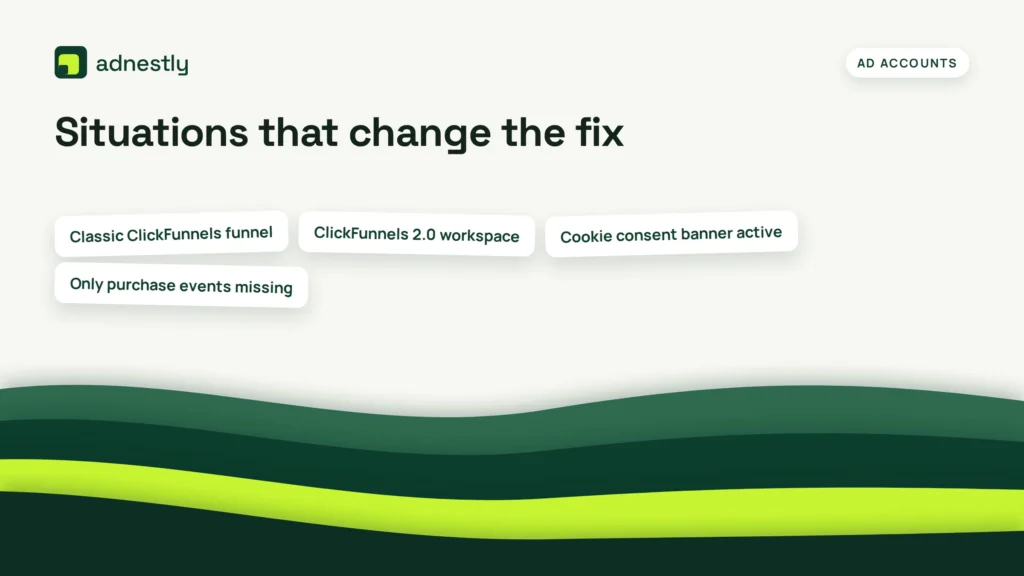
Different setups require different actions. Here’s what to do based on the specific situation you’re facing right now.
| Your current setup | Action to take | Effort required | Watch out for |
|---|---|---|---|
| Classic ClickFunnels funnel | Paste ID in Tracking Code | 2 minutes | Wrong settings level |
| ClickFunnels 2.0 workspace | Use Integrations tab | 3 minutes | Old interface guides |
| Cookie consent banner active | Configure banner to block pixel until consent is given | 10 minutes | Firing before consent violates privacy laws |
| Only purchase events missing | Add event code to button | 5 minutes | Overwriting base code |
| Safari users show no data | Enable Conversions API | 30+ minutes | Needs technical setup |
| Duplicate events firing | Remove manual code if integrated | 5 minutes | Double counting costs |
If you’re on Classic, apply the ID at the funnel level so it covers every step automatically. If you apply it only at the page level, you’ll miss visitors who land on a different step first. For 2.0 users, the integration handles the base code, so adding it manually again creates duplicates.
Getting the details right
Where the code actually lives
Pasting the ID into the page settings instead of the funnel settings is the fastest way to lose data. Funnel settings apply the pixel to every step — opt-in, sales page, checkout, and thank you. Page settings only apply it to that single URL. If a visitor lands directly on your checkout page from an email link, the page-level pixel on your sales page never sees them. Always use the funnel-level field unless you specifically want to exclude a step.
Check your work by visiting three different pages in your funnel while watching the Pixel Helper. The same Pixel ID should appear on all of them. If it drops off on the second step, you’ve placed it at the page level by accident. Go back to the main funnel settings, remove the page-level code, and enter it at the top level.
Reading the diagnostic signals
The Pixel Helper doesn’t just say yes or no. It tells you exactly what went wrong if you read the error message. A “not found” error means the ID is missing or typed incorrectly. A “loaded but not fired” warning usually points to a script blocker or a consent banner holding the code back. An “invalid value” error means you pasted something that isn’t a pixel ID, like your ad account number or a full URL.
Don’t ignore warnings just because the light turns green. Click the warning text to expand it. If it says “duplicate pixel detected,” you’re paying for double data processing and potentially inflating your ad metrics. Fix this by checking both your manual tracking code fields and your native integrations tab. Only one method should be active at a time.
When tracking breaks after changes
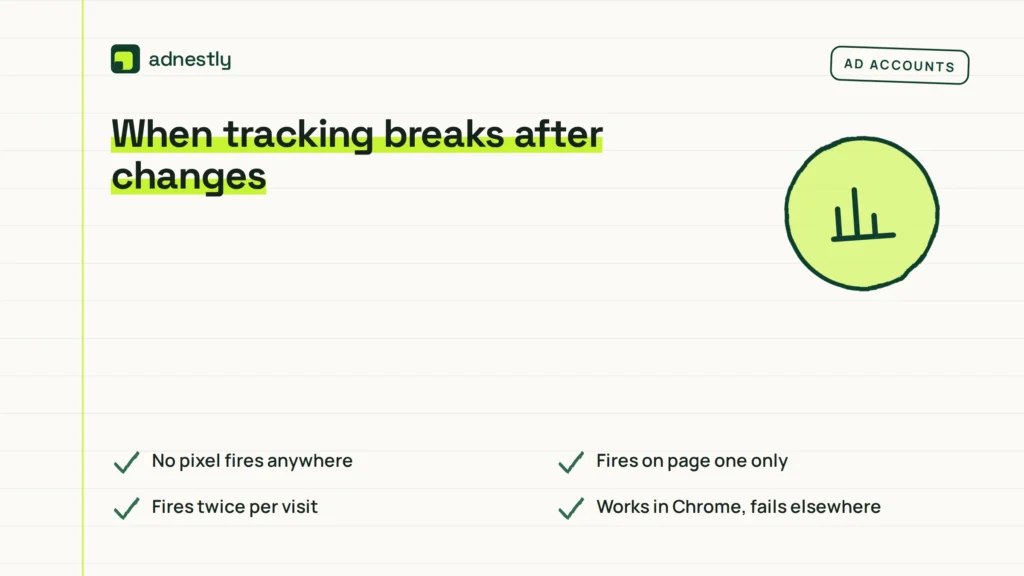
Here is how to match the symptom you see to the actual cause and the immediate fix.
| What you notice | What it usually means | What to do first | How to stop it happening again |
|---|---|---|---|
| No pixel fires anywhere | ID is missing or wrong | Check Events Manager for correct ID | Copy, never type manually |
| Fires on page one only | Added at page level | Move to funnel settings | Always use funnel-level fields |
| Fires twice per visit | Manual plus integration | Delete the manual tracking code | Pick only one installation method |
| Works in Chrome, fails elsewhere | Browser privacy blocking | Test with Conversions API | Don’t rely solely on browser pixels |
| Stops working after update | Theme overwrote header | Re-add ID to tracking field | Check pixel after any design update |
| Events missing in Ads Manager | Event name mismatch | Match names in both platforms | Use standard event names only |
If the pixel worked yesterday but doesn’t today, check if anyone edited the funnel template. Updating a page layout in ClickFunnels can sometimes reset custom header scripts. Republishing the page after re-entering the ID resolves this immediately.
Platform rules you must follow
Meta requires you to disclose data collection in your privacy policy. Their terms state that advertisers must provide clear notice about the use of cookies and pixels. If you operate in Europe, the General Data Protection Regulation (GDPR) requires explicit consent before marketing pixels load. The UK’s Information Commissioner’s Office (ICO) enforces similar rules under the UK GDPR.
In California, the California Privacy Rights Act (CPRA) gives residents the right to opt out of cross-context behavioral advertising, which includes pixel tracking. You can read the specific requirements on the California Attorney General’s CCPA page.
These laws mean you can’t just paste a pixel and walk away. If your audience includes people in these regions, your consent banner must actually block the script until approval. Configuring a consent management platform to hold scripts requires understanding regional privacy laws. If you’re unsure whether your current banner setup complies with these regulations, consult a legal professional who specializes in digital privacy rather than guessing. Ignorance of these thresholds doesn’t protect you from enforcement.
What fixing this actually costs
The direct financial cost to fix a broken pixel is zero. The Meta Pixel Helper is free, and ClickFunnels doesn’t charge extra for using the tracking fields. The real currency you spend here is time and lost ad budget.
Diagnosing the issue takes 10 to 15 minutes if you follow the steps above. Implementing the fix adds another 5 minutes, assuming you don’t need to set up a complex consent banner from scratch.
The hidden cost is the ad spend wasted while the pixel was down. If you’re spending money on Meta ads and the pixel fails to report purchases for several days, Meta’s algorithm loses its optimization data. You aren’t just losing those days of tracked conversions. You’re paying for traffic that the algorithm can no longer learn from, which raises your cost per acquisition even after you fix the problem.
To minimize this cost, check your pixel weekly. The time it takes to open the Pixel Helper and verify a green checkmark is seconds. The cost of waiting until you notice a drop in sales is hundreds of dollars in unoptimized ad spend.
Keeping the connection alive
A pixel isn’t something you install once and forget. Every time you duplicate a funnel, change a domain, or update a page template, you risk breaking the connection. Make it a habit to run the Pixel Helper across your main funnel steps after any structural edit.
Keep a document listing which Pixel ID belongs to which funnel. If you run multiple brands, mixing up IDs sends data to the wrong ad account, ruining your reporting. You can find your active IDs anytime by logging into Meta Events Manager under “Data Sources.”
Watch your match quality score inside Events Manager. If it drops below 6 out of 10, you’re likely losing parameters due to browser updates or consent blocks. That score is your early warning system. When it falls, investigate your setup again before your ad costs rise.
When a pixel isn’t the answer
If you sell high-ticket items through long phone consultations, a standard web pixel won’t track your actual revenue accurately. You should use offline event uploads in Meta Ads Manager instead of relying on website triggers.
If your ClickFunnels pages are heavily customized with external JavaScript that constantly conflicts with the base code, maintaining a browser pixel becomes a weekly chore. You should switch entirely to the Conversions API, which sends data server-to-server and ignores front-end script conflicts.
If you’re driving traffic to a third-party checkout that you don’t control, placing a pixel on your ClickFunnels landing page only tracks the click, not the sale. You should use UTM parameters and track conversions inside your payment processor instead.
Setting up the Conversions API requires server access and technical knowledge of webhooks. If you don’t have that background, hire a developer certified in Meta’s API integrations rather than attempting to write the server code yourself. Guessing at server configurations can break your entire funnel’s loading sequence.
Frequently asked questions
Can I use Google Tag Manager instead?
Yes, you can route your Meta Pixel through Google Tag Manager on ClickFunnels. Paste the GTM container ID into the Head Tracking field instead of the raw pixel code. This lets you manage multiple tags without editing the funnel settings repeatedly.
Why does my pixel fire twice?
Duplicate firing happens when you add the pixel manually in the tracking code and also connect it through ClickFunnels’ native integration. Pick one method. Delete the manual code if you’re using the integration tab, then republish the page.
How long until Meta sees the fix?
The Pixel Helper shows the change instantly, but Meta Ads Manager takes up to 24 hours to display updated event data. Don’t panic if your dashboard still shows zeros immediately after you fix the code. Wait a full day before troubleshooting again.
Is it safe to put the ID in the header?
Yes, the Meta base code is designed to go in the <head> section of your HTML. ClickFunnels provides a specific “Head Tracking Code” field for this purpose. Never put it in the body or footer, as delayed loading causes missed page views.
What happens if I delete the pixel?
Deleting the pixel code from your funnel stops all future data collection immediately. Past data remains in your Meta Ads Manager. However, your active ad campaigns will lose their optimization signals, causing performance to drop until the pixel is restored.
Does it matter which funnel step I add it to?
It matters significantly. Adding it only to the first page means you won’t track visitors who complete your checkout or thank-you page. Always add the base pixel at the overall funnel level so it inherits down to every single step automatically.
Can ad blockers stop the pixel completely?
Yes, browser extensions like uBlock Origin prevent the pixel script from downloading. You can’t force a pixel through an active ad blocker. This is why many advertisers supplement browser tracking with server-side Conversions API to recover lost data.
Do I need a new pixel for each funnel?
No, you should use the same Pixel ID across all funnels for a single business. Using one pixel builds a larger audience pool for Meta’s algorithm to optimize against. Only create separate pixels if you’re running entirely distinct businesses with different ad accounts.
Start testing your funnel now
Open the Meta Pixel Helper and visit your live ClickFunnels URL right now. You should see a green checkmark and your specific event names listed in the dropdown. If the icon stays grey or shows a red error after you’ve applied the fixes above, stop editing settings and contact ClickFunnels support, as the issue may be a platform-level outage blocking scripts.

Aaron Kelly writes about Facebook tools, account management, and business advertising. His content covers account security, Facebook Ad Accounts, Business Manager setup, Pixel and conversion tracking, Business Manager verification, and admin profile verification. He focuses on explaining technical processes and common account issues in practical terms, helping businesses and advertisers manage their Facebook assets more effectively and build a more secure, reliable advertising setup.
Checked against Meta’s own documentation. How we write and update guides