Facebook Business Manager Time Zone Mismatch Breaking Reports

A business manager time zone mismatch breaking reports happens when your ad account’s clock doesn’t match the dashboard you’re reading from, and it shifts daily totals by hours. Fixing it takes under five minutes inside Meta Business Settings once you pick the single time zone every tool will follow. If the account already ran ads on the old zone, past numbers won’t move to the new one. This guide covers the exact settings path, what changes in your data, and how to keep every linked tool aligned.
$ part ofFacebook Business Manager Problems: Fixes for Common ErrorsThe complete guide this article belongs toOpen guide →What the time zone setting controls
Meta Business Manager uses one fixed time zone for each ad account. That setting decides exactly when a “day” starts and ends for your spending, delivery, and reporting. Every metric you see—impressions, clicks, purchases—gets grouped into 24-hour blocks based on that choice.
If your analytics software runs on UTC but your ad account runs on US Pacific time, your daily totals won’t line up. A sale recorded at 11 PM Pacific shows up as tomorrow’s data in a UTC-based report. That gap is the core of the problem. It isn’t a bug or broken code; it’s two clocks measuring different days.
The fix belongs to anyone running paid campaigns across multiple tools or regions. You don’t need technical skills, just admin access to the business portfolio. The single misconception here is that changing your computer’s clock or personal profile fixes the data. It doesn’t. Only the ad account’s own setting controls how the platform groups your numbers.
Once set, the ad account stamps every event with that zone permanently. You can check your current setting under Business Settings > Accounts > Ad Accounts. Pick the zone that matches your primary reporting tool before you spend anything.
How to change the ad account time zone
Changing the setting requires admin access to the ad account. If you don’t have it, ask whoever owns the Business Manager to do this or grant you the role first.
Follow these steps exactly:
- Open business.facebook.com and log in with an admin profile.
- Click the gear icon in the bottom left corner to open Business Settings.
- Select Accounts, then click Ad accounts from the left menu.
- Choose the specific ad account you need to update.
- Click the Settings tab near the top of the right panel.
- Find the Time Zone section and click Change.
- Select your target zone (for example, UTC-08:00 Pacific Time) from the dropdown list.
- Click Save Changes to apply the new setting immediately.
Meta warns you during step six that this creates a new billing threshold cycle. Your current campaign delivery won’t stop, but the platform closes out the old billing period right then. Any pending charges get billed to your payment method within about 24 hours.
Here is the judgment call that separates clean data from a mess: if you’ve run ads for more than a week, leave the zone alone and adjust your external dashboards instead. Changing it now splits your historical data into two unmergeable halves. If the account is brand new and hasn’t spent money yet, change it immediately so everything starts on the same clock.
You’ll find Meta’s official guidance on how this affects billing cycles in their ad account settings documentation. Read it before clicking save if you manage large monthly budgets.
Ad account time zone settings at a glance
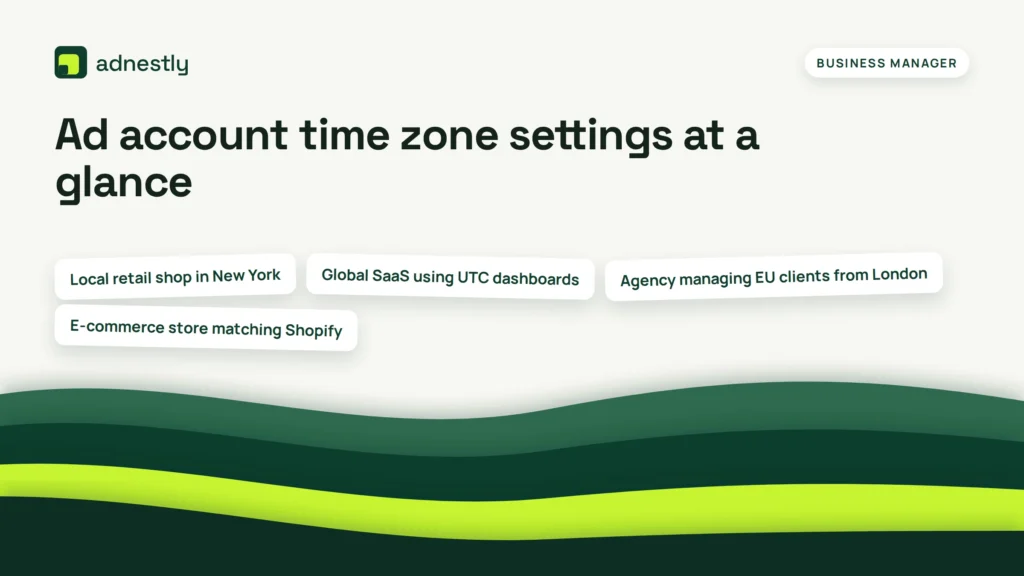
Different setups need different zones to keep reports accurate. Here are the exact pairings you should use based on where your team works and what tools read the data.
| Situation | What to use | How long to sync | What to watch for |
|---|---|---|---|
| Local retail shop in New York | America/New_York (UTC-05:00) | Immediate | Daylight saving shifts in March and November |
| Global SaaS using UTC dashboards | UTC (UTC+00:00) | Immediate | Billing cycles resetting the moment you save |
| Agency managing EU clients from London | Europe/London (UTC+00:00) | Up to 3 hours | Past reports splitting into two separate date ranges |
| E-commerce store matching Shopify | Match store’s base zone exactly | Immediate | Third-party tools still pulling from the old zone |
| Team spread across US coasts | Pacific Time (UTC-08:00) | Immediate | East coast staff seeing “yesterday” until 3 AM local |
Pick the row that matches your setup. The sync time tells you when new data reflects the change. The last column shows the exact trap that breaks reports if you ignore it.
Don’t guess which zone your other tools use. Log into your analytics platform or e-commerce backend and find its base setting first. Then come back to Business Manager and make them match.
Why reports split after a zone change
When you save a new time zone, Meta doesn’t rewrite history. It draws a hard line at the exact second you clicked save. Everything before that moment stays locked to the old clock, and everything after uses the new one.
This means your reporting dashboard will suddenly show a short day—sometimes only 6 or 14 hours long—on the date you made the switch. The next day looks normal. If you export a monthly CSV, that transition month will always have missing or overlapping hours unless you manually stitch two queries together.
Experienced media buyers handle this by scheduling the change at midnight in the new target zone. If you want to switch to Pacific Time, wait until it hits 12:00 AM Pacific, then click save. The “short day” becomes zero hours long, and your calendar stays clean.
Checking connected tools
Your ad account doesn’t live alone. Third-party dashboards like Supermetrics, Looker Studio, or agency reporting tools pull data via API. Those connections rely on the time zone configured within the tool itself.
After you change the setting in Business Manager, go to every connected tool and force a schema refresh. If you skip this, your external dashboard keeps asking Meta for “today” based on the old rules, while Meta answers using the new ones. The result is a permanent daily offset that looks like lost revenue.
Check the API logs if numbers still look wrong after refreshing. The timestamp format Meta returns includes the offset (like T00:00:00-0800). Verify that your receiving tool parses that offset rather than ignoring it.
Fixing broken report numbers fast
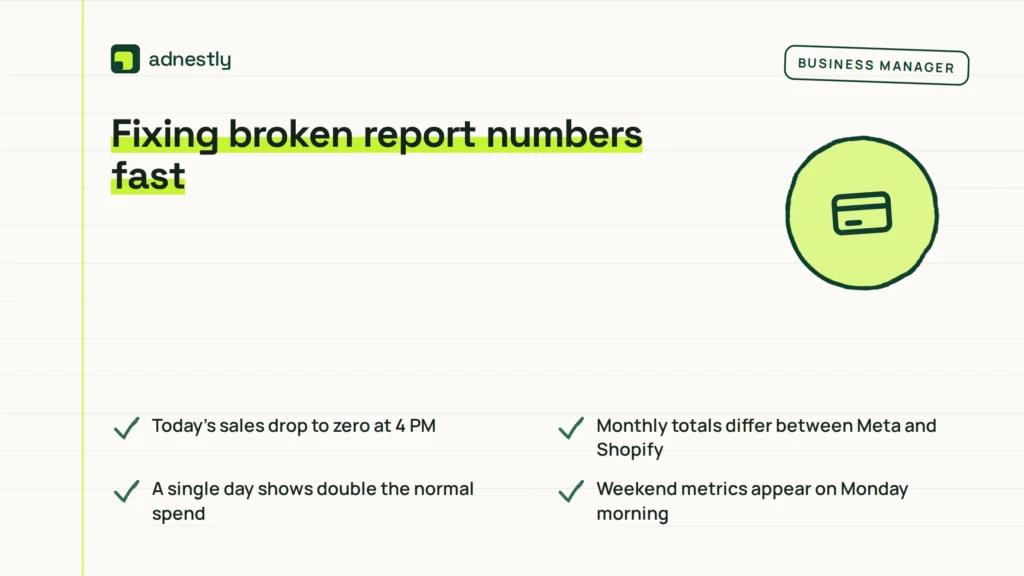
When your daily spend or conversions look wrong, the cause is almost always a clock disagreement between two platforms. Use this table to trace the symptom back to the setting that needs fixing.
| What you notice | What it usually means | What to do first |
|---|---|---|
| Today’s sales drop to zero at 4 PM | Analytics tool uses UTC, ad account uses local time | Check the ad account’s time zone in Business Settings |
| Monthly totals differ between Meta and Shopify | The two platforms close their “day” at different hours | Align both to the exact same UTC offset |
| A single day shows double the normal spend | A zone change created a 48-hour billing window | Export raw hourly data to verify the split |
| Weekend metrics appear on Monday morning | Reporting tool assumes Monday start, Meta uses Sunday | Adjust the reporting tool’s week-start setting |
| API pulls return yesterday’s data as “today” | Cached connection still holds the old zone parameter | Re-authenticate the API token in your dashboard |
If re-authenticating the API doesn’t fix the offset, the problem lives in your reporting tool’s query logic, not Meta. You’ll need to edit the SQL or formula pulling the date field to include the explicit offset.
For issues involving billing thresholds charging your card unexpectedly after a zone swap, contact Meta support directly through the Business Help Center. Don’t try to reverse-engineer billing invoices yourself.
Rules around billing and data limits
Meta enforces strict rules when you alter an ad account’s foundation. The most important one is that a time zone change triggers an immediate billing event. Whatever balance you owe gets charged to your primary payment method right away, closing the old billing cycle completely.
You can’t merge the old data period with the new one. Meta treats them as separate accounting eras. If your company needs unified quarterly reports for tax purposes, your finance team must combine those two partial periods manually using exported CSV files.
Only users with Admin access to the ad account can change this setting. Analysts or advertisers with lower roles won’t even see the button.
There’s no undo button. Once you save the new zone, the old one is gone from the interface. If you picked the wrong one by accident, you have to repeat the entire process, triggering a second immediate billing charge and creating yet another split in your data history. Always double-check the UTC offset before clicking save.
Keeping your reports aligned later
Once your zones match, they stay matched until someone adds a new tool or changes a setting. Build a simple record—a shared spreadsheet or internal wiki page—that lists every platform connected to your ad account and its exact time zone.
Review this list whenever you connect a new CRM, email platform, or analytics dashboard. Set the new tool’s zone before it pulls its first row of data.
Watch out for daylight saving time. Zones labeled “Pacific Time” shift automatically between UTC-08:00 and UTC-07:00. But if you hardcoded “UTC-08:00” into a custom script or third-party tool, that script won’t shift. Your reports will drift by exactly one hour twice a year. Always use named zones (like America/Los_Angeles) instead of fixed offsets in any automated queries.
You don’t need to check this daily. Audit your time zone alignment whenever you notice a sudden unexplained dip in reported conversions, or schedule a review every quarter if you manage multiple accounts.
When changing the zone is the wrong move
Altering the ad account’s time zone isn’t always the right fix. Sometimes it creates more damage than the mismatch itself.
If your account has been active for months and holds historical data you rely on for year-over-year comparisons, don’t change it. The split history makes past performance impossible to compare cleanly against future results. Instead, change your external reporting tool to match Meta’s existing zone. Most BI tools let you apply a time offset at the query level without touching the source.
If you run a global brand with teams in ten countries, picking one zone will always frustrate someone. In that case, build separate ad accounts for major regions. Let the North American account run on Eastern Time and the European one on CET. Keep reporting separate rather than forcing one clock onto the whole world.
If you only need to fix a single automated email report, adjusting the script’s timestamp logic takes seconds. Rewriting your entire ad account’s billing history takes days of cleanup work. Match the scale of the fix to the size of the problem.
Frequently asked questions
Can I change my Business Manager time zone without affecting ads?
No. Changing the time zone immediately closes your current billing cycle and charges any outstanding balance. Your active campaigns keep running without pausing, but the financial period resets the moment you click save. Past reporting data also splits into two separate segments that you can’t merge inside the platform.
Why do my Meta Ads and Google Analytics numbers not match?
They usually disagree because the two platforms define “today” differently. Meta groups events using the ad account’s specific time zone, while Google Analytics defaults to the view’s configured zone or your browser’s local time. Align both tools to the exact same UTC offset to make daily totals match.
How long does a time zone change take to update?
The setting applies immediately to new incoming data the second you save it. However, third-party tools connected via API might take up to three hours to recognize the new parameter. Historical data never updates; everything logged before the change remains permanently stamped with the old time zone.
Is it safe to change the time zone on an active campaign?
It’s safe for ad delivery, meaning your ads won’t stop showing or lose their optimization data. It isn’t safe for clean reporting. The change forces an immediate bill for whatever you’ve spent so far today, and it creates a partial day in your analytics that skews daily average calculations going forward.
What happens if I pick the wrong time zone?
You have to change it again, which triggers another immediate billing charge and creates a third segment in your historical data. There’s no undo function. To avoid this, check the exact UTC offset your primary analytics dashboard uses before selecting a zone from Meta’s dropdown menu.
How many times can I change my ad account time zone?
Meta allows you to change it, but doing it repeatedly fractures your reporting history into many small, unusable pieces. Each change permanently splits the data timeline. If you need a different zone, create a brand new ad account instead of altering an old one multiple times.
Does the time zone affect when my scheduled ads run?
Yes. If you set an ad to start at 8:00 AM, it launches at 8:00 AM in the ad account’s chosen time zone, not your personal computer’s local time. If your account uses UTC and you meant 8:00 AM New York time, your ad actually starts four or five hours early depending on the season.
Conclusion
Every platform measures time slightly differently, but the numbers only break when you let them disagree. Pick one clock, write it down, and force every connected tool to follow it. That single habit stops reports from drifting apart and keeps your budget tracking honest.

Aaron Kelly writes about Facebook tools, account management, and business advertising. His content covers account security, Facebook Ad Accounts, Business Manager setup, Pixel and conversion tracking, Business Manager verification, and admin profile verification. He focuses on explaining technical processes and common account issues in practical terms, helping businesses and advertisers manage their Facebook assets more effectively and build a more secure, reliable advertising setup.
Checked against Meta’s own documentation. How we write and update guides