Facebook Business Manager Payment Settings vs Ad Account Payment Settings

If you run ads on Meta platforms, understanding the difference between business manager payment settings vs ad account payment settings is essential for keeping campaigns active and avoiding unexpected billing failures. Many advertisers assume these two levels operate identically, but they serve distinct purposes within the broader advertising architecture. One level acts as a central vault for financial instruments, while the other dictates exactly how individual campaigns are charged. Mixing them up often leads to declined cards, paused campaigns, or unauthorized spending across different teams. This guide breaks down exactly what each setting controls, how they interact, and how to configure them properly so your advertising operations run smoothly without interruption.
$ part ofFacebook Ad Account Problems: How to Fix Every Common IssueThe complete guide this article belongs toOpen guide →Key Takeaways
- Business Manager stores payment methods centrally, allowing multiple ad accounts to draw from a single credit card, debit card, or PayPal balance without re-entering billing details for every new campaign.
- Ad accounts determine whether you’re billed automatically after delivery or manually before it begins, which directly impacts cash flow and daily campaign management.
- You can share one payment method across several ad accounts, but each ad account must be explicitly linked to that shared funding source in the billing dashboard.
- Changing a credit card at the Business Manager level doesn’t automatically update an ad account if that account was previously assigned a different, standalone payment method.
- Only users with Finance Editor or Admin access can modify payment settings, meaning standard employees or external agency partners can’t alter billing configurations without explicit permission.
- If an ad account is suspended due to a failed charge, resolving the issue requires updating the payment method specifically at the ad account level, not just inside the Business Manager vault.
What Is Business Manager?
Meta Business Manager serves as the overarching organizational hub for your company’s digital assets. It holds Facebook Pages, Instagram accounts, pixels, catalogs, and, crucially, your financial instruments. When you add a credit card, debit card, or PayPal account here, you’re depositing it into a secure, centralized vault rather than attaching it directly to a single advertising campaign. This structure allows larger organizations to maintain strict control over their corporate funds.
The primary advantage of this setup is centralized billing. Instead of logging into five different ad accounts to update an expired Visa card, a finance administrator updates the card once in the Business Manager. From there, any ad account granted access to that specific payment method will automatically use the updated information for future charges. This significantly reduces administrative overhead for agencies managing multiple clients or enterprises running regional divisions.
Access to these financial tools is governed by strict roles. A user needs Finance Editor permissions to add or remove payment methods. Someone with only “Employee” access can’t view the full credit card numbers or alter the billing configuration. This separation ensures that media buyers can launch campaigns using approved funds without having the ability to change the underlying corporate banking details.
Supported Payment Methods
Not every financial instrument works universally across all regions. The Business Manager accepts specific options depending on your registered business address and local currency. Common accepted methods include:
- Visa, Mastercard, American Express, and Discover credit cards
- Bank-issued debit cards carrying a major network logo
- PayPal accounts linked to verified business emails
- Direct bank transfers (available only in select European and Asian markets)
- Manual prepaid funds added via localized retail vouchers in certain Latin American countries
What Is an Ad Account?
An ad account is the specific workspace where you build, launch, and manage advertising campaigns. While the Business Manager holds the money, the ad account dictates the rules for spending it. Every ad account operates under a specific currency, a designated time zone, and a chosen billing model. Once these foundational elements are set during creation, they generally can’t be changed without creating an entirely new ad account.
The most critical distinction at this level is the billing threshold. For accounts set to automatic payments, Meta charges your linked payment method either when you reach your monthly billing date or when your accumulated spend hits your predefined threshold—whichever comes first. This threshold starts low for new accounts and increases gradually as successful payments are processed, eventually reaching a maximum limit based on historical reliability.
Ad accounts also enforce spending limits. An administrator can set a daily or lifetime cap to prevent runaway costs. If a media buyer attempts to scale a campaign beyond the configured account spending limit, the ads will pause automatically until the limit is raised or reset. This provides a secondary layer of financial protection independent of the Business Manager’s overall budget controls.
How Do They Work Together?
The relationship between the two levels functions like a corporate treasury distributing funds to individual departments. The Business Manager owns the payment method; the ad account borrows it. When you create a new ad account inside your Business Manager, you must assign it a payment method. You can either add a brand-new card specifically for that account or select an existing card already stored in the Business Manager vault.
If you choose to share a payment method, multiple ad accounts will draw from the same credit line. This is highly efficient, but it requires careful monitoring. If three different ad accounts exhaust a shared card’s limit simultaneously, all three accounts will face declined transactions and immediate pauses. Conversely, assigning unique payment methods to separate ad accounts isolates risk. If one card fails, only that specific account stops delivering ads.
Understanding this hierarchy prevents common errors. Many advertisers mistakenly believe that deleting a credit card from an ad account removes it from the entire organization. In reality, it merely unlinks the card from that specific workspace. The card remains safely stored in the Business Manager until explicitly removed by someone with Finance Editor access.
Business Manager Payment Settings vs Ad Account Payment Settings
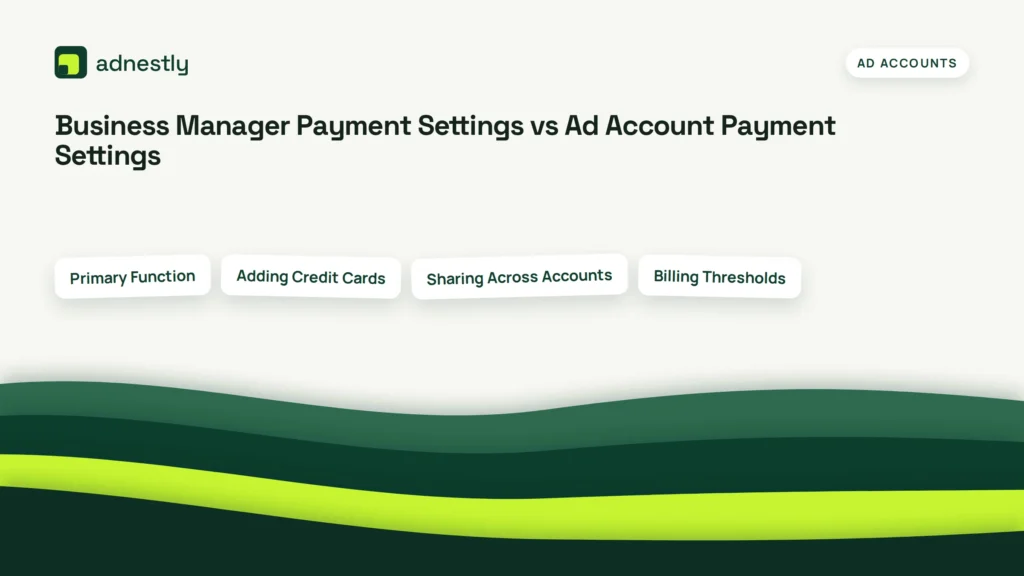
To clarify the exact division of responsibilities, it helps to look at the specific controls available at each level. The core difference lies in ownership versus execution. Business Manager settings govern who can add cards and which accounts can see them. Ad account settings govern how those cards are actually charged.
| Feature | Business Manager Level | Ad Account Level |
|---|---|---|
| Primary Function | Stores and secures payment methods | Executes billing for active campaigns |
| Adding Credit Cards | Yes, acts as the central vault | Yes, but draws from the vault or adds locally |
| Sharing Across Accounts | Controls which accounts access which cards | Can only use cards explicitly assigned to it |
| Billing Thresholds | Not applicable | Sets the trigger amount for automatic charges |
| Spending Limits | Not applicable | Caps daily or lifetime ad spend |
| Required User Role | Finance Editor or Admin | Admin or Advertiser with billing access |
This table highlights why confusion frequently arises. An advertiser might have full control over an ad account but lack the Finance Editor role needed to add a new corporate card to the Business Manager. When their current card expires, they can’t fix the problem themselves. They must request that a finance administrator update the central vault and ensure the new card is shared back down to their specific ad account.
Furthermore, tax settings behave differently across the two levels. While the ad account determines the currency and basic tax identification number used for invoicing, the Business Manager holds the legal entity information that ties those invoices to your corporate structure. Ensuring these align prevents discrepancies during accounting reconciliation.
Which Should You Use?
Choosing whether to manage payments centrally or individually depends entirely on your organizational size and structure. There’s no universally correct answer, only the right approach for your specific operational workflow.
For solo entrepreneurs or small businesses running a single Facebook Page, managing everything at the ad account level is usually sufficient. You likely only have one credit card, making the complexity of a shared Business Manager vault unnecessary. However, as soon as you hire an agency or open a second ad account for a different product line, centralizing becomes mandatory.
Agencies handling multiple client portfolios should always use Business Manager to segregate finances. By storing Client A’s credit card in the Business Manager and sharing it exclusively with Client A’s ad accounts, the agency guarantees that Client B’s campaigns never accidentally draw from the wrong budget. This financial segregation protects both the agency and its clients from severe billing disputes.
Pros and Cons of Centralization
Centralizing your payment methods offers clear advantages but introduces specific risks that require mitigation.
- Pro: Updating an expired card once instantly fixes billing for ten different ad accounts.
- Pro: Finance teams retain total control over corporate spending without needing access to campaign dashboards.
- Con: A single declined transaction on a shared card halts every connected ad account simultaneously.
- Con: Tracking exactly which ad account consumed which portion of a shared credit card statement requires exporting detailed reports.
How Do You Change Settings?
Modifying your billing configuration requires navigating the Meta Business Suite interface. Because the platform updates its layout periodically, relying on the fundamental navigation paths ensures you find the right menus regardless of minor visual changes. Always ensure you’re logged in with an account holding the appropriate administrative or financial privileges before attempting these steps.
To update the central vault, navigate to Business Settings, locate the “Billing & Payments” section, and select “Payment Methods.” Here, you can add new instruments, remove expired ones, or edit existing details. To link a newly added card to a specific workspace, go to the “Accounts” tab within Business Settings, select “Ad Accounts,” click the target account, and assign the desired payment method from the dropdown menu.
To adjust thresholds or spending limits directly on an ad account, go to Ads Manager, open the “Billing & Payments” dashboard for that specific account, and locate the “Payment Settings” area. Here you can manually trigger a payment to lower your outstanding balance, request a higher billing threshold if your account history supports it, or establish a hard spending limit to cap total costs.
| Action | Navigation Path | Required Permission |
|---|---|---|
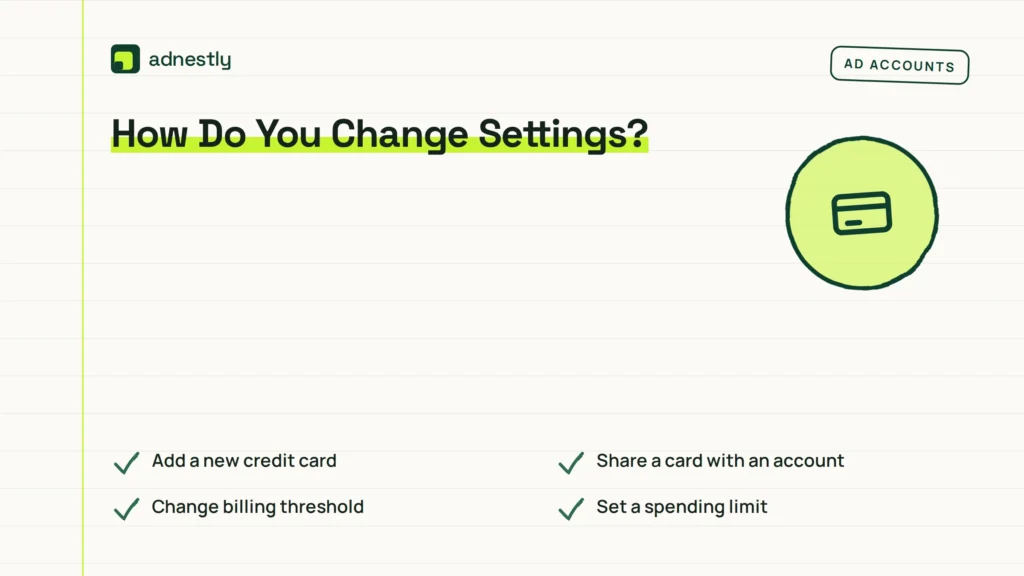
| Add a new credit card | Business Settings > Billing & Payments > Payment Methods | Finance Editor |
| Share a card with an account | Business Settings > Accounts > Ad Accounts > Assign | Admin or Finance Editor |
| Change billing threshold | Ads Manager > Billing & Payments > Payment Settings | Ad Account Admin |
| Set a spending limit | Ads Manager > Billing & Payments > Account Spending Limit | Ad Account Admin |
Why Are My Ads Paused?
Nothing causes panic quite like discovering your live campaigns have suddenly stopped delivering. In the vast majority of cases, this traces back to a disconnect between your Business Manager vault and your ad account’s active billing requirements. Understanding the root cause allows you to restore delivery quickly.
The most frequent culprit is a failed payment. If your credit card issuer declines Meta’s charge—whether due to suspected fraud, insufficient funds, or an expired card—the ad account immediately enters a restricted state. All active campaigns pause to prevent further unpaid impressions. Resolving this requires navigating to the ad account’s billing section and manually retrying the payment with a valid funding source.
Another common issue involves unassigned payment methods. If a finance administrator deletes a credit card from the Business Manager but forgets that three ad accounts were actively using it, those accounts lose their billing connection. Even if a new card is added to the vault, the ad accounts will remain paused until someone explicitly assigns the new card to them. Automation doesn’t bridge this gap; manual reassignment is required.
Finally, hitting a predefined spending limit triggers an automatic pause. Unlike a failed payment, this is a planned restriction. If your team set a $5,000 lifetime limit on an ad account and cumulative spend reaches that figure, delivery ceases. You must manually increase or reset the limit in the ad account settings to resume activity.
What About Taxes and Invoices?
Tax obligations and invoice generation rely heavily on the information provided at both levels. Your ad account generates the actual receipts for media spend, but the legal business name, physical address, and tax identification number used on those documents are often inherited from the Business Manager profile.
If you operate in a region subject to Value Added Tax (VAT) or Goods and Services Tax (GST), you must input your registration number accurately. Failing to do so results in Meta charging you the tax without the ability to reclaim it through your local government’s business deduction processes. This configuration happens inside the ad account’s billing settings, but it must match the legal entity defined in the Business Manager.
Invoices are generated automatically based on your billing cycle. For automatic payment accounts, an invoice is created every time your billing threshold is met or your monthly billing date arrives. For manual payment accounts, an invoice is generated whenever you add funds. Ensuring your invoice email addresses are correctly populated at the ad account level guarantees your accounting department receives these records promptly without requiring manual downloads from the Ads Manager interface.
Troubleshooting Common Billing Errors
When things go wrong, error messages can sometimes be vague. Knowing how to interpret them saves hours of frustration and prevents unnecessary support tickets.
- “Your payment method was declined”: Contact your bank first. Meta rarely declines cards arbitrarily; issuers block international or automated digital advertising charges frequently. Ask your bank to whitelist Meta’s billing processors.
- “You don’t have permission to edit this payment method”: You lack the Finance Editor role. Request elevated access from your Business Manager administrator. Standard advertiser roles can’t touch billing instruments.
- “This ad account has been disabled”: Repeated billing failures or suspicious activity can trigger a full disablement. You must submit an appeal through the Account Quality dashboard, often requiring proof of identity and ownership of the attached payment method.
- “Currency mismatch”: You attempted to assign a payment method billed in Euros to an ad account configured for US Dollars. You can’t change an ad account’s currency after creation; you must create a new ad account matching your card’s native currency.
Warning: Never attempt to bypass a disabled ad account by simply creating a new one and attaching the same credit card. Meta’s systems link financial instruments across accounts. Creating a new account to evade a billing suspension violates platform policies and typically results in the permanent banning of your entire Business Manager, including all associated Pages and historical data.
Pro Tip: If you manage high-spend campaigns, contact your credit card provider proactively to raise your daily transaction limit before launching a major promotion. Advertisers frequently hit bank-imposed velocity limits—not credit limits—when scaling budgets rapidly overnight, causing unexpected payment failures that pause campaigns during critical launch windows.
Frequently Asked Questions
Can I use different cards for different ad accounts?
Yes. You can store multiple credit cards, debit cards, or PayPal accounts in your Business Manager and assign specific ones to individual ad accounts. This allows you to keep departmental spending separate or isolate client budgets effectively. Just ensure each card is explicitly assigned to its respective ad account in the billing settings.
Does changing my Business Manager card update ad accounts?
If your ad account is currently using that specific shared card, yes, updating the expiration date or replacing it in the Business Manager vault will reflect across linked ad accounts. However, if the ad account was using a standalone card added directly to it, updating the Business Manager vault won’t affect that isolated ad account.
Who can see my payment methods?
Only users assigned the Finance Editor or Admin role within your Business Manager can view, add, or remove payment methods. Standard employees, analysts, and advertisers can run campaigns using the assigned funds, but they can’t access the underlying credit card numbers or billing configurations.
Why was I charged twice in one day?
This typically happens when your accumulated ad spend hits your billing threshold early in the day, triggering an automatic charge, and then you also reach your scheduled monthly billing date later that same afternoon. Both events independently generate a transaction. Review your billing dates and thresholds in Ads Manager to align them.
Can I switch from automatic to manual payments?
No. The payment model is determined when the ad account is first created, based on your selected country and currency. You can’t convert an automatic payment account into a manual prepaid account. If you require manual payments, you must create a completely new ad account configured for that specific billing method.
How do I download past invoices?
Navigate to Ads Manager, click on “Billing & Payments,” and select the “Transactions” or “Payment History” tab. From there, you can filter by date range and download individual receipts or bulk invoices as PDF files. Ensure your browser allows pop-ups, as the download window sometimes opens in a new tab.
Pro Tip: Regularly audit your “Payment Methods” section in Business Settings every quarter. Remove expired cards and revoke access for former employees or departed agency partners. Maintaining a clean billing vault prevents accidental charges to old corporate accounts and tightens your overall financial security posture significantly.
Conclusion
Log into your Meta Business Suite today, navigate to Business Settings, and verify that your current ad accounts are linked to valid, unexpired payment methods. Confirming this alignment takes less than five minutes and ensures your campaigns continue running without unexpected billing interruptions tomorrow.

Aaron Kelly writes about Facebook tools, account management, and business advertising. His content covers account security, Facebook Ad Accounts, Business Manager setup, Pixel and conversion tracking, Business Manager verification, and admin profile verification. He focuses on explaining technical processes and common account issues in practical terms, helping businesses and advertisers manage their Facebook assets more effectively and build a more secure, reliable advertising setup.
Checked against Meta’s own documentation. How we write and update guides