Meta Pixel Not Working on WordPress: How to Fix It


Meta pixel not working on wordpress usually means the base code isn’t loading, the wrong pixel ID is installed, or a browser tool is blocking the test. Check the page source, WordPress plugin settings, and Events Manager before replacing anything. Don’t open your device or change server files unless you know the site’s code.
$ part ofMeta Pixel Not Working? How to Fix Tracking on Any PlatformThe complete guide this article belongs toOpen guide →Your result can change with caching, consent settings, ad blockers, theme templates, and whether you’re testing in a logged-in browser. This guide serves site owners who can access WordPress and Meta Business Suite, but not visitors trying to repair someone else’s website.
Who needs this WordPress fix?
A site owner may see no activity in Meta Events Manager after adding a pixel. They need safe checks that show whether the code is missing, delayed, blocked, or connected to the wrong data source.
A marketing manager may already see page views but not purchases, leads, or button clicks. That person needs event-specific checks, not another copy of the base pixel.
A developer may be checking a custom theme, consent banner, or server-side setup. They’ll need browser and code-level evidence, plus a clear point where a normal WordPress user should stop.
This page serves the first two readers best: people with WordPress admin access and access to the correct Meta dataset. It assumes you’re testing a live page from a normal browser, not a staging site hidden behind a password.
It isn’t a full guide to custom event programming. If your site uses Google Tag Manager, a custom checkout, or server-side Conversions API, use that system’s documentation or ask the person who built it.
What usually blocks the pixel?
The installed pixel ID matters most. A website can load Meta code correctly while sending data to an old, deleted, or different dataset. Compare the ID in WordPress with the ID shown under Meta Events Manager, and check every active tracking plugin.
Consent settings are the next major cause. A cookie banner may wait for advertising consent before loading the pixel, while your private test browser may have already refused that consent. Test in a fresh private window, then accept the site’s marketing cookies if local law and the site’s notice allow it.
Caching can serve an older page after you change the plugin. Clear the WordPress cache, hosting cache, and content delivery network cache only if you have access to them. Then open the page in a fresh window and test again.
Ad blockers and privacy tools can stop Meta requests even when the website code is correct. The cleanest check is a second browser with extensions disabled, not repeated tests in the same blocked browser.
People get the event layer wrong most often. PageView may work while Lead or Purchase fails because the event is attached to the wrong button, thank-you page, form, or checkout path. Test the exact action that should create the missing event.
Safe checks for the pixel
Use these checks in order. They don’t require opening equipment, editing server settings, or changing code. Stop if a check asks you to alter theme files and you can’t restore the original file.
-
Confirm the data source. In Meta Events Manager, open the dataset or pixel you expect to use. Copy its ID from the settings page, and keep that number visible for comparison.
-
Check the WordPress connection. Open the plugin, integration, or connected app that adds Meta tracking. Confirm it uses the same ID, then save only if the displayed value is wrong.
-
Open a public page. Use an incognito or private window, without being logged into WordPress. The page should load normally, with no maintenance screen or password prompt.
-
Allow required consent. If the banner has an advertising or marketing choice, select it only as the site’s notice permits. The tracking request may not appear before that choice.
-
Test without extensions. Use a second browser profile with ad blockers and privacy extensions disabled. If the event appears there, the site may be fine and the first browser is filtering it.
-
Watch Events Manager. Open the test-events area for the same dataset, then visit one page. A matching PageView should appear after the page finishes loading.
-
Test the missing action. Submit a safe test form or use a non-payment test path. Don’t place a real order just to test tracking. Look for the named Lead, CompleteRegistration, or Purchase event.
-
Compare the URL. Check that the page you tested is the live domain, not a staging, preview, or alternate domain. The working event should show the same site address.
The important judgement is whether the base PageView works before you judge another event. If PageView is missing, fix the connection, consent, cache, or browser test first; if PageView works, inspect the specific action or event setup.
Pixel cases at a glance
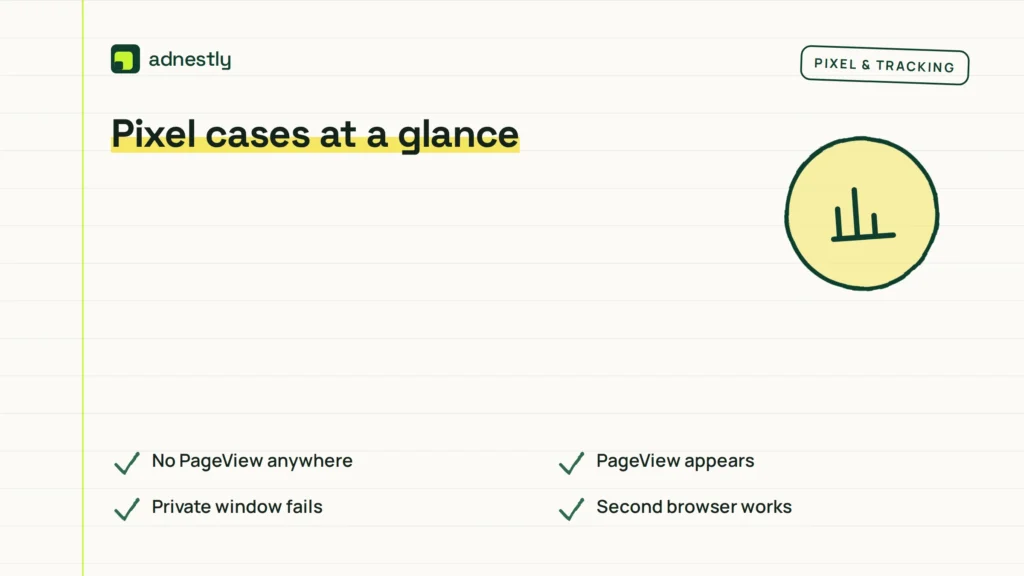
The right fix depends on what Events Manager shows and where the test stops.
| Situation | What to do | What it takes | What to watch for |
|---|---|---|---|
| No PageView anywhere | Check ID and plugin | Admin access | Wrong dataset |
| PageView appears | Test the missing event | Test form path | Event trigger |
| Private window fails | Accept marketing consent | Fresh browser | Consent blocking |
| Second browser works | Review extensions | Two browsers | Ad blocker filtering |
| Changes don’t appear | Clear active caches | Cache access | Stale page copy |
| Duplicate events appear | Disable duplicate connector | Plugin settings | Double counting |
| Custom checkout fails | Ask its developer | Checkout access | Separate domain |
Details that improve pixel checks
Check the setup before changing it
Experienced troubleshooting starts with one known dataset and one public page. Write down the pixel ID, test URL, browser used, consent choice, and event name. That record prevents you from switching between two pixels and treating different results as a single test.
Check the base event before a conversion event. If the page view arrives but a form lead does not, the problem is narrower than a fully missing installation. Compare the exact form URL, button action, and success message rather than clicking around the site at random.
Leave working parts alone
Don’t install a second pixel plugin because the first one looks quiet. Duplicate base codes can send duplicate PageView or conversion events, which can distort campaign reporting and make later diagnosis harder.
Don’t edit theme files, minify tracking code, or add custom JavaScript while the cause is unknown. If a change could remove the site header, break a checkout, or affect consent records, export or record the original setting first and hand the change to a WordPress developer.
The trade-off is speed versus clean evidence. A private browser test is quick, but it can hide consent behaviour; a normal browser shows the real visitor path, but extensions and saved choices can confuse the result.
Pixel symptoms and first fixes

Start with the symptom you can see in Events Manager or in the browser. A symptom proves what happened, not always why it happened.
| What you notice | What it usually means | What to do first | How to stop it happening again |
|---|---|---|---|
| No PageView event | Code isn’t reaching page | Check plugin and consent | Keep one connector |
| PageView, no Lead | Form trigger fails | Test success path | Map the real form |
| Purchase shows twice | Duplicate event sources | Review active plugins | Remove duplicate tracking |
| Events show wrong domain | Staging or redirect issue | Check tested URL | Use one live domain |
| Browser test stays empty | Tool blocks requests | Try clean browser | Document test conditions |
| Old pixel receives data | Wrong ID remains active | Compare both IDs | Remove old integration |
| Event arrives late | Cache or reporting delay | Retest later | Clear active caches |
Rules for Meta tracking
Meta’s tracking rules depend on the tool, event, consent choice, account, and country. Meta Business documentation describes the pixel as website code used to send web events to Meta, so the code must load on the page before a browser event can be received. Read Meta Pixel documentation for the current setup and event requirements.
Privacy rules can change by location. In the European Economic Area and other jurisdictions, consent and online advertising requirements may apply differently from rules in the United States. Your consent platform’s settings, privacy notice, and local legal advice decide whether tracking may load before a visitor agrees.
WordPress plugins also have their own version and permission limits. If a plugin asks for administrator access, changes checkout code, or controls consent categories, follow its official documentation rather than copying code from an unknown site.
Stop DIY work when the fix requires editing a payment flow, changing consent logic, or handling personal data without knowing the applicable rule. Ask a WordPress developer or privacy professional to review it.
The real cost of a broken pixel
The direct cost may be zero if the wrong setting is inside an existing WordPress plugin. The larger cost is lost campaign data, incorrect conversion reporting, and time spent testing the same page with different browsers.
Time rises when the site has several caches, a consent banner, a custom checkout, or more than one tracking connector. Count the active plugins that mention Meta, Facebook, analytics, tags, or conversions; each one is a possible event source to compare.
A developer may be needed for custom forms, iframe checkouts, or code inside a child theme. Compare the developer’s quote with the value of accurate conversion data and the risk of changing a working checkout.
Don’t judge the cost by whether PageView appears. A working PageView with missing Purchase events can still make advertising decisions unreliable. Check the events that your campaigns actually optimise for.
Keep the pixel working
Record the active pixel ID, connected WordPress plugin, consent tool, and tested URLs after the fix. Keep that note with the site’s maintenance records, so a future plugin change doesn’t create a second installation.
Test again after a theme change, checkout change, consent-banner change, or tracking-plugin change. The sign of a new problem is a missing PageView, a missing conversion event, duplicate events, or an event linked to the wrong domain.
If PageView works but a named conversion stops, don’t start over. Check the changed form, button, thank-you page, redirect, or checkout first, then ask the developer who changed that part of the site.
The value you can trust varies by event type, browser, consent choice, and reporting delay; read your own result from the matching test event in Events Manager, not from one blocked browser.
When this pixel method is wrong
This approach isn’t enough for a custom checkout on another domain. Ask the checkout provider or developer to verify cross-domain tracking and the event sent after payment.
It’s also the wrong route when your only issue is campaign attribution, not missing browser events. Review campaign settings and attribution options in Meta Business Suite instead of reinstalling the pixel.
Don’t use DIY changes for a consent system that may violate local privacy rules. Ask a privacy professional, and have a WordPress developer apply any approved technical change.
If the site breaks after a plugin change, restore the last known working setting through your host or WordPress administrator. Don’t edit production theme or payment files without a backup and someone who can recover the site.
Related guides
- Meta Pixel Not Working on Squarespace: How to Fix It
- Meta Pixel Not Working on WooCommerce: How to Fix It
Frequently asked questions
Can a WordPress cache stop the Meta Pixel?
Yes, a stale cached page can keep an old tracking setting after you save a new one. Clear the WordPress, hosting, and CDN caches you control, then test the live URL in a fresh private window. If the old ID still appears, check the active connector.
Why is my Meta Pixel not showing events?
The usual causes are a wrong pixel ID, missing consent, an ad blocker, cached HTML, or a trigger that never runs. First check PageView in Events Manager. If PageView works, test the missing Lead, Purchase, or registration action separately.
How long does Meta Pixel testing take?
A basic PageView test should take one page visit when the browser allows tracking and the correct dataset is open. A conversion test takes longer because you must complete the real form or checkout path safely. Reporting can vary, so use Meta’s test-events view for immediate checking.
Is it safe to install the Meta Pixel twice?
No, duplicate installations can send duplicate events and distort reporting. Check every WordPress plugin, theme setting, tag manager, and custom code area that mentions Meta or Facebook. Keep one intentional browser-side setup unless a documented advanced configuration requires more.
What happens if I use the wrong pixel ID?
Events go to the wrong Meta dataset, so the expected account may look inactive while another dataset receives data. Compare the ID in WordPress with the ID in Events Manager, then remove the old connection only after confirming which dataset your campaigns use.
Does consent matter for Meta Pixel tests?
Yes, consent settings can prevent the pixel from loading before a visitor agrees to marketing or advertising cookies. Test the banner’s allowed path in a fresh browser, and follow the site notice and local requirements rather than forcing the script to load.
Can an ad blocker hide a working Meta Pixel?
Yes, browser extensions can block tracking requests or hide them from testing tools. Repeat the check in a clean browser profile. If the event appears there, don’t reinstall the WordPress integration; review the first browser’s extensions and privacy settings.
What to do with the pixel first
Start by matching the WordPress pixel ID to the dataset in Meta Events Manager, then test PageView in a clean browser with the site’s required consent. A working result is a matching test event; stop and get a WordPress developer when the issue reaches custom checkout, consent code, or production files.

Aaron Kelly writes about Facebook tools, account management, and business advertising. His content covers account security, Facebook Ad Accounts, Business Manager setup, Pixel and conversion tracking, Business Manager verification, and admin profile verification. He focuses on explaining technical processes and common account issues in practical terms, helping businesses and advertisers manage their Facebook assets more effectively and build a more secure, reliable advertising setup.
Checked against Meta’s own documentation. How we write and update guides