Purchase Facebook Event Not Tracking on Kajabi: Causes and Fixes

When you launch a new offer and realize your purchase event not tracking on Kajabi, every minute without accurate data costs you money. You can’t optimize ads, measure funnel performance, or calculate return on investment when conversions go unrecorded. This guide breaks down the exact reasons your checkout data is missing and provides actionable steps to restore full visibility into your sales pipeline immediately.
$ part ofMeta Pixel Not Working? How to Fix Tracking on Any PlatformThe complete guide this article belongs toOpen guide →Key Takeaways
- Verify that your Meta Pixel or Google Ads tag is installed in the correct header section within your Kajabi site settings, not just on individual landing pages.
- Ensure the native Kajabi analytics integration is toggled on inside your marketing settings before relying on third-party scripts for conversion reporting.
- Test every checkout flow using an incognito browser window with all ad-blocking extensions disabled to confirm the pixel fires correctly upon payment completion.
- Check that your checkout page hasn’t been duplicated or replaced by a draft version that lacks the necessary tracking parameters or script injections.
- Confirm that your payment processor, such as Stripe or PayPal, is successfully completing the transaction, as failed charges will never trigger a success event.
- Use diagnostic tools like Meta Pixel Helper to identify whether the specific event name matches what your advertising platform expects to receive.
Why Your Purchase Event Fails
A purchase event represents the final step in your digital sales funnel, signaling that a customer completed a transaction. When this signal drops, your entire attribution model collapses. The root causes usually fall into technical misconfigurations rather than platform outages. Understanding these specific failure points helps you diagnose the issue faster without guessing or submitting unnecessary support tickets that take days to resolve.
The most frequent culprit involves script placement errors. If a tracking code sits in the body of a page instead of the global header, it may load after the user navigates away from the thank-you page.
Another common issue stems from duplicate pixels, where multiple instances of the same tracking code conflict with each other, causing the browser to drop the event entirely. Finally, strict browser privacy settings can block third-party cookies, preventing standard client-side tracking from executing properly during the checkout sequence.
Misconfigured Tracking Scripts
If your tracking script contains a typo in the pixel ID, no data will ever reach your dashboard. Copying and pasting codes from older campaigns often introduces hidden characters or outdated identifiers that fail silently. Always pull fresh code directly from your ad manager to ensure accuracy.
Browser Privacy Restrictions
Modern browsers like Safari and Firefox enforce strict Intelligent Tracking Prevention protocols. These built-in privacy features aggressively block third-party cookies and cross-site tracking scripts, which means standard client-side pixels frequently fail to register a conversion if the user has default privacy protections enabled on their device.
Causes of Missing Purchase Data
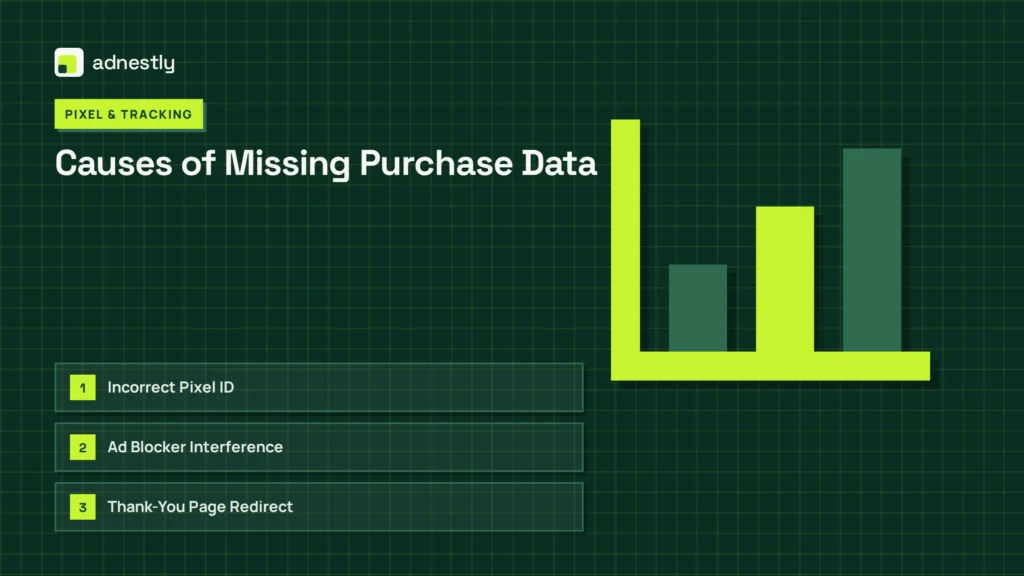
Identifying the exact cause requires a systematic review of your setup. Below is a breakdown of the most common reasons your sales data goes missing, along with the specific components involved. Reviewing this table will help you isolate the variable responsible for your broken tracking pipeline.
| Cause | Component Affected | Impact Level |
|---|---|---|
| Incorrect Pixel ID | Meta Pixel / Google Tag | Complete data loss |
| Ad Blocker Interference | Browser Extensions | Partial data loss |
| Thank-You Page Redirect | Checkout Flow | Complete data loss |
| Outdated Script Version | Header Code Injection | Inconsistent firing |
| Payment Gateway Failure | Stripe / PayPal Integration | No event generated |
Each of these issues requires a different approach to resolve. A wrong Pixel ID means you must replace the code entirely, while an ad blocker issue requires educating your team on how to test properly. A redirect problem means your checkout flow needs structural adjustment so the user actually lands on the page containing the conversion script.
Warning: Never assume the platform is broken before auditing your own custom code. Third-party scripts added through the header injection feature are the leading cause of broken checkouts, as a single syntax error in JavaScript can halt all subsequent scripts from loading on the page.
How Do I Fix Kajabi Tracking?
Restoring your conversion data requires moving through a structured troubleshooting process. Start with the simplest checks before modifying any core settings or rewriting code. Rushing to complex solutions often creates new problems that compound the original issue, making it even harder to determine why your sales aren’t registering in your analytics dashboards.
First, verify your native integrations. Kajabi offers built-in connections for major platforms. Navigate to your settings and confirm these toggles are active. Second, clear your browser cache. Stale cookies often prevent updated scripts from executing. Third, test the checkout yourself using a 100% off coupon code to simulate a real transaction without charging your credit card. Watch the network tab in your browser’s developer tools to see if the pixel request transmits successfully.
Step-by-Step Diagnostic Process
Follow this schedule to systematically eliminate potential issues. Taking these steps in order prevents you from wasting time on advanced fixes when a basic setting was simply turned off.
| Step | Action | Tool Required |
|---|---|---|
| 1 | Verify Pixel ID matches ad account | Meta Events Manager |
| 2 | Check global header code injection | Kajabi Site Settings |
| 3 | Disable all browser extensions | Chrome Incognito Mode |
| 4 | Complete a test transaction | 100% Off Coupon Code |
| 5 | Inspect network requests for tags | Chrome Developer Tools |
By following this sequence, you isolate whether the problem lives in your Kajabi settings, your browser environment, or the advertising platform itself. If the test transaction fires the pixel in incognito mode but not in your regular browser, you have identified an extension conflict. If it fails everywhere, the script itself is flawed or improperly installed.
Is My Pixel Installed Correctly?
Many creators paste their base pixel code onto individual landing pages but forget that the purchase event must fire on the post-checkout thank-you page. If your base code is missing from the global settings, the specific event code on the thank-you page has nothing to attach to, resulting in total silence in your analytics dashboard regardless of how many sales you generate.
To verify installation, navigate to your website settings and locate the header code injection area. Ensure your primary tracking script resides here. Next, visit your live site, right-click, and select “View Page Source.” Search for your unique pixel identifier. If it appears, the foundation is solid. If it does not, your script is either placed in the wrong field or blocked by another conflicting application running on your storefront.
Pro Tip: Use the Meta Pixel Helper Chrome extension to instantly verify if your pixel loads. When you complete a test purchase, the extension should display a green checkmark next to the “Purchase” event, confirming the data packet was sent to the server with the correct parameters and currency values attached.
Checking Native Kajabi Integrations
Before relying on manual code injection, explore the built-in tools provided by the platform. Kajabi supports direct integrations with several major marketing services, eliminating the need to manage raw JavaScript. These native connections are generally more stable because they update automatically when the platform modifies its underlying checkout architecture or changes how order confirmation pages render.
Navigate to your marketing settings and look for the integrations tab. Here, you can connect accounts directly via API keys or OAuth authentication. When you use a native integration, the platform handles the event mapping for you. It automatically translates a successful charge into the correct standardized event name expected by your advertising network, reducing the risk of formatting errors or mismatched parameter names.
Supported Platforms and Setup
Different networks require different connection methods. Relying on manual code for platforms that offer native support introduces unnecessary risk.
| Platform | Integration Method | Event Tracked |
|---|---|---|
| Facebook/Meta | Native Marketing Settings | Purchase, Lead |
| Google Analytics | Header Code / Native | Ecommerce Transaction |
| TikTok | Manual Header Code | Complete Payment |
| Manual Header Code | Checkout |
If your preferred network isn’t listed as a native option, you must rely on manual code injection. In these cases, ensure you’re using the most current event schema provided by the network’s official developer documentation. Using deprecated event names will result in data being received but ignored by the algorithm optimizing your campaigns. For detailed instructions on connecting external services, refer to Kajabi’s official help documentation regarding marketing integrations and tracking setups.
Are Ad Blockers Breaking Events?
Ad blockers represent a persistent challenge for digital marketers. Extensions like uBlock Origin, AdBlock Plus, and Ghostery actively intercept and block requests to known tracking domains. If you or your testers use these extensions, you’ll falsely conclude that your checkout tracking is broken when it’s merely being filtered locally by your own web browser software.
This issue extends beyond testing. A significant portion of your actual audience likely uses privacy extensions, meaning client-side tracking will always miss a percentage of real revenue. While you can’t force customers to disable their privacy tools, you must ensure your internal testing environments are completely clean. Always conduct diagnostic tests in a fresh browser profile devoid of any filtering extensions to get an accurate read on your setup.
Mitigating Client-Side Blocking
To combat lost data from browser restrictions, many businesses are shifting toward server-side tracking. Instead of relying on the customer’s browser to send the pixel request, your server sends the data directly to the advertising network. This bypasses local ad blockers entirely, though it requires more advanced technical configuration outside of standard platform settings and typically relies on dedicated conversion APIs.
Testing Your Checkout Conversion Flow
Testing isn’t optional; it’s the only way to guarantee your fix worked. A visual inspection of your settings can’t confirm that data actually reaches your ad manager. You must execute a live transaction using a test payment method to observe the complete lifecycle of the tracking event from the initial click to the final confirmation screen rendering.
Create a 100% off coupon code specifically for diagnostic purposes. Open an incognito window to ensure no cached data interferes with the test. Click through your sales page, add the product to your cart, apply the coupon, and complete the checkout process. Once you land on the thank-you page, immediately check your ad platform’s real-time event manager. Look for the incoming purchase signal and verify that the transaction value matches expectations.
Validating Event Parameters
Firing the pixel is only half the battle. The data payload must be accurate. If your event fires but reports zero revenue, your optimization algorithms will fail. Check that the currency code, transaction ID, and total value parameters are passing correctly. A missing transaction ID can lead to duplicate counting if a user refreshes the thank-you page, artificially inflating your reported conversion metrics.
What About Server-Side Tracking?
As browser privacy regulations tighten globally, client-side pixels become increasingly unreliable. Server-side tracking, often referred to as a Conversions API, moves the responsibility of sending data from the visitor’s browser to your hosting server. This method ensures that ad blockers and cookie restrictions don’t interfere with your ability to record a completed sale accurately in your advertising accounts.
Implementing server-side tracking on hosted platforms can be complex because you don’t have direct access to the backend infrastructure. However, some platforms are beginning to roll out native support for these APIs. If available in your settings, enabling a server-side integration provides a redundant layer of data collection. When the browser pixel fails due to privacy blocks, the server-side event still registers the transaction securely.
Troubleshooting Custom Code Injections
If you rely on custom JavaScript to fire events, syntax errors are inevitable over time. A missing semicolon, an unclosed bracket, or a reference to an undefined variable will crash the entire script block. When custom code breaks, it often fails silently, leaving you unaware that your event tracking has stopped functioning until you notice a severe drop in reported campaign performance.
Review any custom scripts added to your header or footer injection areas. If you recently added new code for a different tool, it might be conflicting with your existing tracking scripts. Temporarily remove all non-essential custom code and run a test purchase. If the native tracking works perfectly without the extra scripts, reintroduce them one by one to identify the specific snippet causing the fatal JavaScript error.
Warning: Avoid placing tracking scripts inside HTML text boxes on individual pages. These fields are designed for visual content, not executable code. Scripts placed here often get stripped out by the platform’s security filters or fail to execute at the correct time during the page load sequence, resulting in missed events.
Preventing Future Tracking Failures
Fixing the immediate problem is critical, but establishing maintenance routines prevents future revenue blind spots. Tracking systems degrade over time as platforms update their codebases, browsers change privacy policies, and advertising networks deprecate old event formats. Proactive monitoring ensures you catch discrepancies before they impact your advertising budgets and overall business decision-making capabilities.
Schedule a monthly audit of your checkout flow. Run a test transaction and verify that all connected platforms receive the expected data. Keep a documented log of any changes made to your site’s header code or marketing settings. If a tracking failure occurs immediately after a site update, this log allows you to quickly revert to a working state without spending hours hunting for the newly introduced error.
Maintaining Clean Analytics
Ensure your team understands the difference between testing traffic and real customer traffic. Internal purchases used for diagnostics can pollute your data if not filtered out properly. Establish dedicated testing protocols that exclude internal IP addresses or use specific coupon codes that your analytics platform is configured to ignore when calculating total revenue and average order value metrics.
Frequently Asked Questions
Why is my Kajabi pixel not firing?
Your pixel likely fails to fire due to incorrect placement in the site settings, a typo in the unique pixel identifier, or interference from browser ad blockers. Verify the code exists in the global header injection area and test the checkout process using an incognito browser window with all extensions temporarily disabled.
Does Kajabi track purchases automatically?
Yes, Kajabi tracks internal sales natively within its own analytics dashboard automatically. However, sending that purchase data to external advertising platforms like Meta or Google requires you to manually configure native integrations in the marketing settings or install custom tracking scripts in your site header.
How do I test a purchase event?
Generate a 100% off discount code within your offers tab. Open an incognito browser window, navigate to your checkout page, apply the code, and complete the order. Immediately check your advertising platform’s real-time event manager to confirm the purchase signal arrived with the correct parameters.
Can ad blockers stop conversion tracking?
Yes, popular extensions like uBlock Origin and AdBlock Plus actively intercept and block requests to known tracking domains. This prevents client-side pixels from firing. To test your setup accurately, you must disable these tools. For long-term reliability, consider implementing server-side tracking solutions.
Where do I put tracking code in Kajabi?
Global tracking codes belong in the site-wide header injection area found under your website settings. Placing scripts here ensures they load on every page, including the critical post-purchase thank-you page. Avoid inserting executable scripts into standard text blocks or individual page builders.
Why did my tracking suddenly stop working?
Sudden failures usually stem from recent changes. You or a team member may have altered the header code, overwritten a native integration, or updated a checkout page template. Additionally, advertising networks occasionally deprecate older event formats, requiring you to update your script to match current specifications.
Conclusion
Once you have verified your pixel installation and successfully completed a test transaction, monitor your ad manager closely for twenty-four hours to ensure live customer data flows correctly. Bookmark your header code injection settings page so you can perform quick audits whenever you launch a new offer or modify your checkout experience.

Aaron Kelly writes about Facebook tools, account management, and business advertising. His content covers account security, Facebook Ad Accounts, Business Manager setup, Pixel and conversion tracking, Business Manager verification, and admin profile verification. He focuses on explaining technical processes and common account issues in practical terms, helping businesses and advertisers manage their Facebook assets more effectively and build a more secure, reliable advertising setup.
Checked against Meta’s own documentation. How we write and update guides