Meta Pixel Not Working on Kajabi: How to Fix It

A meta pixel not working on Kajabi usually comes down to a wrong ID, a missing setting, or a browser extension blocking the signal. The fix takes under five minutes once you know which of those three is causing it. You’ll check your Pixel ID, confirm the integration inside Kajabi’s settings, and test it with Meta’s own helper tool.
$ part ofMeta Pixel Not Working? How to Fix Tracking on Any PlatformThe complete guide this article belongs toOpen guide →The exact steps change depending on whether you’re using Kajabi’s built-in field or a third-party tag manager. Your browser’s privacy settings also decide what the testing tool actually sees. These are the conditions that shape everything below.
Who needs this Kajabi pixel fix
Three different people type this problem into a search bar. The first just pasted their Pixel ID into Kajabi’s settings and saw zero events in Events Manager. They need the basic checklist to find the typo or the missed toggle.
The second runs a course site with checkout pages, upsells, and custom landing pages. Their base code fires, but purchase events don’t show up. They need to understand Kajabi’s dynamic event data handling and where the gap opens.
The third uses a tag manager like Google Tag Manager instead of Kajabi’s native field. They’ve got two codes fighting each other, and nothing tracks properly. They need to pick one method and remove the other.
This page serves the first two readers best. If you’re running a complex multi-domain setup with server-side tracking, you’ll need a developer who works with the Conversions API. The rest of this assumes you’re using Kajabi’s standard built-in integration field and checking results inside Meta Events Manager.
What controls your tracking
Four things decide if your events reach Meta. Get any one wrong, and the dashboard stays empty even when the code sits perfectly in your page source.
Your Pixel ID is the most common failure point. It’s a string of numbers found in Events Manager under Settings. Copying the ad account ID instead of the Pixel ID sends data nowhere. Check yours by opening Events Manager, clicking your pixel, and reading the number at the top of the settings tab.
Kajabi’s integration field must hold only that number. Pasting the full JavaScript snippet there breaks the connection because the platform already wraps your ID in its own code. Go to Settings, then Integrations, and make sure the box contains digits alone.
Browser extensions block tracking scripts before they load. Ad blockers and strict privacy tools stop the pixel from firing at all. Test your site in an incognito window with every extension turned off to see if this is your issue.
Meta’s Aggregated Event Measurement limits which events process after iOS 14.5. If your domain isn’t verified in Business Settings, or your eight allowed events aren’t configured, purchases won’t register even when the pixel fires. Verify your domain inside Brand Safety settings to clear this hurdle.
Of these four, the ID mix-up happens most often. People grab the wrong number from the dashboard and wonder why nothing tracks.
Finding the broken link in Kajabi
You don’t need to edit code to diagnose this. These checks use only your browser and the dashboards you already log into.
- Open Meta Events Manager and click your pixel. Copy the numeric ID shown at the top of the settings screen.
- Log into Kajabi. Navigate to Settings, then Integrations. Find the Facebook Pixel field.
- Delete everything in that field. Paste only the numeric ID you copied. Save the changes.
- Install the Meta Pixel Helper extension for Chrome. Pin it to your toolbar.
- Open an incognito window. Visit your Kajabi homepage and click through to a product page.
- Click the Pixel Helper icon. Look for a green checkmark next to “PageView” or “ViewContent”.
- Return to Events Manager. Click “Test Events” and enter your website URL. Reload your page while this tab stays open.
- Watch the Test Events tab. A successful fire shows your event name and a timestamp within seconds.
If the helper shows red, or the test tab stays blank, your ID was wrong or the field contained extra characters. If the helper shows green but the test tab stays empty, a browser setting or ad blocker is catching the signal locally.
Stop here if your site uses a custom checkout domain you don’t control, or if you’re trying to track events across a separate non-Kajabi app. Those setups require a developer to configure server-side tracking. Don’t attempt to inject custom scripts into Kajabi’s checkout flow yourself.
Situations that change the fix
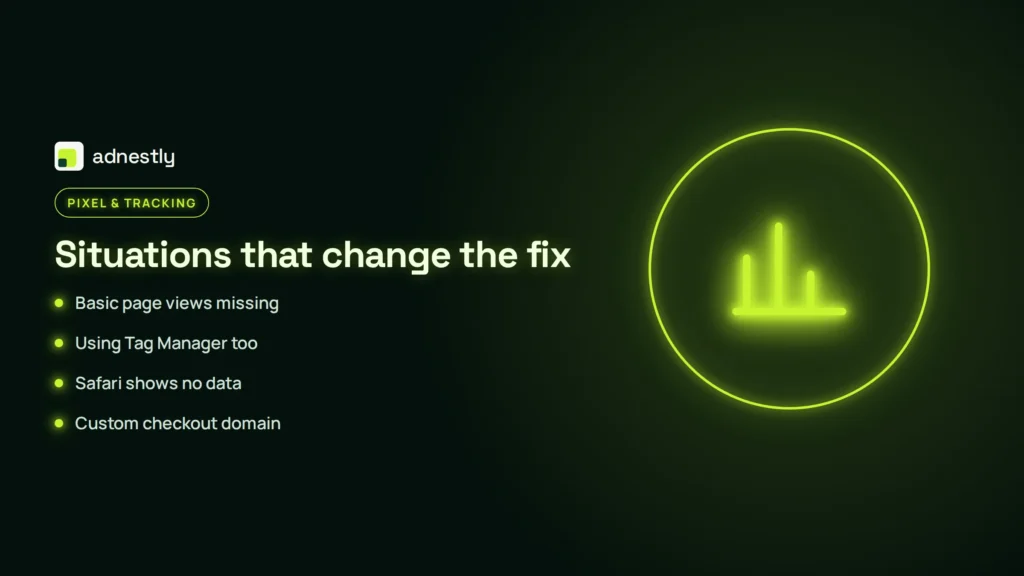
Different setups demand different actions. Here’s how the main scenarios break down.
| Your situation | What to do | What it takes | What to watch for |
|---|---|---|---|
| Basic page views missing | Replace ID with numbers only | Two minutes | Extra spaces around digits |
| Using Tag Manager too | Remove Kajabi’s native ID | Five minutes | Double counting events |
| Safari shows no data | Test in Chrome incognito first | Three minutes | Apple’s tracker blocking |
| Custom checkout domain | Add pixel via checkout instructions | Fifteen minutes | Domain mismatch errors |
| Just created the pixel | Wait up to 20 minutes | Twenty minutes | Dashboard caching delay |
Each row solves one specific symptom. Don’t apply the Tag Manager fix if you’re only using Kajabi’s built-in field. Match your actual setup to the right action before changing anything.
Details that keep events flowing
Where the ID belongs
Kajabi gives you a dedicated field for the numeric ID. Putting the full script there creates broken HTML that browsers refuse to run. The field lives under Settings > Integrations.
It accepts only digits. A stray space before or after the number stops the whole thing. Highlight the entire box contents before pasting to ensure you delete old characters completely.
If you use a tag manager, leave Kajabi’s field entirely blank. Running both methods fires every event twice. That inflates your numbers and ruins your ad optimization. Pick one path and stick to it.
Reading the test signals
The Test Events tab in Events Manager shows reality. The main overview dashboard delays data by up to three hours. Never judge a fresh fix by the overview graph.
A green light in the browser extension means the code loaded. But it doesn’t guarantee Meta accepted the event. Only the Test Events tab confirms the signal reached their servers.
Watch the timestamps as you click. Each action should appear within five seconds. If events queue up and drop in batches, a consent banner might be holding them back until someone clicks accept.
When tracking fails on Kajabi
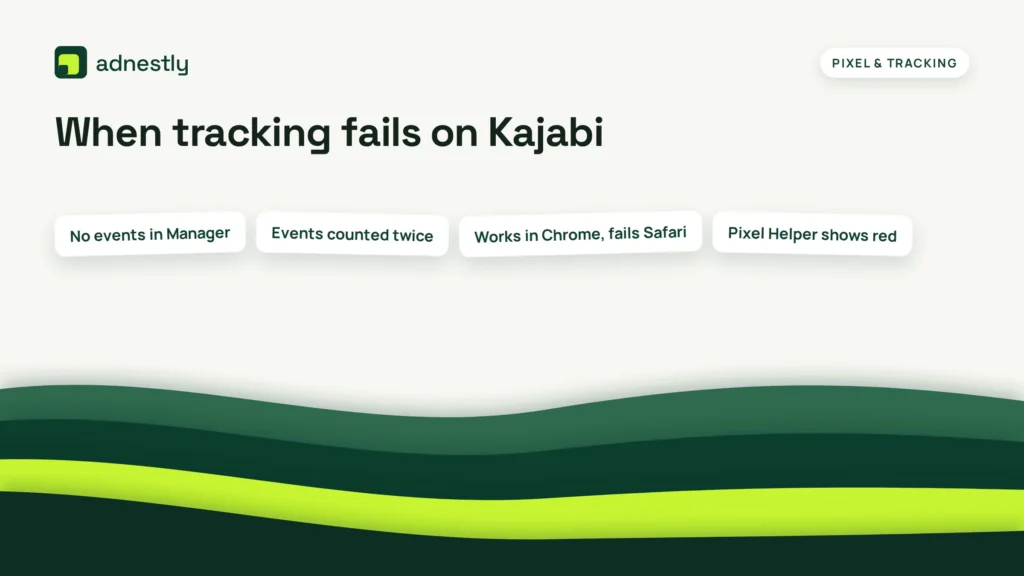
Use this table to match the symptom you see to the action that fixes it.
| What you notice | What it usually means | What to do first | How to stop it happening again |
|---|---|---|---|
| No events in Manager | Wrong ID or blocked script | Check Integration field | Copy ID directly from Events Manager |
| Events counted twice | Two tracking methods active | Remove one integration | Audit tags after every update |
| Works in Chrome, fails Safari | Browser privacy blocking | Use Advanced Matching | Turn on automatic matching |
| Pixel Helper shows red | Code syntax error in field | Clear field, paste digits | Never paste full script tags |
| Data stops after update | Theme change removed header | Recheck integration settings | Test after every design change |
Read down the left column to find your symptom. Follow the “What to do first” column for your immediate fix. The last column tells you how to prevent it next time.
Limits set by Meta and Kajabi
Two platforms control what you’re allowed to do here. Meta enforces data rules; Kajabi controls where code can live.
Apple’s App Tracking Transparency framework changed how pixels collect data. In response, You manage this inside Business Settings under Brand Safety.
Kajabi restricts header script access on certain pages. Checkout pages run on a secured subdomain. You can add your Pixel ID in the checkout settings area, but you can’t inject custom JavaScript directly into the payment form itself. This protects buyer data and keeps the platform PCI compliant.
Don’t try to bypass Kajabi’s checkout restrictions with third-party scripts. Modifying the payment flow violates their terms and risks suspending your store. If you need deeper checkout tracking than the native field allows, hire a developer certified in Meta’s Conversions API. That method sends data from your server instead of the browser, staying within both platforms’ rules.
Time and effort required
Fixing this costs minutes, not money. The real expense is lost ad data while the pixel sits broken. Every hour without tracking means your campaigns optimize on incomplete information.
If you have the correct ID ready, clearing the field and repasting takes about two minutes. Verifying your domain in Business Manager adds another ten, assuming you have admin access and can update DNS records or upload an HTML file.
The cost goes up when you don’t know which part failed. Spending an hour swapping IDs when the real problem is an unverified domain wastes time. Start with the Pixel Helper test. It tells you instantly if the code loads. Then check Test Events. That sequence prevents guessing.
Third-party help costs money. A freelancer configuring server-side tracking charges based on current rates you’ll need to look up yourself. Don’t pay anyone just to paste a number into a box. That’s the job you’re doing right now.
Keeping your connection alive
Kajabi updates its platform frequently. A theme change or a core update can sometimes reset integration fields or alter how headers load.
Check your Test Events tab after publishing any new page template. You don’t need a schedule for this. The trigger is the action: if you changed the design, verify the tracking.
Keep your Pixel ID stored somewhere outside Kajabi. A password manager or a secure note works well. If the field ever empties out, you won’t have to dig through Business Manager to find the number again.
Watch for warning triangles in Events Manager. Meta flags diagnostic issues like missing parameters or low match quality. These warnings tell you the pixel fires but sends incomplete data. Fixing them usually means turning on Advanced Matching in your settings.
If your events suddenly drop to zero without any changes on your end, check Meta’s status page. Platform outages happen, and chasing a ghost in your settings during one wastes your afternoon.
When this approach won’t work
Not every tracking problem gets solved by pasting an ID into a box. Some situations need a completely different path.
If you run your checkout on a separate WordPress site or a custom app, Kajabi’s integration field won’t track those sales. You need to install the pixel directly on that external platform using its own documentation.
If you sell high-ticket coaching and rely on offline bank transfers, a browser pixel will never capture the final sale. You need Meta’s Offline Events tool or a CRM integration that pushes completed deals back to your ad account manually.
If your business operates in a region with strict consent laws requiring explicit opt-in before any tracking loads, the default pixel fires too early. You’ll need a consent management platform that blocks the pixel until a visitor clicks accept. Setting up conditional loading based on legal consent requirements often demands a developer familiar with both your local regulations and Kajabi’s liquid templates. Don’t guess at compliance rules.
Frequently asked questions
Why is my Meta Pixel not firing on Kajabi?
A wrong ID or a full script pasted into the number field causes this. Open Settings, then Integrations, and ensure only digits sit in the Facebook box. Run the browser extension in an incognito window to confirm it loads.
Can I use Tag Manager instead of Kajabi’s field?
Yes, but leave Kajabi’s native field completely blank. Running both methods fires every event twice. That doubles your reported traffic and ruins ad optimization. Pick one system and stick with it.
How long does it take for events to appear?
The Test Events tab shows fires within five seconds. Always use the test tab to verify a fresh fix instead of waiting for the main graph.
Is it safe to put my Pixel ID in Kajabi?
Yes, the ID is public information meant for website headers. Anyone visiting your site can view it in the page source. Never put your ad account password or secret API keys in that field.
What happens if I don’t verify my domain?
Meta won’t process purchase events for unverified domains due to iOS privacy rules. You must verify your site inside Business Settings under Brand Safety. Without it, your pixel tracks views but misses revenue.
Does Safari block the pixel on my courses?
Safari’s Intelligent Tracking Prevention limits cookie lifespans and blocks some cross-site signals. Turn on Advanced Matching in Events Manager to hash customer emails. This recovers data that browser privacy features would normally strip away.
Do I need a new pixel for each product?
No, one pixel tracks your entire domain. You differentiate products by the events they fire, like ViewContent with specific content IDs. Creating multiple pixels for one site splits your data and weakens your ad targeting.
Will updating my Kajabi theme break tracking?
It can. Theme updates occasionally overwrite header settings or change page structures. Always open the Test Events tab immediately after publishing a new design to confirm your events still register correctly.
Your first step for Kajabi tracking
Open your Kajabi integrations page right now and compare the digits there against your Events Manager settings. You should see events appear in the test tab within five seconds of refreshing your site. If the test tab stays completely blank after confirming the ID matches exactly, contact Meta support through your Business Help Center.

Aaron Kelly writes about Facebook tools, account management, and business advertising. His content covers account security, Facebook Ad Accounts, Business Manager setup, Pixel and conversion tracking, Business Manager verification, and admin profile verification. He focuses on explaining technical processes and common account issues in practical terms, helping businesses and advertisers manage their Facebook assets more effectively and build a more secure, reliable advertising setup.
Checked against Meta’s own documentation. How we write and update guides